You can configure the segment insights dashboard—adding up to 10 specific widgets. By default, your first dashboard is assigned as the default dashboard until you set another one to override it.
Up to 20 segment insights dashboards can be created for a parent segment.
Open TD Console.
Navigate to Audience Studio.
Select the Parent Segment you want and open the root directory.
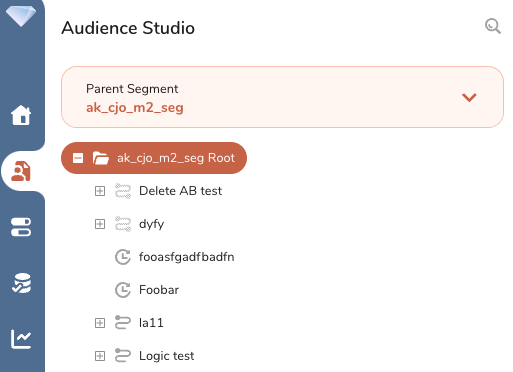
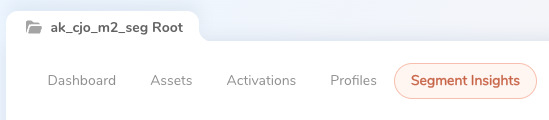
Select the Segment Insights tab.
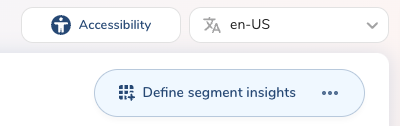
Select Define Segment Insights.
Type in the name of your new dashboard and, optionally, add a description.
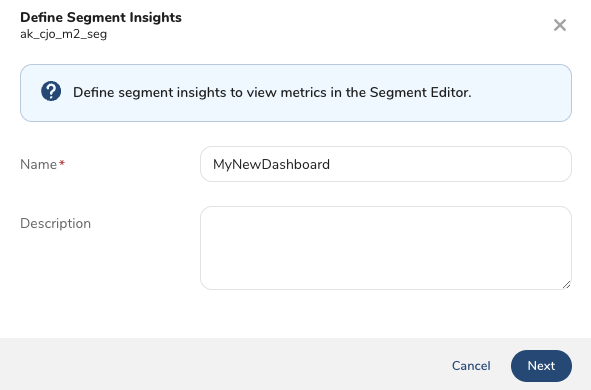
Select Next.
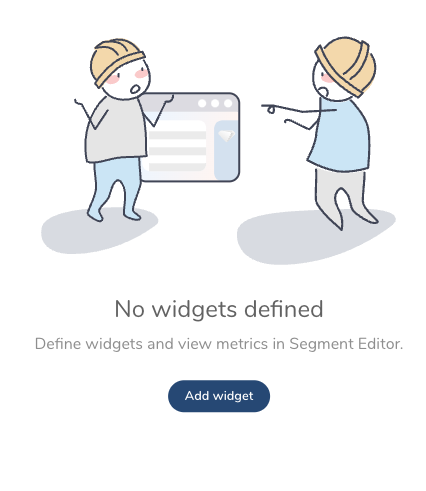
Before you can view metrics, you must define widgets by adding them to your dashboard. Select Add widget.
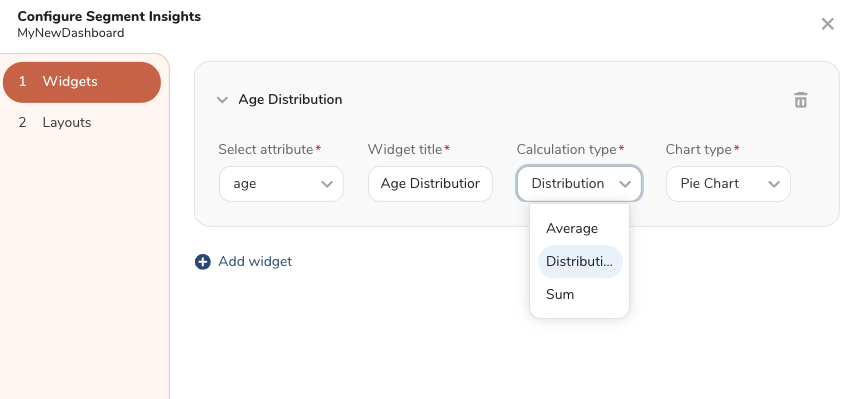
You can begin to define the new widget in your dashboard by selecting its attribute, giving it a title, and selecting its calculation and chart types, where applicable.
Learn more about Configuring Widgets.
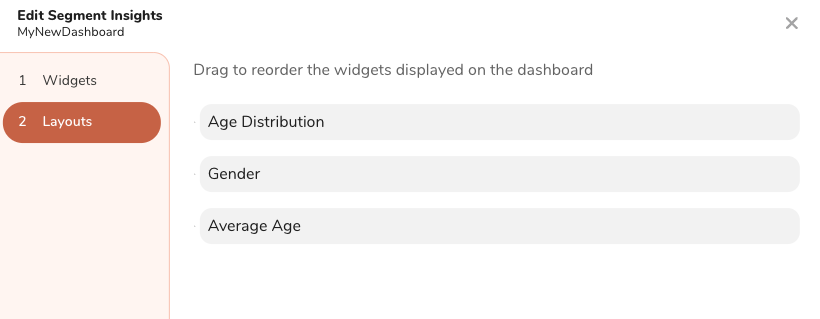
After you've added your widget(s), you can view and reorder the defined widgets.
Select Publish and set as default if this is the first dashboard you have defined in this parent segment. After publishing, your new dashboard is ready to be used in the Segment Editor.