When a journey workflow starts running on one day and completes the next day, there will be a lag of one day in the statistics/metrics displayed in the Journey editor canvas.
There are three journey statuses:
- Draft Journey : The journey is inactive, with no profile movement and no activations started.
- Launched Journey : The journey is live; profiles progress after the parent segment refreshes. Additionally, activations are started on a daily schedule.
- Paused Journey: The journey is inactive, with no profile movement and no activations started. You can only pause a Live journey.
After creating a journey, you can go back and change it.
- Navigate to Audience Studio.
- Select the journey you want to change.
- Review the following table to understand the actions you can take to draft, live, and paused journeys.
| Draft Journey | Live (Launched) Journey | Paused Journey | Action | UI Interaction |
|---|---|---|---|---|
| X | X | X |
| Select ( ) in an open journey to edit details. ) in an open journey to edit details. 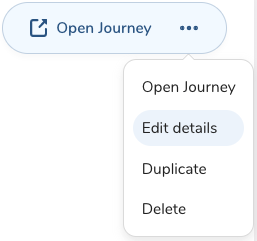 |
| X | Change stages names | Select () in an open journey to edit details. | ||
| X | Add, delete, or reorder stages | Select () in an open journey to edit details. | ||
| X | Define stale profile re-entry criteria | Select () in an open journey to edit details. | ||
| X | Create journey stage paths |  | ||
| X | Add events | |||
| X | Drag and drop journey rules into different stage paths | |||
| X | Reorder stage events | |||
| X | Change, reorder, and delete activations | |||
| X | Change activations only; cannot reorder or delete | |||
| X | X | Delete journey | 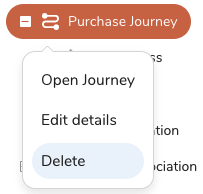 Right-click the journey name. | |
| X | Undo the last immediate action |  | ||
| X | Redo the last immediate action |  | ||
| X | X | Duplicate a Batch Journey | 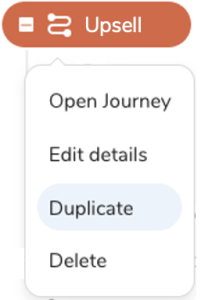 |
See also Journey FAQs.