In today's digital landscape, effective email marketing goes beyond simple batch-and-blast campaigns. Marketers must deliver personalized, timely, and relevant messages to stand out in crowded inboxes. Treasure Data's Customer Journey Orchestration (CJO) feature empowers Engage Studio email content to do exactly that—leveraging rich customer data to orchestrate dynamic and automated email journeys.
Before building a journey, ensure the following:
Journey Orchestration is enabled in your Treasure Data account.
Your Parent Segment contains profiles with email addresses.
You understand your customer segments and their behaviors.
Navigate to Audience Studio > Parent Segment
Click Create New Journey
Name your journey (e.g., "New Product Launch Email Series").
Define the journey objective (e.g., drive product awareness and purchases).
Add Stages to reflect lifecycle phases (e.g., Stage 1: Awareness, Stage 2: Engagement).
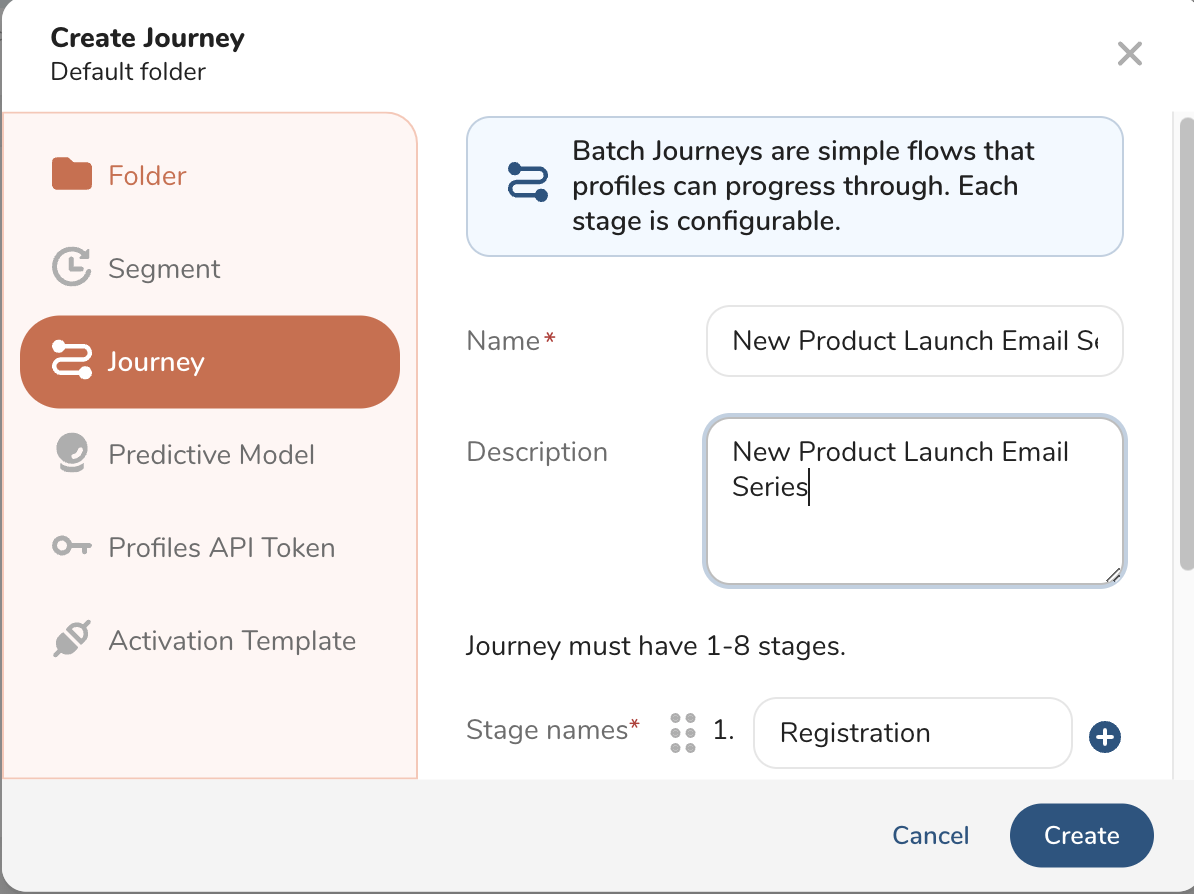
Select your entry audience and entry condition:
Segment-based : e.g., All customers tagged "skincare enthusiast"
Behavior-based : e.g., Customer viewed a product page or added item to cart
Schedule-based : e.g., 2 weeks before a campaign launch date
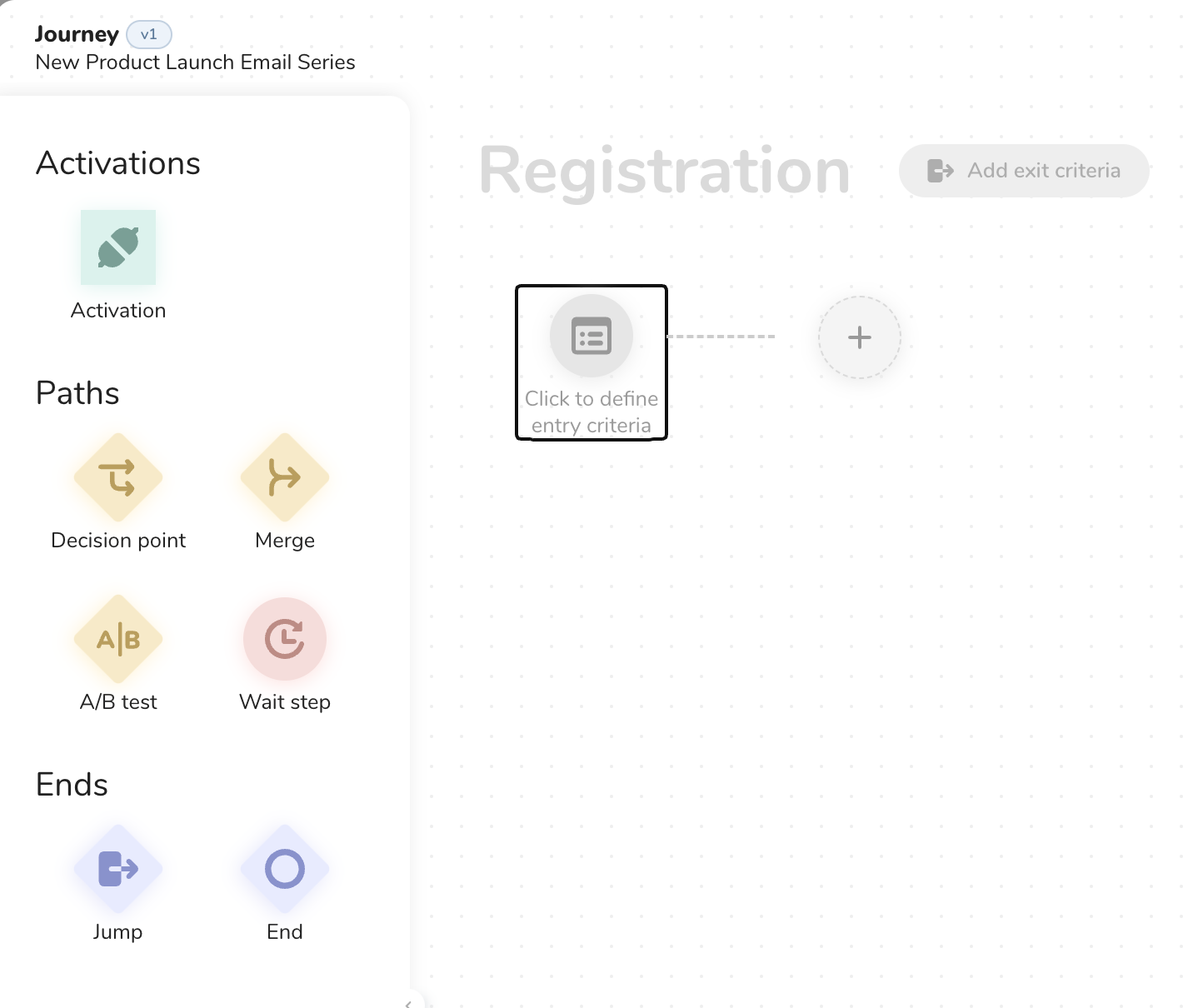
Use the canvas editor to drag and configure email steps:
Add an Activation action (email step).
Select an existing email template (templates must be created in Engage Studio).
Choose a sender (from verified senders).
Insert personalization using merge tags (e.g.,
{{ profile.name }}).Add conditional content blocks for dynamic variations:
- Example: Recommend Product A for VIPs and Product B for others.
Use a Custom Event ID to label and track this step in your email logs.
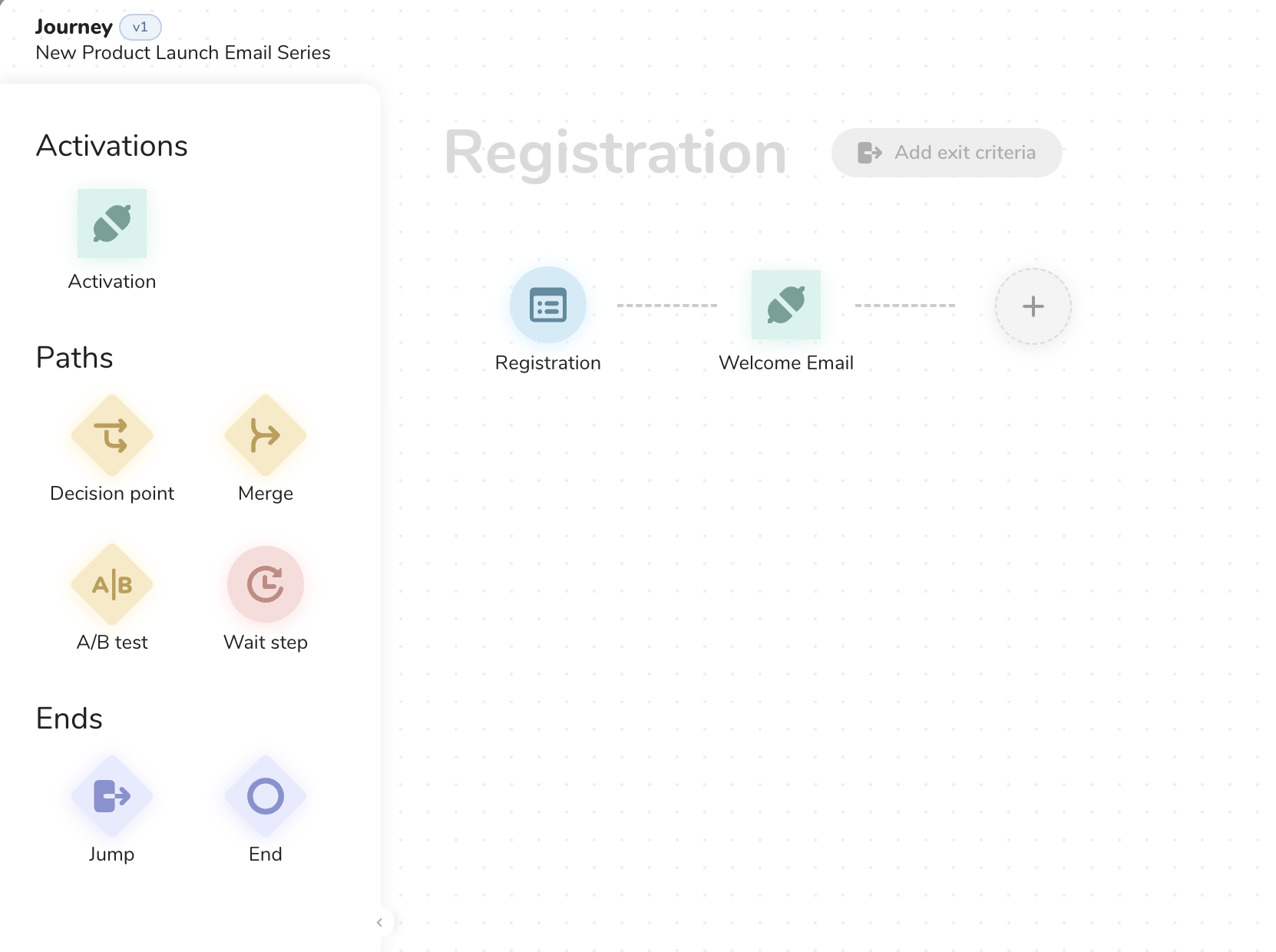
📌 All email content creation must happen in Engage Studio. Email steps in Journeys reference that content.
Define what success looks like for each step:
Email opened/clicked
A purchase completed
A specific event triggered (e.g., submitted form)
Setting goal criteria lets you:
Measure conversion across journey stages
Trigger follow-ups or exit conditions
Segment responders and non-responders dynamically