Create a single-value attribute, such as "name," "email," and "last purchase amount."
This topic includes:
To create attributes, you must have FullData Workbench permissions for all parent segments.
- Open TD Console.
- Navigate to the Data Workbench >Parent Segments.
- Select a parent segment and the folder in which you want to add a single-value attribute.
- Select Real-time Configuration.
- Select the Attributes tab, and then select Add Attributes.
- Select Single.
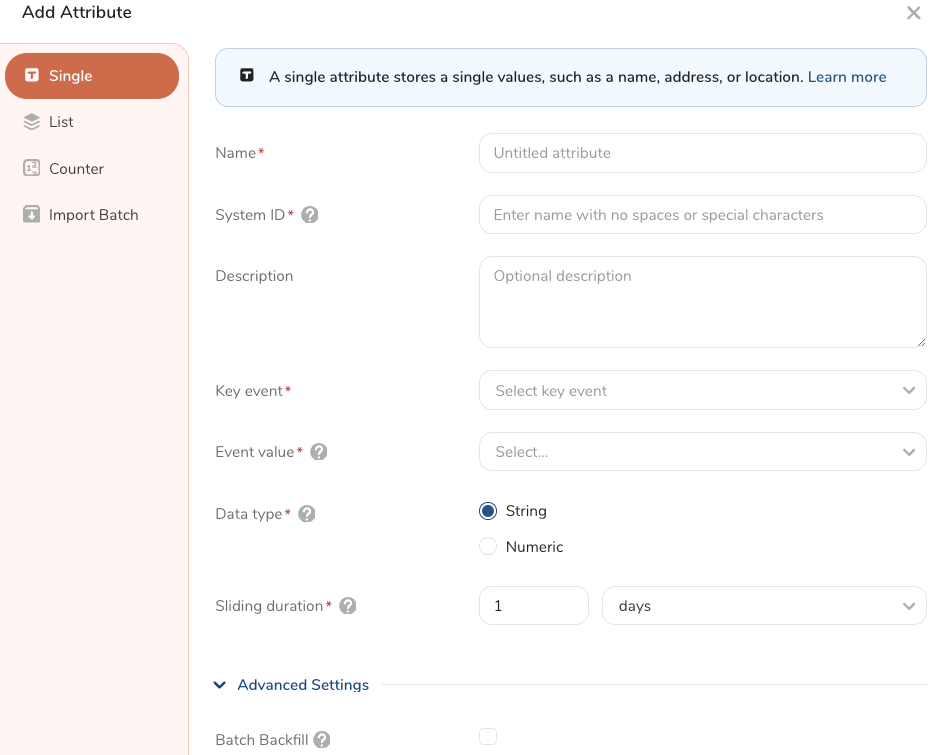
Review the information in the following table to complete the form.
| Field Name | Description | Required |
|---|---|---|
| Name | Enter a unique name for your attribute. | X |
System ID | Create a system ID for a unique attribute name. A system ID is a string that starts with an alphabet or underscore () and is optionally followed by an alphanumeric and (). Spaces or special characters are not allowed. The system ID is case-sensitive. Example systemID924 | X |
| Description | (Optional) Create a description of the single-value attribute. | |
Key event | Select a key event from the parent segment. Optionally, add filters to your key event. For more information, see Configuring Event Definitions. | X |
| Event value | Select the field value from the event stored in the attribute. You cannot change this value after you save the attribute. | X |
| Data type | Select the type of data for this attribute (string or numeric) | X |
| Sliding duration | Select the amount of sliding time duration of the data for the attribute. The maximum value is 60 days. | X |
Batch Backfill | (Optional) Check the box to define batch attribute details that can be used as a backfill if a real-time value is not updated: If you select Batch Backfill, the following information is required:
The attribute with the most recent timestamp will be used. You cannot change this value after you save the attribute. |
- Select Create.
After you have created one or more single-value attributes, you can view them in the Data Workbench.
- Open TD Console.
- Navigate to the Data Workbench >Parent Segments.
- Select a parent segment in which you want to view single-value attributes.
- Select the ellipses in the row where the single-value attribute is listed.
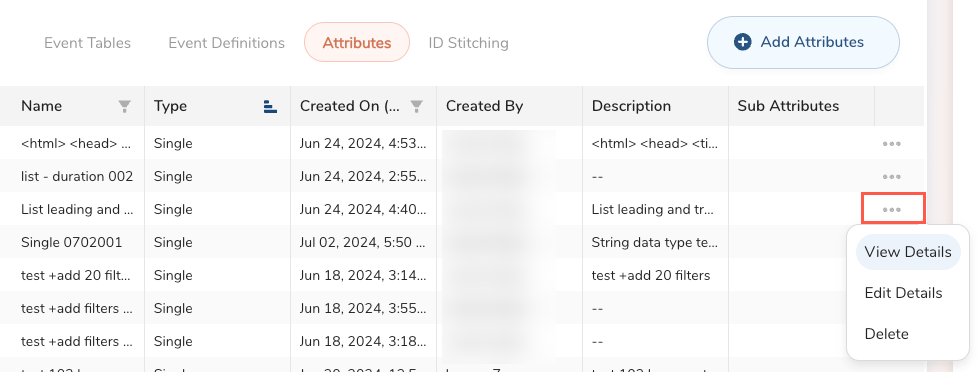
- Select View Details.
See also Real-time Attribute FAQs.