After creating single-value attributes, you might decide that an existing attribute needs to be changed or deleted.
This topic includes:
You must have Full Data Workbench permissions for all parent segments to change and delete attributes.
- You cannot change the association between the attribute and the event.
- You cannot change the following fields once an attribute has been created:
- Batch backfill
- System ID
- Event value
- DataType
- Open TD Console.
- Navigate to the Data Workbench > Parent Segments.
- Select a parent segment.
- Select the Attributes tab.
- Choose one of the following:
- Select the ellipses in the row where the single-value attribute is listed and select Edit Details.
- Double-click the attribute you want to open.
- View the attribute (select the ellipses in the row where the single-value attribute is listed)
and then select Edit.
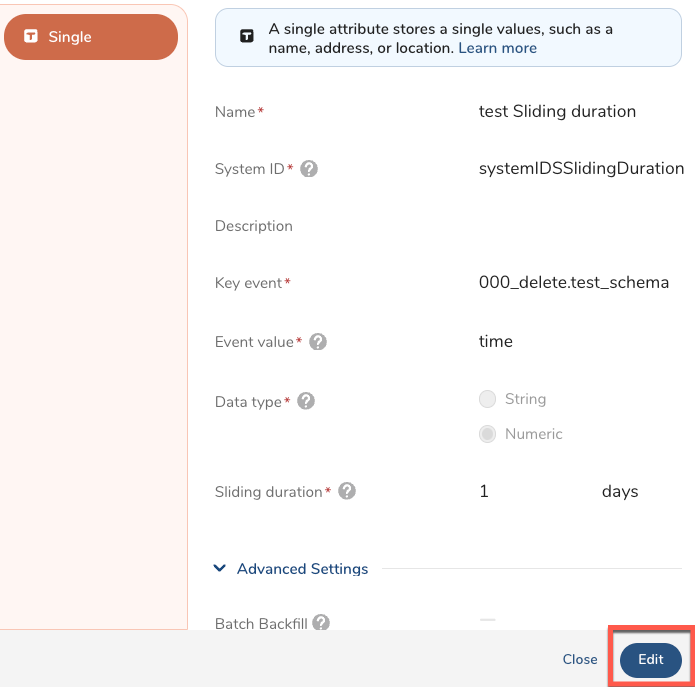
- Select Edit.
- You can change the fields listed in the following table.
Review the information in the following table to change your attribute. The table lists only fields that you can change.
| Field Name | Description |
|---|---|
| Name | Change the name of your attribute. |
| Description | (Optional) Create a description of the single-value attribute or change the existing description. |
| Sliding duration | Change the sliding time duration of the data for the attribute. The minimum value is one day, and the maximum is 60 days. |
- Open TD Console.
- Navigate to the Data Workbench > Parent Segments.
- Select a parent segment.
- Select the Attributes tab.
- Select the ellipses in the row where the single-value attribute is listed.
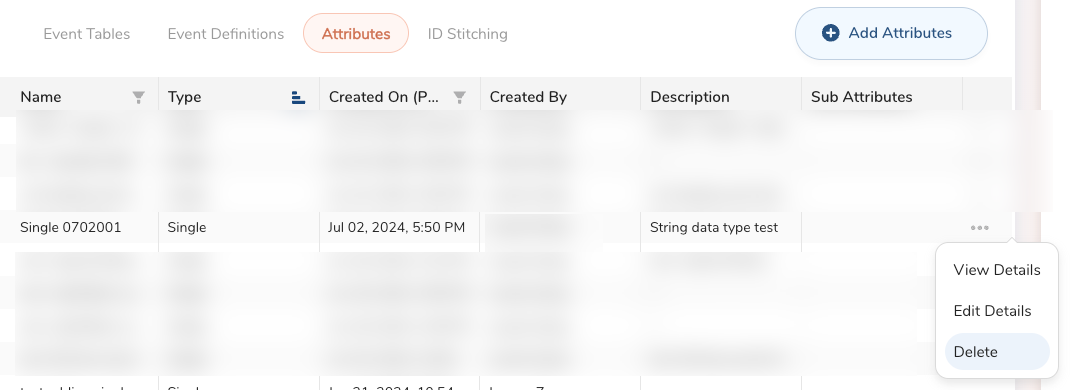
- Select Delete.
See also Real-time Attribute FAQs.