You can quickly access existing data models for your account and make changes if you have the correct permissions. Treasure Insights makes it easy for you to view the storage capacity for your existing data models and assess your resource limits.
- Open the TD Console.
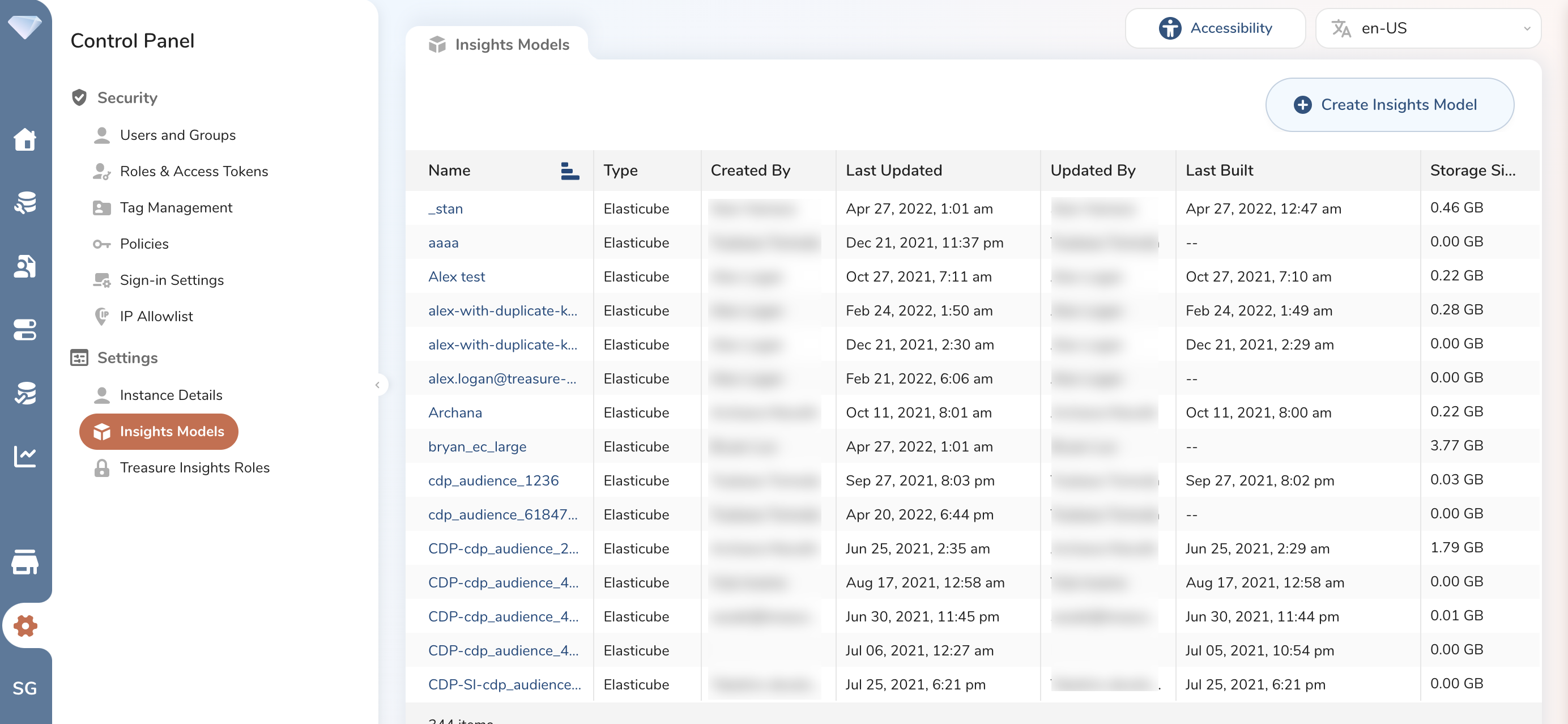
- Navigate to Control Panel > Settings > Insights Models.
- Open TD Console.
- Navigate to Control Panel > Settings > Insights Models.
- Select the Resource Limits tab to view the Build size and query size limitation.
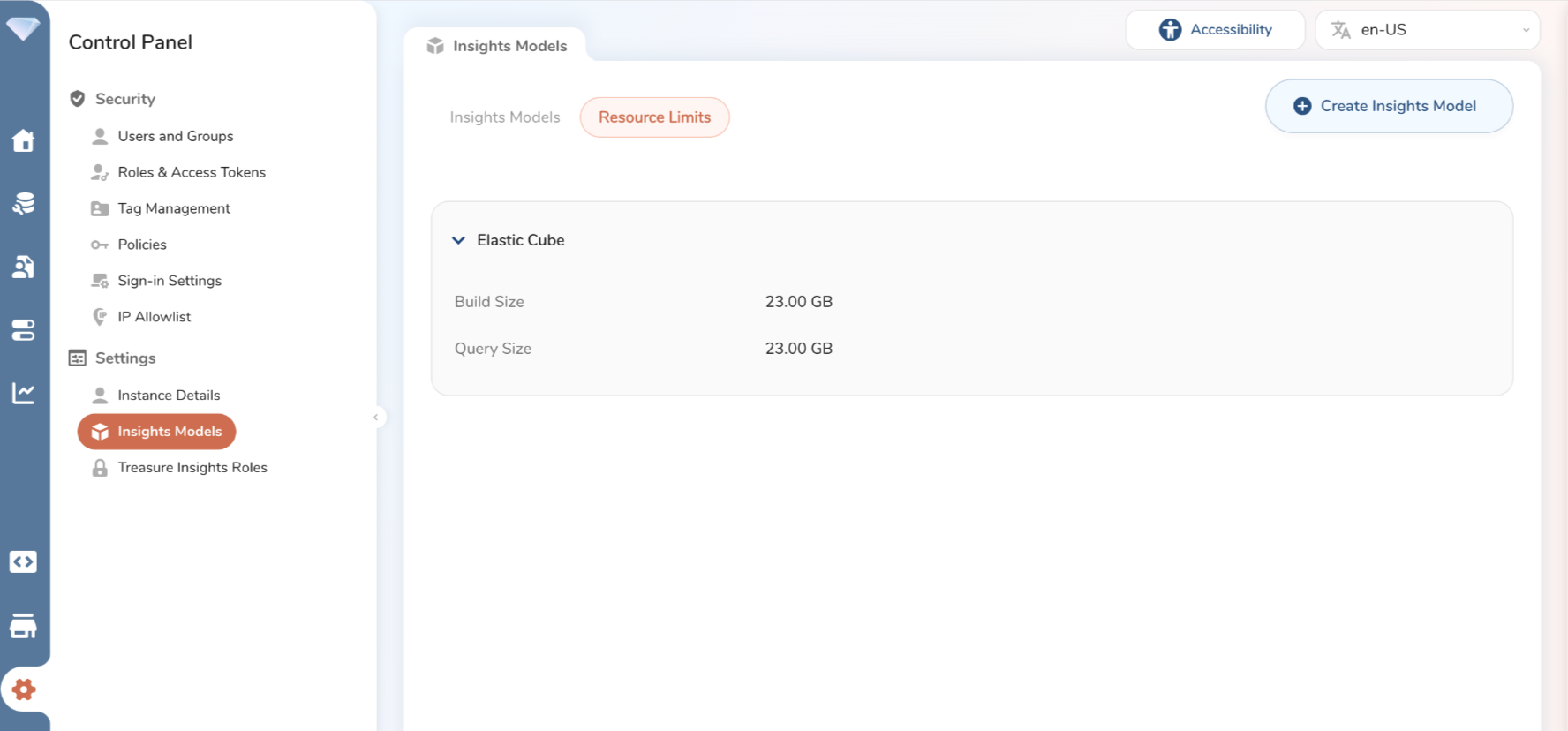
You can view your data model storage, down to the individual data model enabling you to see the storage capacity of any data model you've built. This information might be useful if you need to buy more storage or determine which data models you no longer require and need to free up additional storage for your builds.
If you start seeing failures in your build or query, it could potentially be from hitting the storage capacity limits for your insights model. Contact your customer success representative for more information.
For instance, if you hit your storage capacity, you may see the following error.
Two solutions are available to address the storage capacity limits:
- You can free up some capacity by deleting old or unused data models.
- You can work with your account team to purchase additional capacity.
- Open TD Console
- Navigate to Control Panel > Settings > Insights Models.
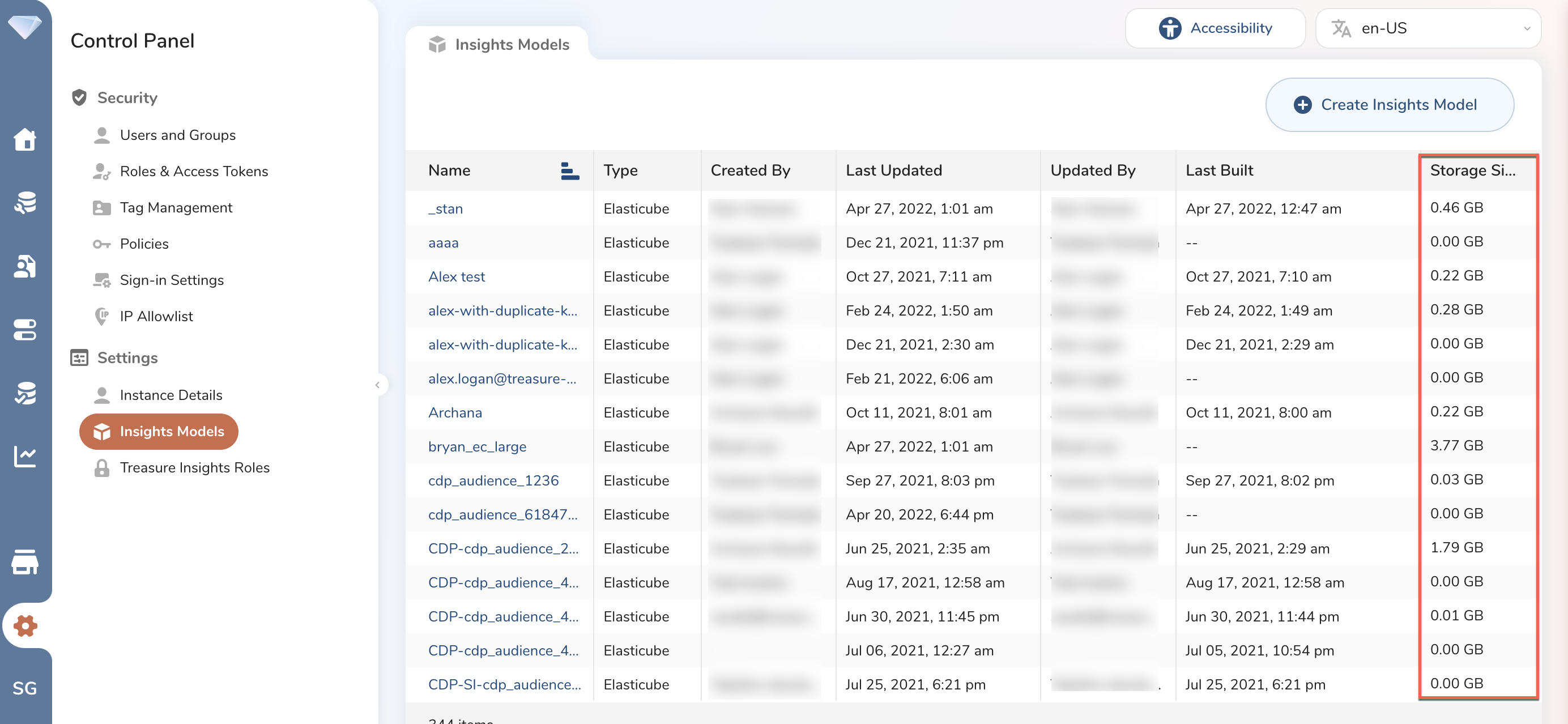
- View the storage capacity in the right-hand column.
- Select a specific data model to view more granular details.
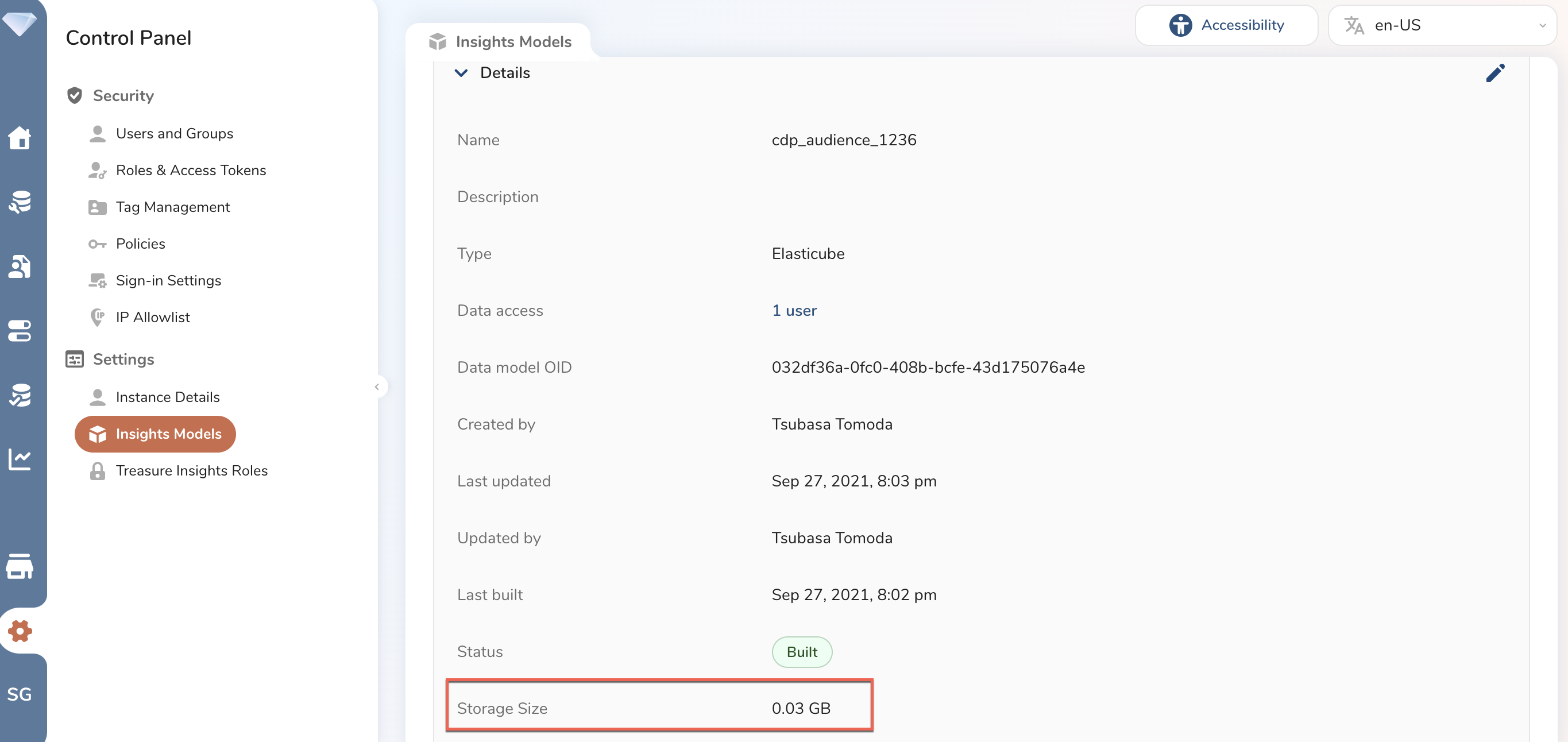
You can view your data model storage, down to the individual data model enabling you to see the storage capacity of any data model you've built. For instance, if you discover that your build fails, you can assess your available storage. This might be useful if you need to buy more storage or determine which data models you no longer require and need to free up additional storage for your builds.
If you start seeing failures in your build or query, it could potentially be from hitting the storage capacity limits for your data model. Contact your customer success representative for more information.
For instance, if you hit your storage capacity, you may see the following error.

Two solutions are available to address the storage capacity limits:
- You can free up some capacity by deleting old or unused data models.
- You can work with your account team to purchase additional capacity.
You can use the GET method to view the consumed storage for a specific data model.
Sample Request
curl -X GET \
-H "Authorization: TD1 ${api_key}" \
-H 'Content-type: application/json' \
"https://api.treasuredata.com/reporting/datamodels/{datamodel_id}"
Sample Response
In the example below, 424.21875 MB reveals the consumed storage of the model using the storage_size parameter.
[
 {
    "oid": "xxx-xxxxxxxxx-xxxxxxxxxxx",
    "name": "my datamodel",
    "type": "elasticube",
    "created_by": 65432,
    "updated_by": 45678,
    "last_updated": "2021-03-05T22:16:31Z",
    "last_built": "2021-03-05T22:16:31Z",
    "status": "building",
    "description": "Some detailed description up to 65535 characters",
    "datasets": [],
    "relations": [],
    "created_at": "2020-08-04T05:13:15.789+0000",
    "updated_at": "2020-08-04T05:13:15.789+0000",
    "storage_size": 424.21875
  }
]