Data collection, which is also referred to as data import, can be scheduled as part of defining a new data source or at a later time by editing your data source.
To create a new data source, see Creating a New Source from an Existing Authentication .
To modify or add scheduled collection for your data source:
Open TD Console.
Navigate to Integrations Hub > Sources.
Locate the data source for which you want to edit scheduling.
Select the ellipsis.
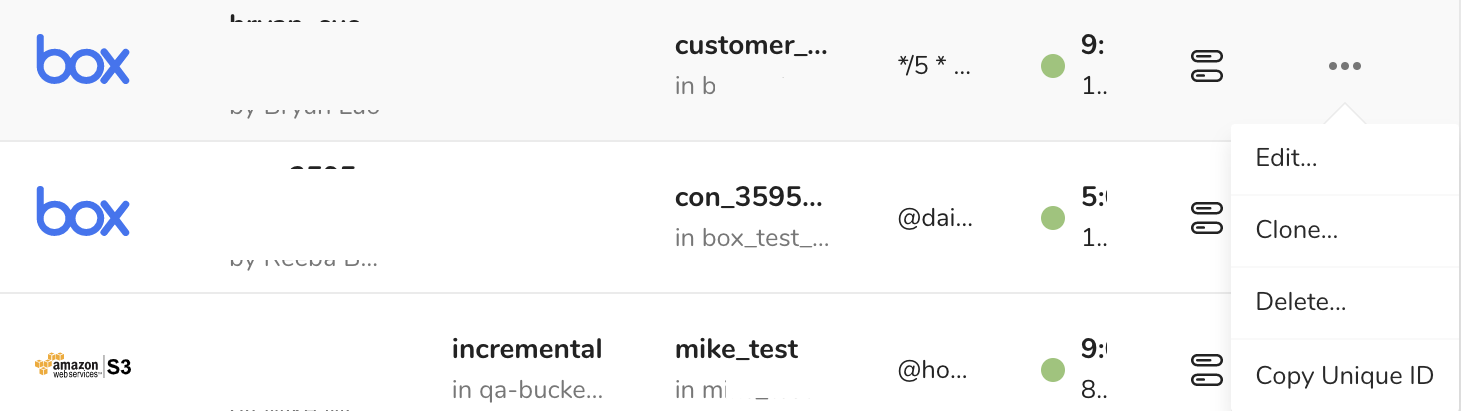
Select Edit.
In the Edit Source dialog, select Next to get to Data Placement.
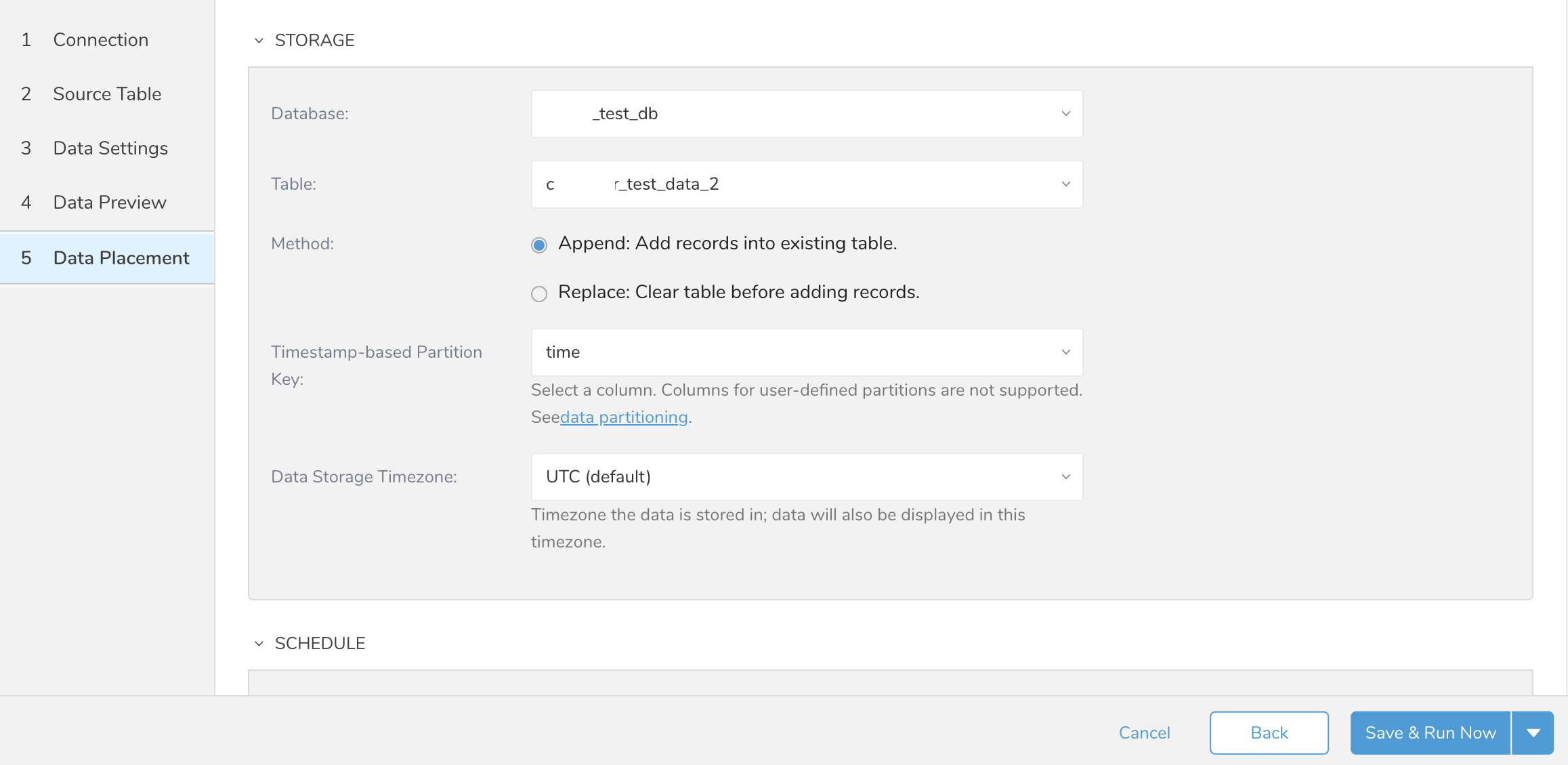
- Scroll down to Schedule.
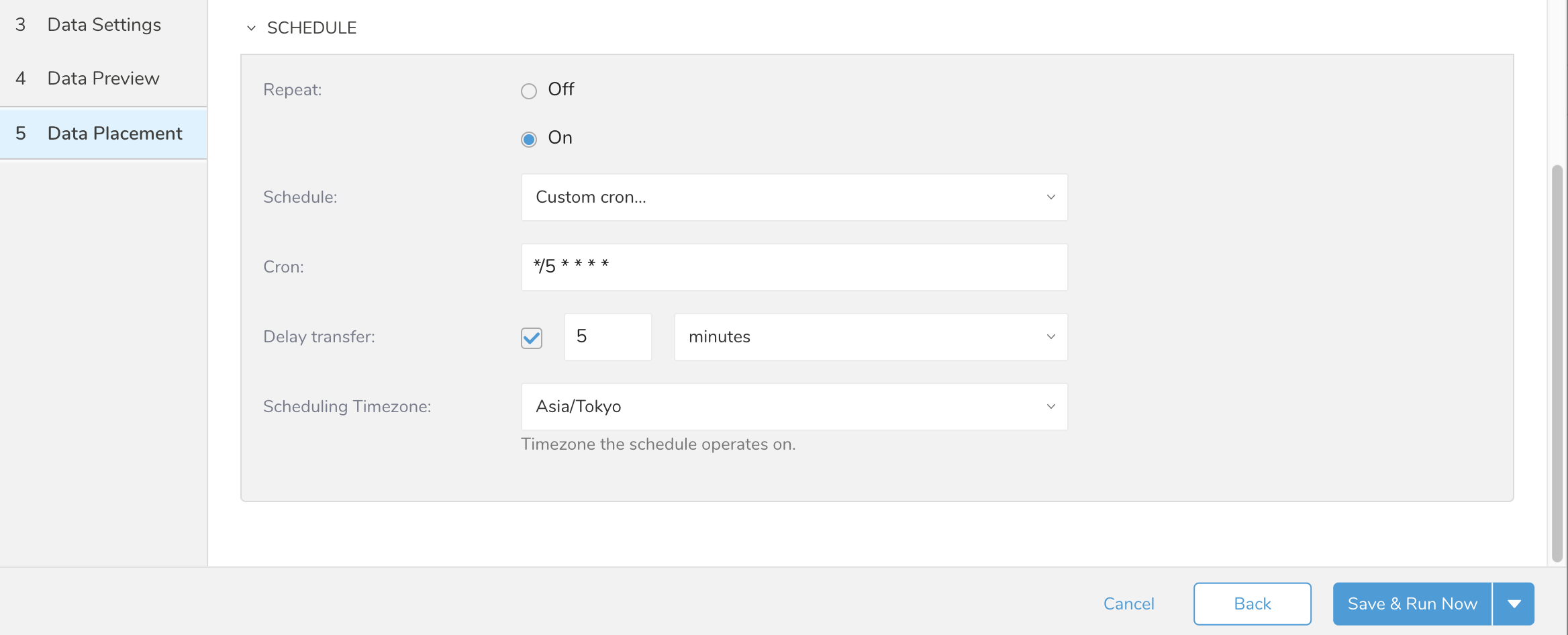
- For regular data collection, select On for Repeat.
- Repeat: On or Off - On sets data collection to happen regularly and automatically.
- Schedule: Choose from:
- daily
- hourly
- Custom cron
- Cron: See Cron Schedule Values - Only available if Custom cron is selected for the Schedule field.
- Delay transfer: Selected or clear - If selected you can indicate the time in hours, minutes, or second to delay data transfer.
- Scheduling Timezone: Time zone list of values - Select the time zone that you want used for data collection.
- Save & Run Now or Save: Allows you to save and run the data collection as defined. If no data collection schedule is defined, data collection happens immediately. If a data collection schedule is defined, the data collection job is run immediately and is queued and data collection occurs according to the defined schedule. Save saves the data source definition.
Through many parts of Treasure Data you can use cron values to define custom timing for data collection, queries, data export, and many other Treasure Data functions. The cron values used within Treasure Data use the following patterns.
| Cron Value | Description |
|---|---|
| 0 * * * * | Run once an hour |
| 0 0 * * * | Run once a day at midnight |
| 0 0 1 * * | Run once a month at midnight on the morning of the first day of the month |
| "" | Create a job that has no scheduled run time. |
For any other scheduling definition, the field values are:
*    *    *    *    *
-    -    -    -    -
|    |    |    |    |
|    |    |    |    +----- day of week (0 - 6) (Sunday=0)
|    |    |    +---------- month (1 - 12)
|    |    +--------------- day of month (1 - 31)
|    +-------------------- hour (0 - 23)
+------------------------- min (0 - 59)
The following named entries can be used:
Day of Week: sun, mon, tue, wed, thu, fri, sat
Month: jan, feb, mar, apr, may, jun, jul, aug, sep, oct, nov, dec
A single space is required between each field. The values for each field can be composed of:
a single value, within the limits displayed above for each field.
a wildcard
‘*’to indicate no restriction based on the field. For example‘0 0 1 * *’configures the schedule to run at midnight (00:00) on the first day of each month.a range
‘2-5’, indicating the range of accepted values for the field. For example‘0 0 1-10 * *’configures the schedule to run at midnight (00:00) on the first 10 days of each month.a list of comma-separated values
‘2,3,4,5’, indicating the list of accepted values for the field. E.g.‘0 0 1,11,21 * *’configures the schedule to run at midnight (00:00) every 1st, 11th, and 21st day of each month.a periodicity indicator
‘*/5’to express how often based on the field’s valid range of values a schedule is allowed to run. For example‘30 */2 1 * *’configures the schedule to run on the 1st of every month, every 2 hours starting at 00:30.‘0 0 */5 * *’configures the schedule to run at midnight (00:00) every 5 days starting on the 5th of each month.a comma-separated list of any of the above except the
‘*’wildcard is also supported‘2,*/5,8-10. For example‘0 0 5,*/10,25 * *’configures the schedule to run at midnight (00:00) every 5th, 10th, 20th, and 25th day of each month.