You can specify incremental transfers of data and control when data transfers start as part of managing your data pipeline. Use TD Workflows to ensure query processing steps in Treasure Data after the necessary data has been ingested into your account.
Many batch import integrations support incremental data loading features for various use cases:
- Tables are too large to regularly re-import the table in its entirety (for example, from large production databases).
- You are running frequent imports of updated data (for example every 15 minutes) to keep the data fresh.
- You want to minimize the number of rows ingested, to make the most efficient use of your Treasure Data account plan’s capacity.
The incremental processing works by keeping track of the column value of the table and records to be imported (for example. a time or ID column), and then using the highest value imported during the last ingest to start the subsequent ingest. For example:
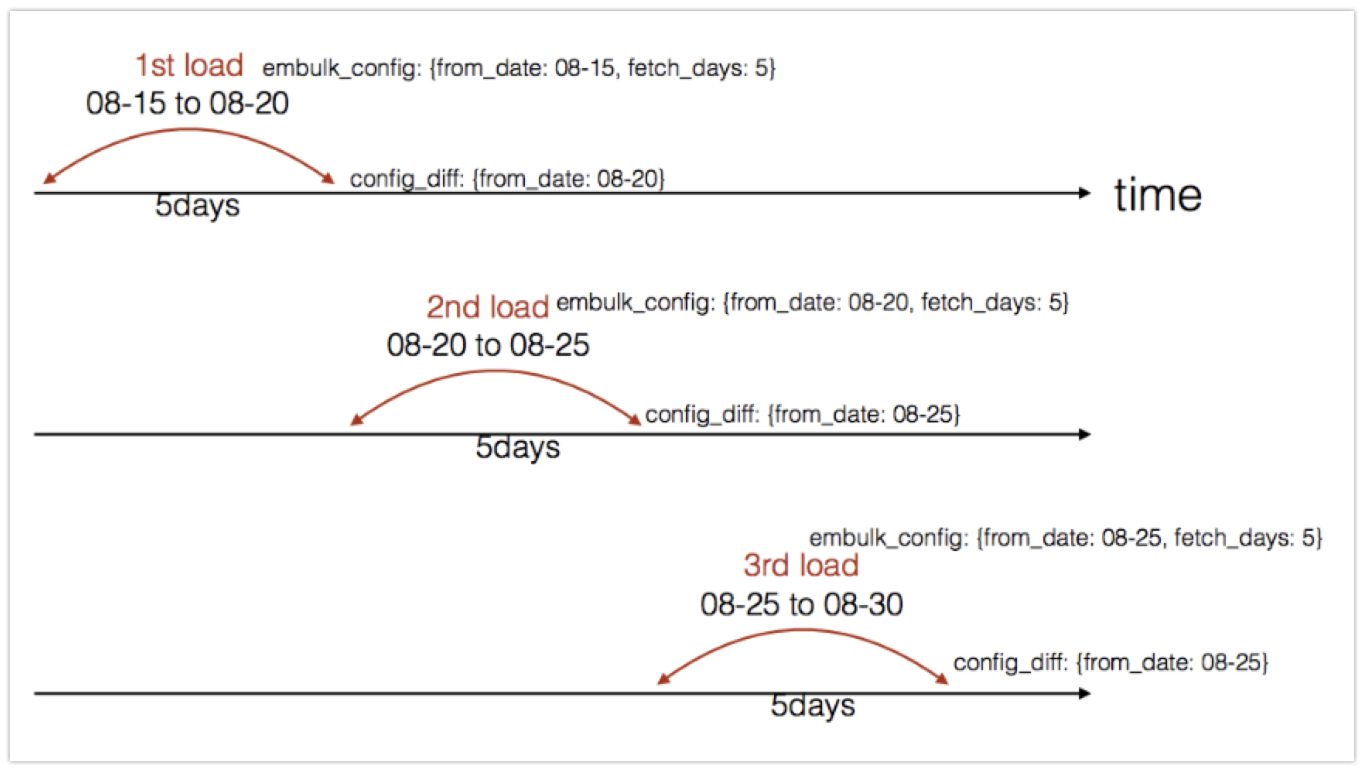
The from_date (can be last_fetched_date or any incremental field) is updated and stored after each execution. The new value is used during the next run.
For example, using the Mixpanel import integration:
- During the first run, you import all data.
- For subsequent incremental runs, you use the
last_fetched_time(which is the max ingestion timestamp from the previous run)
There are 2 approaches below when triggering an import integration as part of a workflow:
- Use the incremental-loading feature of the integration itself, in which the Unique ID of a pre-defined Source is referred to in the workflow definition
- Utilize the ability to inject the session time of a workflow (via workflow variables) into the integration parameters. In this approach, the import integration parameters are declared in a YAML file
Unique ID based approach
- Pros
- Create and manage the Source directly in TD Console, making setup more user friendly.
- Supports incremental logic using IDs, filenames, or time-based fields provided by the integration.
- Self-healing behavior: if one ingestion fails but the next succeeds, the diff is computed from the last successful run.
- Cons
- Not ideal for sources with delayed data because missed records may not be picked up by the default incremental logic.
- Re-running historical workflow sessions will not reload past data—the latest incremental values are stored in the integration configuration.
YAML file based approach
- Pros
- Offers flexible timing controls; useful when the source system produces late arriving data.
- Cons
- Only applies when the incremental logic can be driven by dates.
Create an Authentication for your import integration on the Integration Hub.
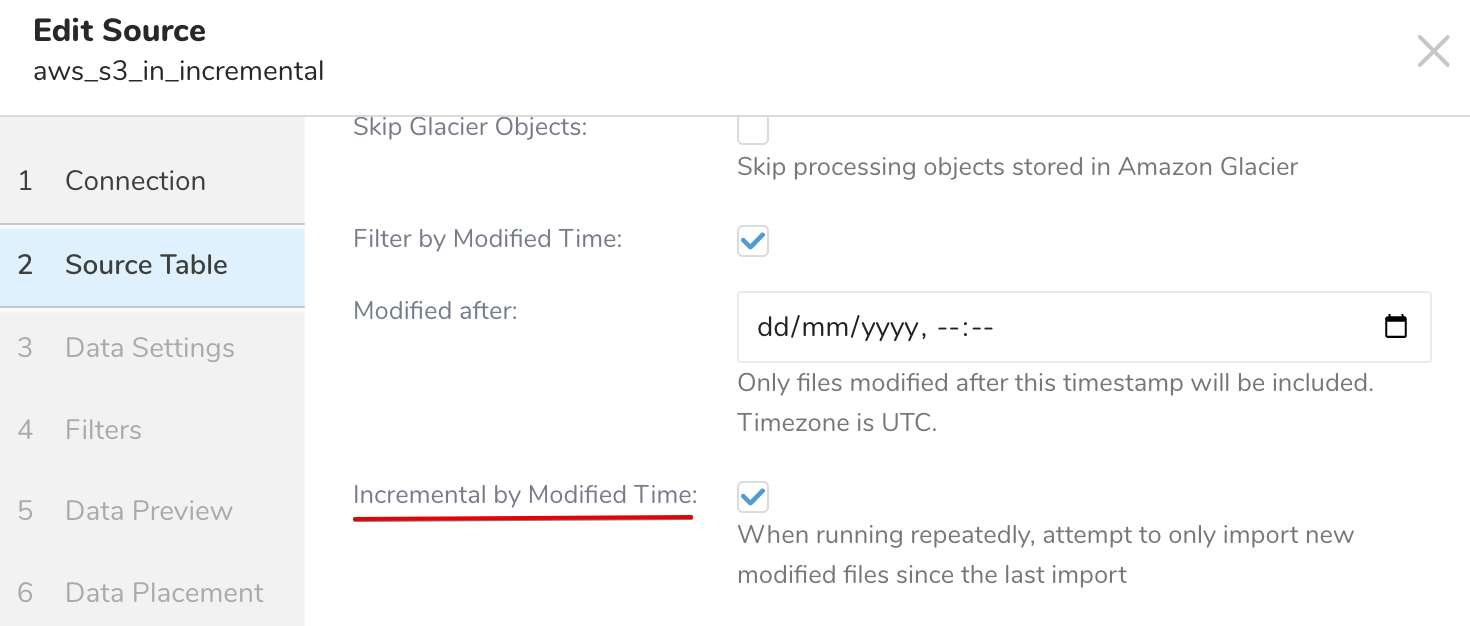
Create a Source from the Authentication created above and select the incremental loading feature
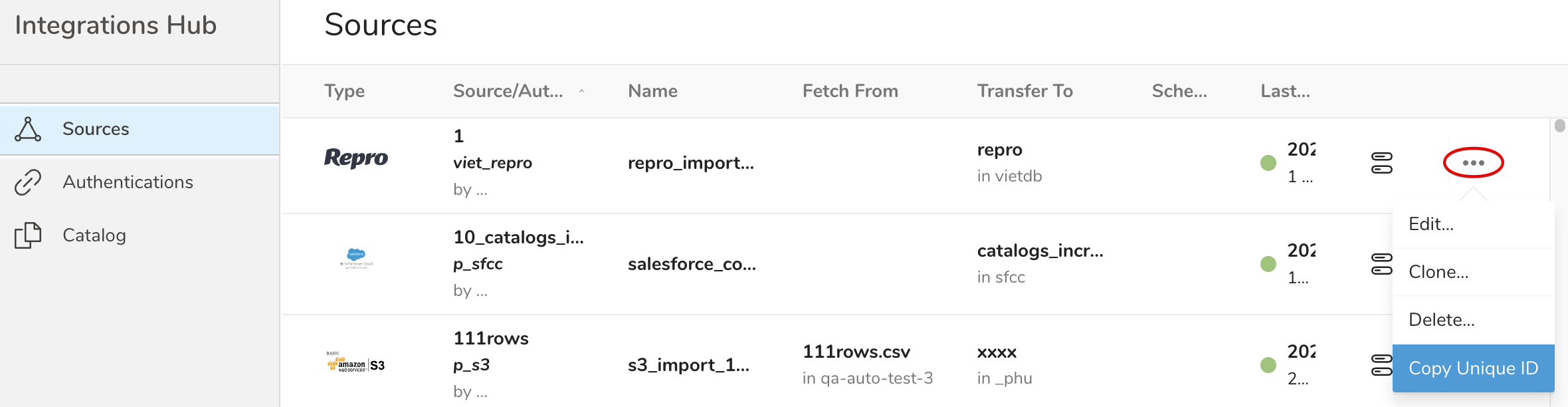
- Find your Source on the Integrations Hub > Sources, select the
...menu, and select Copy Unique ID
Navigate to Data Workbench > Workflows
Create a new workflow, or select an existing one and open the workflow definition
Use the td_load >: command with the Unique ID (ex: s3_v2_import_1725874557) saved in the clipboard
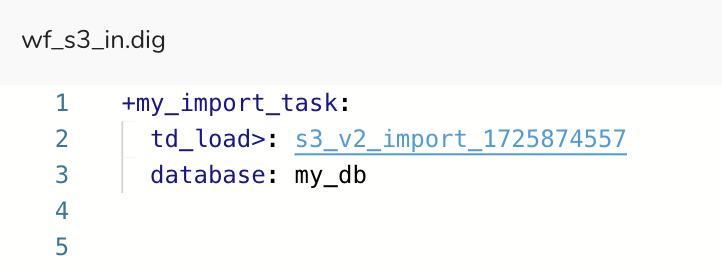
- The incremental data load occurs every time the workflow is executed, manually or via a schedule
With this approach, you create a custom configuration for your import integration, using the time-based variables provided by the workflow. You can use this method when the incremental flow is based on time.
In this partial example, the integration configuration file is daily_load.yml which will be referred to in the workflow definition. The variable last_session_time , among many Workflow variables, will be used. Refer to Treasure Workflow Basics for more details about workflow session time and variables.
Navigate to Data Workbench > Workflows.
Create a new workflow, or select an existing one and open the workflow definition.
Use the **td_load >: **command with the configuration filename, and add a variable for last_session_time.
schedule:
  daily>: 07:00:00

_export:
  td:
    dest_db: my_sample_db
    dest_table: my_sample_table
  wf:
    start_time: "${last_session_time}"

+data_import:
  td_load>: config/daily_load.yml
  database: ${td.dest_db}
table: ${td.dest_table} - Edit the
config/daily_load.ymlto use the start_time variable provided by the workflow.
in:
  type: salesforce
  login_url: https://<YOUR_DOMAIN_NAME>.salesforce.com
  auth_method: token
  username: <YOUR_EMAIL_ADDRESS>
  token: <YOUR_API_TOKEN>
  target: tickets
  start_time: ${wf.start_time} #use workflow variable
out:
mode: append - The workflow runs daily and fetches data incrementally since the last_session_time.