Project Editor allows you to see and engage with your files using the Split View. You can enter Split View by selecting the Split View icon or using a shortcut.
You can create new files while in the Split View, but the delete option is disabled.
- After you have opened a project, select the Split View icon to reveal two views.
The view on the left shows the existing file and the view on the right shows the new file.
- Optionally, select the dropdown menu to select a file to edit.

Open a project file.
Select Shift⇧ + Click on a file link to open a split view.

- To open a file on the same side, select Command⌘ + Click (on a Mac) or Ctrl + Click (on a PC) on a file link. You can also select Shift + Click on a file link to open the file on the opposite side of the Split View window.
Narrow or expand the viewing space by selecting the resizer between the screens.
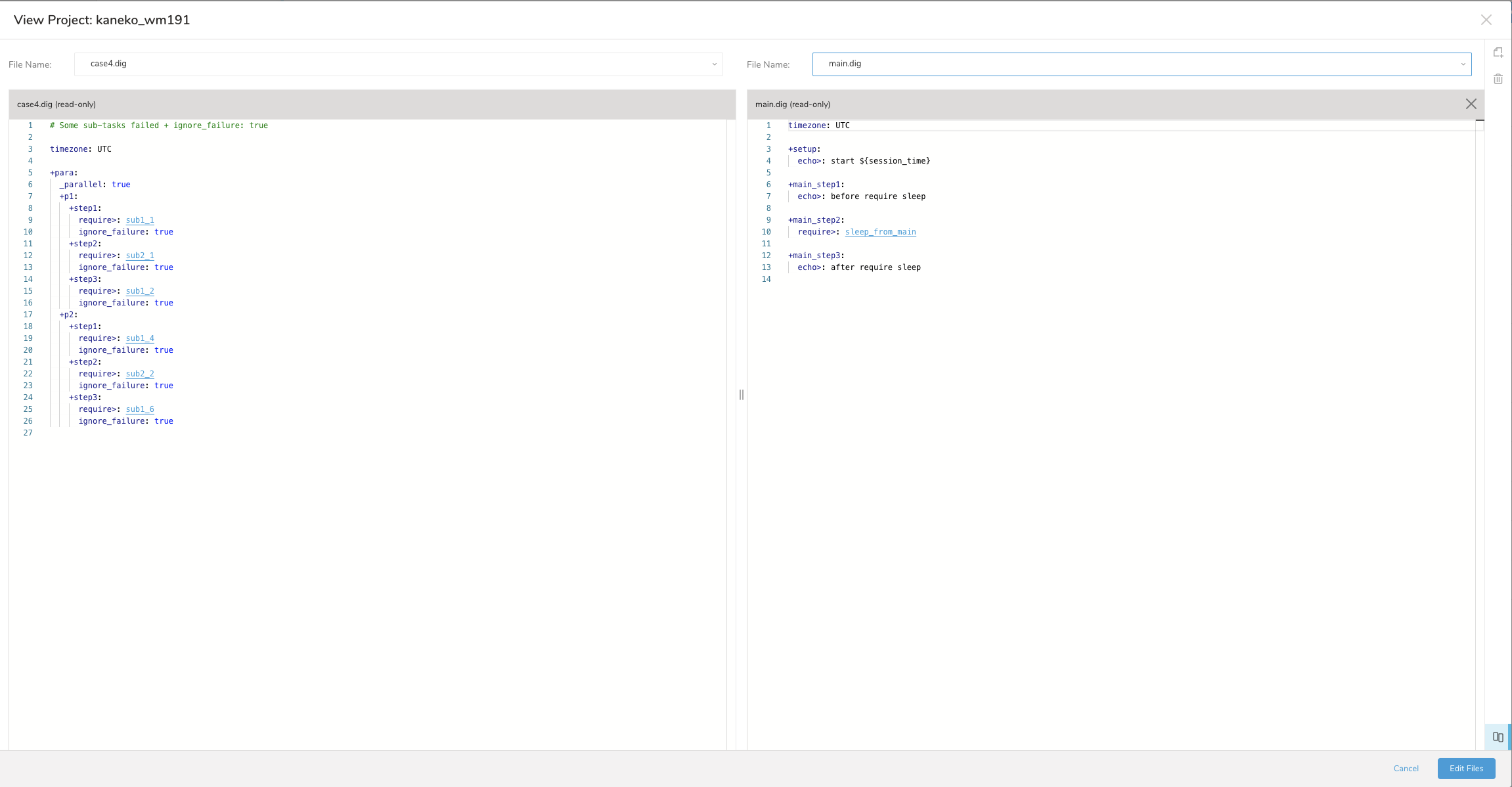
- Alternatively, you can select files using the dropdown above the editor window.

- Exit the split view by deselecting the split view icon or selecting the X at the top right of the file inside the Project Editor.