You can view two revisions of a project using the split-view window. Here, you can move between versions, make updates to current versions, and copy content.
After selecting the version of the project you want, open a split-view to view selecting the split-view icon at the bottom right of the simple version view window.
Alternately, you can open a split view by selecting Shift + Click on the file link. This opens a split view and the breadcrumb to the main file will be visible.
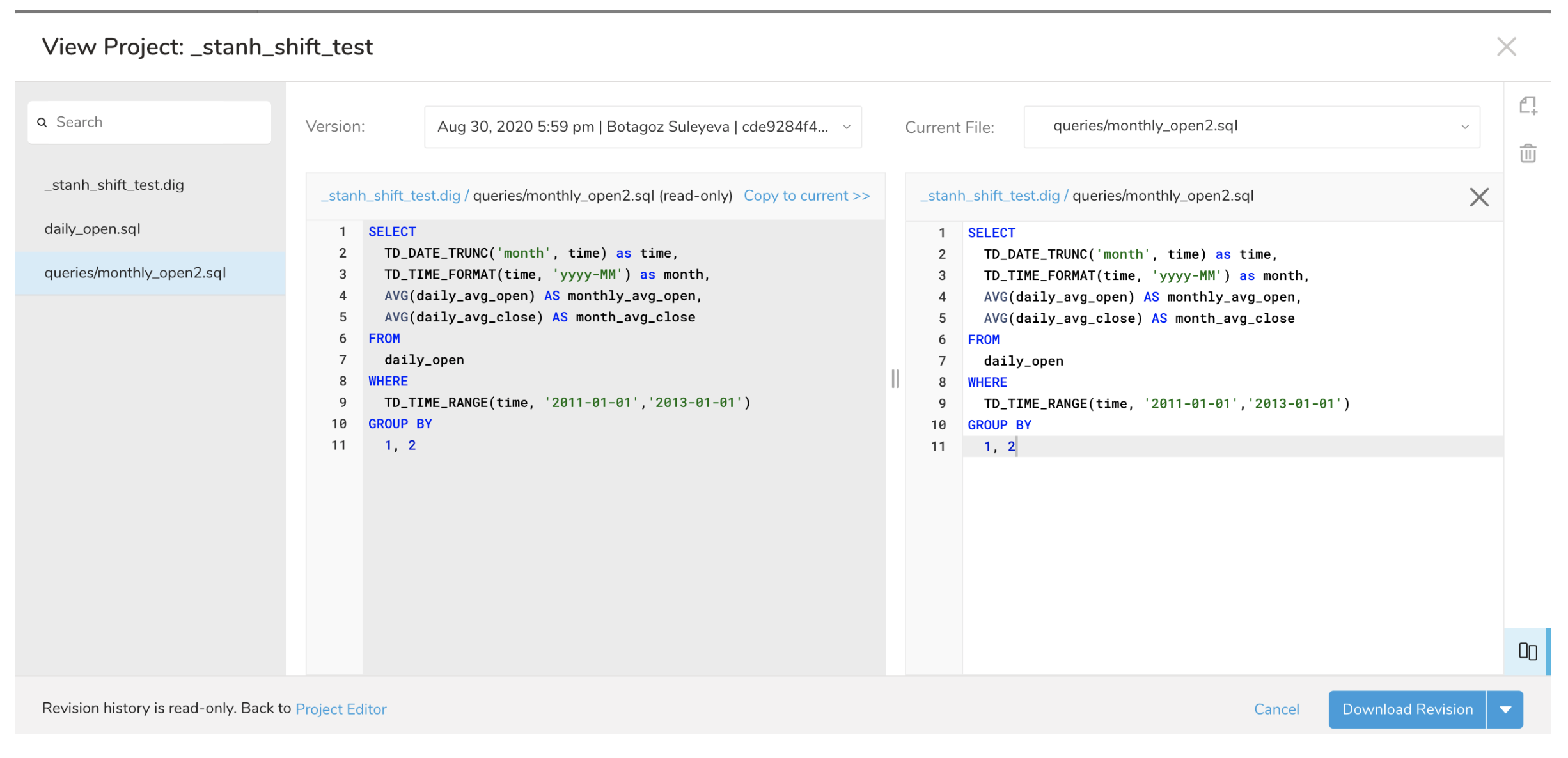
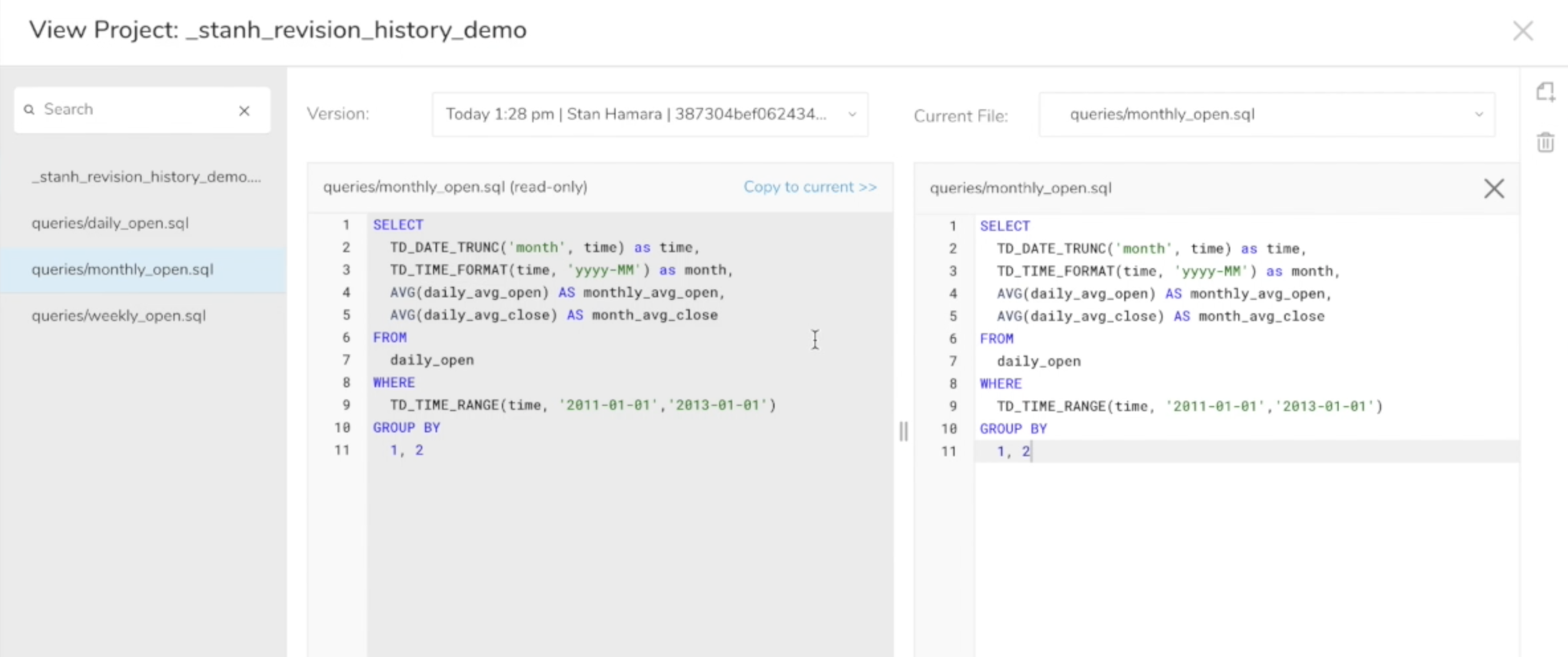
- View the selected version of the project on the left side of the modal window and the current version on the right.

- Switch between files of the selected revision by choosing a file from the list on the left-hand side of the workflow project editor. Your selection synchronizes across the windows.
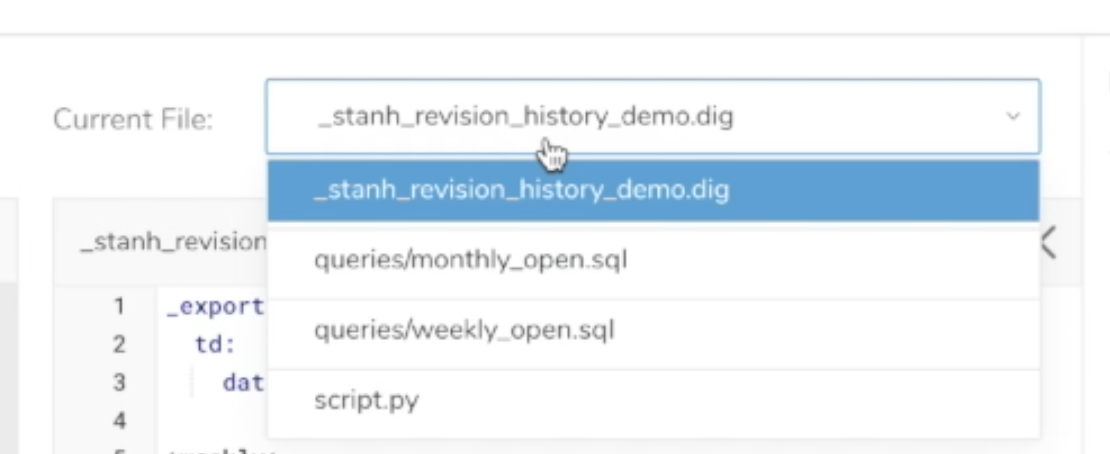
- Select the file list from the dropdown on the right for the current version of the project. Your selection synchronizes across the windows.
- You might select a file that exists only inside the revision. An option to create a new file in the current version is displayed in the window on the right.
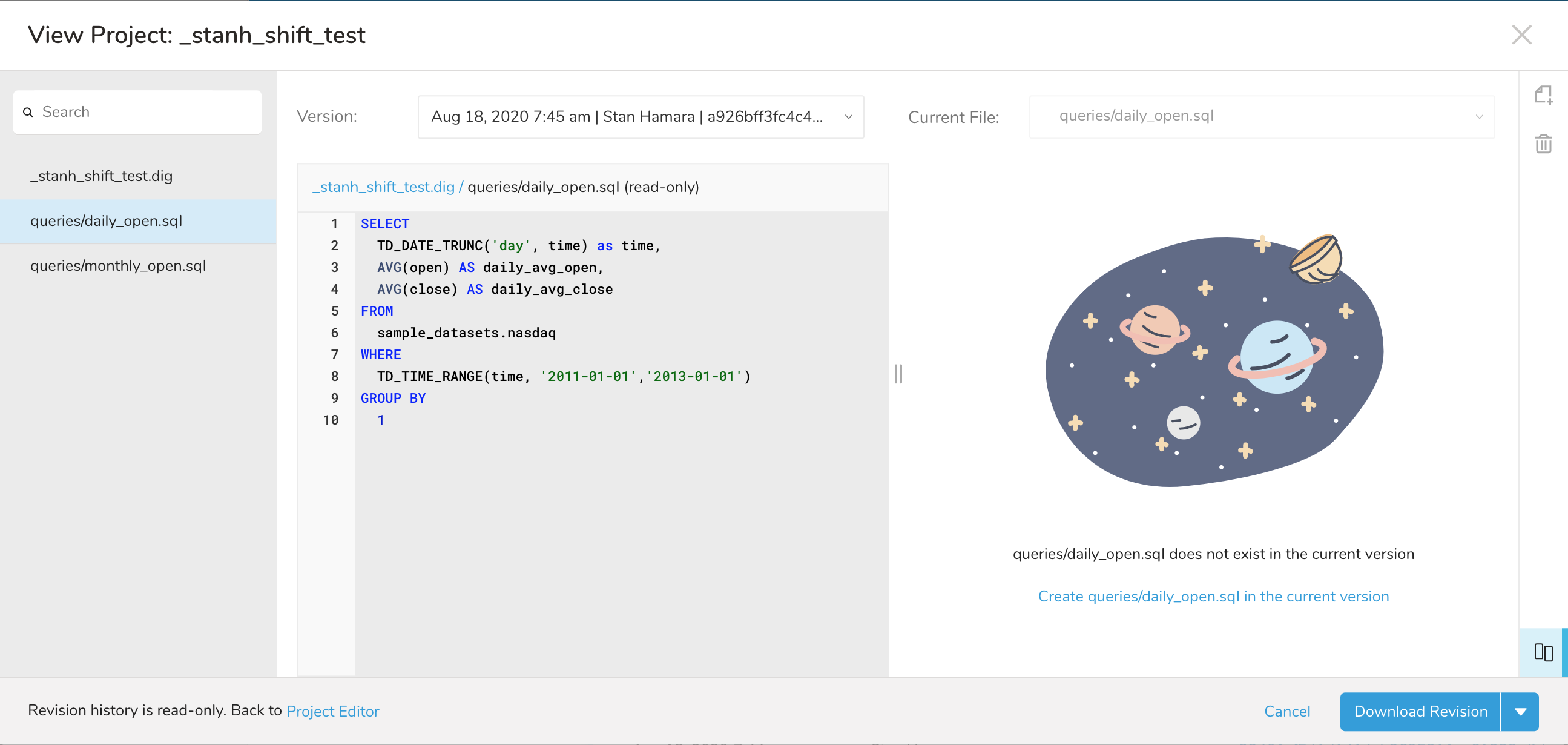
Alternatively, selecting a file that exists only in the current version, you might see an empty state in the opposite window. 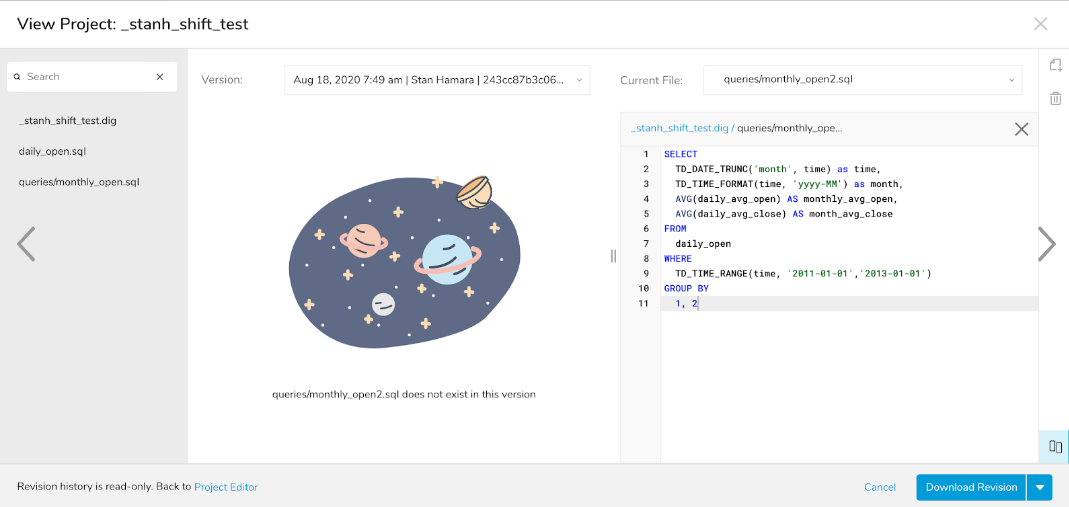
- Navigate through all your revisions on the left window of the modal and the right-side window continues to display the current version.
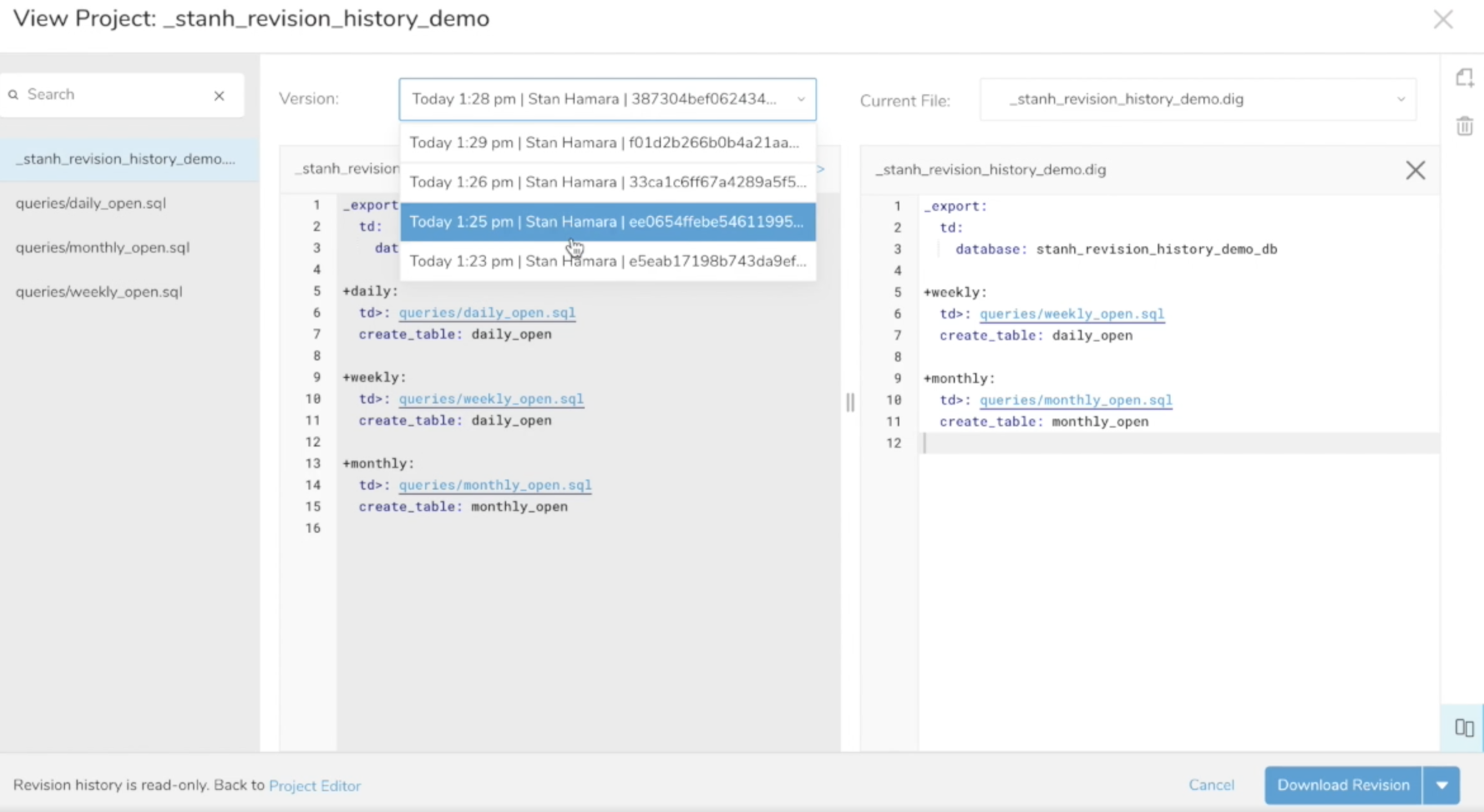
- Return to the simple revision view by deselecting the Split View icon. Here you can also choose to download your selected revision.
You can open a file in the split view by selectingShift + Click on the file link. A breadcrumb to the main file is visible above the left-hand editing window.
