You can edit your workflow project files from within TD Console using the Project Editor.
- From the TD Console, select Data Workbench > Workflows.
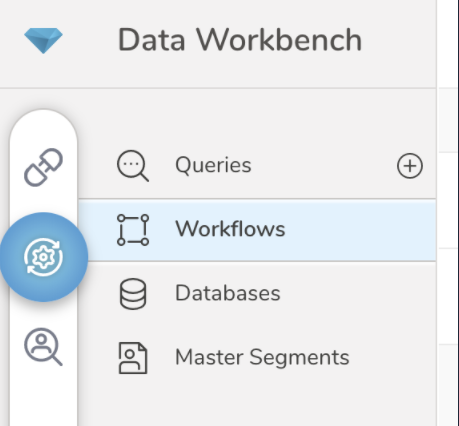
- Select the workflow you want to edit.
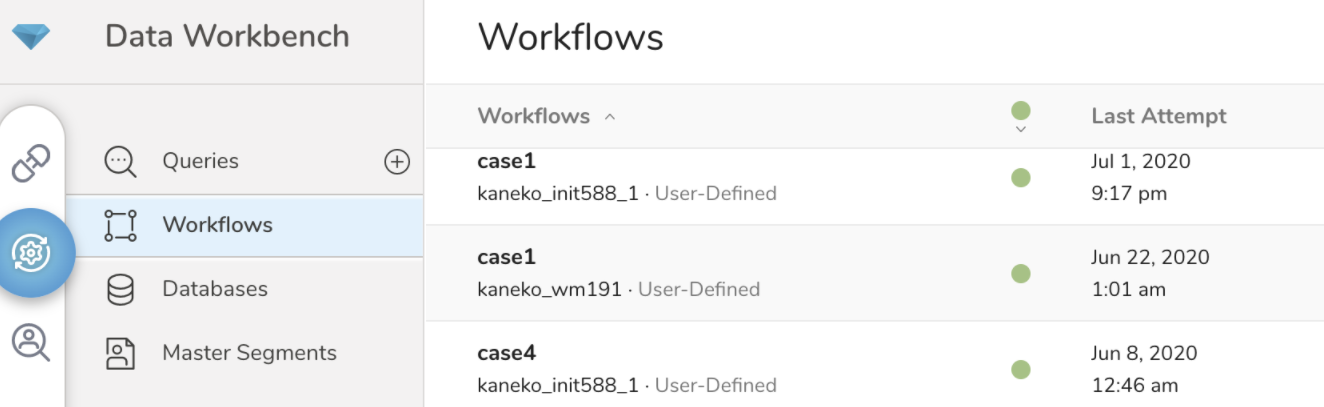
- Open the Project Editor by either selecting the Launch Project Editor or selecting the Project Revisions tab and choose the latest revision of the project.

- Search for and access files in your project using the left navigation in the Project Editor.
Files are arranged alphabetically and recently edited files or file names are identified by an orange dot.
- Search by file name or by file content. After you have made your selection, the associated workflow file appears in the editor window. Editing the name of that specific workflow is disabled.
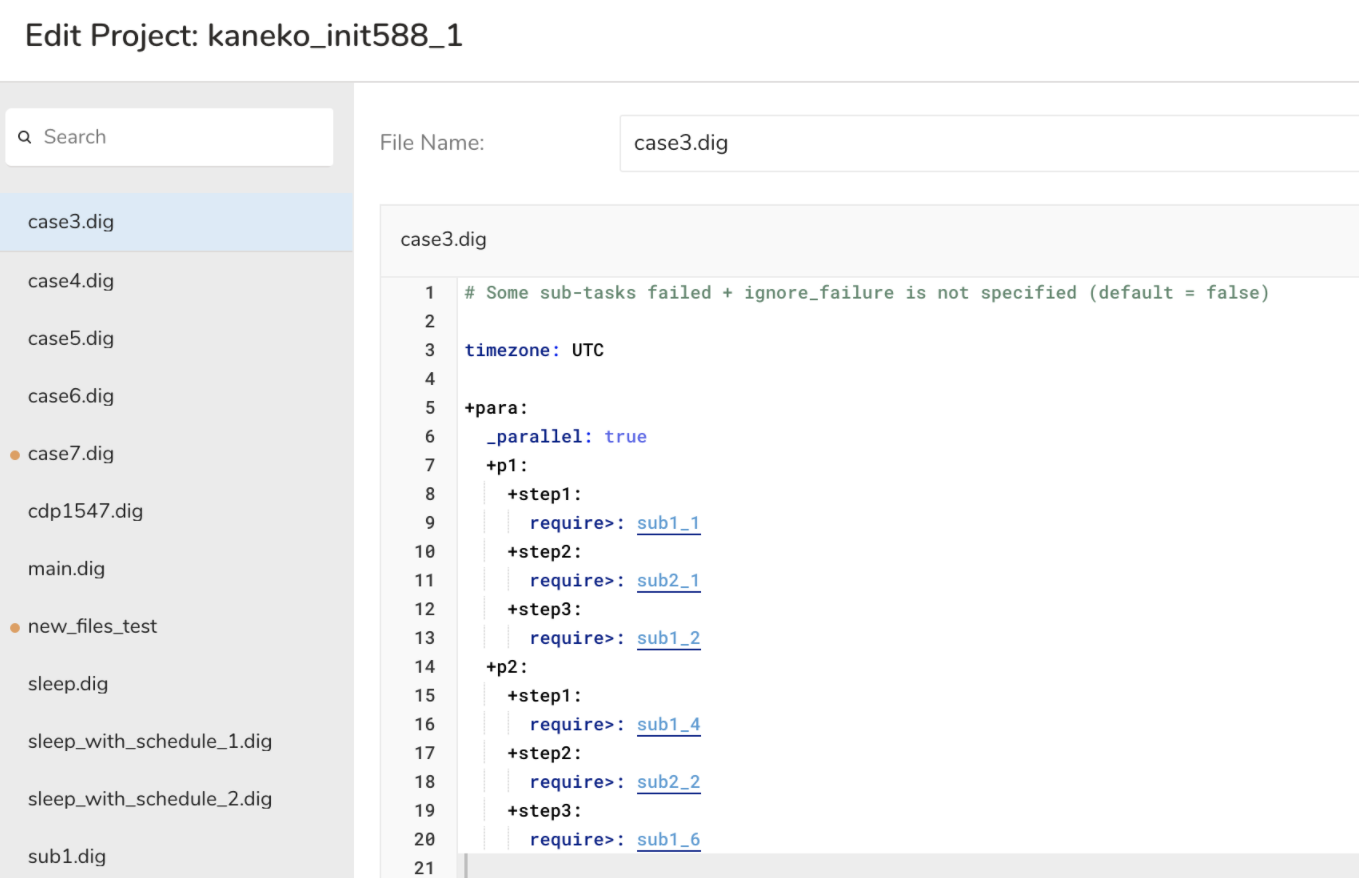
- Select Edit Files in the bottom right of the modal to begin editing. The selected project will appear in the editor modal.

- Now in the editor modal, you can select from available files on the left frame or choose from among the visible links in the selected file by using a shortcut: Command⌘ + Click (on a Mac) or Ctrl + Click (on a PC).
 Note a breadcrumb to the main file is visible above the editing window.
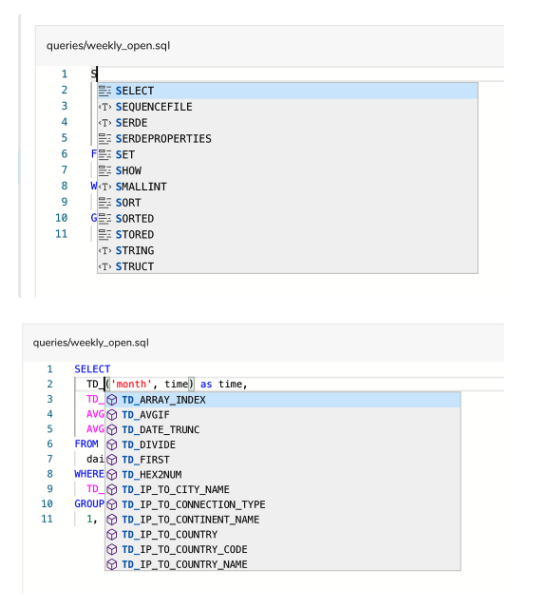
 In the editor modal, you can view autocomplete suggestions for workflow operators as well as SQL keywords, types, functions, and Treasure Data-specific functions.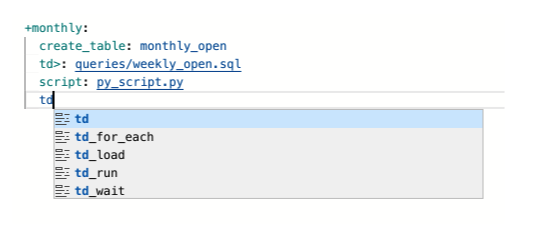
- After you have made the necessary edits, save your work by selecting Save & Commit.