You can create new files, make edits, and copy changes over to new files when viewing project revision history.
- Edits to the current version are indicated by an orange dot beside the file in the dropdown.
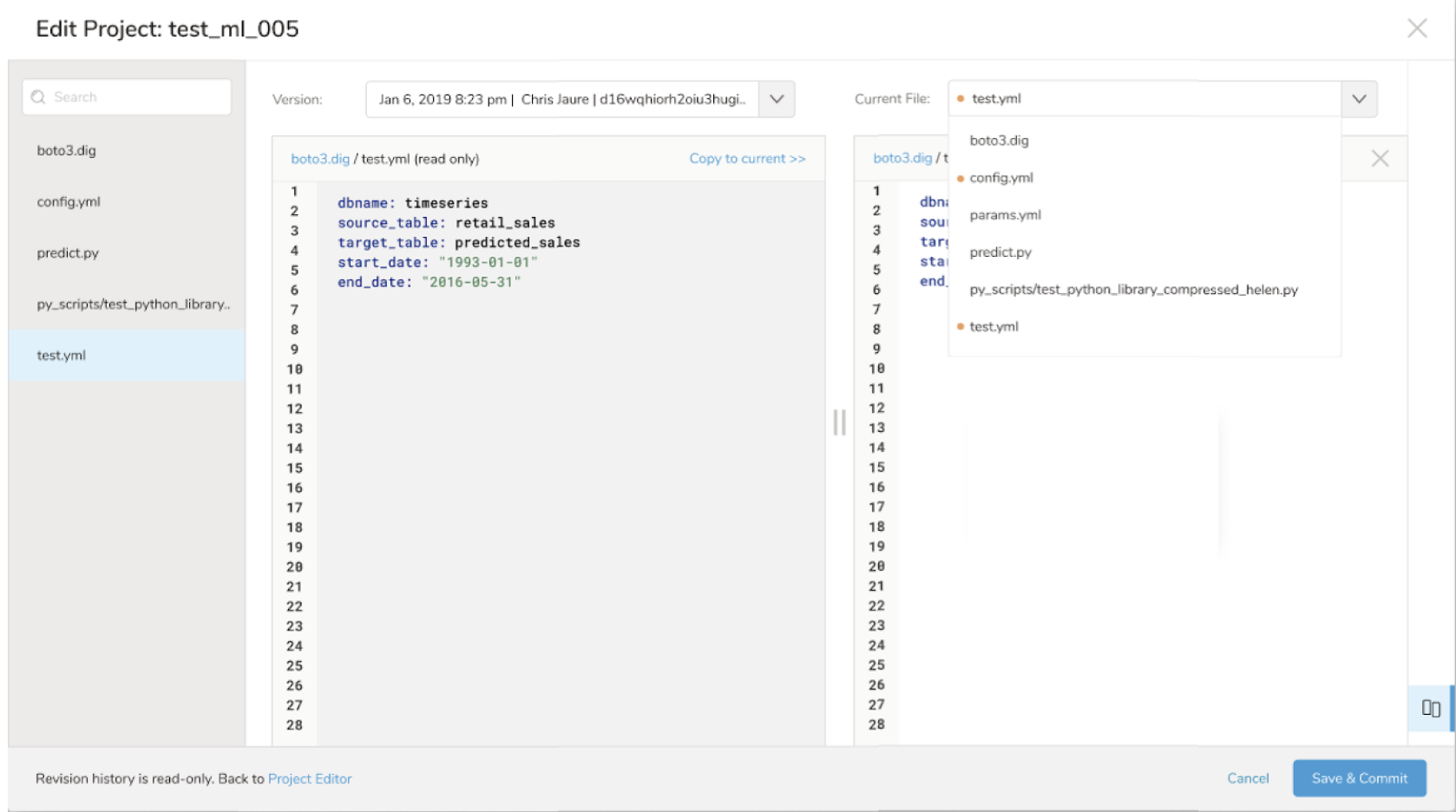
- Copy the edits to the current version, by selecting the Copy to current option over the left-side window. The Copy to current function allows you to copy the content of the selected file from the chosen revision to the same file of the current version.

- Select Save & Commit to save the recent change to the current version or deselect the Split-View and return to the regular Workflow Project Editor to see that your changes have been made and continue editing from within the editor.
The **Save & Commit **option from Split-View saves the current edits as the new current version with the appropriate date, timestamp, editor, and revision ID. It then closes the Revision Editor and displays the Project Revisions list page.
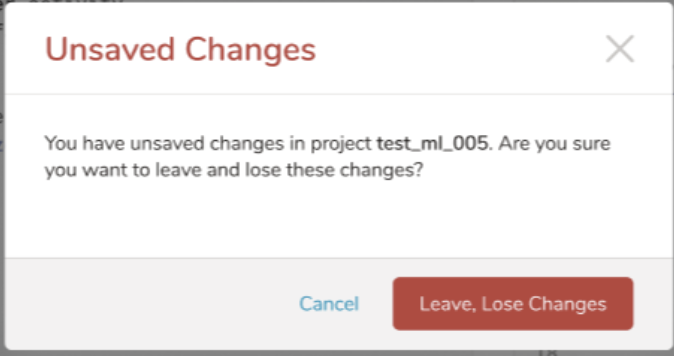
- Save changes before moving away from the project. If you attempt to move away from an edited version of a project, an Unsaved Changes warning modal appears.
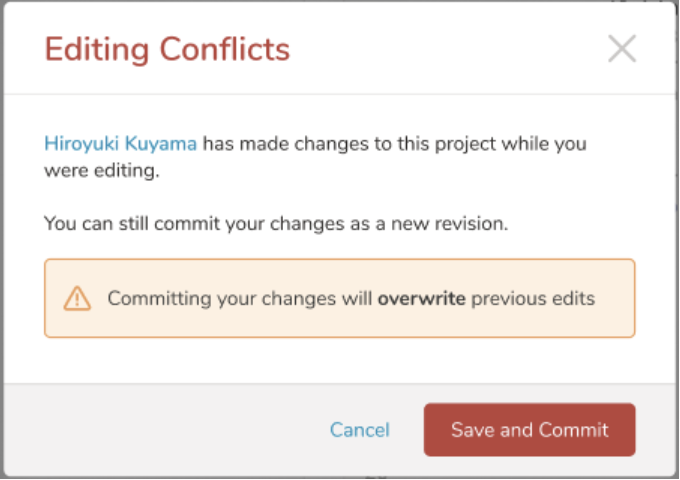
- If two users are attempting to edit and save changes at the same time, a warning modal appears.