Audience Agent is a premium feature. Contact your Customer Success Representative for more information.
This topic includes:
- Prerequisites and Limitations
- Reviewing LLM Utilization
- Set up Audience Agent
- Access the Audience Agent
- Get an Overview - Use Case
- Suggest questions - Use Case
- Analyzing and Reusing Existing Segments - Use Case
- Key Use Cases
- [Note] Understanding the Difference Between Analysis and Creation
Individuals who set up the Audience Agent feature must have Administrator permissions and access to the Data Workbench.
Marketers who access the Audience Agent feature must have the following permissions:
- Audience Studio: Full Access
OR
- Audience Studio: Limited Access > _parent segment > _All Segment Folders > Full Control.
You can specify an individual segment folder with View or Full control access.
- Users with policies with permissions for any attributes tagged PII or blocked at the parent segment cannot use Audience Agent.
- The parent segment must have LLM Agents enabled.
- Audience Agent supports only long-type columns (Unix time) as a time filter.
You can review LLM utilization in the TD Utilization Dashboard.
You must be an administrator to view this dashboard.
- Open TD Console.
- Navigate to Data Workbench.
- Select a parent segment.
- Toggle the Allow LLM Agent slider to on for enablement.
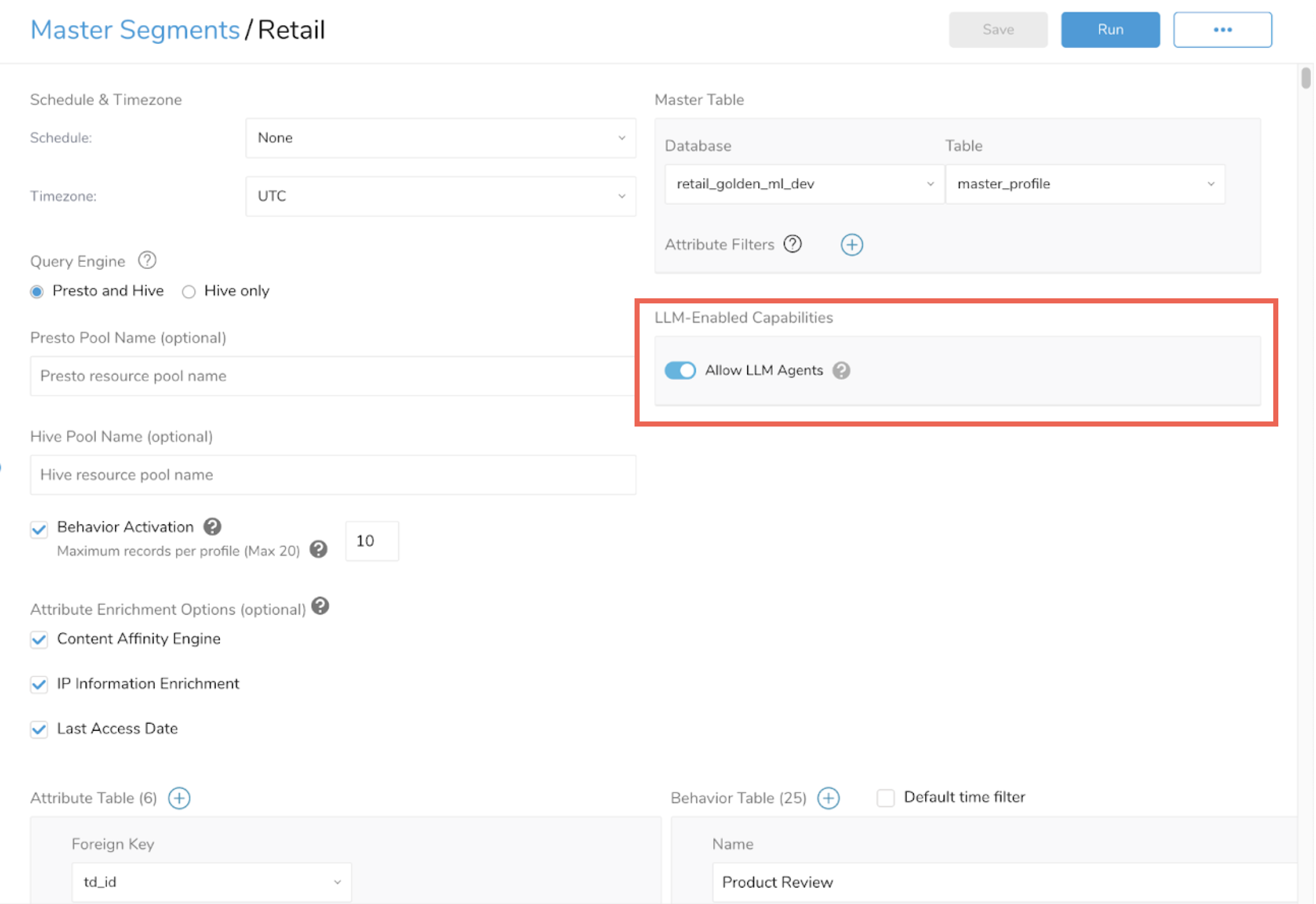
Wait approximately 2 -3 minutes for the workflows to create the Audience Agent infrastructure in the background.
The Audience Agent can help you analyze parent segment data and, based on your criteria, create a segment that can address your campaign requirements.
- Open TD Console.
- Navigate to the Audience Studio.
- Select a parent segment.
- Select Audience Agent.
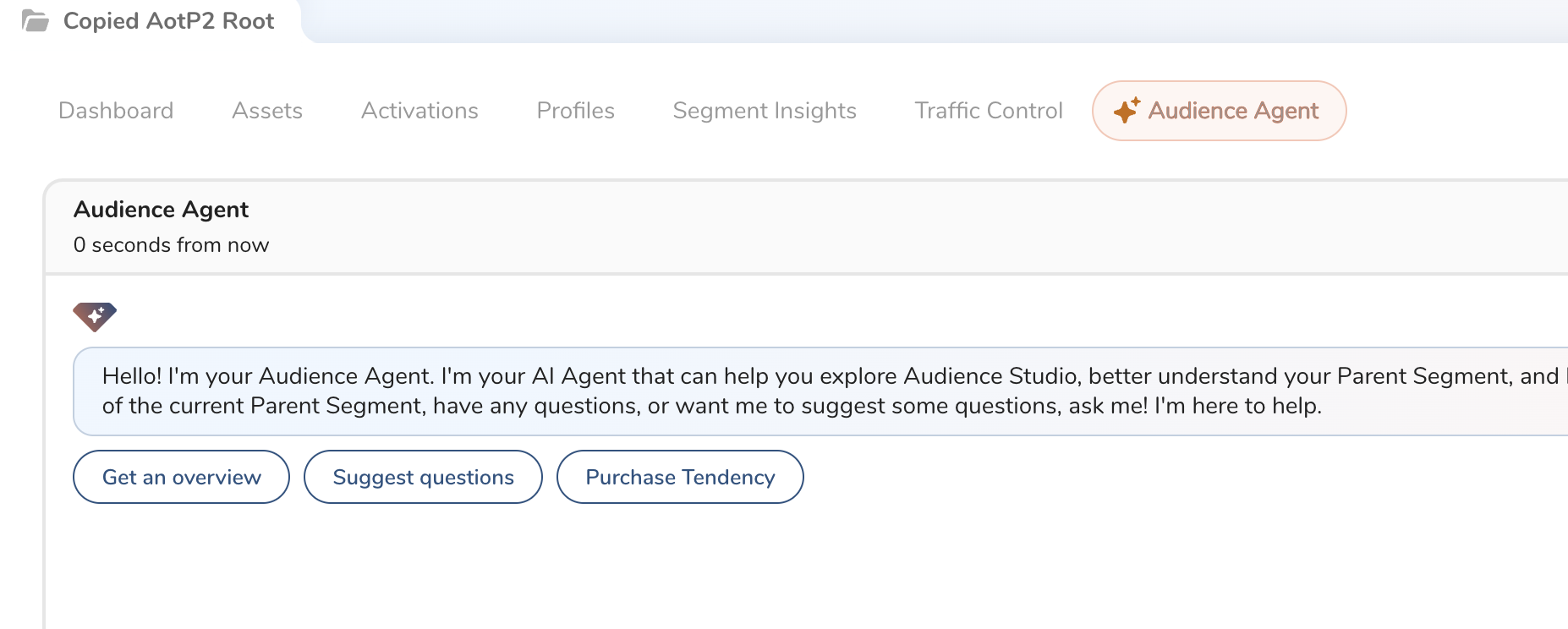
- Choose one of the following:
- Get an overview : If you are unfamiliar with the parent segment, choose this option. The Audience Agent will provide an overview of the parent segment's data so you can ask relevant questions.
- Suggest questions : This might be your best option if you know the parent segment. When you select Suggest questions , the agent automatically starts a chat session, during which you can interact with the Audience Agent to begin building your segment.
After you select either Get an overview or Suggest questions ,the Audience Agent begins a chat session. If you close your web browser, the information up to that point is recorded in a chat. You can review the chat interactions later
The following use cases are examples of how you can interact with the Audience Agent. We suggest you don't spend much time comprehending each response in the use cases; instead, scan through the interactions to understand how to chat with your Agent.
The following is a possible use case of your interactions with Audience Agent.
To start, ask a question.
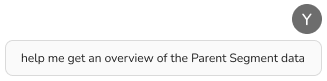
Don't worry about perfect grammar; we're just chatting!
As your chat continues, you will see responses from the Audience Agent, as the following sample shows.

During an "overview" chat, the Audience Agent will continue to provide information to help you understand how it collects and analyzes data.
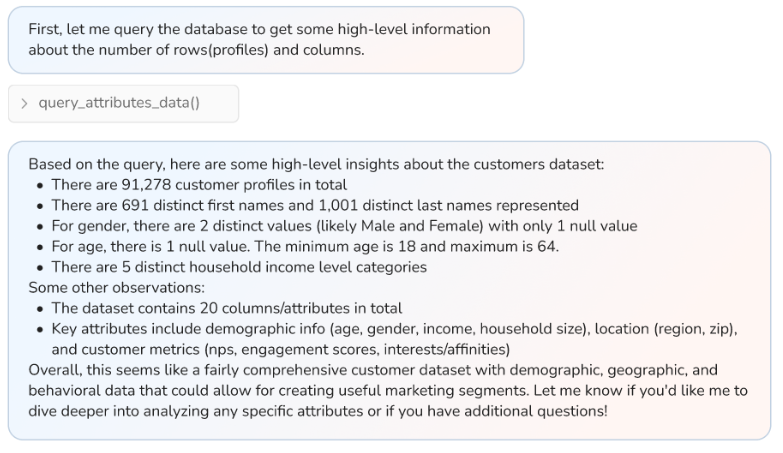
As the previous example shows, the Audience Agent can gather a lot of information and present it to you. If you're unsure of what to do, ask another question.
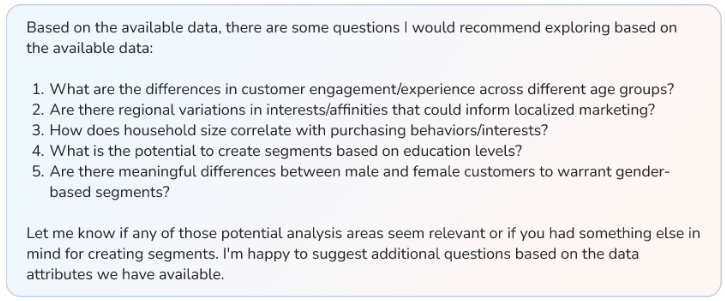
Here's an example of how the Audience Agent might respond.

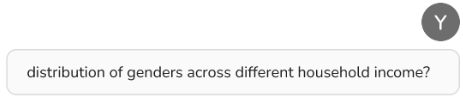
Let's assume these suggested questions inspire you to ask something not on the provided list of questions.
Here's an example of how the Audience Agent might respond.
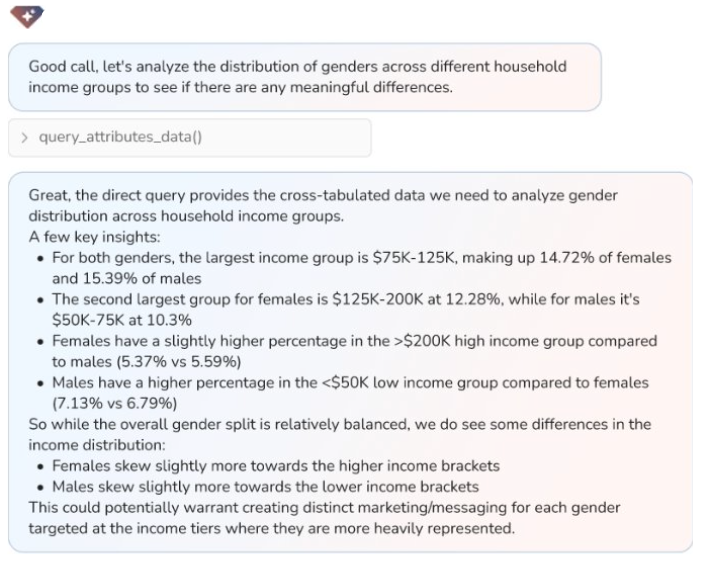
At this point, Audience Agent will probably create a chart for your further analysis.
When you select Suggest questions , the Audience Agent automatically starts with a preliminary analysis of your parent segment.
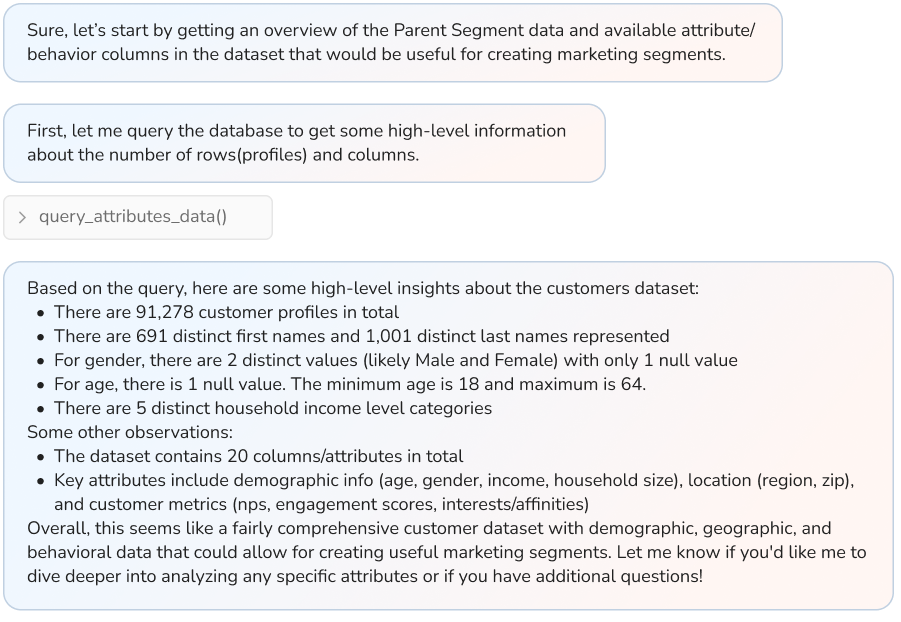
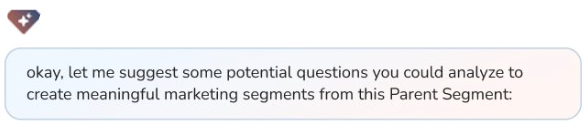
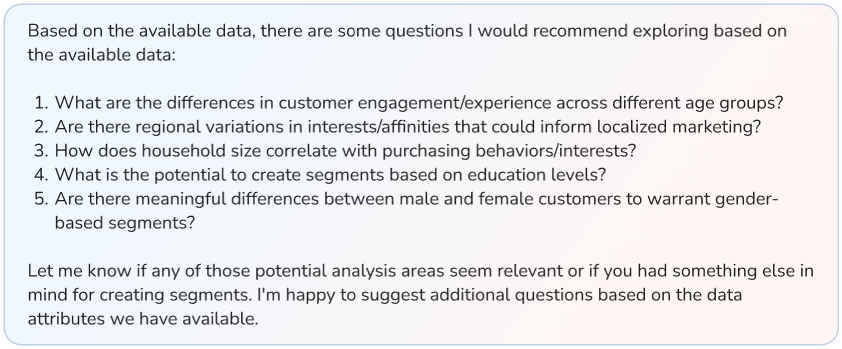
The Agent just gave you a lot of data. Let's get more help by asking the Agent to suggest some questions.

Here's the Agent's response.
The Audience Agent allows you to analyze existing segments and create new ones from them using a conversational chat interface. This improves efficiency and prevents human error.
- Analyze an Existing Segment
You can ask for a segment's definition (rules), size (profile count), and characteristics (attributes) in natural language.
To check rules: “Tell me the rules for the 'EC Loyal' segment.”
To check size: “What is the size of the 'US Treadmills Buyers' segment?”
To analyze characteristics: “Analyze the attributes of the 'Over 55' segment.”
- Create a New Segment from Existing Ones
You can build upon existing segments by adding new conditions or combining multiple segments. This saves you from the effort and potential mistakes of starting from scratch.
Add a condition: “Create a new segment from the 'Shoppers' segment, but only include customers who live in Tokyo.”
Combine multiple segments: “Create a new segment for customers who are in both the 'EC Loyal' and 'in Euro' segments.”
| Use Case | Profile Count Analysis | Segment Creation |
|---|---|---|
| Segment A AND SegmentB | ✅ | ✅ |
| Segment A OR Segment B | ✅ | ✅ |
| Segment A AND new condition | ✅ | ✅ |
| Segment A NOT Segment B | Feasible, but depends on the complexity. | ❌ |
| Complex combinations - (A AND B) OR C | Feasible, but depends on the complexity. | ❌ |
Like the Get an Overview use case, you can continue conversing with the Audience Agent to funnel the information to a level where the Agent can visualize the data with a chart.