Data Tank 2.0 allows you to integrate with Plazma DB using PostgreSQL Import/Export connectors.
Data is imported from Data Tank 2.0 to Plazma DB by using PostgreSQL Import connector.
- Confirm the Data Tank 2.0 host name, port, and database name in the Data Tank 2.0 Management UI.
- Create an access key and note the username and password. Learn more about the PostgreSQL Import Integration.
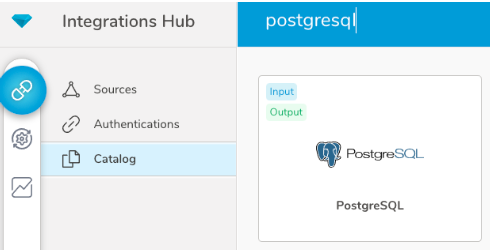
- In Authentications, enter the Data Tank 2.0 hostname, port, database name, username and password. 'Use SSL' option must be enabled.
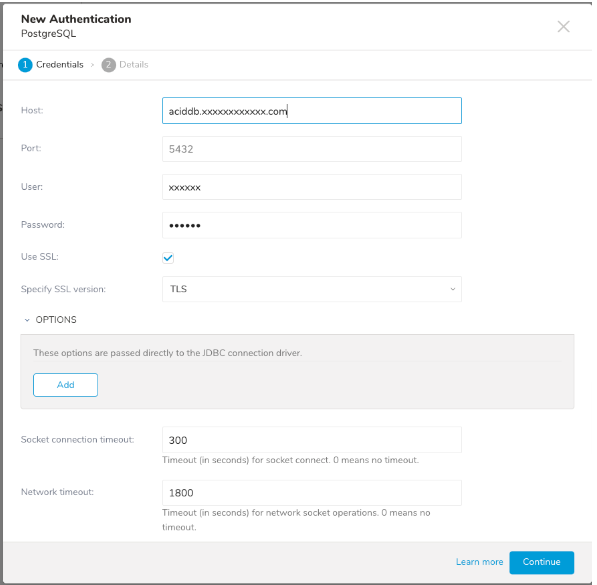
Copy data from Plazma DB to Data Tank 2.0 by using the Result Export and Treasure Workflow.
The Data Tank 2.0 hostname, port and database name are created beforehand from the Data Tank 2.0 Management UI. Also, create an access key with a policy of CUSTOMIZABLE_ADMIN and note the username and password. When using the integration, Set Role option setting is required.
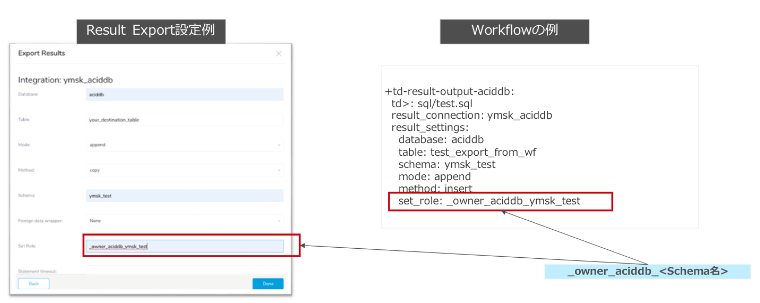
To Use this function requires some configuration by customer and Treasure Data sides.
Presto, one of Treasure Data's query engines, can be used to submit queries and retrieve results to Data Tank 2.0. The query result set can be JOINed with the data during Presto job processing with Plazma DB. When using Presto, the syntax of the query conforms to Presto (use of extended functions on Data Tank 2.0 is not supported). When a query is submitted, Data Tank 2.0 connection is made to the Reader node, which avoids load effects on the Writer node.
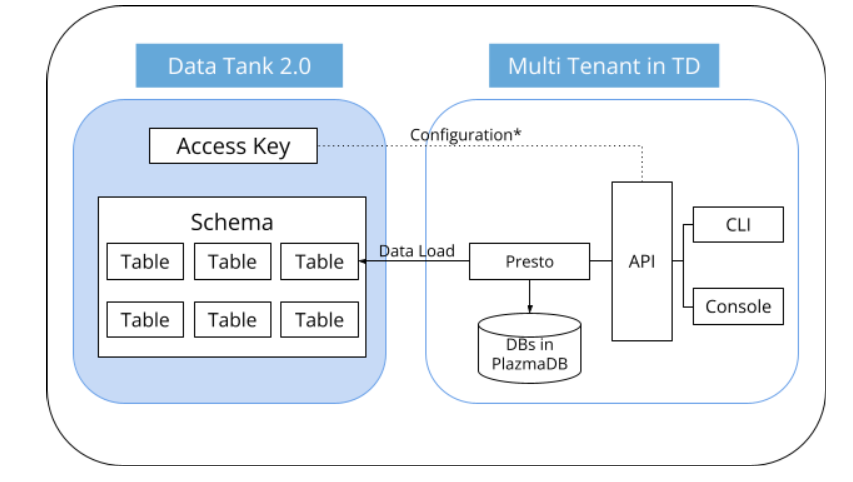
Configuration to link Access Key in Data Tank 2.0 with API are operated by Treasure Data.
- Create an access key for your Data Tank 2.0 for use with this function. Set the necessary access policy for the Access key on Management UI.
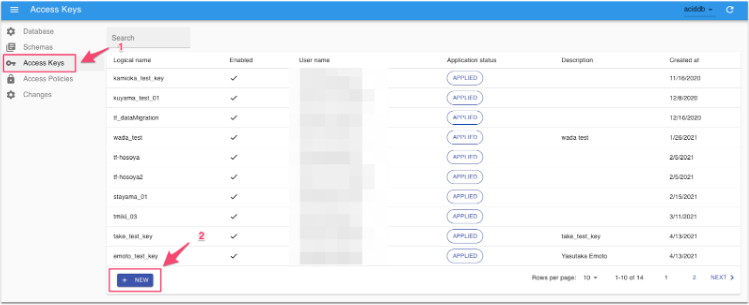
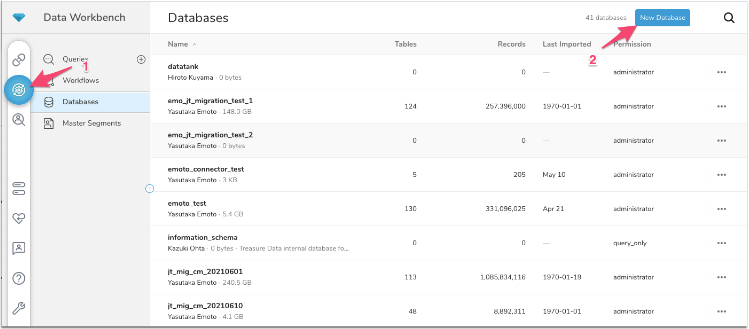
- Create a dedicated empty database for this function on Treasure Data Console.
- Customer to request Treasure Data Support to enable Data Tank 2.0 Presto integration. In the request, add the following information:
- Data Tank 2.0 Access Key + Password that is created at Step 1
- Database name that is created at Step 2
- Data Tank 2.0 Hostname
- TreasureData to configure the integration setting and then report it to customer after it is done.
To access Data Tank 2.0 via Presto, write the following syntax:
SELECT
  [Column Names in Data Tank 2.0]
FROM
[Database Name that is created at Step2].[Schema name in Data Tank 2.0].[Table Name in Data Tank 2.0]- Plazma DB Permission
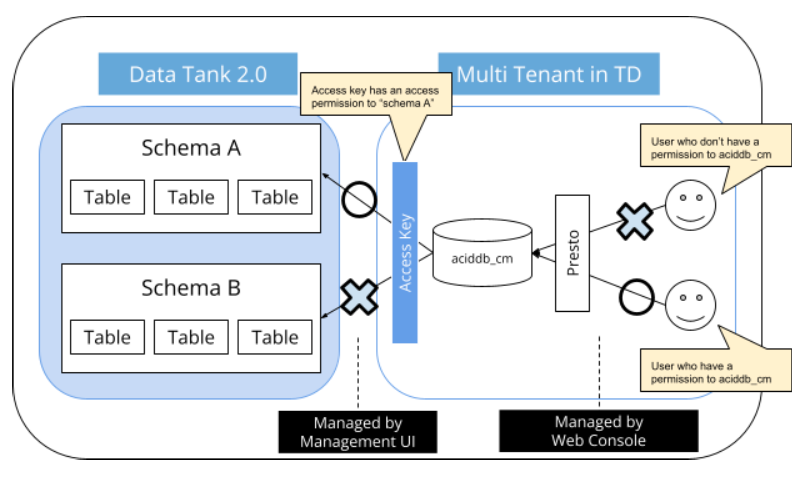
- Data Tank 2.0 Presto Integration requires Query or Full Access permission to the database to the Treasure Data user. Access Control is managed by Treasure Data Console.
- Data Tank 2.0 Permission
- Data Tank 2.0 Presto Integration requires an access permission to the schema associated with the access key in Data Tank 2.0. Access Control is managed by Management UI.
Data Tank 2.0 offers PostgreSQL protocol that allows you to use common PostgreSQL client tools. This section describes how to access Data Tank 2.0 with psql command.
psql command allows you to connect to Data Tank 2.0 from CLI.
- Download and install psql command from here: https://www.postgresql.org/download/
- After installation, run the following command:
% psql -d <Database> -h <Host> -p 5432 -U <UserName>
UserName and Password are displayed at Access Key page in Management UI.