The Avro parser plugin for Treasure Data's integrations parses files containing Avro binary data. The following Treasure Data integrations support the Avro parser:
The Treasure Data Avro parser supports the following compression codecs:
- Deflate
- Snappy
The parser is available for use from either the Treasure Data Console or the Treasure Data CLI.
To use the Avro parser function in the Treasure Data console you will need to create an authentication for one of the supported integrations. Afterwards, you can use that authentication to create a source. In the process of creating the source, you will have the opportunity to either adjust or preview the data in the Avro file.
In step 3 of the Create Source interface, Data Settings, the TD Console should automatically select the Avro parser. If it does not, you can manually select it from the Parser > Type drop-down menu.
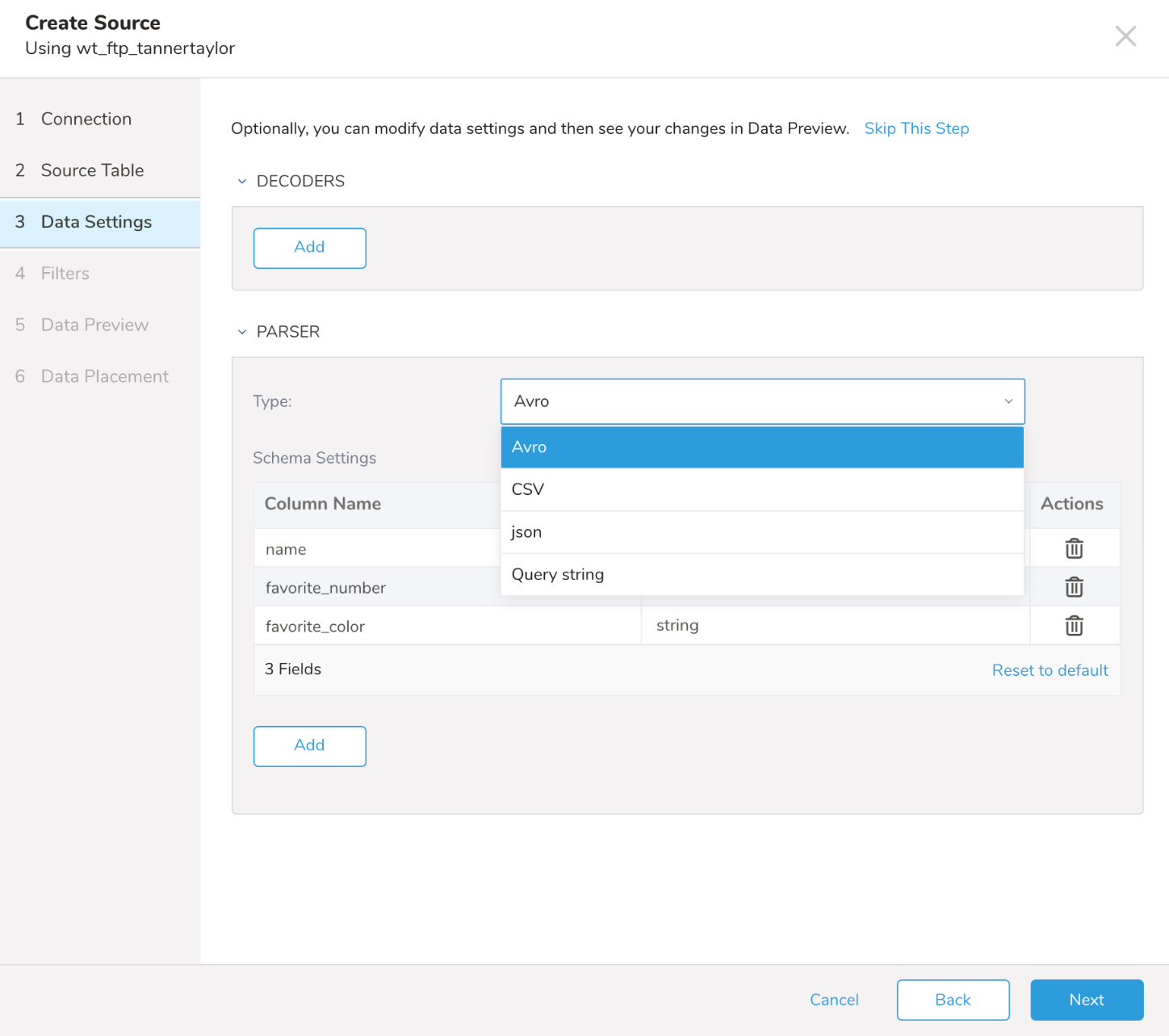
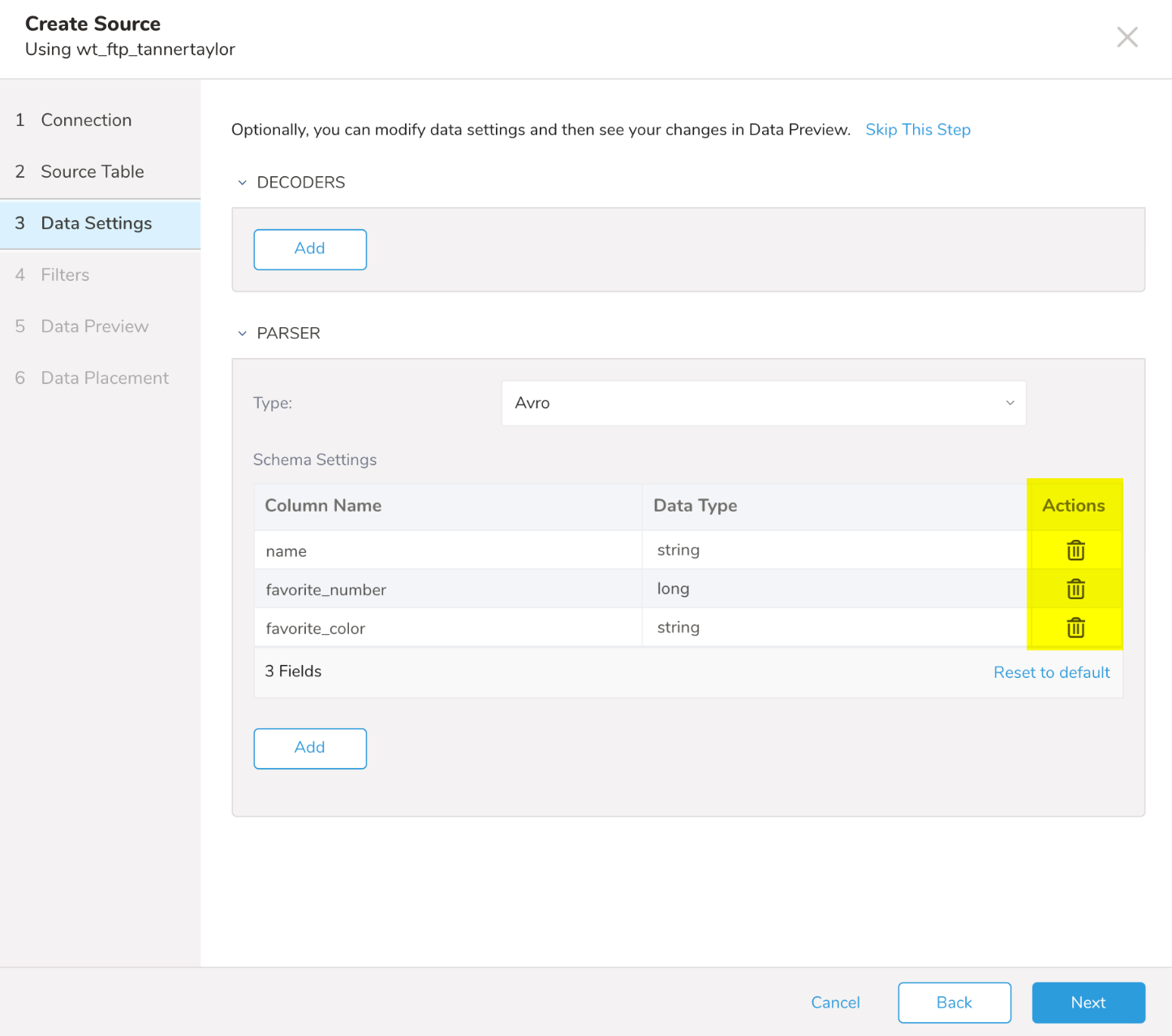
You also have the option to use the delete icon to prevent specific rows from being imported.
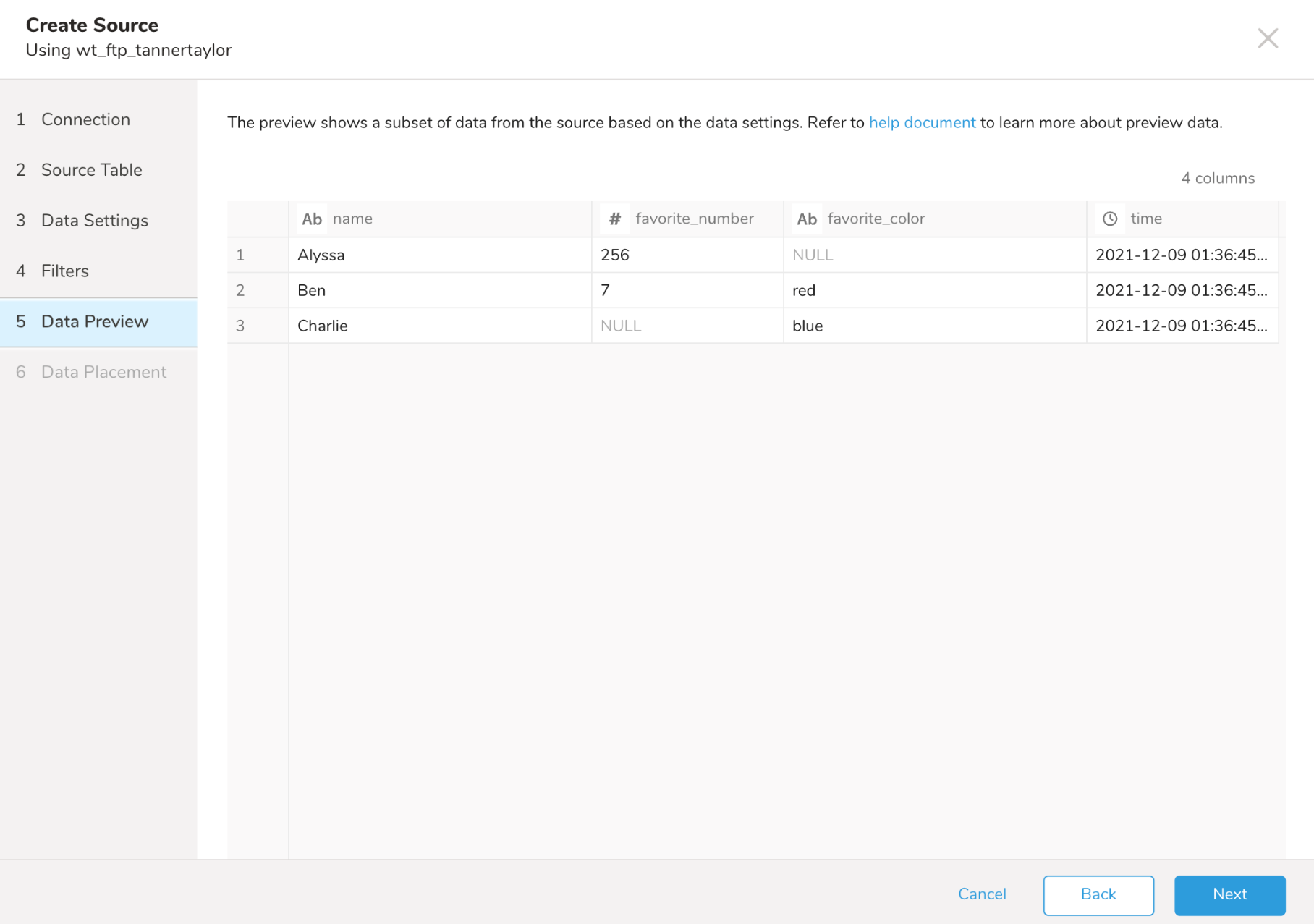
In step 5 of the Create Source interface, Data Preview, the TD Console displays a preview of the data.
Using the Treasure Data CLI , you can import Avro data from the command line using the td connector command. This command takes a configuration file in YAML format as input. For example, using the sample file, users.avro, you could create a file named importAvroFTP.yml to import the sample file from an FTP site. The configuration file might look something like this:
in:
  type: ftp
  host: 10.100.100.10
  port: 21
  user: user1
  password: "password123"
  path_prefix: /misc/users.avro
  parser:
    type: avro
    columns:
    - {name: name, type: string}
    - {name: favorite_number, type: long}
    - {name: favorite_color, type: string}
out:
  mode: append
Manually Defining the Columns for the Avro Import
The columns section of the file is where you can define the schema of the Avro file by specifying key value pairs for name, type, and (in the case of a timestamp) format.
Key Value Pairs for Column Array
| Column | Description |
|---|---|
name | Name of the column. |
type | Type of the column:
|
format | Only valid when the column type is timestamp. |
Here are examples of how columns can be defined:
- {name: first_name, type: string}
- {name: favorite_number, type: long}
- {name: last_access, type: timestamp, format: '%Y-%m-%d %H:%M:%S.%N'}
After you have set up your configuration file, use the td connector command to perform the import. Here is an example of how that might look.
The following example assumes that the users.avro file is available on your FTP site. Additionally, for the manual import process to work, a time column is added to the importAvroFTP.yml file.
in:
  type: ftp
  host: 10.100.100.10
  port: 21
  user: user1
  password: "password123"
  path_prefix: /misc/users.avro
  parser:
    type: avro
    columns:
    - {name: name, type: string}
    - {name: favorite_number, type: long}
    - {name: favorite_color, type: string}
    - {name: time, type: timestamp}
out:
  mode: append
td connector:preview importAvroFTP.ymltd connector:issue importAvroFTP.yml \
--database wt_avro_db \
--table wt_avro_table --auto-create-tableTo see the contents of the table, you can use a TD Query command. Because the output of the query command is verbose, much of the response has been removed from the following example:
td query -d wt_avro_db -T presto -w 'select * from wt_avro_table'Allowing the Parser to Guess the Columns for the Avro Import
You also have the option to let the parser make a best guess at the columns and data types being used in any particular file. The parser makes it "guesses" based on the conversion table shown here.
Default Type Conversions from Avro to TD
| Avro Type | TD Data type |
|---|---|
| String | String |
| Bytes | String |
| Fixed | String |
| Enum | String |
| Null | String |
| Int | Long |
| Long | Long |
| Float | Double |
| Double | Double |
| Boolean | Boolean |
| Map | JSON |
| Array | JSON |
| Record | JSON |
in:
  type: s3
  access_key_id: <access key>
  secret_access_key: <secret access key>
  bucket: <bucket name>
  path_prefix: users.avro
  parser:
    type: avro
    columns:
    - {name: name, type: string}
    - {name: favorite_number, type: long}
    - {name: favorite_color, type: string}
out: {mode: append}
exec: {}
Example of Running td connector:guess on an Avro File Hosted on S3
$ td connector:guess config.yml -o load.yml---
in:
type: s3
access_key_id: <access key>
secret_access_key: <secret access key>
bucket: <bucket name>
path_prefix: users.avro
parser:
charset: UTF-8
newline: CR
type: avro
columns:
- {name: name, type: string}
- {name: favorite_number, type: long}
- {name: favorite_color, type: string}
out: {}
exec: {}
filters:
- from_value: {mode: upload_time}
to_column: {name: time}
type: add_time