The JSON parser plugin for Treasure Data's data connectors parses JSON data. You can use the following option:
| Option | Description | required? |
|---|---|---|
stop_on_invalid_record | Stop bulk load transaction if a file includes an invalid record. | false by default |
| invalid_string_escapes | Escape strategy for invalid JSON strings. (see below) | PASSTHROUGH by default |
| root | Specify when pointing a JSON object value as a record via JSON pointer expression | optional |
| flatten_json_array | Set to true if you want to treat elements in a JSON array as multiple records. | false by default |
| columns | Columns (see below) | optional |
If you set flatten_json_array, the job can fail because the parser will need a lot of memory to read and store the entire JSON array before processing it. In the case you have only one large JSON array, Treasure Data recommends that you either reduce the number of JSON objects in the array or extract and store the JSON object as illustrated in this example:
{"time":1455829282,"ip":"93.184.216.34","name":"frsyuki"}
{"time":1455829282,"ip":"172.36.8.109","name":"sadayuki"}
{"time":1455829284,"ip":"example.com","name":"Treasure Data"}
{"time":1455829282,"ip":"10.98.43.1","name":"MessagePack"}
If you set invalid_string_escapes, and the parser encounters an invalid JSON string, it takes the following the action:
| invalid_string_escapes | converts to |
|---|---|
| PASSTHROUGH | \a |
| SKIP | empty string |
| UNESCAPE | a |
The columns option declares the list of columns, and specifies the way the parser will extract JSON values into columns.
| Name | Description |
|---|---|
| name | Name of the column. The JSON value with this name is extracted if element_at has not been specified. |
| type | Type of the column (same as used with CSV parser) |
| element_at | Descendant element to be extracted as the column, expressed as a relative JSON Pointer (optional) |
| format | Format of the timestamp, if element is of type timestamp |
You can set the parser to JSON automatically by using the guess command to generate the load.yml. Or set the parser section’s type to json in load.yml, for example:
in:
  ...
  parser:
    type: json
out:
... The following example shows that the source file is JSON data and how to configure the .yml file.
- Example of Source data
{"time":1455829282,"ip":"93.184.216.34","name":"frsyuki"}
{"time":1455829282,"ip":"172.36.8.109","name":"sadayuki"}
{"time":1455829284,"ip":"example.com","name":"Treasure Data"}
{"time":1455829282,"ip":"10.98.43.1","name":"MessagePack"}
load.yml example is as follows.
in:
  ...
    parser:
      type: json
    ...
You can show parsed JSON data which in the following example is named record column by preview command.
$ td connector:preview load.yml+---------------------------------------------------------------------------+
| record:json |
+---------------------------------------------------------------------------+
| "{\"ip\":\"93.184.216.34\",\"time\":1455829282,\"name\":\"frsyuki\"}" |
| "{\"ip\":\"172.36.8.109\",\"time\":1455829282,\"name\":\"sadayuki\"}" |
| "{\"ip\":\"example.com\",\"time\":1455829284,\"name\":\"Treasure Data\"}" |
| "{\"ip\":\"10.98.43.1\",\"time\":1455829282,\"name\":\"MessagePack\"}" |
+---------------------------------------------------------------------------+- Import to Treasure Data table.
$ td connector:issue load.yml --database <database name> --table <table name> --auto-create-table The result table is as follows:
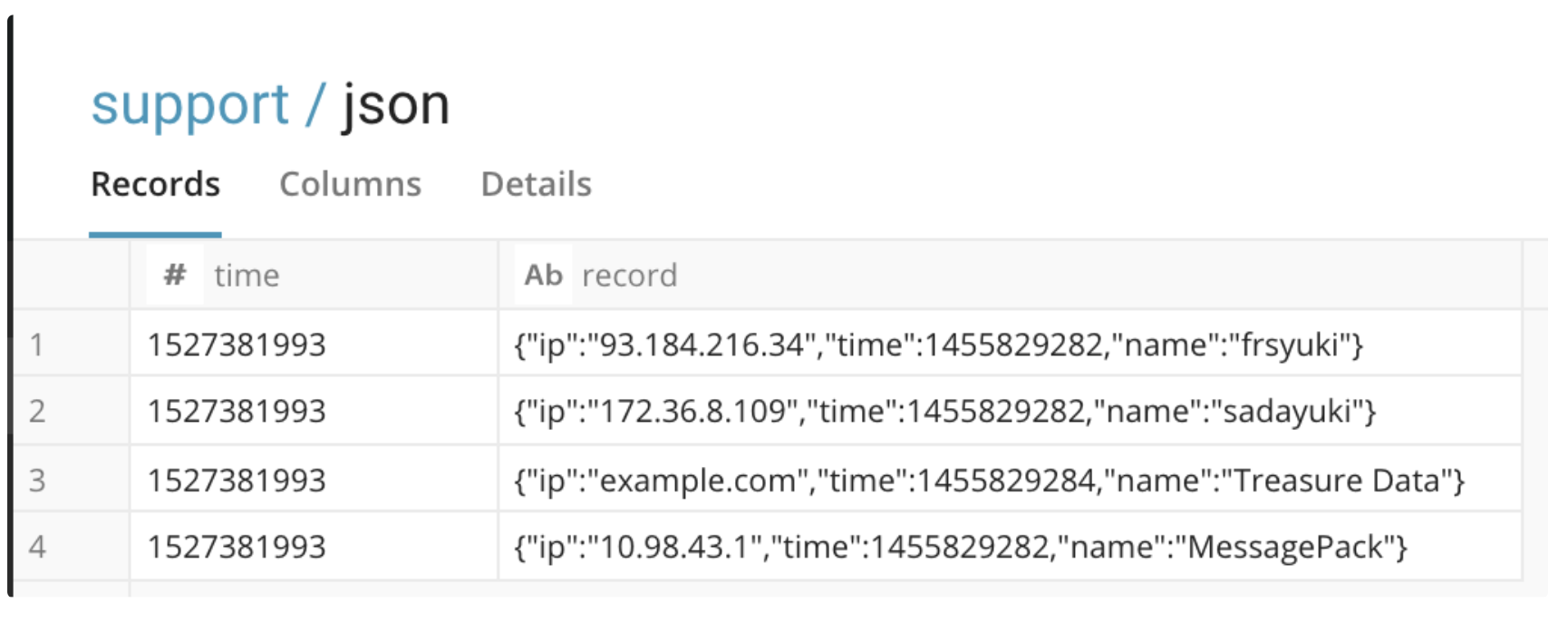
The JSON data shows string type, but you can use JSON Functions as follows:
SELECT
  json_extract(
    record,
    '$.ip'
  ) AS IP
FROM
  json
ip
"93.184.216.34"
"172.36.8.109"
"example.com"
"10.98.43.1"
The following example shows the source file is JSON data and how to configure the .yml file.
Example of Source data
{"time":1455829282,"user_info":{"ip":"93.184.216.34","name":"frsyuki"}}
{"time":1455829282,"user_info":{"ip":"172.36.8.109","name":"sadayuki"}}
{"time":1455829284,"user_info":{"ip":"example.com","name":"Treasure Data"}}
{"time":1455829282,"user_info":{"ip":"10.98.43.1","name":"MessagePack"}}
The sub JSON is:
{"ip":"93.184.216.34","name":"frsyuki"} You can configure the data connector to expand the file.
    in:
    ...
      parser:
        type: json
        columns:
        - name: time
          type: long
        - name: ip
          type: string
          element_at: /user_info/ip
        - name: name
          type: string
          element_at: /user_info/name
    out:
    ...
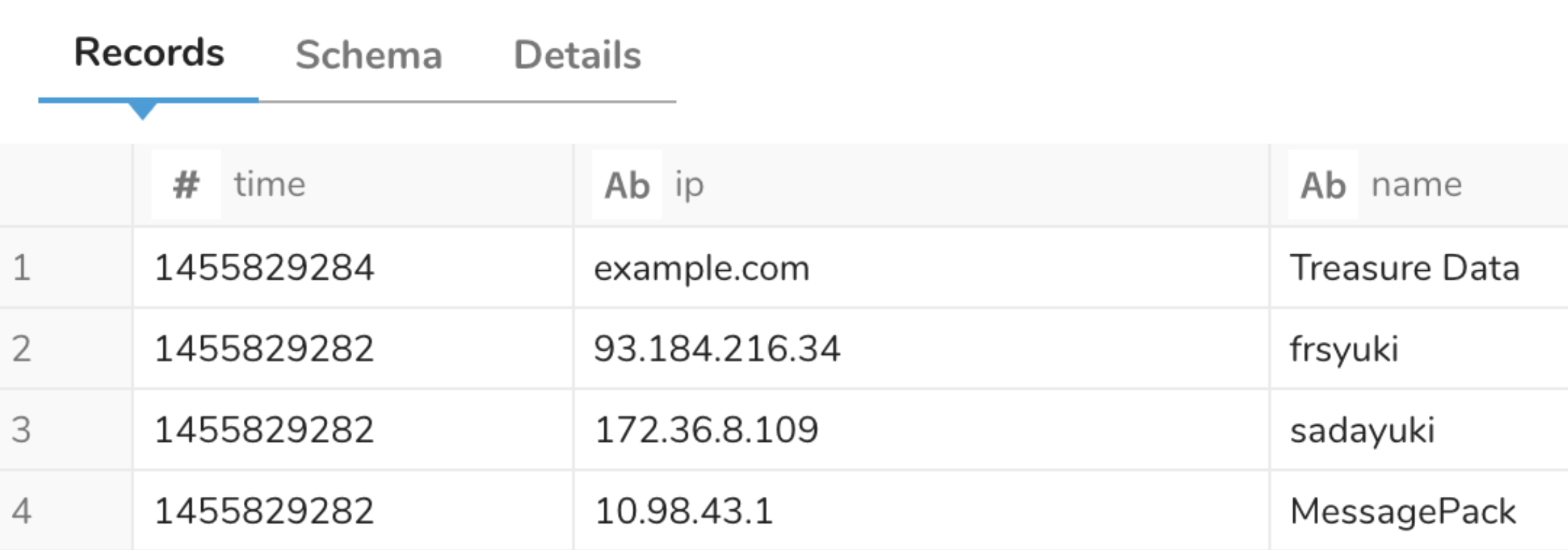
The result is as follows:
You can flatten a JSON array by setting flatten_json_array to true.
    in:
    ...
      parser:
        type: json
        flatten_json_array: true
root: /records - Example Input
{
  "records": [
    {"col1":1,"col2":"test1"},
    {"col1":2,"col2":"test2"}
  ]
}
You can see two records by flattening JSON array as follows.
$ td connector:preview load.yml +-----------------------------------+
| record:json |
+-----------------------------------+
| "{\"col1\":1,\"col2\":\"test1\"}" |
| "{\"col1\":2,\"col2\":\"test2\"}" |
+-----------------------------------+
2 rows in set