TD Workflow provides a landing page that helps you quickly understand your workflow activities.
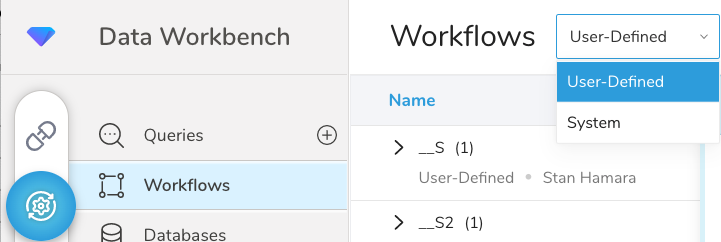
Use the workflow selector at the top of the Workflows page, to choose the type of workflows you want to view:
User-Defined Workflows — These workflows are created and managed by the users. The workflows perform custom tasks and can be customized for the specific needs and requirements of the user. These workflows provide a high degree of flexibility in the logic and in the definition of processing parameters. An example of a user-defined workflow would be a defined set of activations that need to occur on an activation event.
System Workflows — These workflows are pre-defined and are created by the system or by internal services and applications. Users cannot create or modify these workflows, but they can access them through the user interface. Examples of system workflows are:
- Predictive Scoring
- A/B Test
- Activation
- Master Segment

Learn more about creating user-defined workflows.
When you first open the workflow landing page, Treasure Data displays projects in a tree structure with the associated workflow(s). To search for a workflow, you can open each project and view the workflows. Optionally, you can search for a workflow.
In the upper right, select the magnifying icon.

Enter your search.
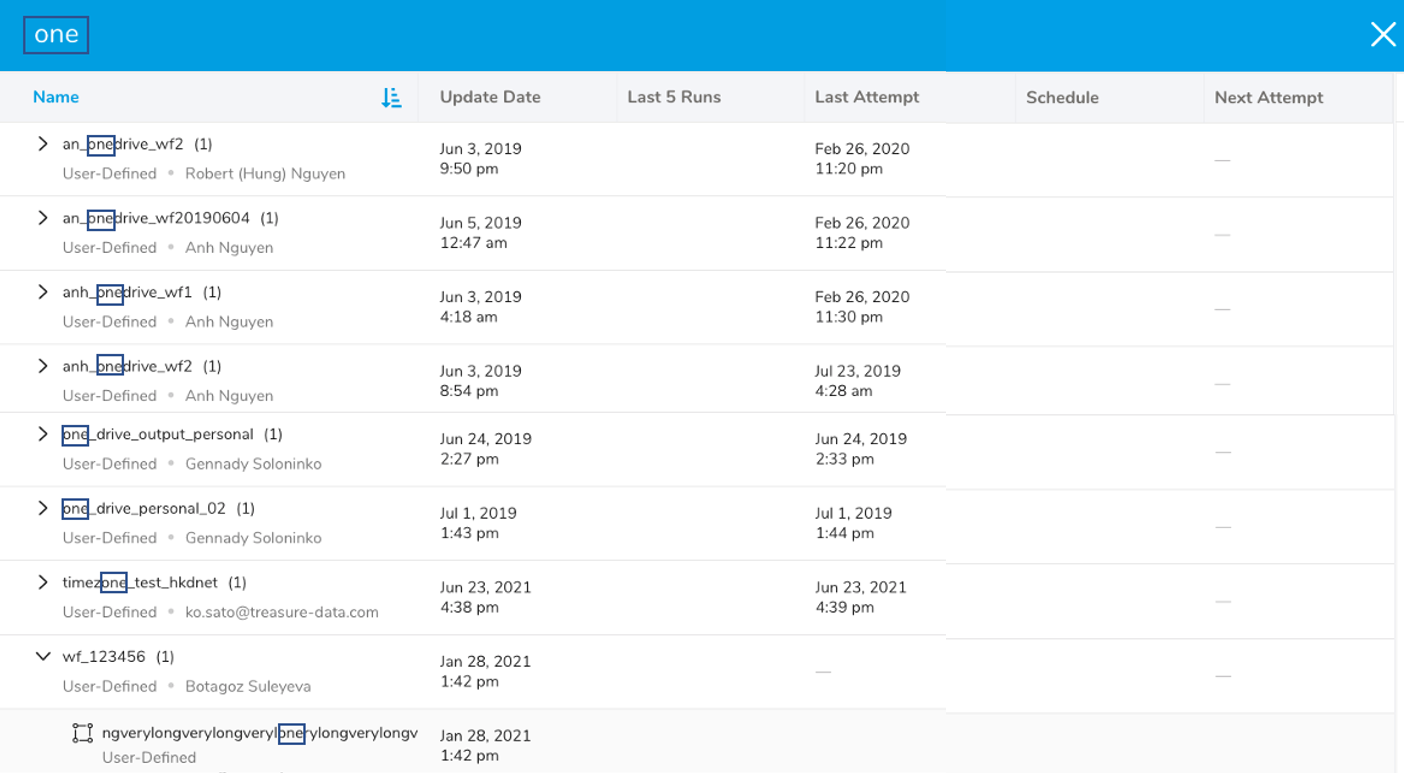
In the previous example, we searched using the term "one". In the last entry, we see a nested workflow that contains the characters in the workflow name.
Select the sort icon to the right of the Name column.
Select Sort workflow across projects by name.
Select either Sort Ascending or Sort Descending to refresh the page.
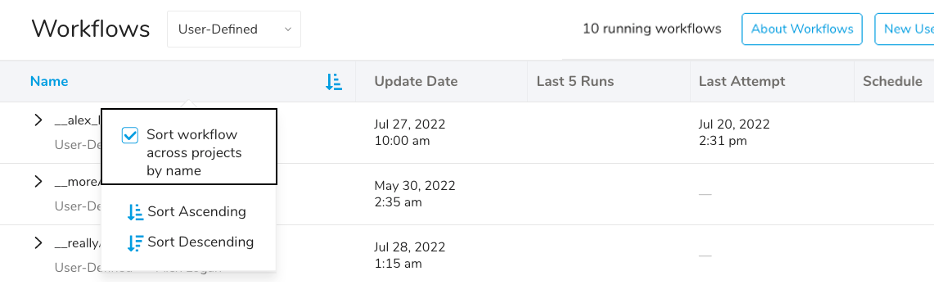
Treasure Data displays a flat structure of projects and their associated workflows.
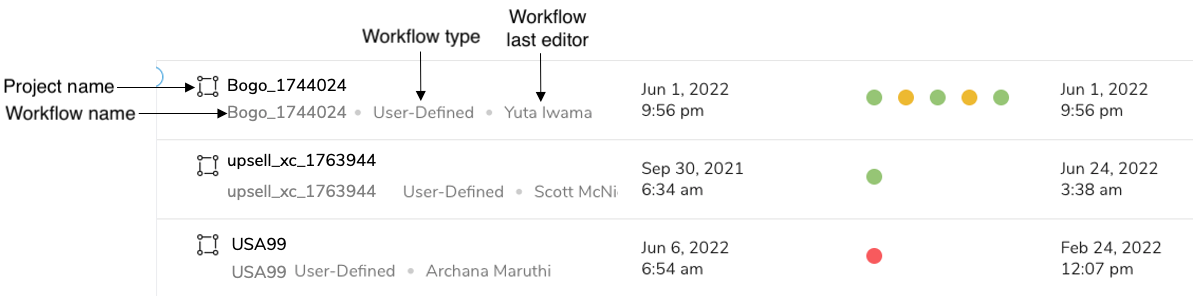
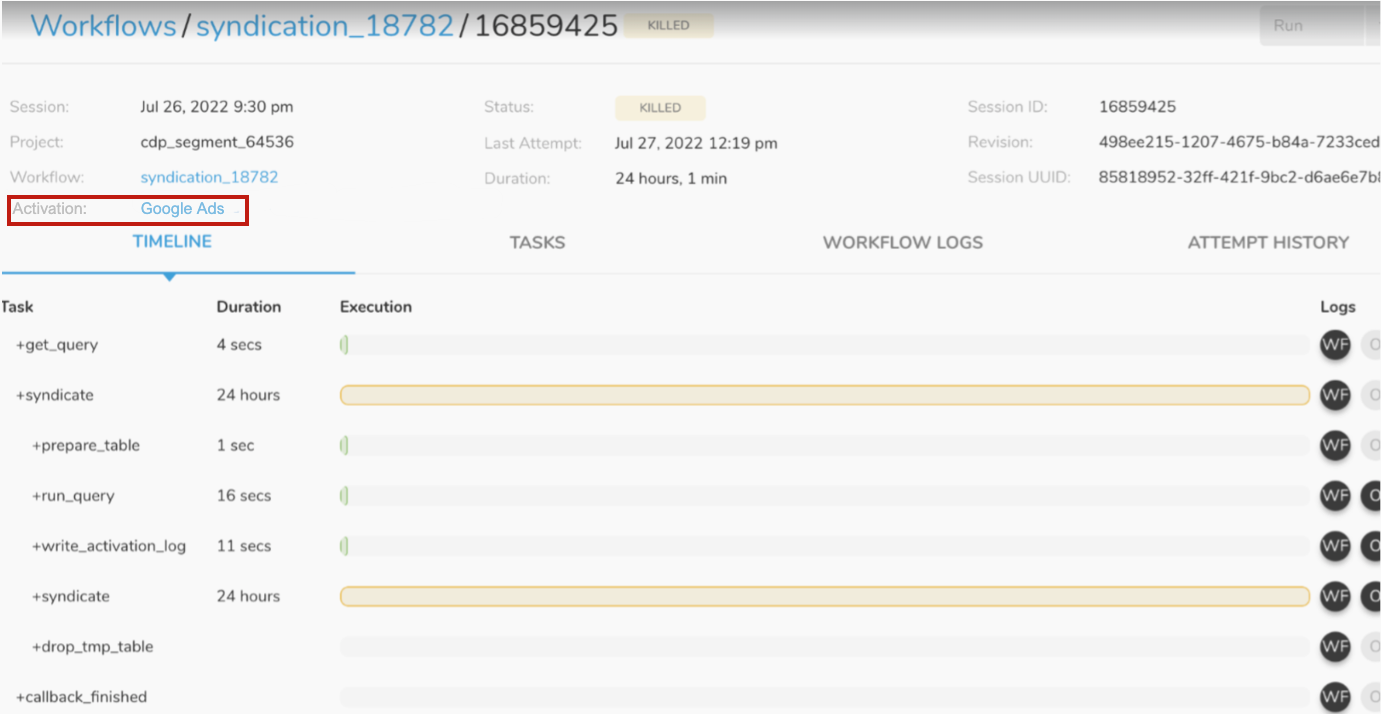
You might have a workflow that has been running for a long time or one that has failed. You can easily access the activation that launched the workflow from the workflow page.
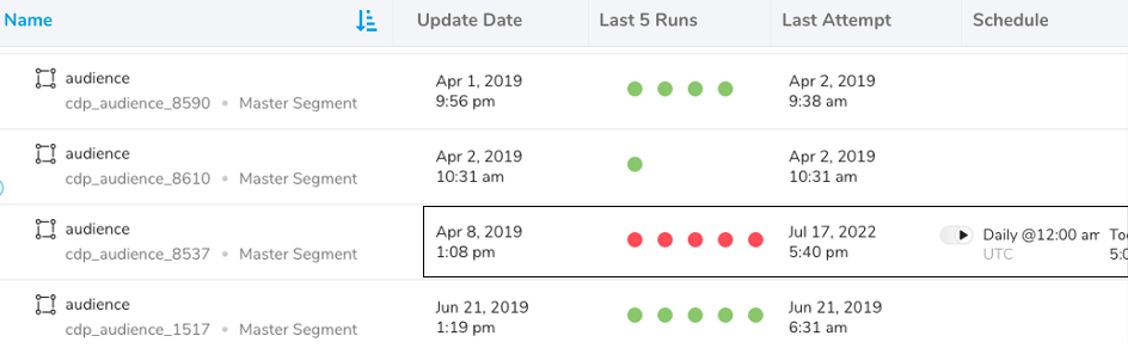
| Status Name | Action | Example Description |
|---|---|---|
| Update Date | Identify the first date that the workflow was run. | This segment was first run on April 8, 2019, at 1:08 pm. |
| Last 5 Runs | Quickly review the success of the last 5 workflow run attempts. | All of the last 5 workflow runs have failed. |
| Last Attempt | Confirm the last attempted workflow run. | The last attempted workflow run was on July 17, 2022, 5:40 pm. |
| Schedule | For repeating workflows, the schedule displays. | Daily at 12:00 am UTC time zone. |
| Next Attempt | The next time Treasure Data will attempt to run the workflow. | Today 5:00 pm. |