Navigate to Data Workbench > Workflows to review workflow execution and task logs.
Dependent workflows that use the require > operator have a direct link to the Run History.
If you do not rerun all tasks, the dependent workflow status might not display when the require> operator that calls it is skipped.
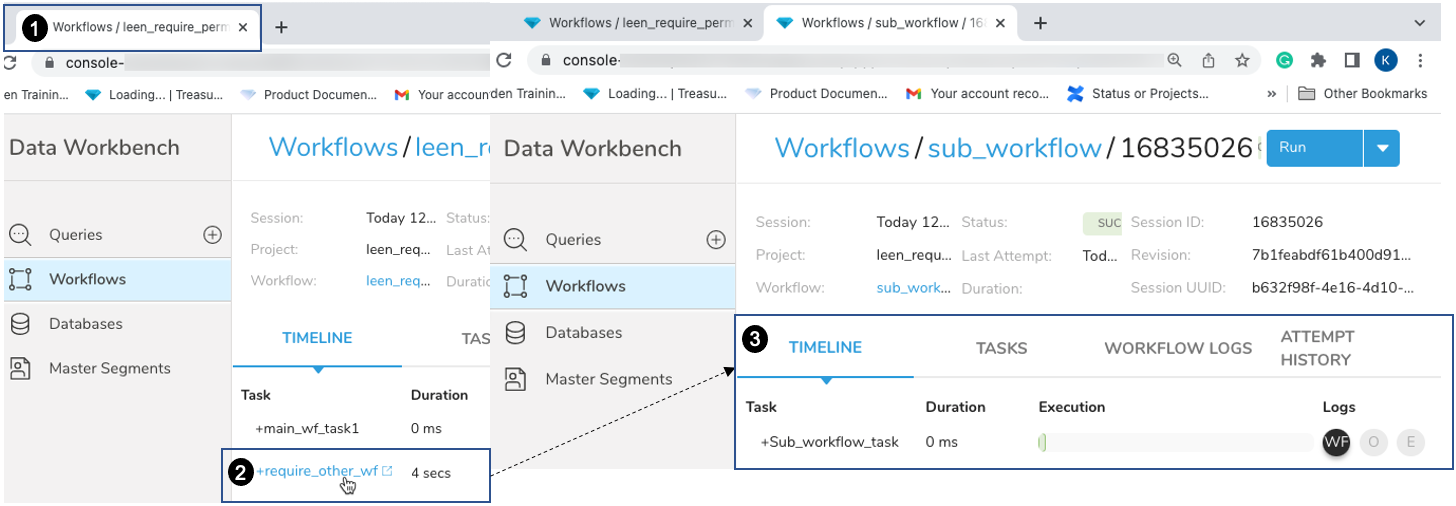
- 1 — Master workflow tab
- 2 — Dependent workflow selected (with
require>operator) - 3 — Run history for the dependent workflow opens in its own tab
To review a master workflow and one or more dependent workflows in different tabs, select the dependent workflow(s).
You must run the workflow to access the dependent workflow tabs.
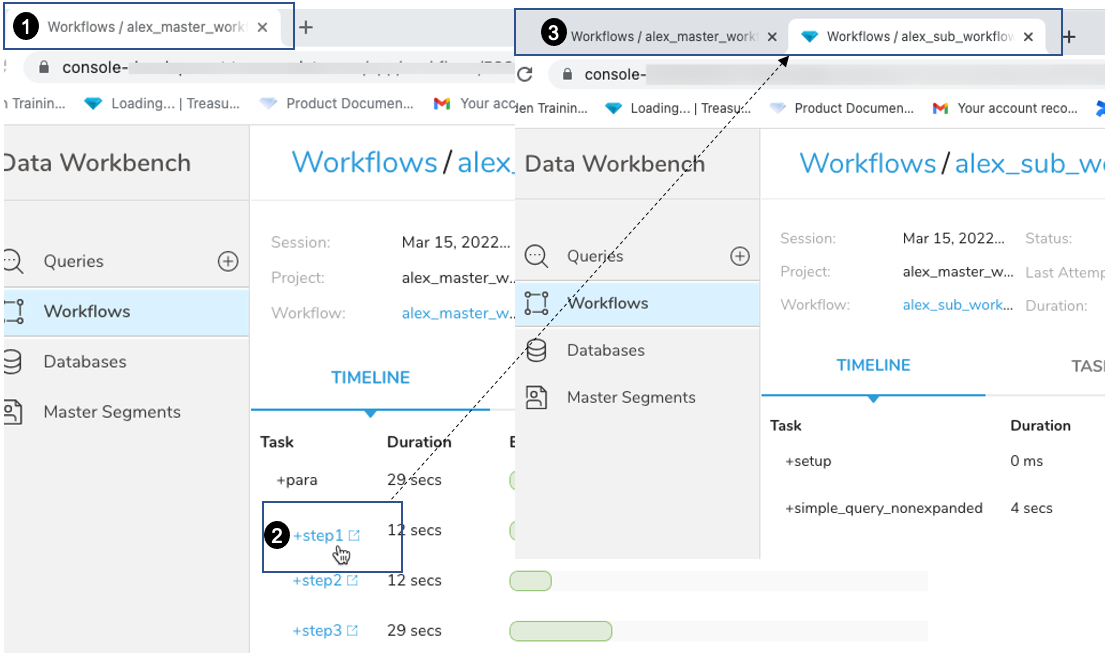
- 1 — Master workflow tab
- 2 — Dependent workflow selected
- 3 — Dependent workflow opens in a new tab for quick navigation

- 1 — Select Download workflow logs to save logs for deeper analysis
- 2 — Select See attempt details to review task status and attempt timelines