The deleting a TD database removes a database, its tables and all data stored within the database. This operation cannot be rolled back and the data will be unrecoverable by yourself.
If you accidentally delete a database, you can recover it within 30 days of the deletion by issuing a support request.
You can prevent the deletion of databases that have tables including critical data for your company.
The strict implementation of the Database Delete Protection feature prevents any user from deleting databases. You can enable this feature by submitting a support request. Contact Support or your Customer Success representatives with a list of databases you would like to protect. If you want to disable this feature, follow the same procedure.
If you would like to protect tables instead of databases, submit a support request to enable Table Delete Protection.
- Navigate to Data Workbench > Databases.
- Select the database you want to delete.
- Select ... > Delete database...

td db:delete command removes a database and all tables stored within the database.
$ td db:delete test_db Schedule setting of Saved Queries is removed if the database for them is deleted. In addition, if you do not have permission to all databases, you will not be able to see these queries.
Database means the window indicated by the red arrow in the image below.
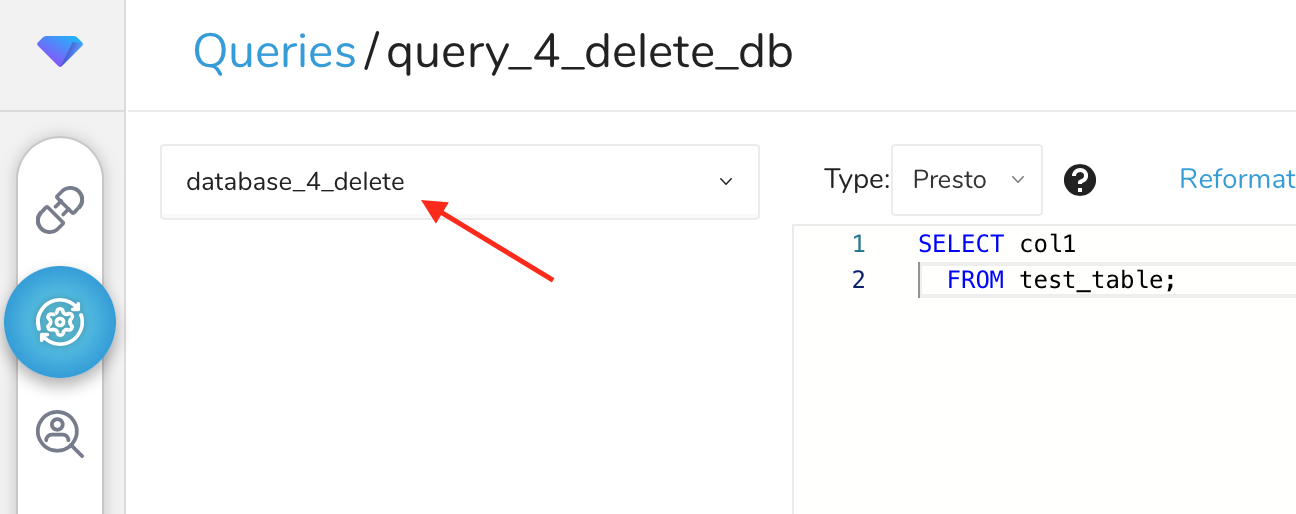
Regarding jobs, the database is set as follows.

After this database is removed, if you do not have permission to all databases, you are not able to see these jobs. For example, Job Activities doesn't show the jobs and you cannot see the information like the above screenshot.
On the other hand, if Policy-based Permissions for the databases is not enabled, the administrator or owner is not affected because they have permission for all databases. If Policy-based Permissions for databases is enabled, the users with Full Access granted are not affected.