There are two ways to update a table Schema Management.
To update schema manually, navigate to:
Open TD Console.
Navigate to Data Workbench > Databases.
Select a database for which you want to modify the schema. For example, test_db or:
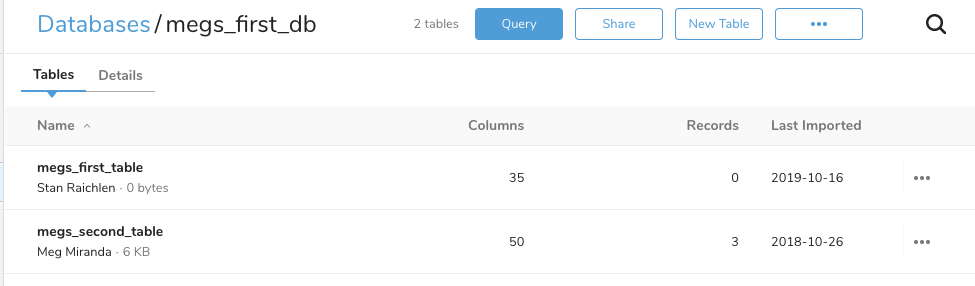
- Select a table. For example:

- Select Add Column.

- Specify the table metadata details. For example:

Select Save.
Optionally, to continue customizing the schema and metadata, select Edit Schema.

Optionally, to continue customizing the schema and metadata, select Add Column.
Optionally, to delete a column from your table, select Edit Schema and select the x to the far right of the page.
Optionally, select … > Table Settings.

Optionally, make selections on Edit Settings.
Optionally, select Confirm.
Select Save when your schema modification is complete.
Alternatively, you can use the td schema:set command
where
<column_name>consists of lowercase alphabets, numbers, and "_" onlywhere
<type>can be one of the following:int,long,double,float,string,array<T>
$ td schema:set <database> <table> <column_name>:<type>...For this example, the schema would be added as follows:
td schema:set testdb www_access action:string labels:'array<string>' user:intYou can find available data types on TD Native Data Types.