You can configure values for PingOne for Enterprise in Identity Federation in TD Console. You must first configure a PingOne application.
- Limitations
- Configuring Your Values for PingOne for Enterprise
- Add New User to PingOne for Enterprise Identity Federation
- Add Existing Users to PingOne Enterprise Identity Federation
Implementing Identity Federation will disable account users who currently sign-in to TD Console using Google SSO.
Open TD Console.
Select the Control Panel.
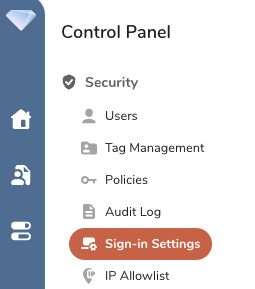
- Select Sign-in Settings.
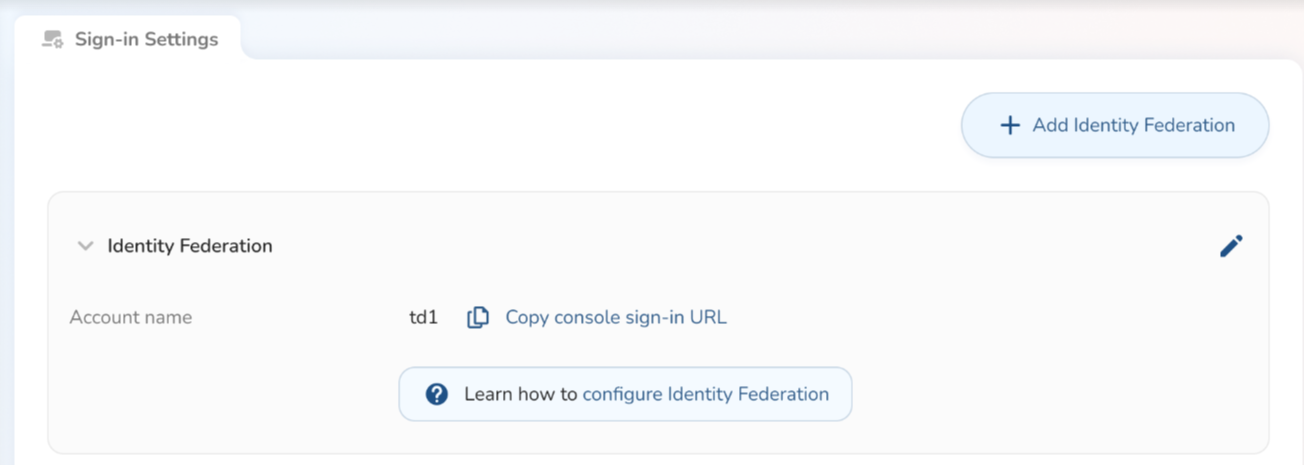
The following fields are pre-populated:
Account Name
Entity ID
- Select the Edit tool. The Edit Identity Federation dialog opens.
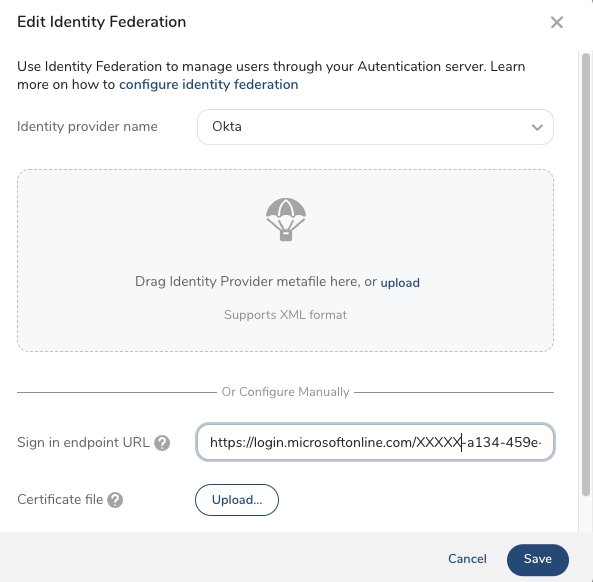
- Select PingOne for Enterprise as the Identity Provider Name.
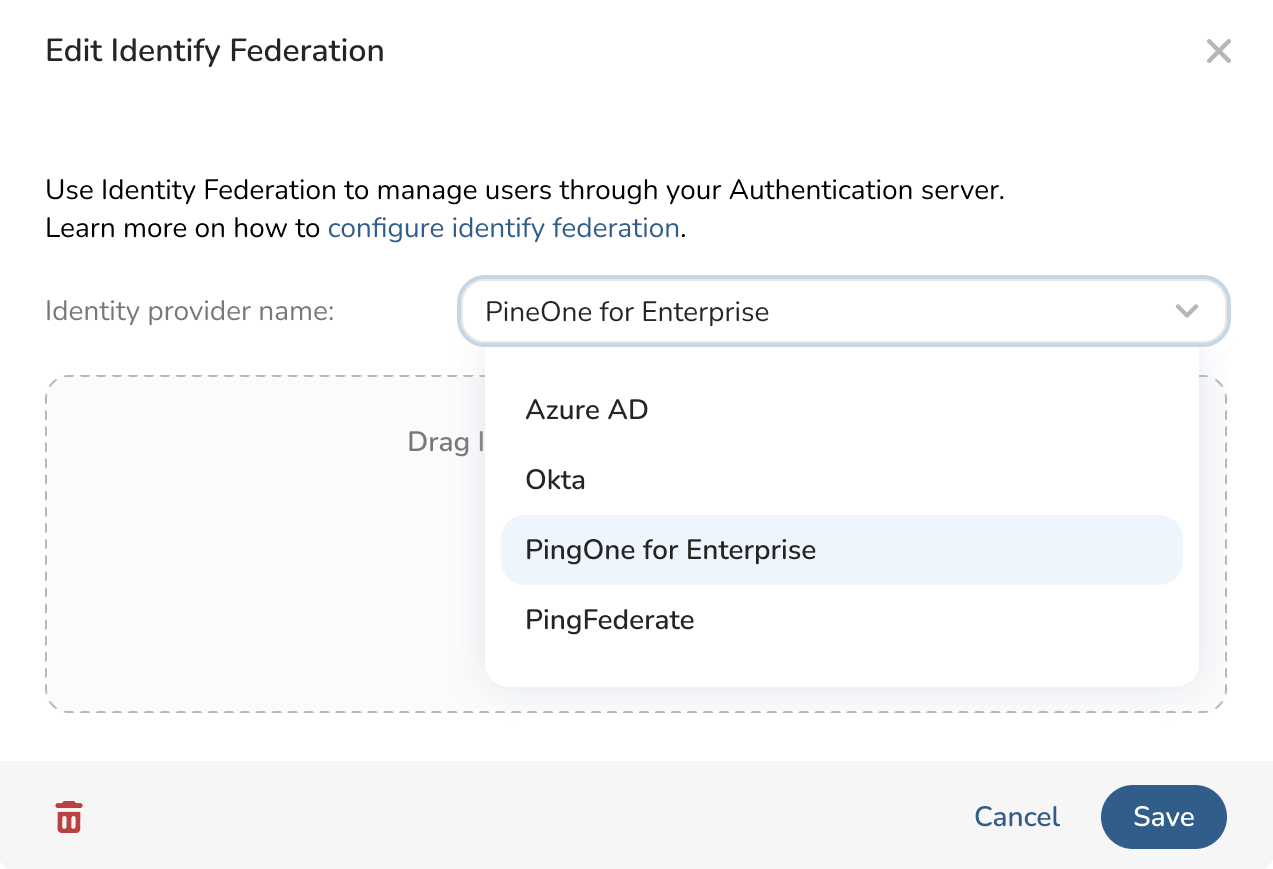
You can configure Identity Federation with one of the following methods:
Uploading a metadata XML file
Configuring the fields manually with an X.509 certificate .crt file, a sign-in URL, and a sign-out URL.
This information is available to be downloaded by you when you configure your connection on PingOne for Enterprise.
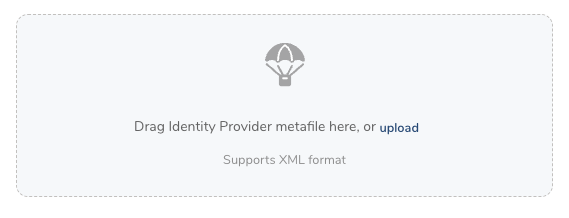
Upload a Metafile
Drag or Browse for the XML metafile downloaded from PingOne.
Configuring Manually
Enter the PingOne information in the following fields.
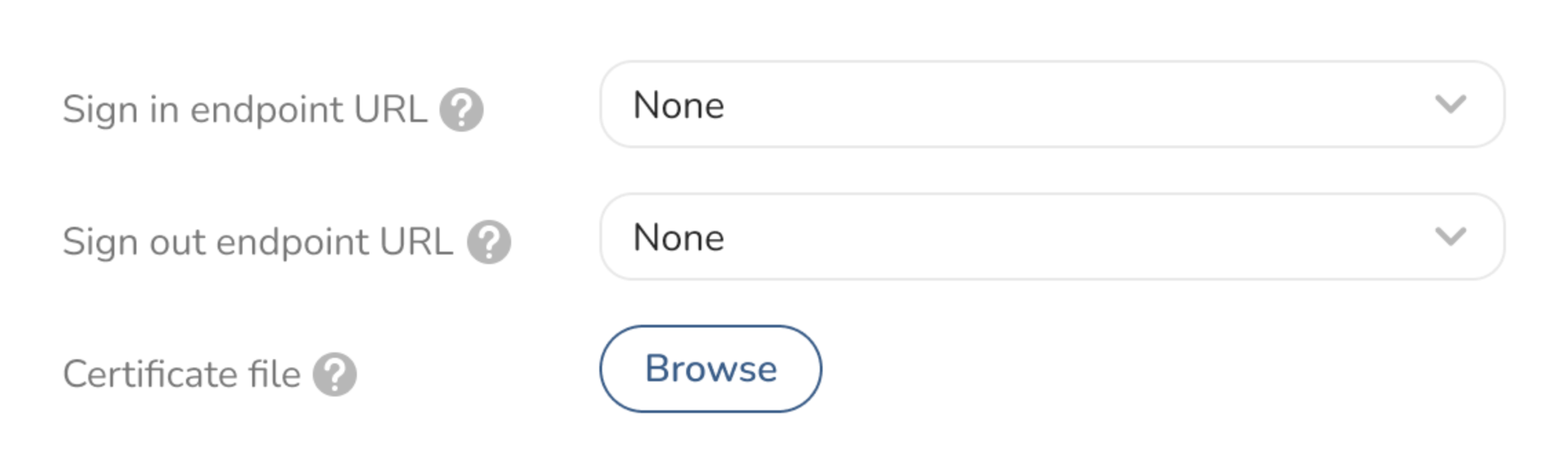
Sign-in Endpoint URL : The IdP URL that the user uses to sign into Treasure Data. Obtained from your IdP.
Sign-out Endpoint URL : The IdP URL that the user is in when they sign-out of Treasure Data. Obtained from your IdP.
Certificate File: Privacy Enhanced Mail Certificate file. Upload the .pem generated certificate from the IdP to validate the SAML response from the IdP to Treasure Data. Obtained from your IdP during set up.
- Select Save.
- After Identity Federation has been configured, navigate to Control Panel > Users.
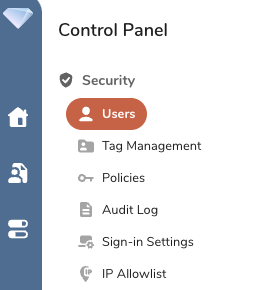 2. Select Add User from the Action menu in the upper right corner.

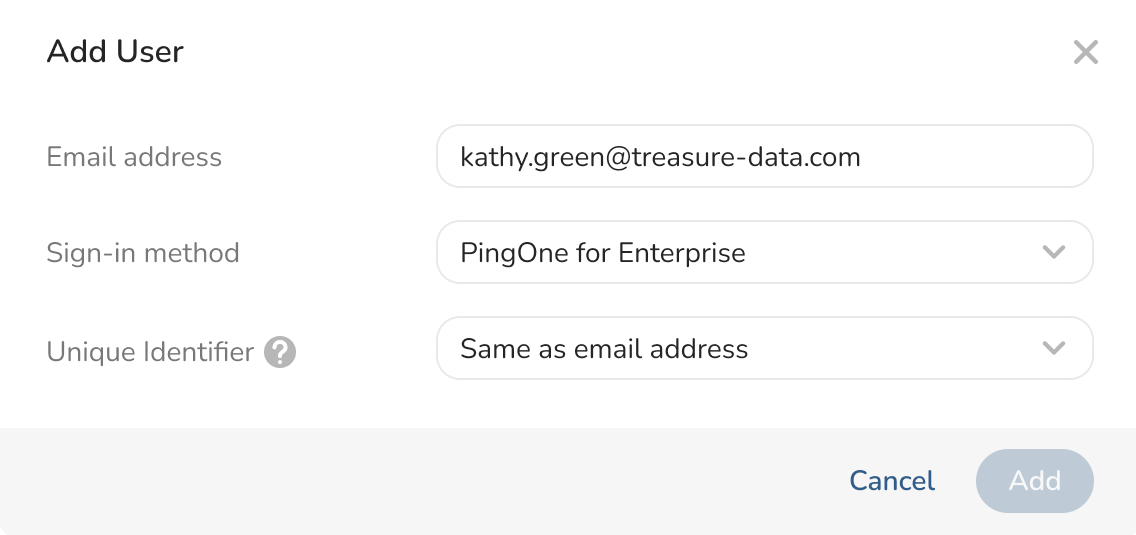
- The Add User dialog opens. Type in the user’s email address. Select PingOne for Enterprise from the Sign-in Method dropdown. Select Same as email address as the Unique Identifier. Select Add.
 4. On the Sign-In Settings page, select Copy Console Sign-in URL.
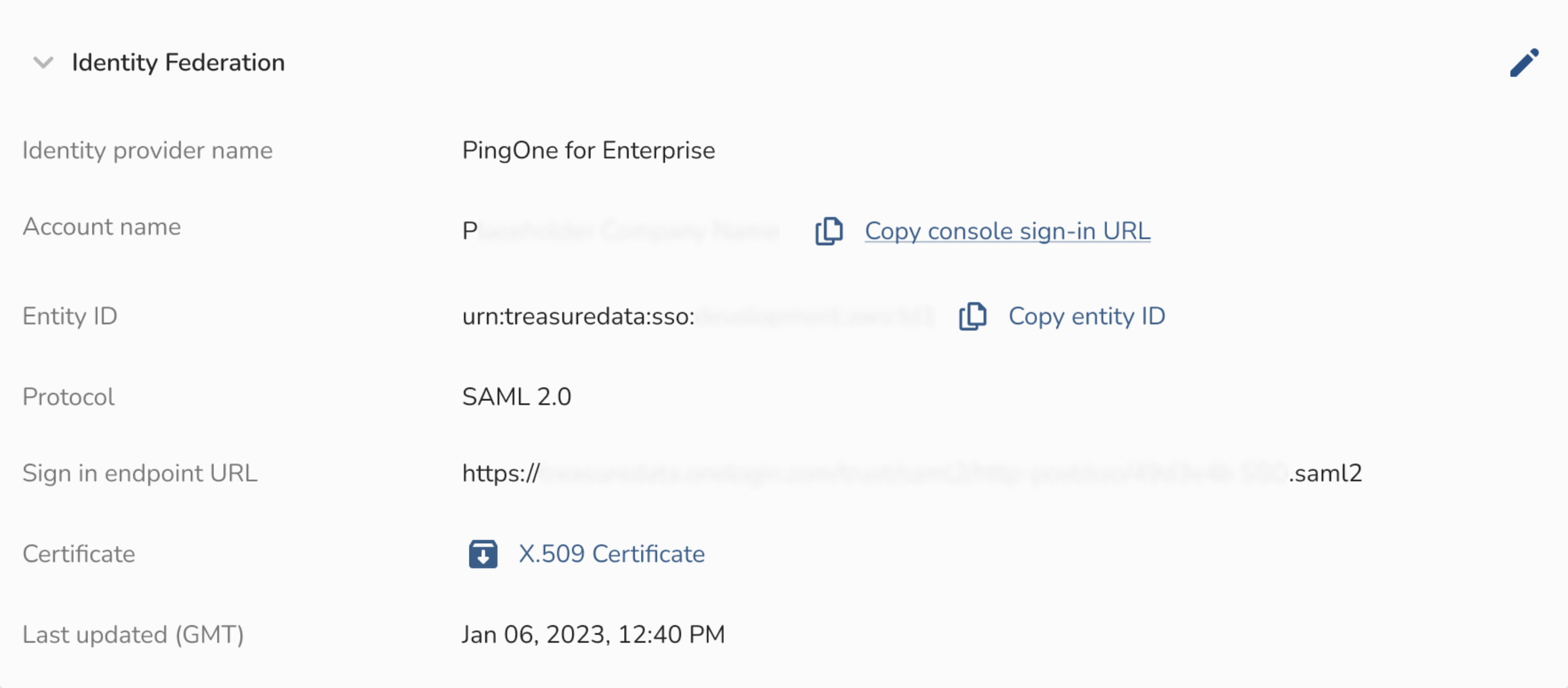 5. This URL directs enrolled TD users to the correct sign-in page.
- After Identity Federation has been configured, navigate to Control Panel > Users.
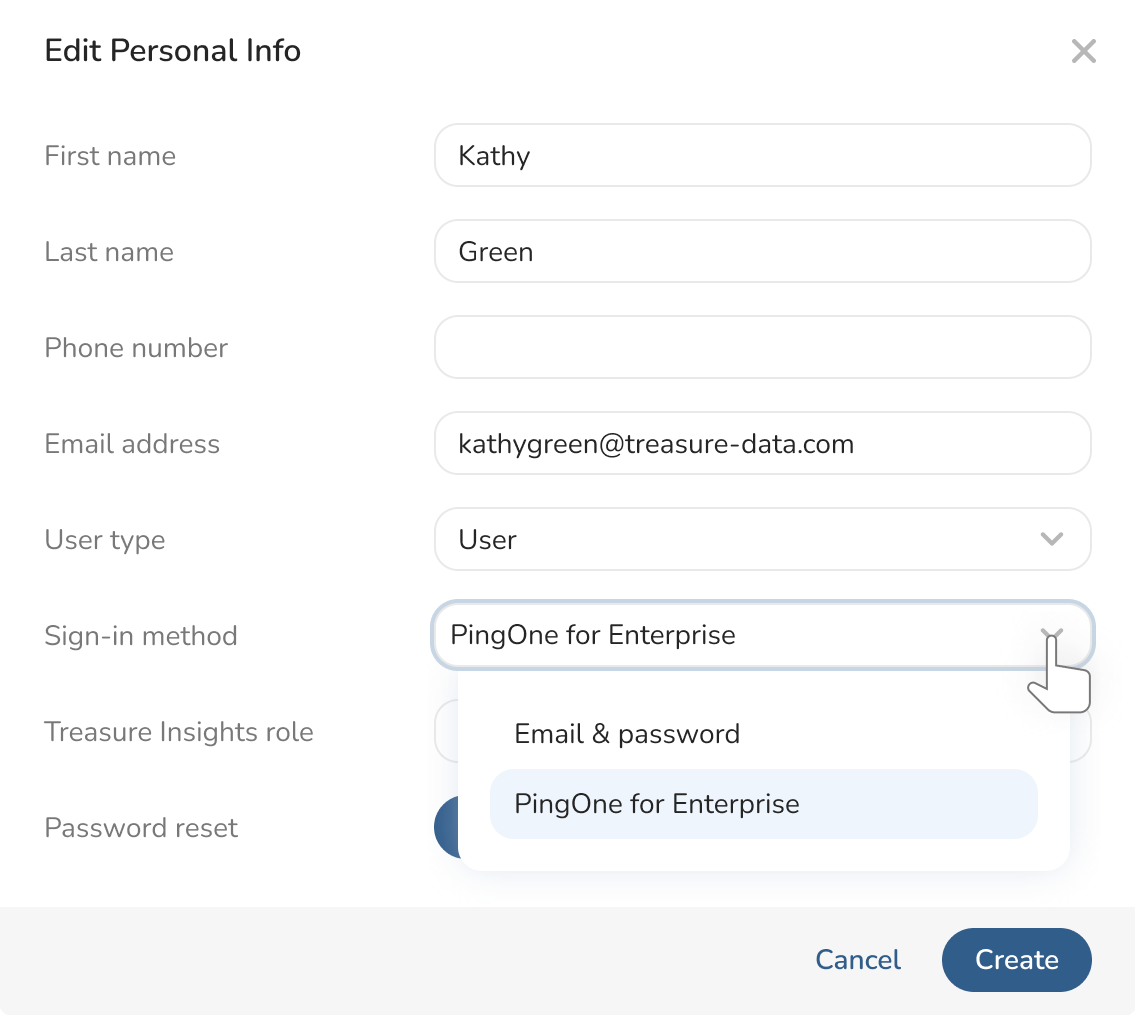
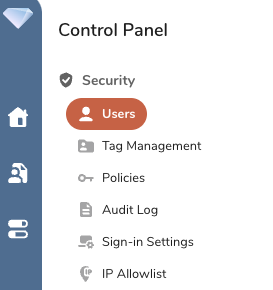 2. Select the User to enroll. Select edit pencil under Personal Info.
- The Edit Personal Info dialog opens. Select PingOne for Enterprise under Sign-in Method. Select Save.
 4. On the Sign-In Settings page, select Copy Console Sign-in URL.
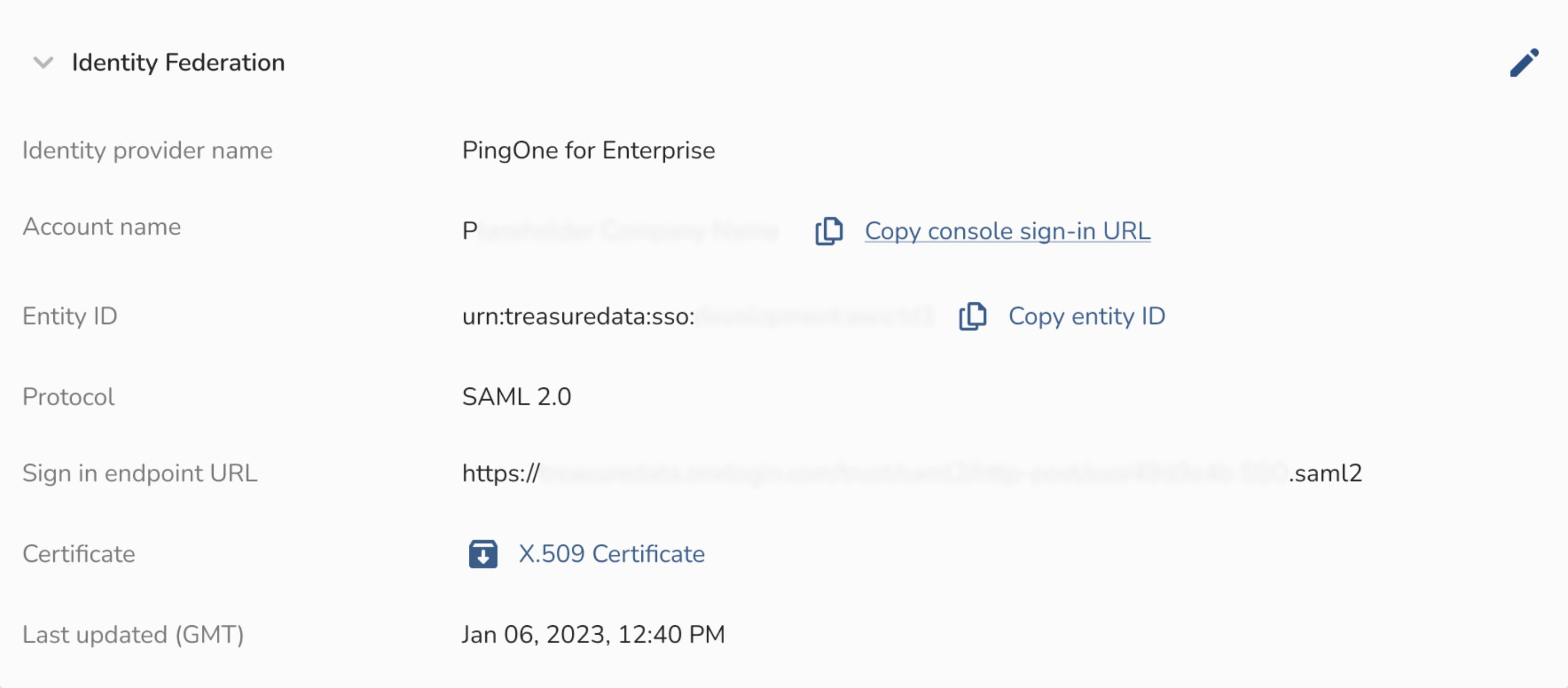 5. This URL directs enrolled TD users to the correct sign-in page.