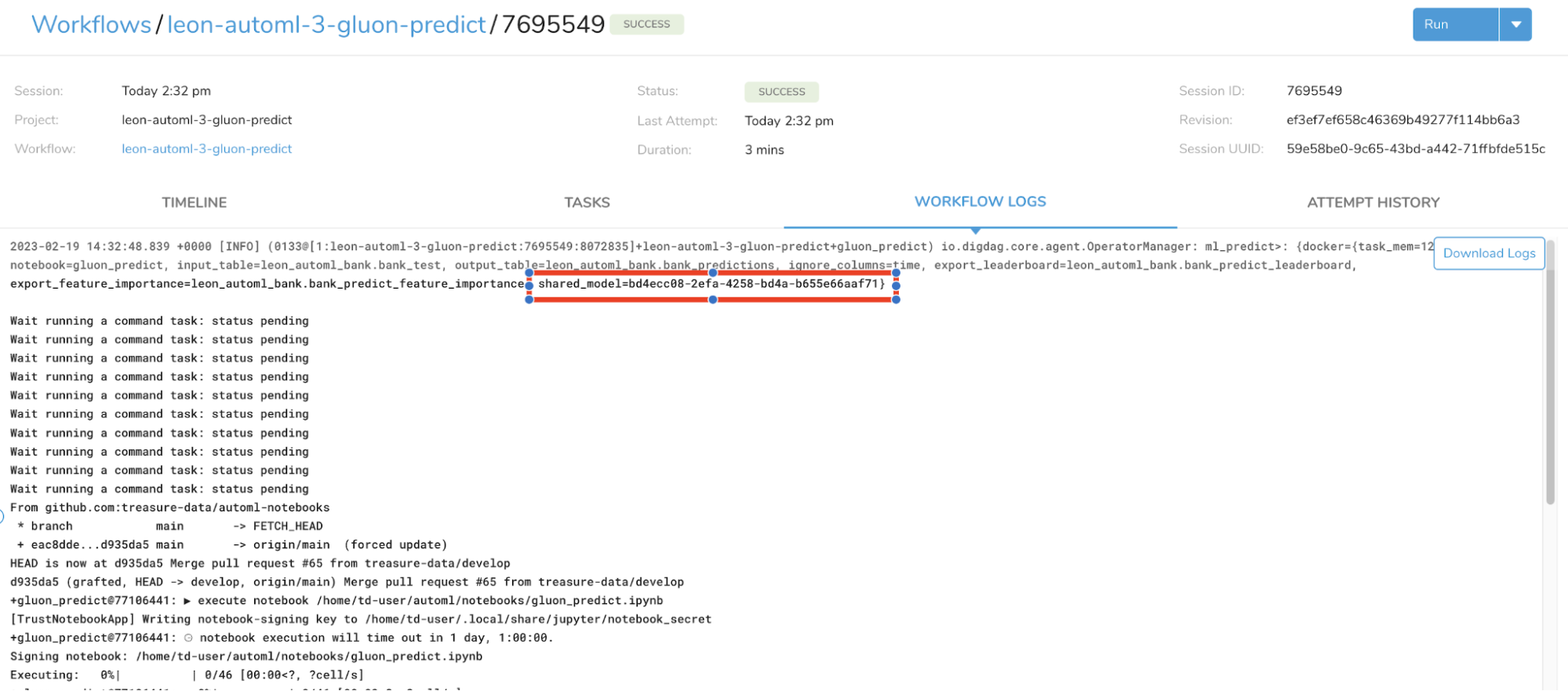
It is possible to enable sharing of an AutoML model. This enables one user to train the model, and then for a different user to utilize the generated model on their data to make predictions.
When a training model is run, the notebook is only visible to the first user who executed the train notebook. Similarly, if a second user runs a prediction notebook using the model generated by the first user, the resulting notebook is only visible to the second user. This ensures that data security restrictions are maintained.
Scenario: User Alice wants to share an AutoML model with User Bob.
- User Alice sets the AutoML workflow parameter share_model to True.
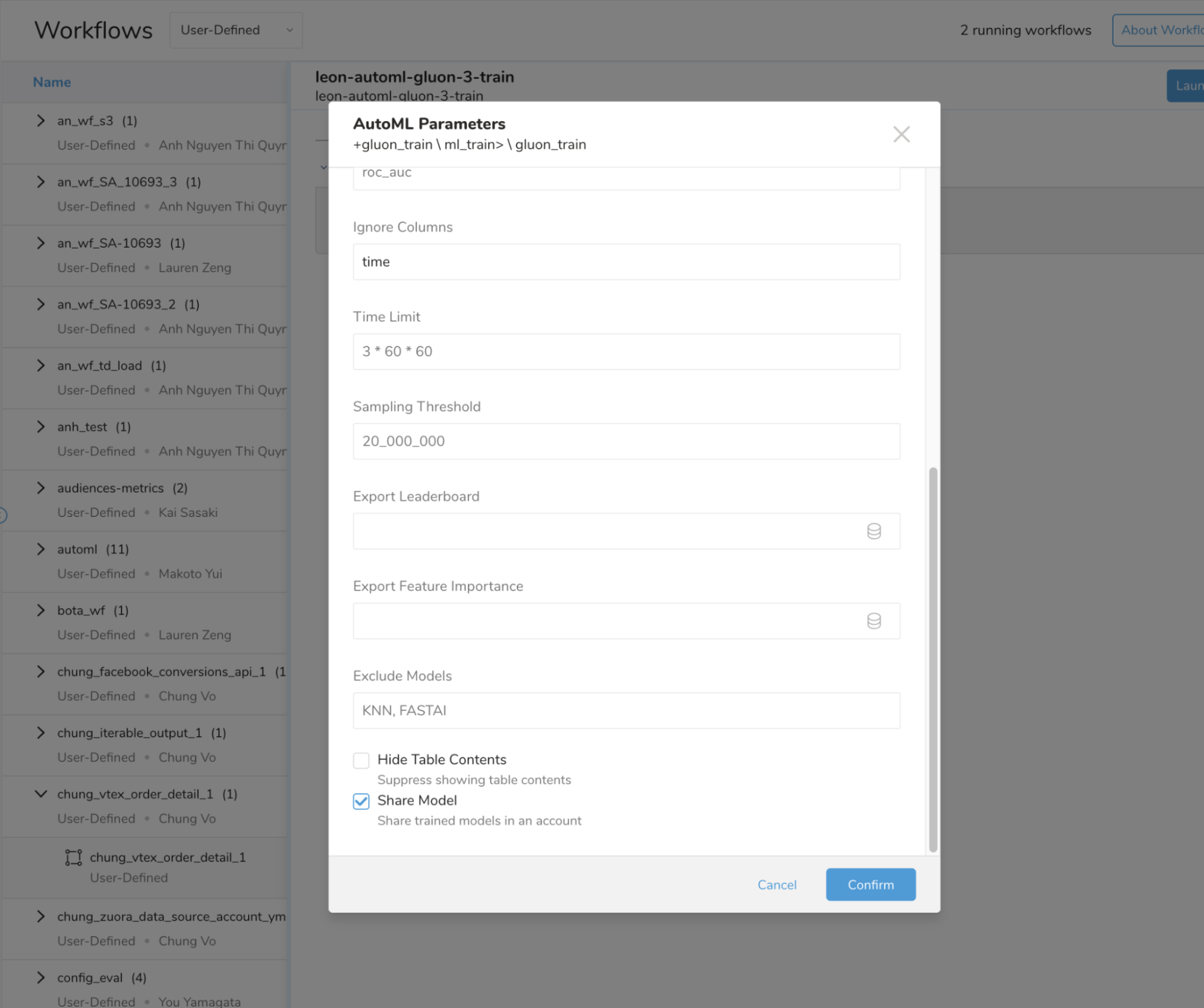
- Alice executes the training workflow and views the resulting notebook to ensure the model was created correctly.
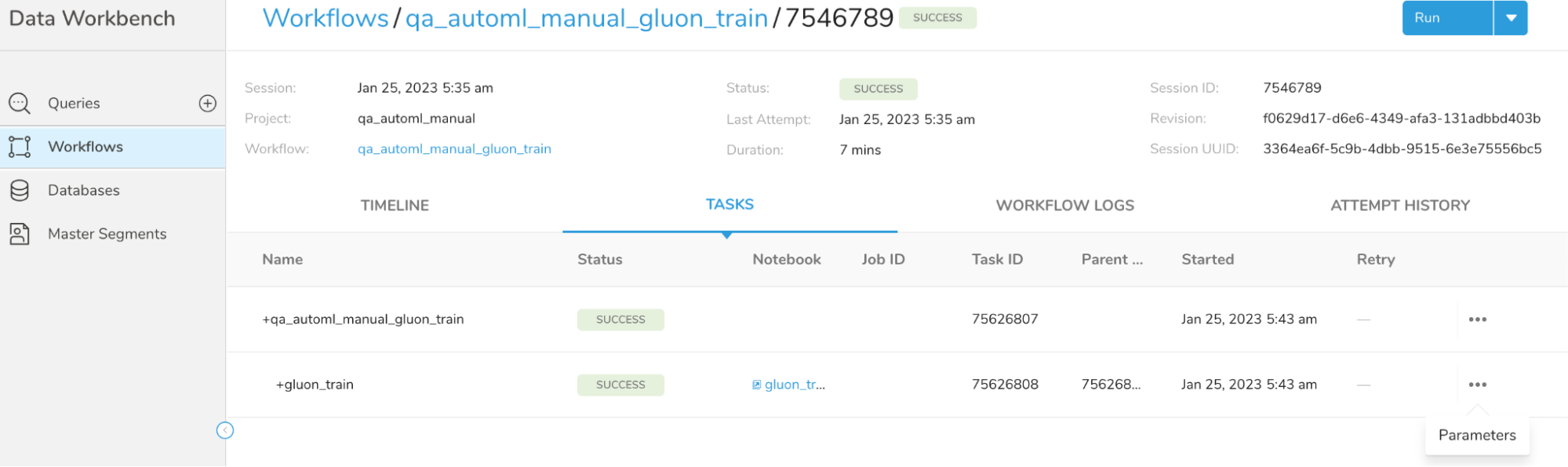
- Alice views the UUID for the AutoML model in the stored parameters:
- Navigate to Data Workbench > Workflows.
- Select a workflow and open the Run History.
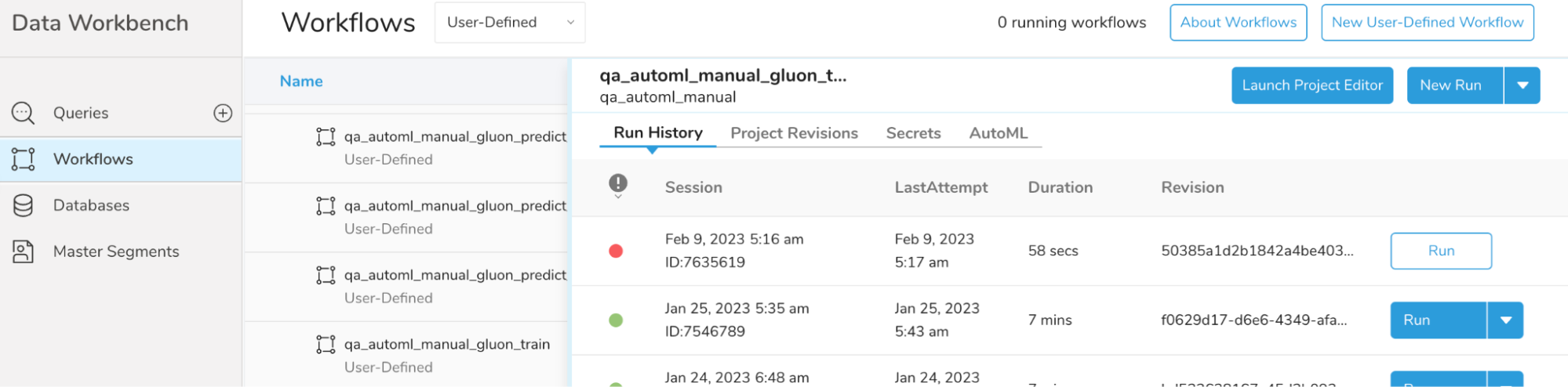
- Select the Run History for a successful run.
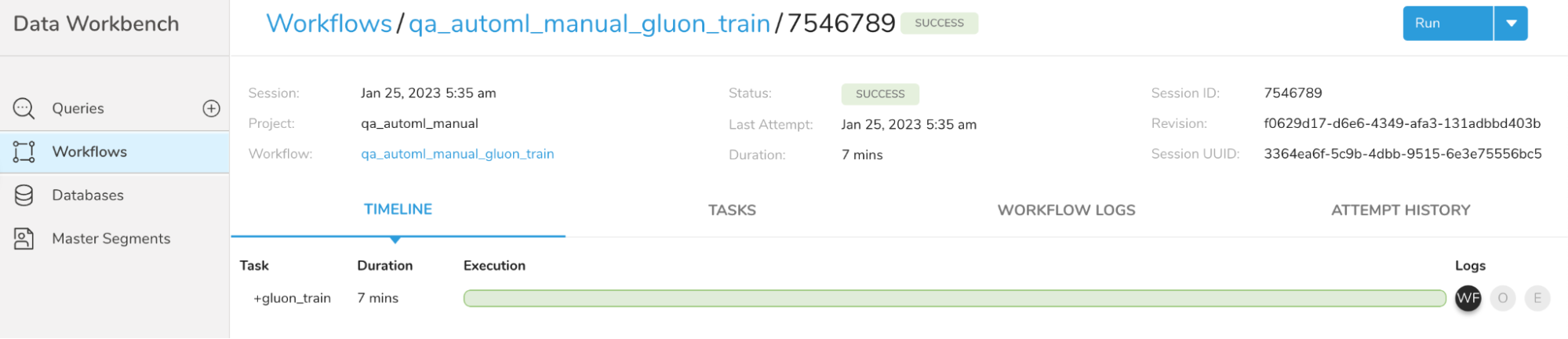
- Select the Tasks tab.
- For a task with an associated notebook, select the ellipsis ( … ) menu and choose Parameters.
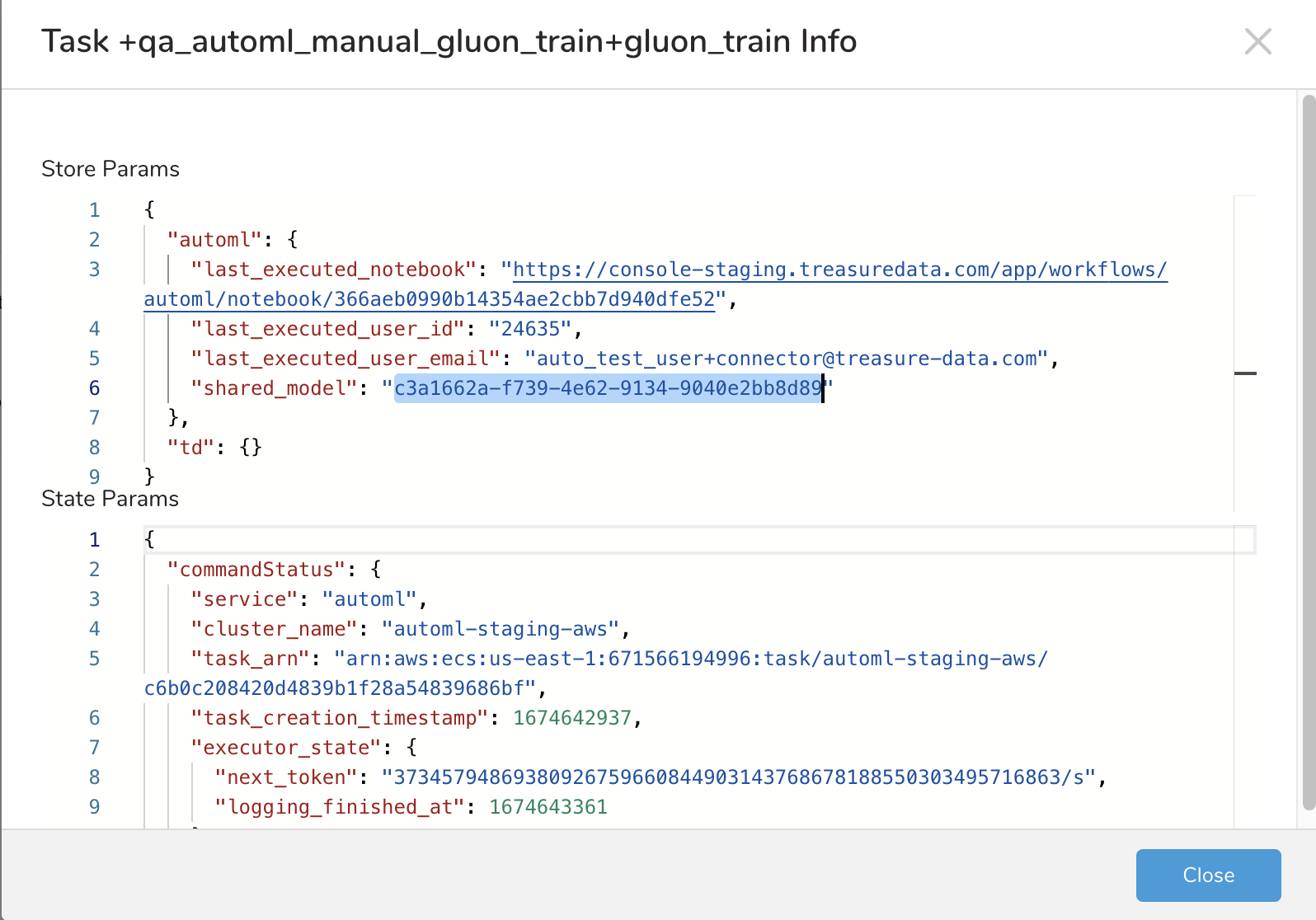
- The Stored Params shows the shared_model UUID assigned to this AutoML model. Copy the text inside the quotes (highlighted).
- Send this shared model UUID to User Bob using a secure channel.
- User Bob creates a prediction workflow.
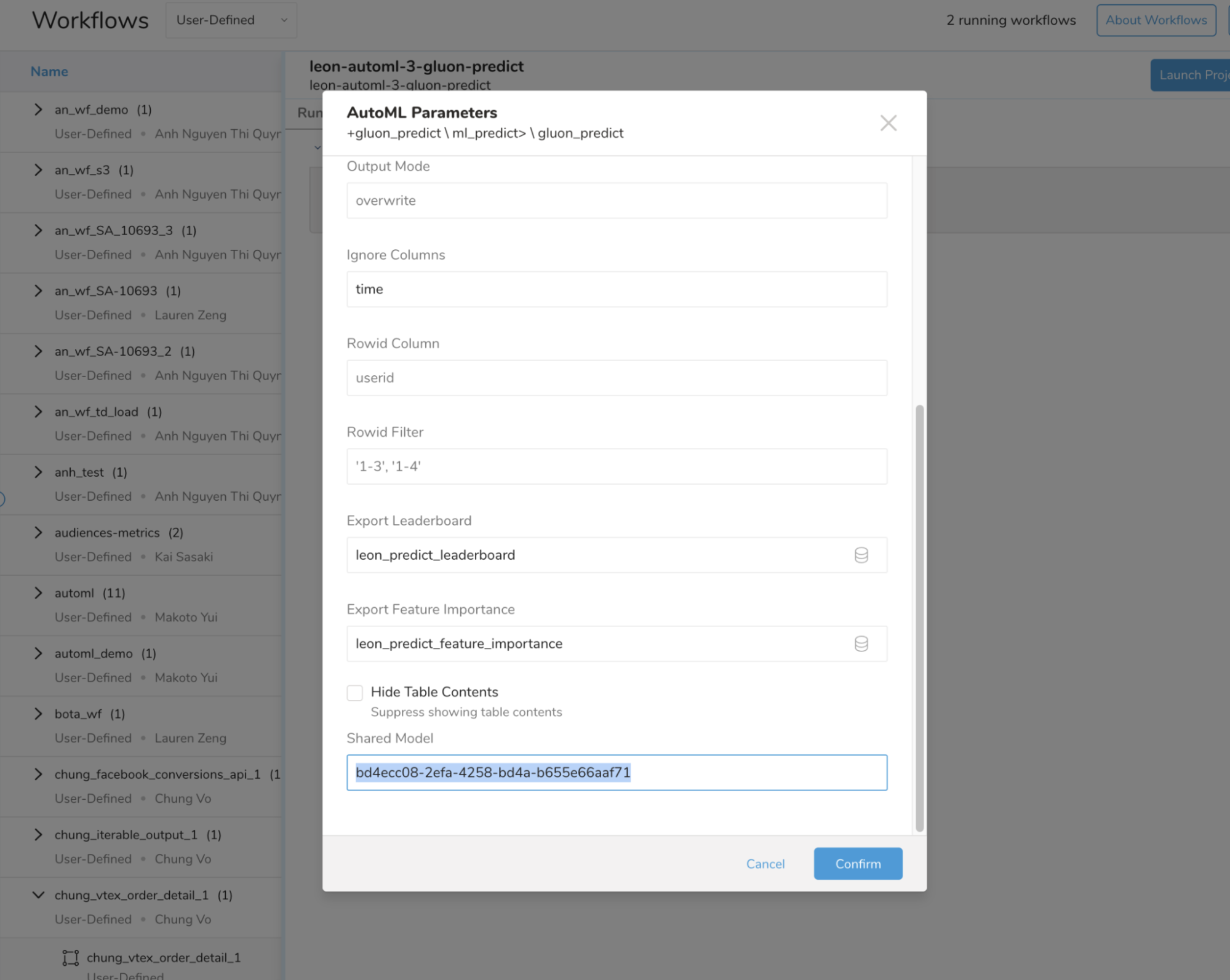
- Select the AutoML tab for this new workflow.
- Select the notebook workflow to edit.
- Set the shared_model parameter to the UUID provided by Alice.
- When using shared_model, remove the model_name parameter.
- Select the Project Revisions tab.
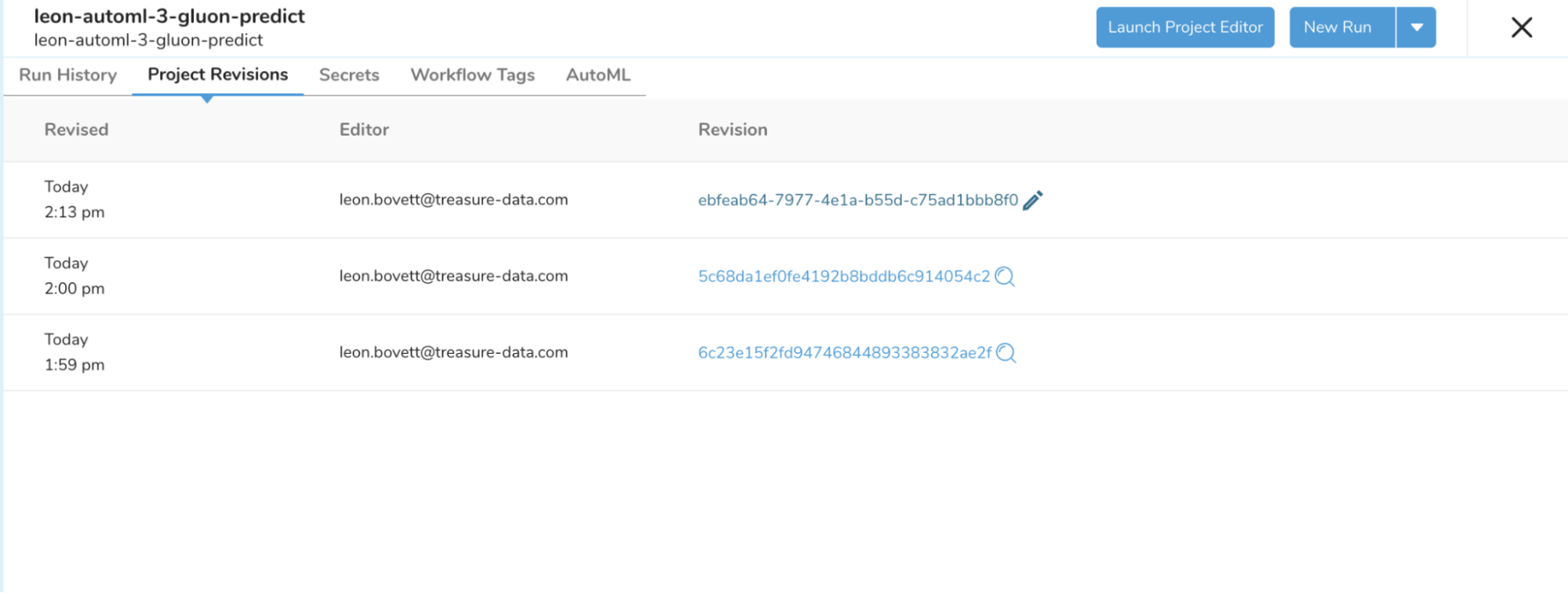
- Edit the workflow to remove the model_name parameter.
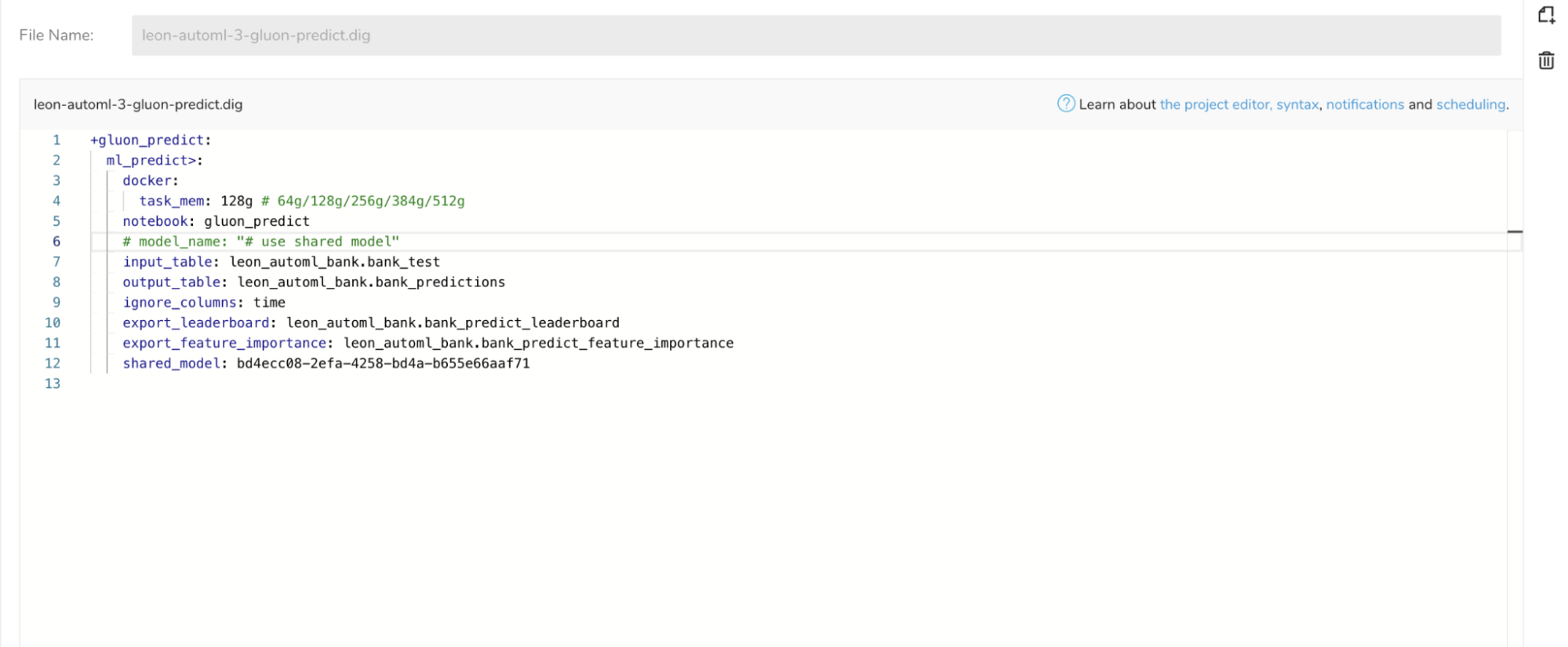
- Run the workflow. Confirm in the workflow log that the correct model was used.