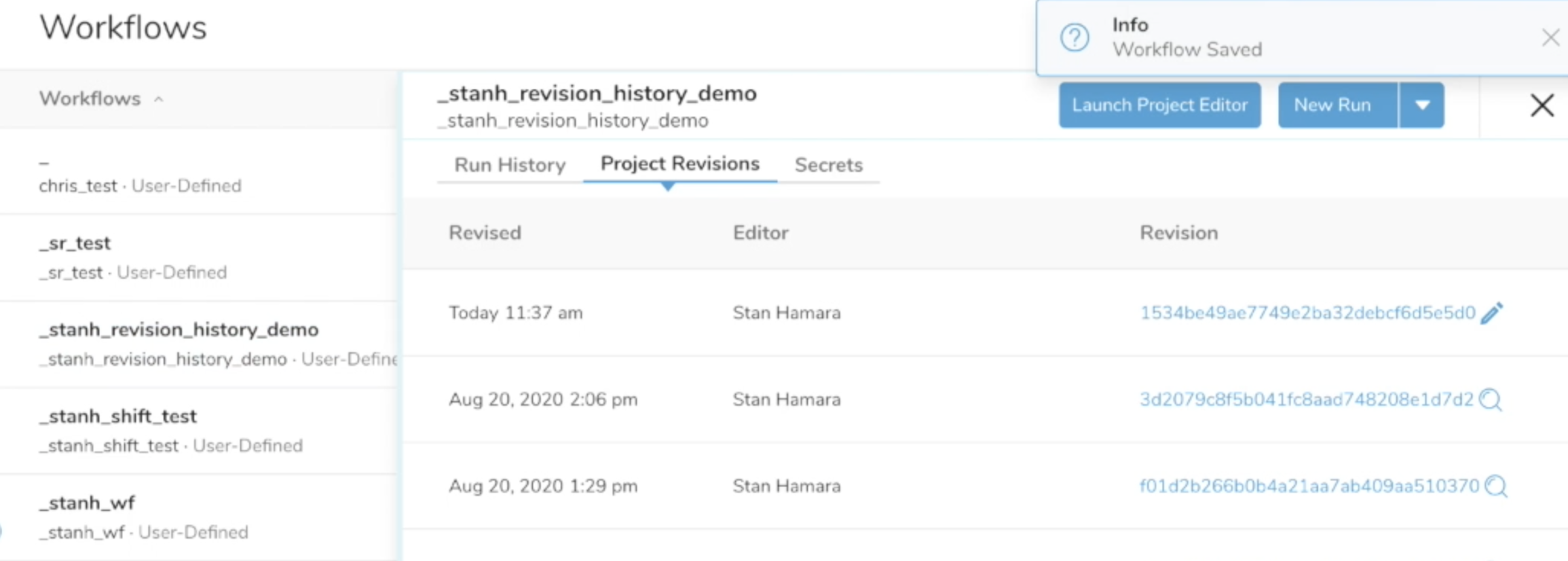
You might need to restore another version of a project that worked previously using the Restore Revision feature in the Project Editor.
- You can also restore a selected revision by selecting Restore Revision in the same dropdown. The Restore Revision option is available in the full simple version view as well as on the Split View.
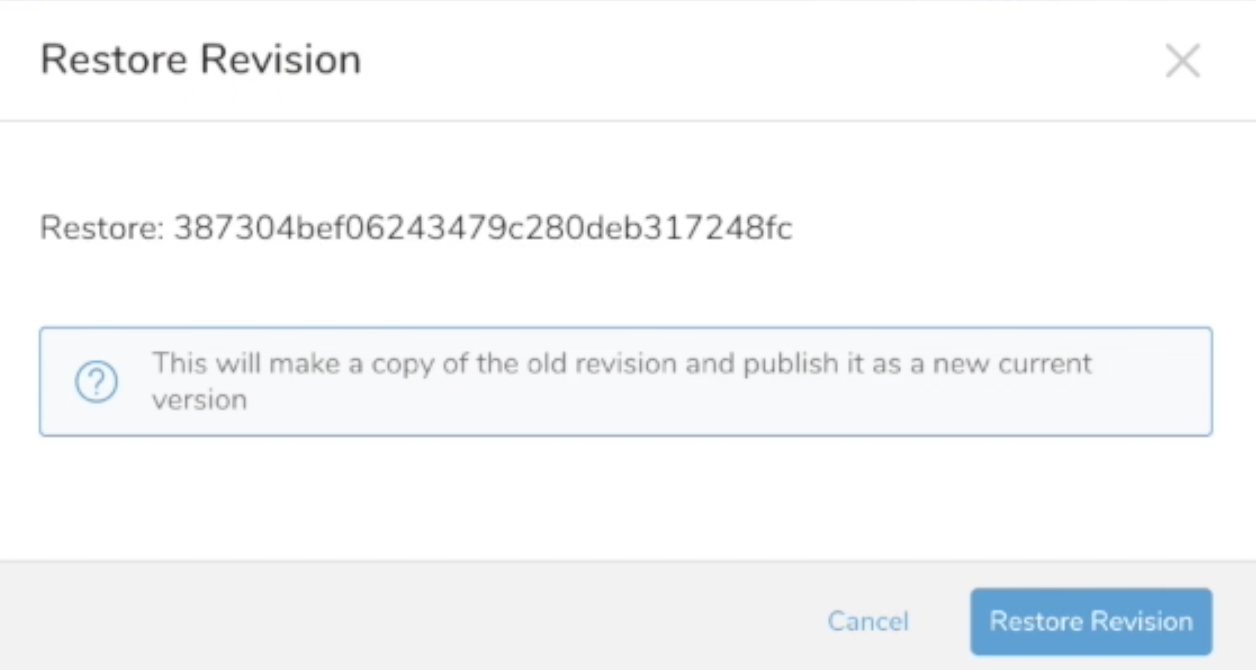
- View the version which will replace the current version and select Restore Revision.

- Confirm the restored version appears in the workflow details page.
The new version has the same number of files and the same workflow file as the selected revision.