A Knowledge Base is a tool that gives the reference data to Agent, which is critical capability for agent to generate more accurate and desired output. AI Agent Foundry offers 2 types of Knowledge Base, one is Database and the other is Text. Follow the instruction below to create a new Knowledge Base.
- Open TD Console.
- Navigate to AI Agent Foundry.
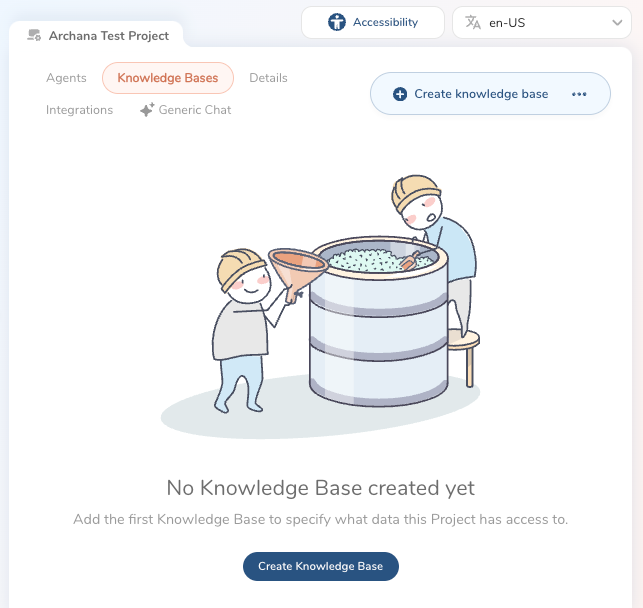
- Select Knowledge Base and then select Create knowledge base.
- Enter a Knowledge Base name specifying how it is used
- Select Database type, then select a database.
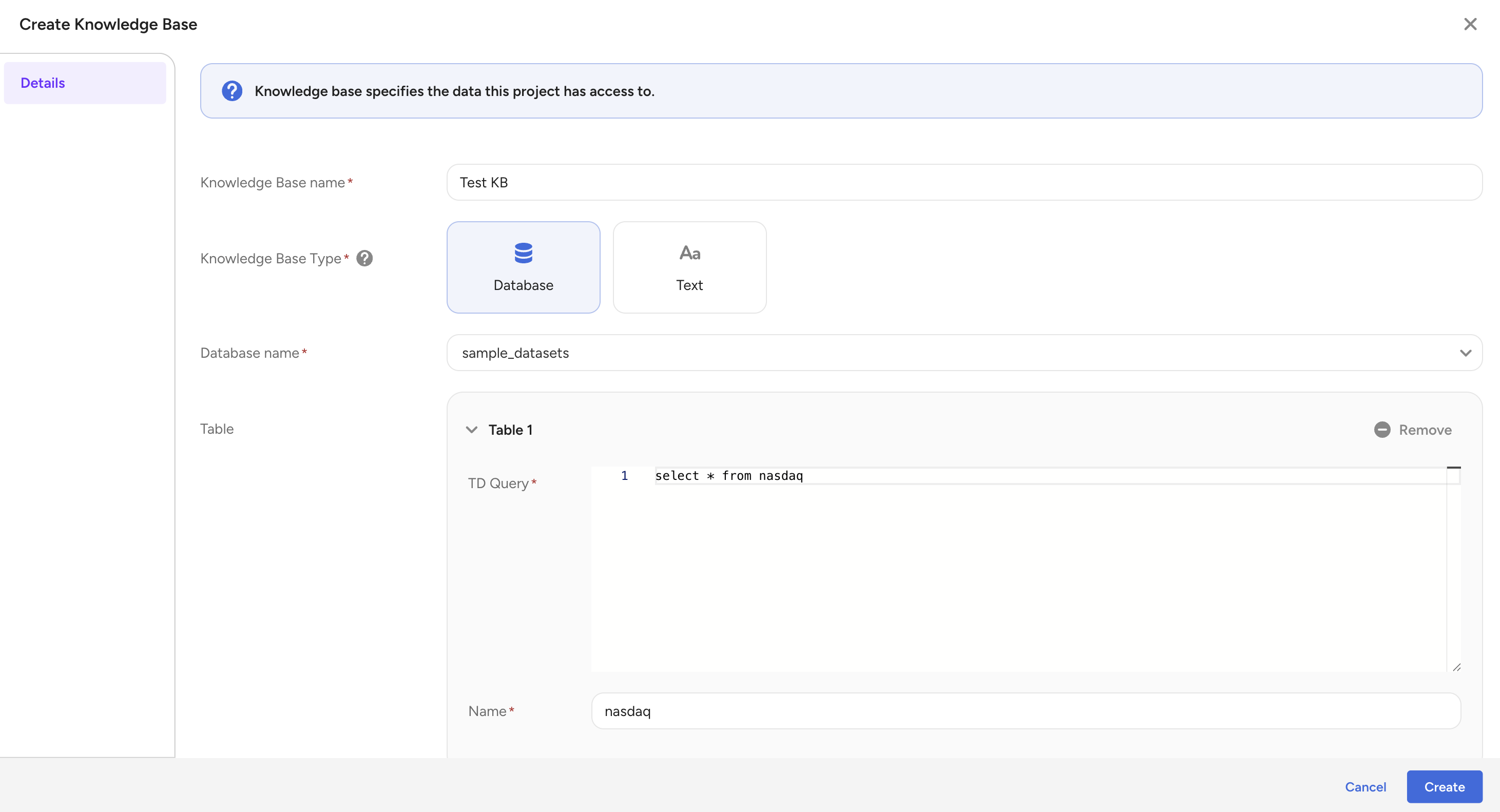
Click Add table button to define the table information
Complete the form.
| Field | Description |
|---|---|
| Name | Enter a name for your knowledge base. |
| Type | Select Database. |
| TD Database Name | Enter the Treasure Data database where queries run. The database must exist in Plazma DB. |
| Table | Define the table that the knowledge base supports. |
| TD Query | Provide the Trino SQL that defines the table using the selected database.Exclude Columns: list every column you want to keep.Exclude Records: filter records with a WHERE clause. |
| Name | Enter the table name to reference. |
| + Add table | Select to add more tables to your knowledge base. |
- Select Save.
After you select Save , the data loading process starts. Before using the knowledge base, wait until it has a status of Success.
- Enter a Knowledge Base name specifying how it is used
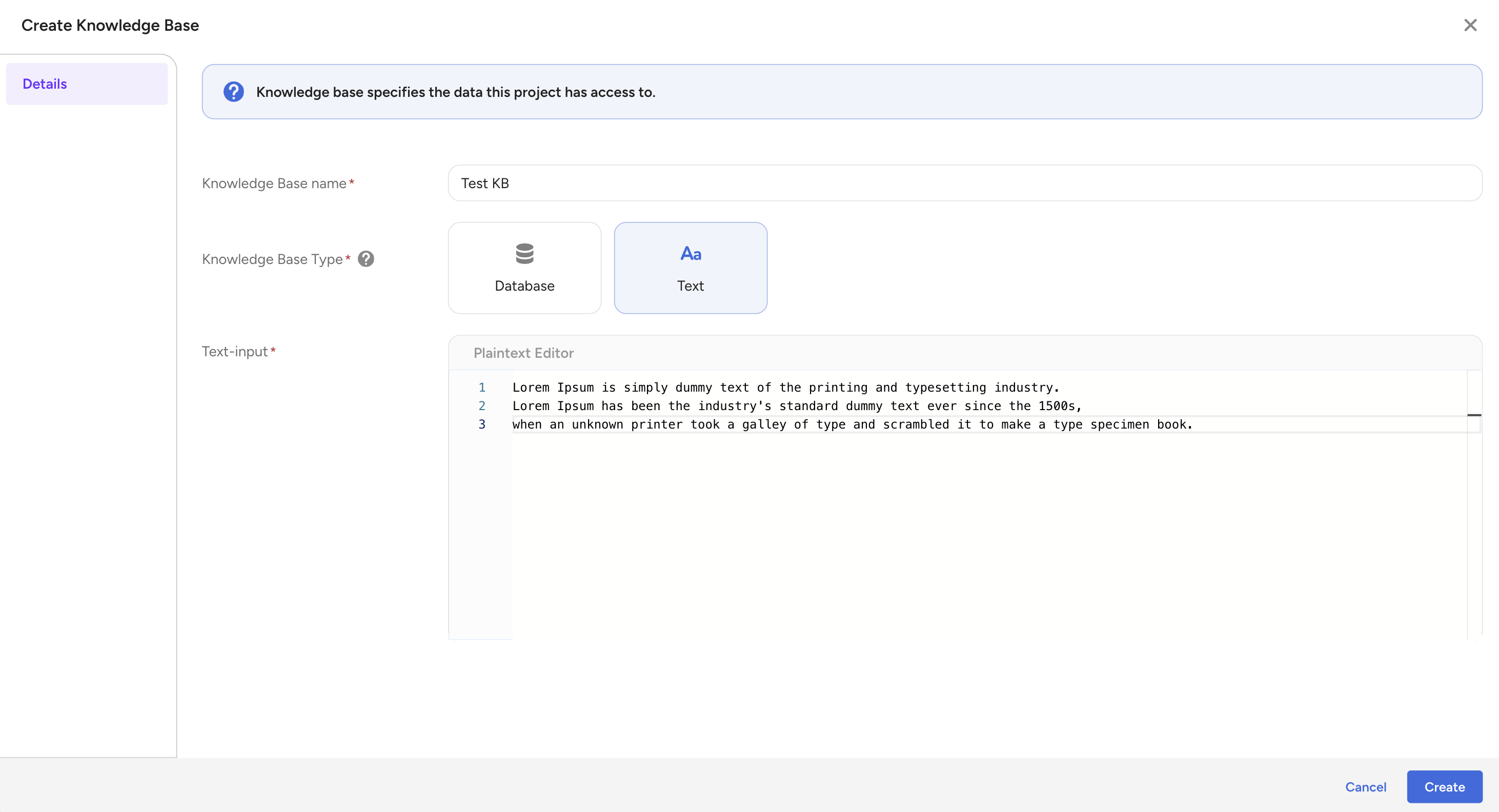
- Select Text type, then complete the form
| Field | Description |
|---|---|
| Name | Enter a name for your knowledge base. |
| Type | Select Text. |
| Text-input | Enter up to 18,000 characters of reference text. |
Parent Segment Knowledge Base is automatically created when the "LLM enabled" switch is enabled on the Parent Segment Config. Currently, there is no way to create on the Custom LLM project.
Next Step
Check your Knowledge Base setup through query simulations.