An integration object is the configuration of activating your agents for agent users. In high level, there are two types of integrations, one is for internal and the other is external. The internal supports Parent Segment and Generic Chat while the external supports Webhook and Slack.
| Type | Description |
|---|---|
| Parent Segment | The agent(user prompt) will be activated as Audience Agent that will appear in the Parent Segment Folder in the Audience Studio. |
| Generic Chat | The agent(user prompt) will appear in the Generic chat tab in the AI Agent Foundry. |
| Webhook | The agent(user prompt) will be activated for being called outside TD via Webhook API endpoint. |
| Slack | The agent(user prompt) will be activated to integrate with the Slack application. You can utilize your agent from the Slack application by setting up the necessary configuration in your Slack account. |
Open TD Console.
Navigate to AI Agent Foundry.
Select a Project.
Select Integrations and then select Create integration.

Select an integration type in the create modal.
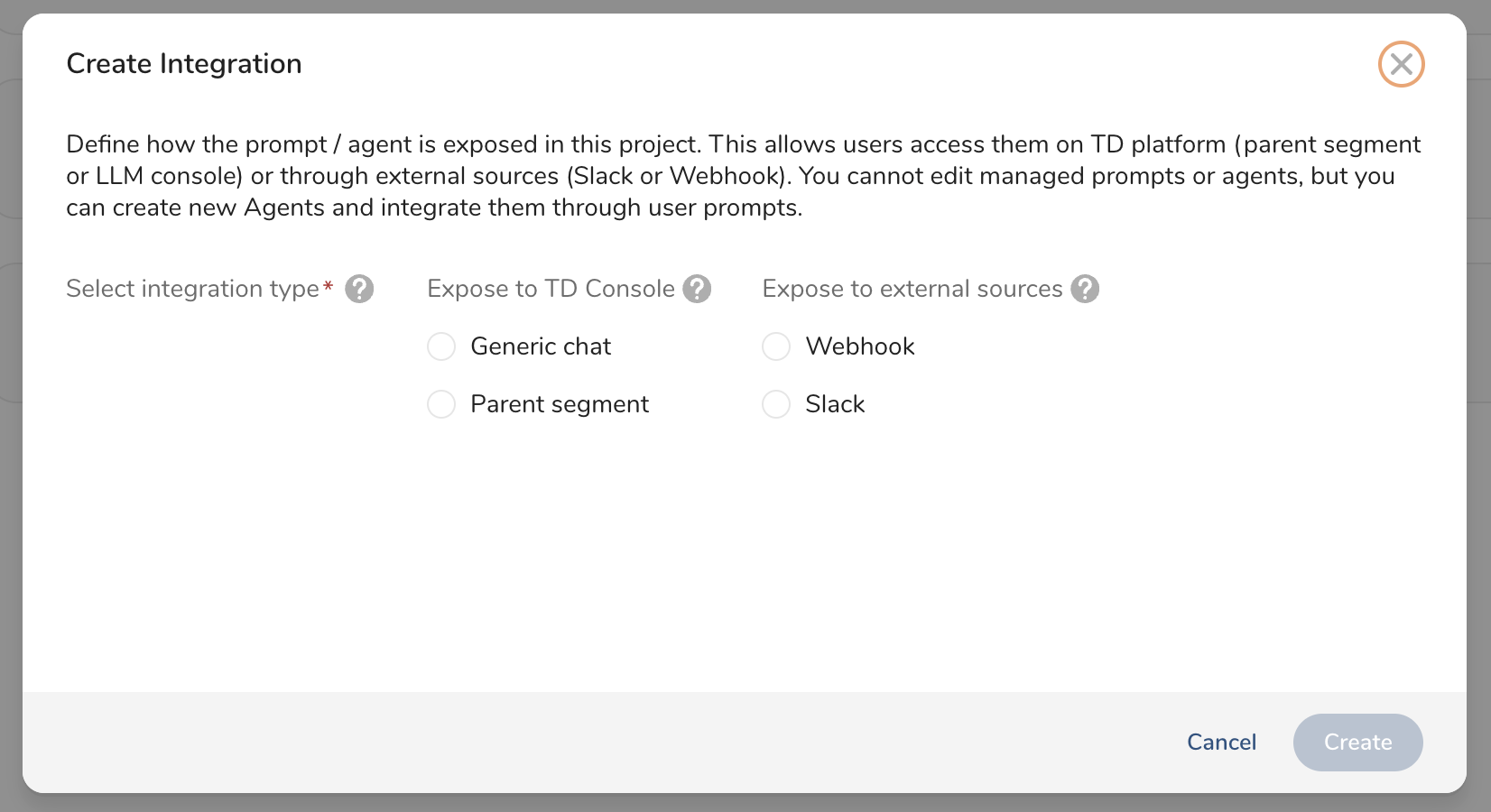
Complete the form.
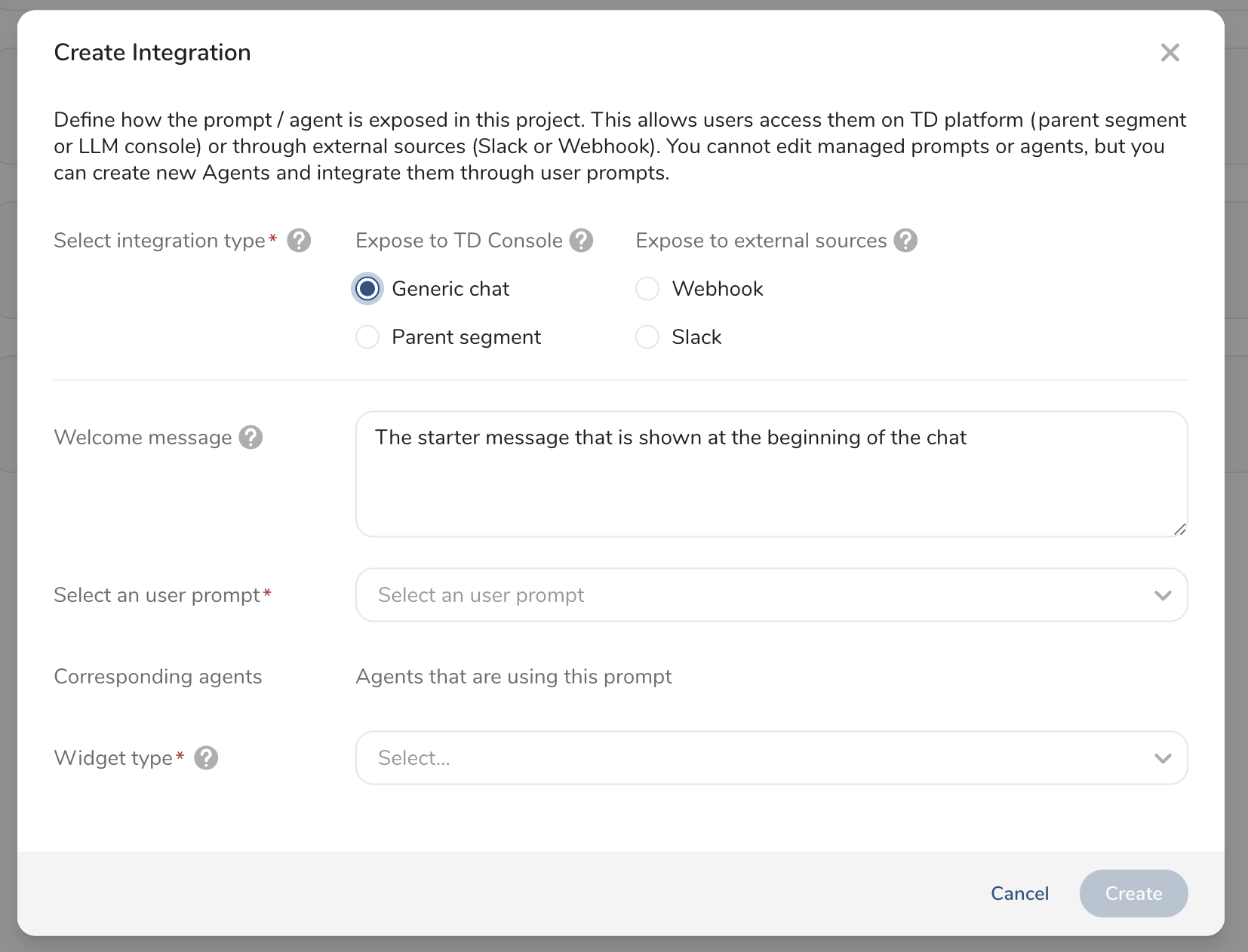
| Field | Description |
|---|---|
| Welcome message | A message that the chat box shows at the beginning. |
| User prompt | A user prompt to use. |
| Corresponding agent | (Not selectable) The agent name which the selected user prompt belongs. |
| Widget type | Button : Selected user prompt will be used as one of buttons with the welcome message in the chat window. Text Input : Selected user prompt will be used for a text input. |
| Widget lable | Need fulfill only when Button is selected, which will be used as a label for the button. |
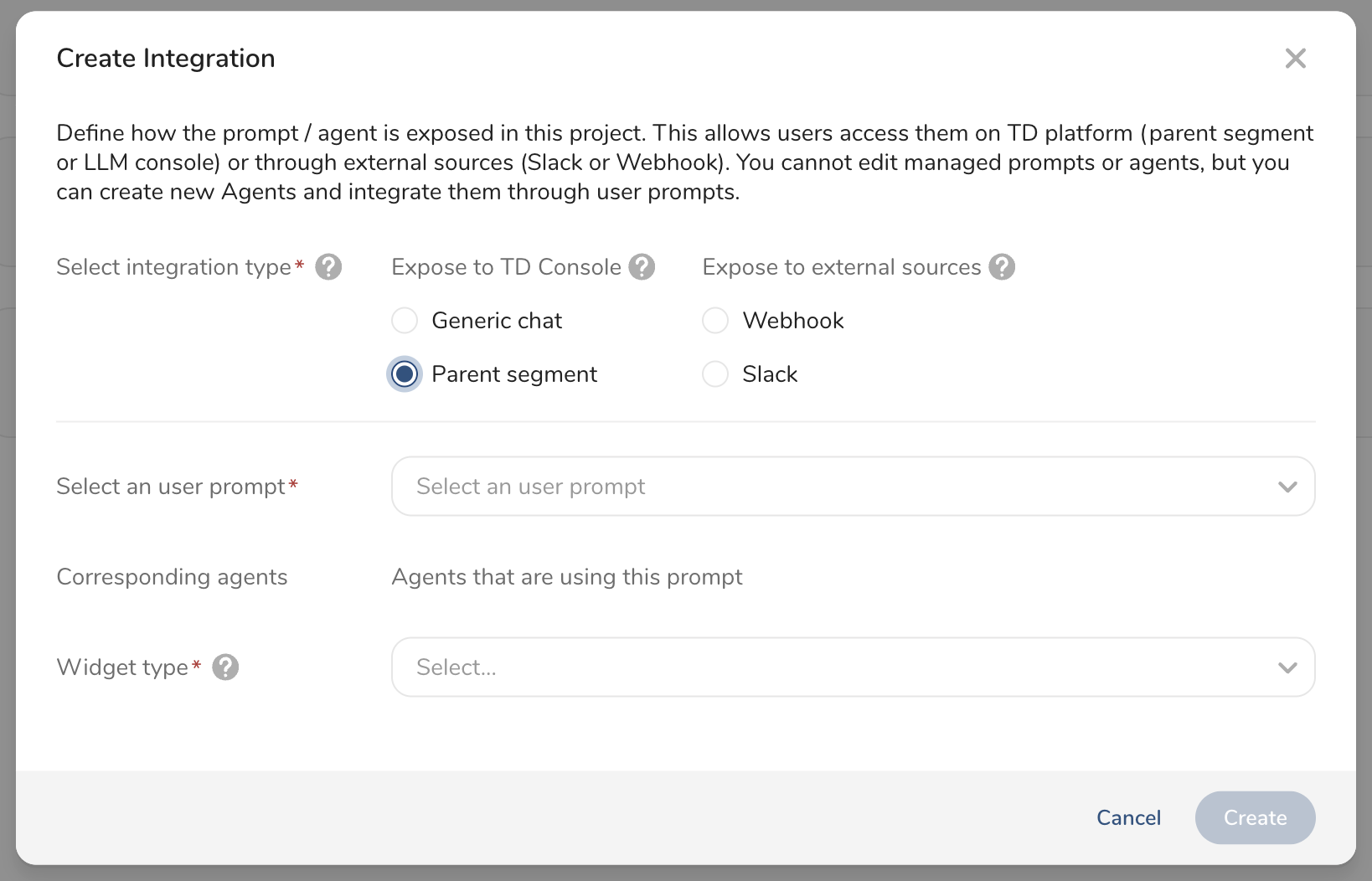
| Field | Description |
|---|---|
| User prompt | A user prompt to use. |
| Corresponding agent | (Not selectable) The agent name which the selected user prompt belongs. |
| Widget type | Button : Selected user prompt will be used as one of buttons with the welcome message in the chat window. Text Input : Selected user prompt will be used for a text input. |
| Widget label | Need fulfill only when Button is selected, which will be used as a label for the button. |
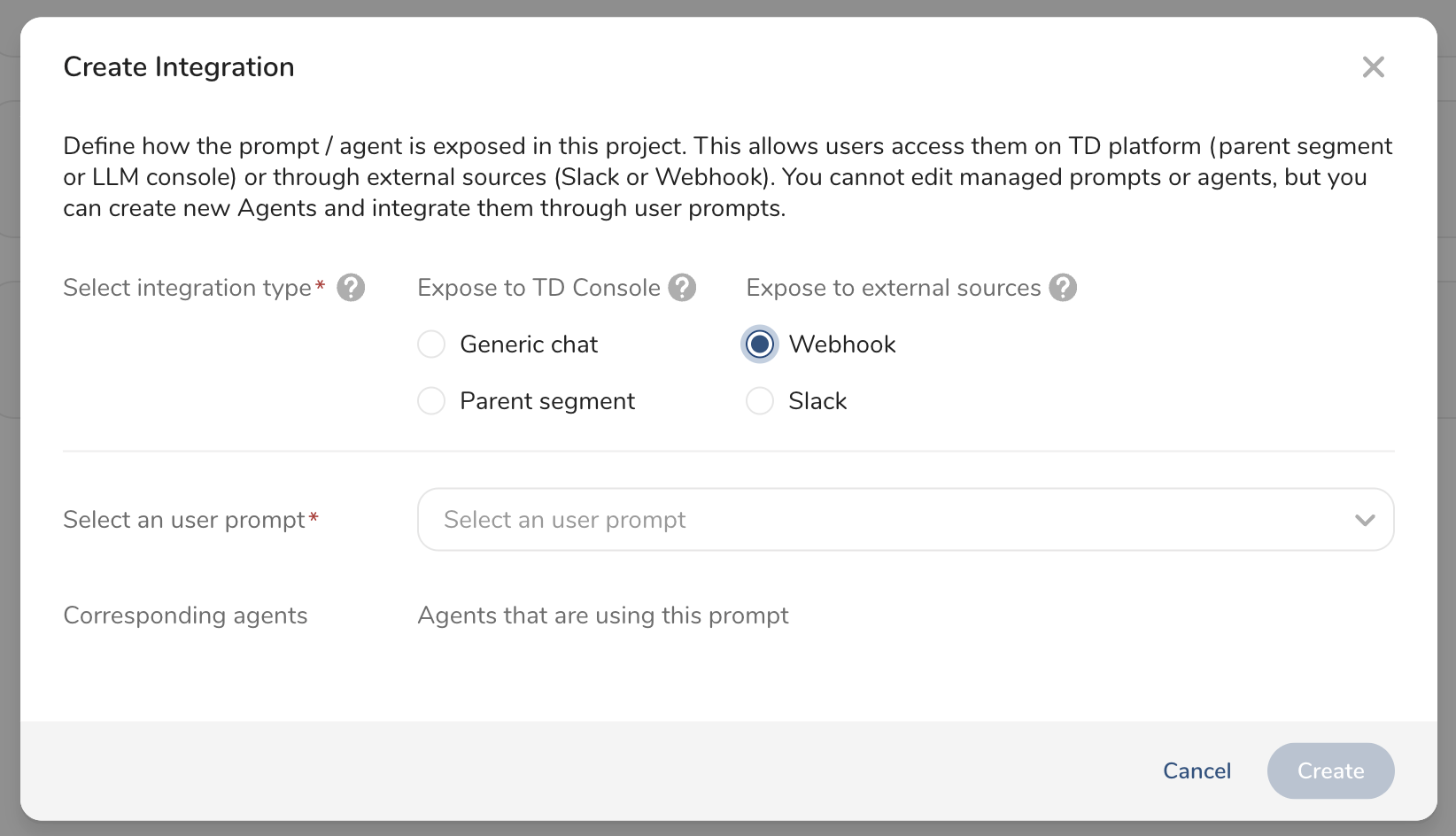
| Field | Description |
|---|---|
| User prompt | A user prompt to use. |
| Corresponding agent | (Not selectable) The agent name which the selected user prompt belongs. |
Next Step: Use a Webhook Interaction
This integration is designed to work with slash commands.
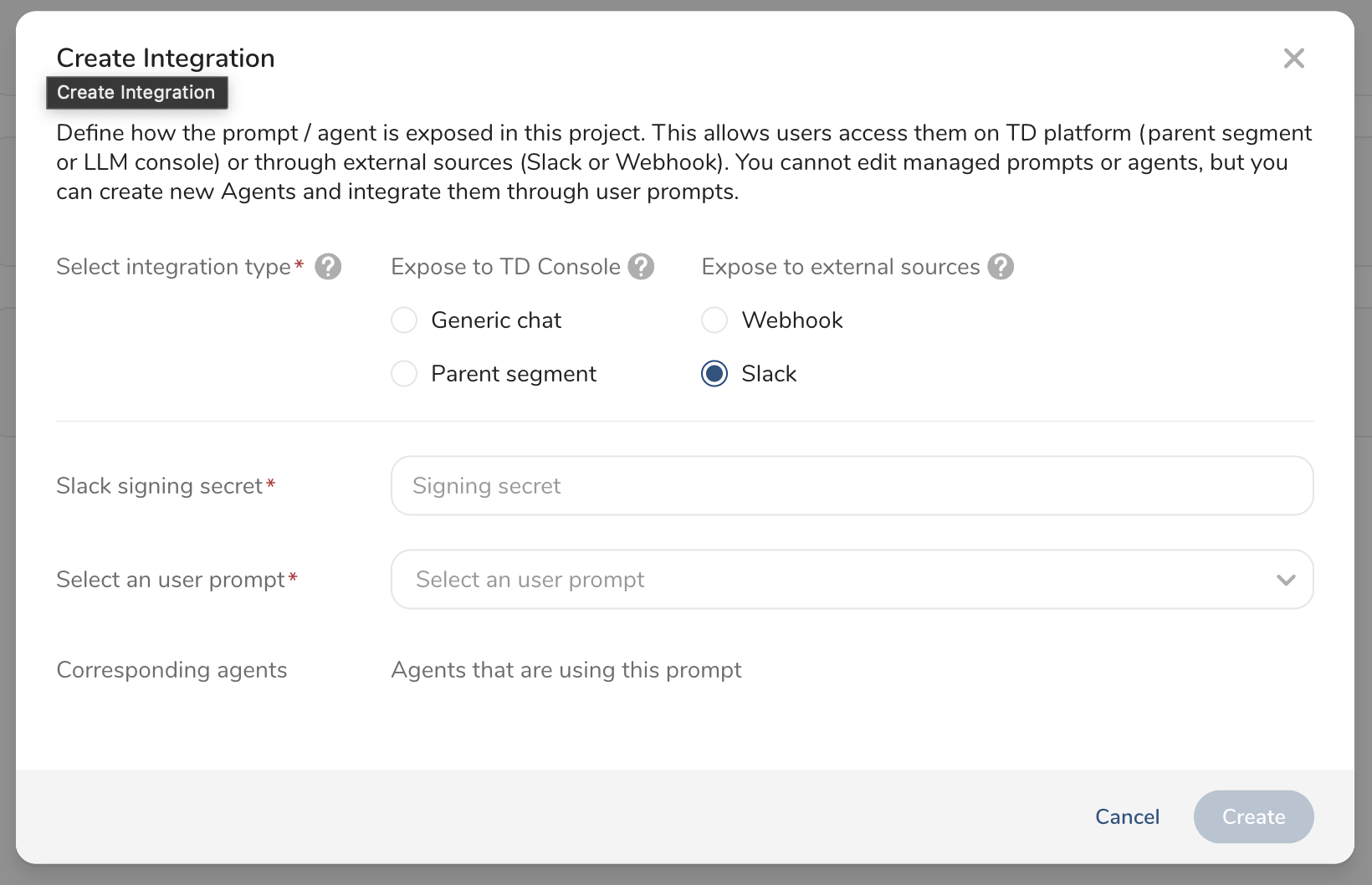
| Field | Description |
|---|---|
| Signing secret | Slack signing secret that you issued on your Slack application. |
| User prompt | A user prompt to use. |
| Corresponding agent | (Not selectable) The agent name which the selected user prompt belongs. |