Image Generator object is a tool to handle image generation. If the image generator object instance exists, an Agent can configure it as a tool and utilize to generate images.
Open TD Console.
Navigate to AI Agent Foundry.
Select a Project.
Select Image Generators and then select Create Image Generator.

Populate a form
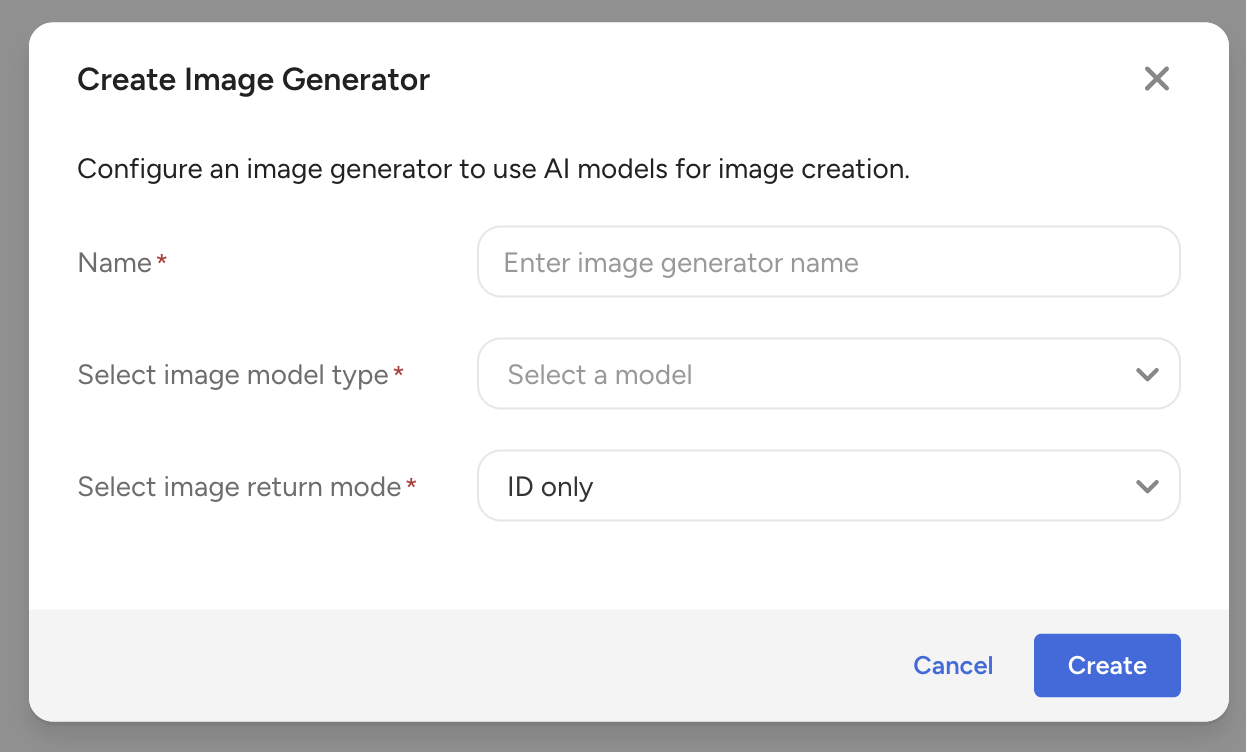
| Field | Description |
|---|---|
| Name | The name of this Image Generator |
| Select image model type | Only Nova Canvas is available |
| Select image return mode | ID only is available |
- Click a Create Button if it is OK.
To let Agent use an Image generator, it must be configured as tool in Agent.
- Navigate to Agents tab.
- Select an agent and open or create a new Agent.
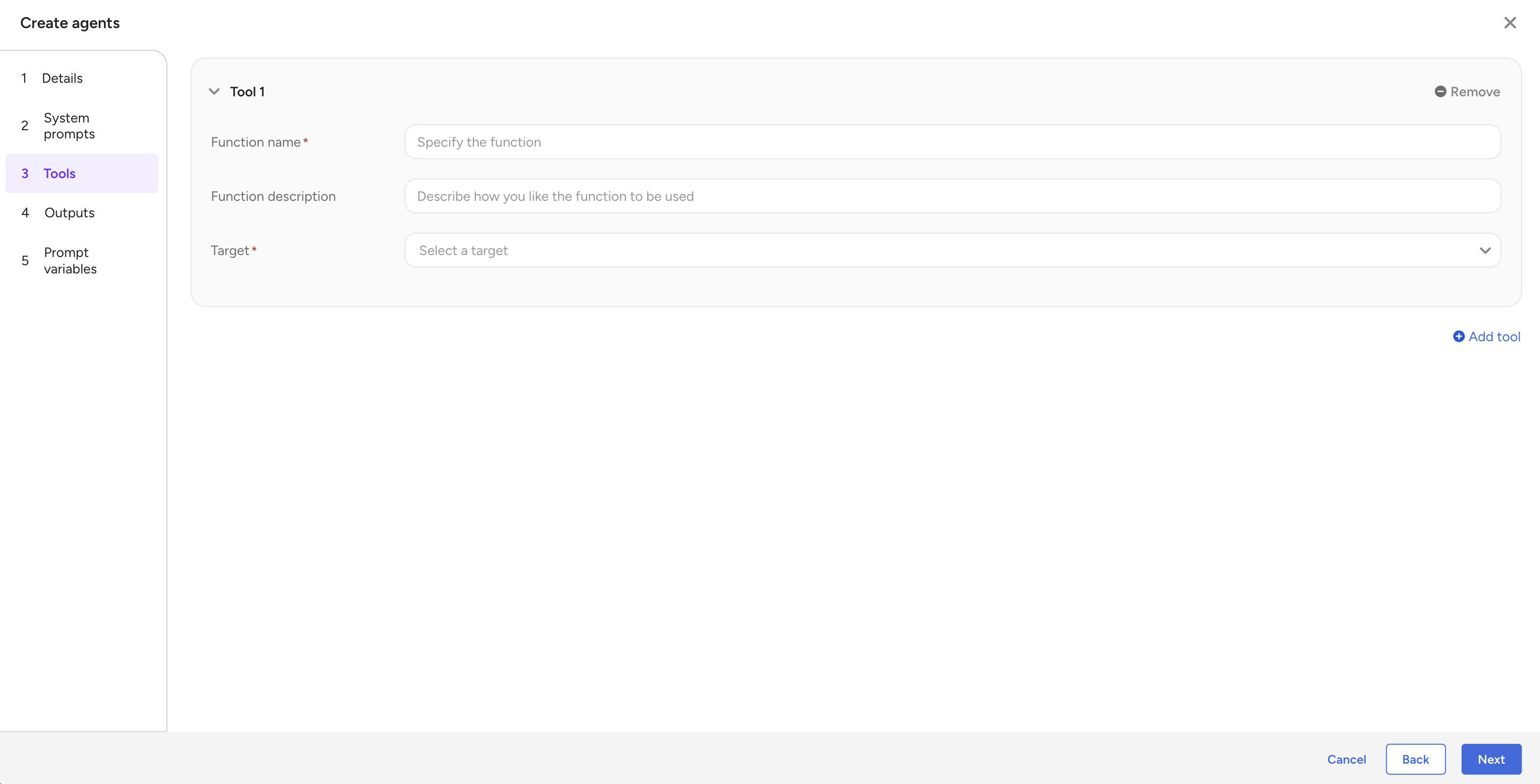
- Navigate to Tools tab and add tool.
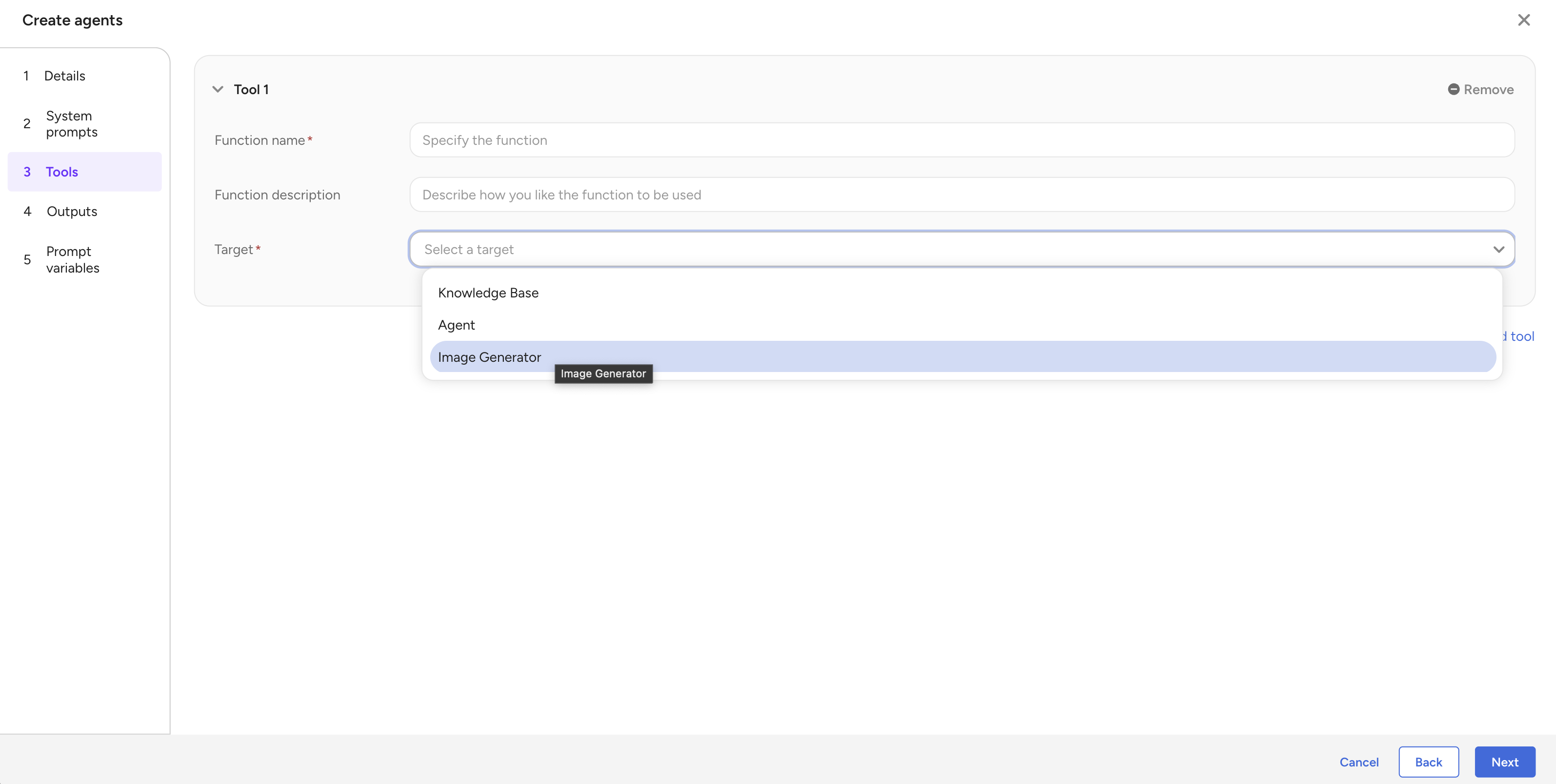
Select Image Generator as Target.
Populate a form
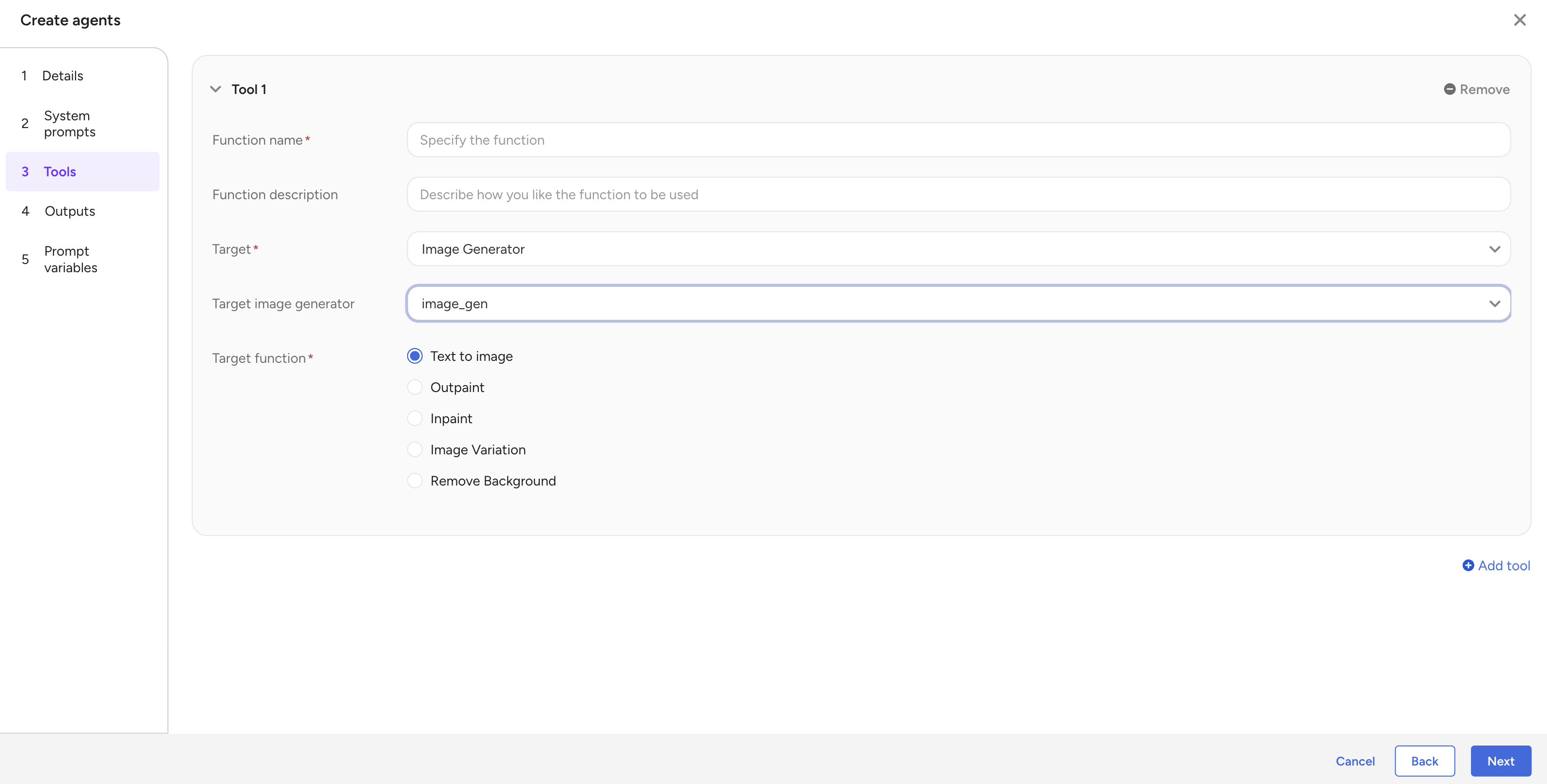
| Field | Description |
|---|---|
| Function name | A name of this tool |
| Function description | A description of this tool |
| Target | Image Generator (for image generation) |
| Target Image Generator | Select an existing image generator instance to use |
| Target Function |
|
- Create or Update an agent after populate all necessary information.
To let agent generate an image via image generator tool call, the system prompt must describe that the agent can generate an image by calling the tool that uses an image generator.