S3を使用して、Treasure DataからSalesforce DMP Kruxにセグメントを直接エクスポートできます。
Salesforce DMP Kruxは、デバイス間のデジタルインタラクションからデータを収集して統合し、それを使用して顧客をより深く理解し、より優れたマーケティングエクスペリエンスを提供します。ファーストパーティとサードパーティのソースから消費者データを統合し、アルゴリズムでブランドのオーディエンスを最もよく定義するペルソナを決定します。
- TD Toolbeltを含むTreasure Dataの基本知識
- SalesforceによってS3認証情報が提供されている
- 認可されたTreasure Dataアカウントアクセス
TDは以下のデータ列のエクスポートをサポートしています:
- {{identity_id}}(これは{{uid1}}です)
- 属性のリスト: {{attr1:value1,attr2:value2 }}
- セグメント: {{segment:segment1,segment2,segment3}}
この統合には3つの制限があります:
- 24時間のデータ遅延。Salesforceには、このコネクタがS3に投稿したファイルを取得し、その内容を処理してからオーディエンスに更新を適用する日次バッチプロセスがあります。したがって、コネクタはSalesforce DMPによって取得されるまで最大24時間のデータ遅延があります。
- オーディエンス更新の置き換え。コネクタが同じ日に2回実行される場合、2回目の実行は最初の実行で作成されたファイルに追加するのではなく、置き換えます。これは、Salesforce DMPが1日以内のオーディエンスへのすべての更新を1日あたり1つのファイルに統合する必要があるためです。「日」はUTCタイムゾーンです。
- 重複排除はサポートされていません。同じユーザーIDレコードは、出力結果に応じて重複する可能性があります。
これらの制限は、このコネクタをAudience Studioのアクティベーションとして使用する方法に影響を与える可能性があります。詳細については、Understanding Semanticsを参照してください。
現在サポートされているエクスポート用データでは、クエリ結果は以下の条件を満たす必要があります:
- 最初の列の名前はuser_id、2番目の列の名前はtd_segmentです。
- 上記の2つの列はstringデータ型である必要があります。
- 残りの列は、column_name:valueの形式に対応する属性として保存されます。
制限は、このコネクタをAudience Studioのアクティベーションとして使用する方法に影響を与える可能性があります。1日にSalesforce DMPに複数のセグメントをアクティベートする必要がある可能性が高いため、以下の設計が推奨されます:
- "activate_to_krux"というデータベースを作成します。
"activate_to_krux"のターゲットテーブルには、"segment_"などの共通プレフィックスを付けることをお勧めします。
- Audience Studioから、Treasure Data Outputアクティベーションを使用して、"activate_to_krux"データベースをアクティベートします。
このアクティベーションには、少なくとも2つの列を含めることができます: Krux IDのKUID、後にSalesforce DMP上の属性名になるセグメント名のsegment_name。
- 以下を行う日次Treasure Data Workflowを作成します:
- "activate_to_krux"をスキャン
- すべてのテーブルを1つのテーブルに統合
- テーブルをこのドキュメントで概説されている形式に再フォーマット
- Salesforce DMPに出力
Salesforce DMPを開きます。
以下を見つけます:
| Parameter | Description |
|---|---|
| client name | 例: client-treasure-data |
| access key id | |
| secret access key |
クエリを実行する前に、エクスポート中に使用するデータ接続を作成して設定する必要があります。データ接続の一部として、統合にアクセスするための認証を提供します。
TD Consoleを開きます。
Integrations Hub > Catalogに移動します。
Salesforce DMPを検索して選択します。
Create Authenticationを選択します。認証された接続を作成しています。
以下の認証情報を指定します:
Salesforce DMPから取得したclient name(例: client-treasure-data)、access key id、およびsecret access keyを編集します。
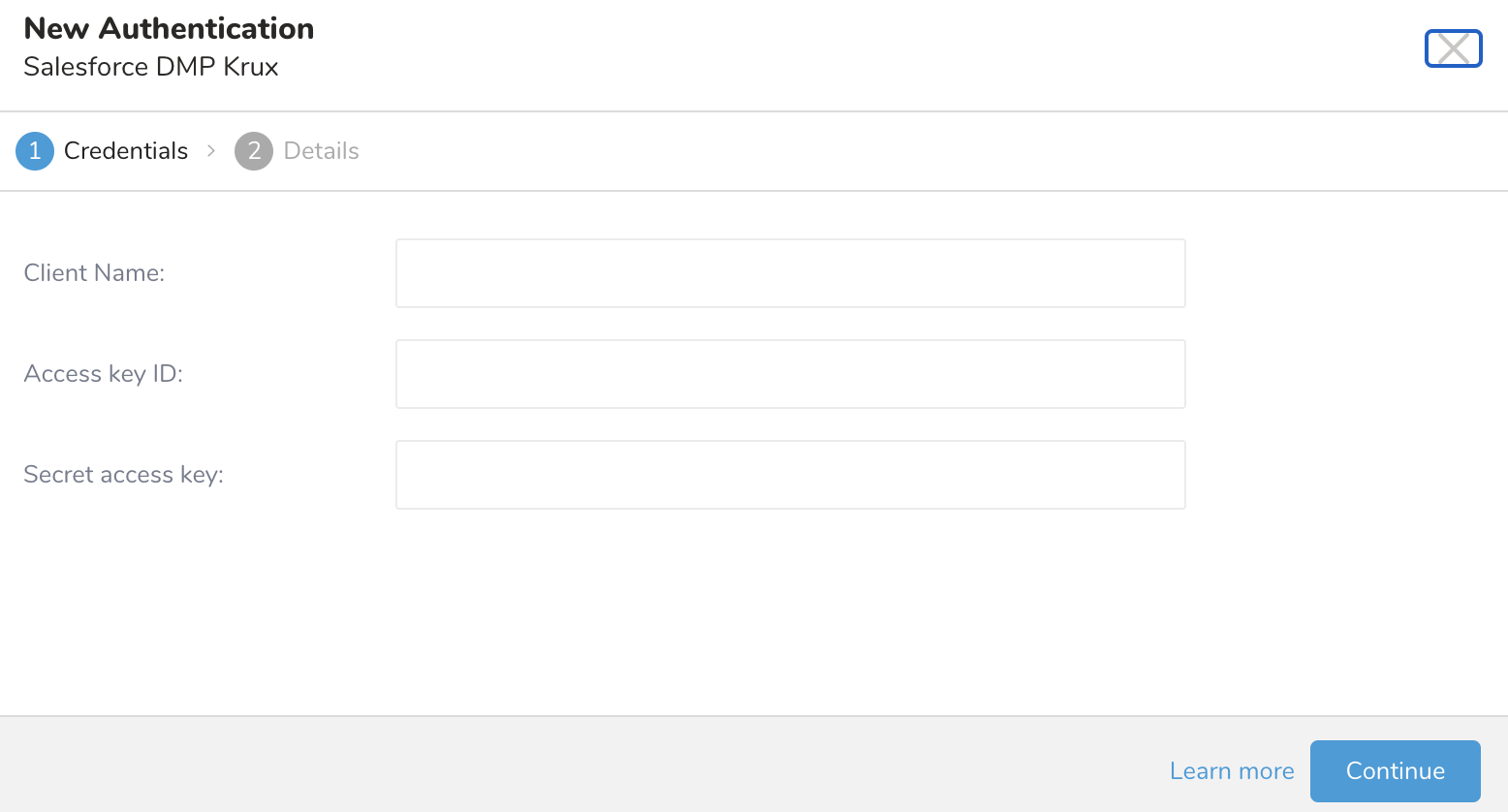
接続の名前を入力します。
Doneを選択します。
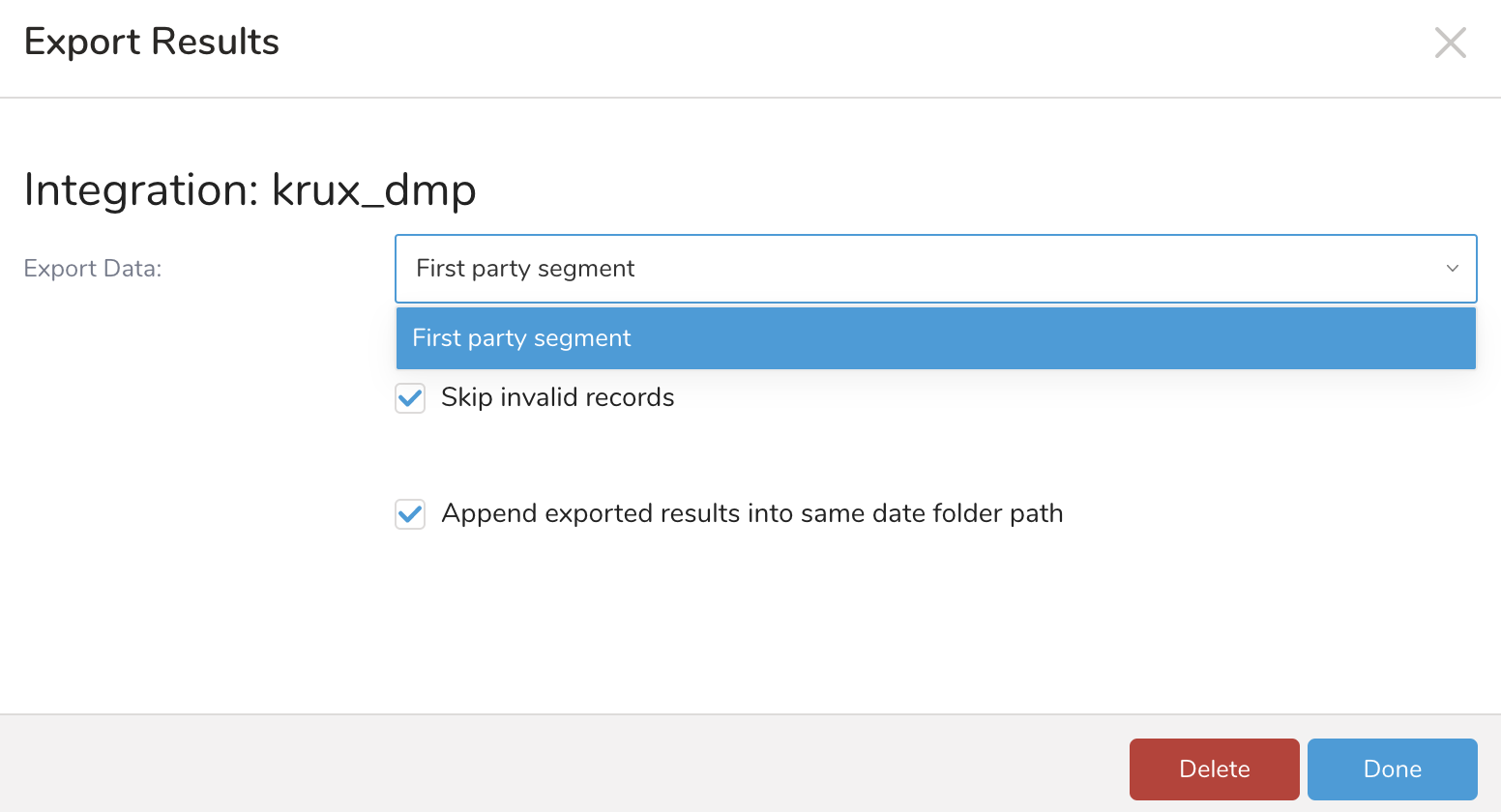
| Parameter | Description |
|---|---|
| Export Data | ファーストパーティセグメントタイプがサポートされています。 |
| Skip invalid records | |
| Append exported results into same date folder path: | 選択した場合、ユーザーが同じ宛先に何度もデータをエクスポートすると、新しいファイルが作成されます。クリアした場合、データは置き換えられます。 |
user_id_value1^td_segment:segment_value1;attribute1:attribute_value1;attribute2:attribute_value2...
例えば:
267b785fabde^td_segment:M6PM09NM,A6P77ATH,S9K6FWIG,SRECHH8N;email:julie@elliott.com;firstname:Britty;lastname:Morris従来のクエリ結果の例を次に示します:
SELECT user_id, td_segment, email, firstname, lastname
FROM (VALUES
  ('uid1', 'seg1,seg2', 'test_user@abc.com', 'Britty', 'Morris'),
  ('uid2', 'seg1,seg2,seg3,seg4', 'test_user1@abc.com', 'David', 'Morris'),
  ('uid3', 'seg1', 'test_user2@abc.com', 'Halley', 'Morris')
) AS first_data(user_id, td_segment, email, firstname, lastname)You can use Scheduled Jobs with Result Export to periodically write the output result to a target destination that you specify.
Treasure Data's scheduler feature supports periodic query execution to achieve high availability.
When two specifications provide conflicting schedule specifications, the specification requesting to execute more often is followed while the other schedule specification is ignored.
For example, if the cron schedule is '0 0 1 * 1', then the 'day of month' specification and 'day of week' are discordant because the former specification requires it to run every first day of each month at midnight (00:00), while the latter specification requires it to run every Monday at midnight (00:00). The latter specification is followed.
Navigate to Data Workbench > Queries
Create a new query or select an existing query.
Next to Schedule, select None.
In the drop-down, select one of the following schedule options:
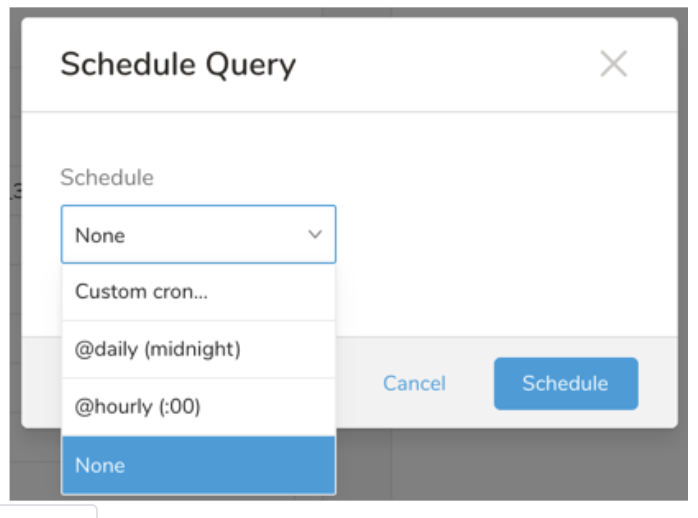
Drop-down Value Description Custom cron... Review Custom cron... details. @daily (midnight) Run once a day at midnight (00:00 am) in the specified time zone. @hourly (:00) Run every hour at 00 minutes. None No schedule.
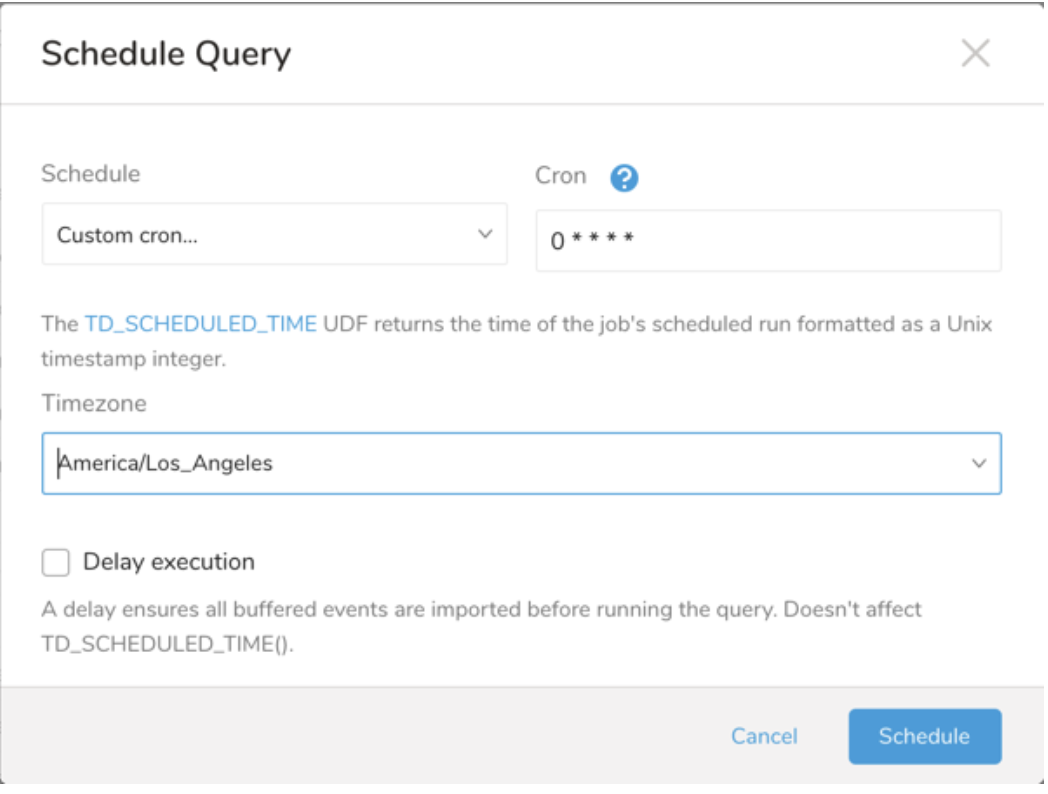
| Cron Value | Description |
|---|---|
0 * * * * | Run once an hour. |
0 0 * * * | Run once a day at midnight. |
0 0 1 * * | Run once a month at midnight on the morning of the first day of the month. |
| "" | Create a job that has no scheduled run time. |
 *    *    *    *    *
 -    -    -    -    -
 |    |    |    |    |
 |    |    |    |    +----- day of week (0 - 6) (Sunday=0)
 |    |    |    +---------- month (1 - 12)
 |    |    +--------------- day of month (1 - 31)
 |    +-------------------- hour (0 - 23)
 +------------------------- min (0 - 59)
The following named entries can be used:
- Day of Week: sun, mon, tue, wed, thu, fri, sat.
- Month: jan, feb, mar, apr, may, jun, jul, aug, sep, oct, nov, dec.
A single space is required between each field. The values for each field can be composed of:
| Field Value | Example | Example Description |
|---|---|---|
| A single value, within the limits displayed above for each field. | ||
A wildcard '*' to indicate no restriction based on the field. | '0 0 1 * *' | Configures the schedule to run at midnight (00:00) on the first day of each month. |
A range '2-5', indicating the range of accepted values for the field. | '0 0 1-10 * *' | Configures the schedule to run at midnight (00:00) on the first 10 days of each month. |
A list of comma-separated values '2,3,4,5', indicating the list of accepted values for the field. | 0 0 1,11,21 * *' | Configures the schedule to run at midnight (00:00) every 1st, 11th, and 21st day of each month. |
A periodicity indicator '*/5' to express how often based on the field's valid range of values a schedule is allowed to run. | '30 */2 1 * *' | Configures the schedule to run on the 1st of every month, every 2 hours starting at 00:30. '0 0 */5 * *' configures the schedule to run at midnight (00:00) every 5 days starting on the 5th of each month. |
A comma-separated list of any of the above except the '*' wildcard is also supported '2,*/5,8-10'. | '0 0 5,*/10,25 * *' | Configures the schedule to run at midnight (00:00) every 5th, 10th, 20th, and 25th day of each month. |
- (Optional) You can delay the start time of a query by enabling the Delay execution.
Save the query with a name and run, or just run the query. Upon successful completion of the query, the query result is automatically exported to the specified destination.
Scheduled jobs that continuously fail due to configuration errors may be disabled on the system side after several notifications.
(Optional) You can delay the start time of a query by enabling the Delay execution.
You can also send segment data to the target platform by creating an activation in the Audience Studio.
- Navigate to Audience Studio.
- Select a parent segment.
- Open the target segment, right-mouse click, and then select Create Activation.
- In the Details panel, enter an Activation name and configure the activation according to the previous section on Configuration Parameters.
- Customize the activation output in the Output Mapping panel.
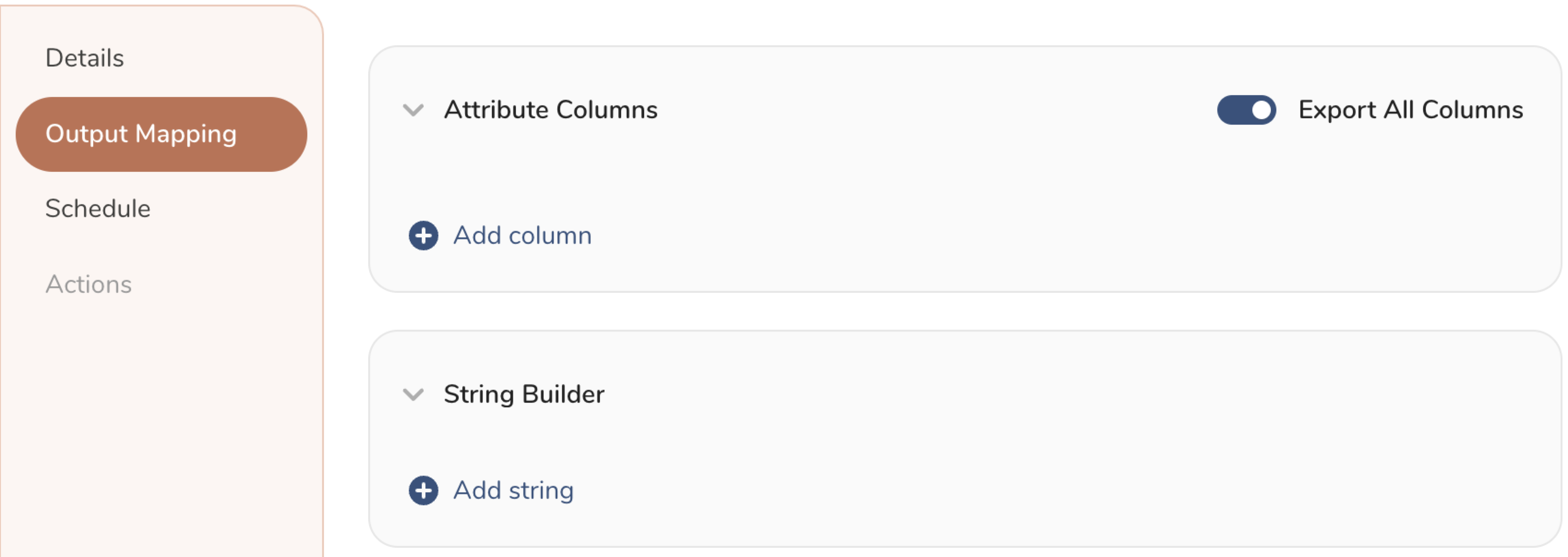
- Attribute Columns
- Select Export All Columns to export all columns without making any changes.
- Select + Add Columns to add specific columns for the export. The Output Column Name pre-populates with the same Source column name. You can update the Output Column Name. Continue to select + Add Columnsto add new columns for your activation output.
- String Builder
- + Add string to create strings for export. Select from the following values:
- String: Choose any value; use text to create a custom value.
- Timestamp: The date and time of the export.
- Segment Id: The segment ID number.
- Segment Name: The segment name.
- Audience Id: The parent segment number.
- + Add string to create strings for export. Select from the following values:
- Set a Schedule.
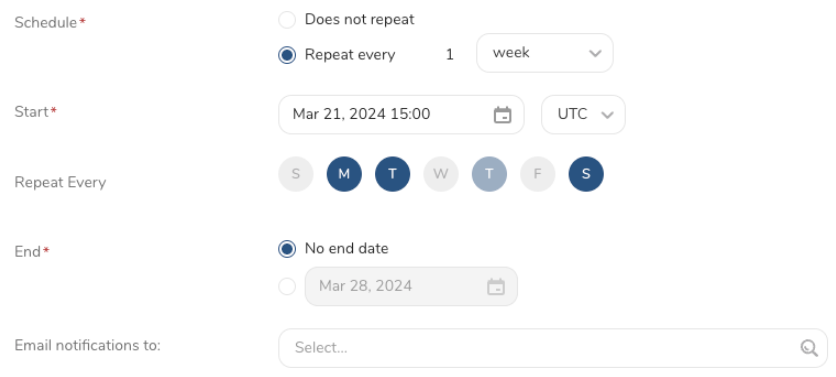
- Select the values to define your schedule and optionally include email notifications.
- Select Create.
If you need to create an activation for a batch journey, review Creating a Batch Journey Activation.
Treasure Workflow内で、このデータコネクタを使用してデータをエクスポートすることを指定できます。
詳細については、Using Workflows to Export Data with the TD Toolbeltを参照してください。
利用可能なパラメータは以下の通りです:
- export_type: 列挙型。さまざまなエクスポートタイプのうち、first_party_segmentが一時的にサポートされています。必須*。
timezone: UTC
_export:
  td:
    database: sample_datasets

+td-result-into-target:
  td>: queries/sample.sql
  result_connection: my_salesforce_dmp_connector
  result_settings:
export_type: first_party_segmentコマンドラインからworkflowでのResult Exportの設定について読んでください。