Snapchat allows you to easily communicate with friends, view live stories from around the world, and discover news via temporary pictures and video messaging. As a business, you can run Snapchat Ads Manager to create and manage ads and run campaigns to generate leads and more. Snapchat Import integration allows you to import lead generation report data from Snapchat.
- Basic knowledge of Treasure Data
- A Snapchat business account
- Import of only lead generation report data is supported.
- Data collected from lead generation ads is not stored for more than 30 days. This means that the start time cannot be more than 30 days in the past.
- The Snapchat Marketing API implements rate limits to ensure infrastructure stability. Rate limits are implemented both at App and Token level. The App supports an overall average volume of 20 requests per second while individual Access tokens issued by the App can make requests at an average of 10 requests per second.
If your security policy requires IP whitelisting, you must add Treasure Data's IP addresses to your allowlist to ensure a successful connection.
Please find the complete list of static IP addresses, organized by region, at the following document
- Go to https://ads.snapchat.com/. Fill username and password, and click log in.
- After logging in, you can see your ad account ID from URL. For example, https://ads.snapchat.com/112345-3211-410f-test-1332433/create. Here, "112345-3211-410f-test-1332433" is your ad account ID.
Your first step is to create a new authentication with a set of credentials.
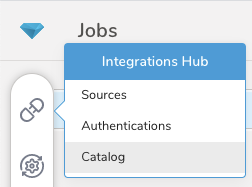
Select Integrations Hub.
Select Catalog.
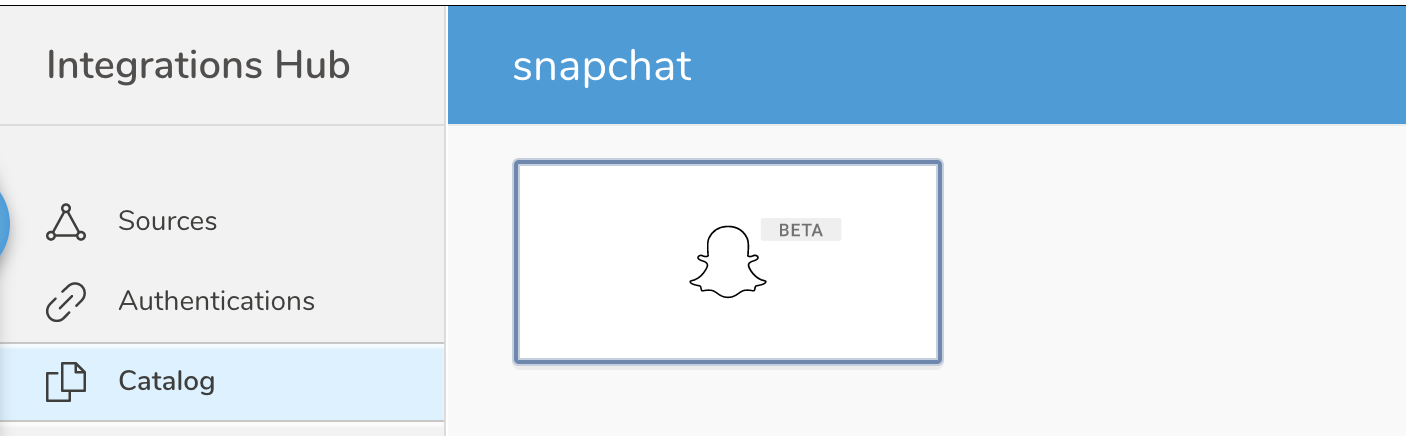
- Search for Snapchat in the Catalog; hover your mouse over the icon and select Create Authentication.
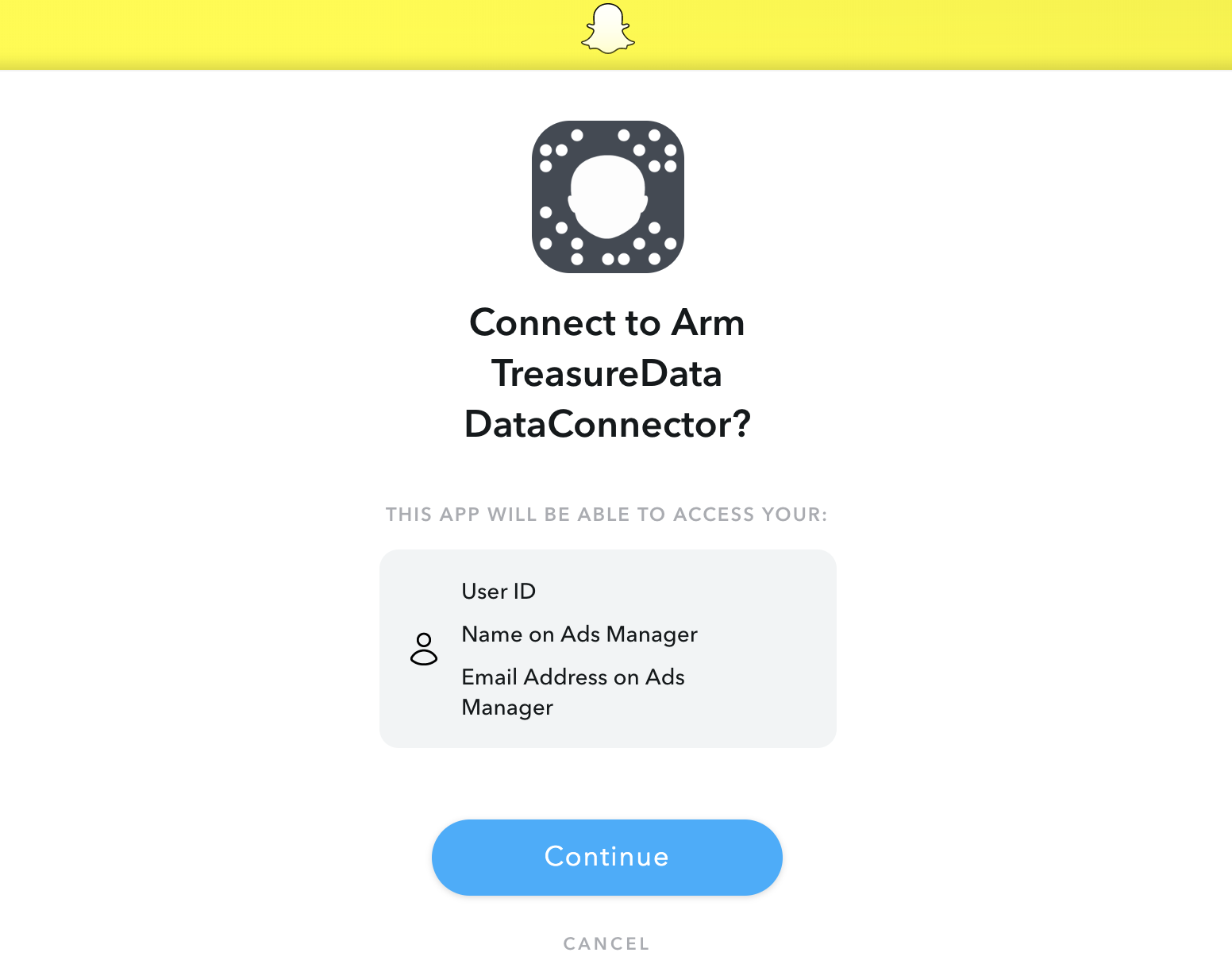
- Ensure that the Credentials tab is selected and then enter credential information for the integration Or select Click here to connect to a Snapchat account. You are redirected to Snapchat to login, if you haven't logged in yet, or to the consent page to grant access to Treasure Data.
| Parameter | Description |
|---|---|
| Ad Account ID | Snapchat Business Ad Account ID |
- Enter a name for your authentication, and select Done.
Open TD Console.
Navigate to Integrations Hub > Authentications.
Locate your new authentication and select New Source.
Complete the following table for the source.
| Parameter | Description |
|---|---|
| Data Transfer Name | You can define the name of your transfer. |
| Authentication | The authentication name that is used to a transfer. |
Type a source name in the Data Transfer Name field.
Select Next.
The Create Source page displays with the Source Table tab selected.
| Parameter | Description |
|---|---|
| Data Source | Object data that will be import |
| Start Time | Import data since this time |
| End Time | Import data until this time |
| Incremental loading | Whether to enable incremental loading |
Select Next.
| Parameter | Description |
|---|---|
| Max wait time for report to complete | Max wait time for report to complete in hours |
| Max retry count per API call | Max retry count per API call |
| Initial retry interval per API call | Initial retry interval per API call in seconds |
| Max retry interval per API call | Max retry interval per API call in seconds |
Select Next.
You can see a preview of your data before running the import by selecting Generate Preview. Data preview is optional and you can safely skip to the next page of the dialog if you choose to.
- Select Next. The Data Preview page opens.
- If you want to preview your data, select Generate Preview.
- Verify the data.
For data placement, select the target database and table where you want your data placed and indicate how often the import should run.
Select Next. Under Storage, you will create a new or select an existing database and create a new or select an existing table for where you want to place the imported data.
Select a Database > Select an existing or Create New Database.
Optionally, type a database name.
Select a Table> Select an existing or Create New Table.
Optionally, type a table name.
Choose the method for importing the data.
- Append (default)-Data import results are appended to the table. If the table does not exist, it will be created.
- Always Replace-Replaces the entire content of an existing table with the result output of the query. If the table does not exist, a new table is created.
- Replace on New Data-Only replace the entire content of an existing table with the result output when there is new data.
Select the Timestamp-based Partition Key column. If you want to set a different partition key seed than the default key, you can specify the long or timestamp column as the partitioning time. As a default time column, it uses upload_time with the add_time filter.
Select the Timezone for your data storage.
Under Schedule, you can choose when and how often you want to run this query.
- Select Off.
- Select Scheduling Timezone.
- Select Create & Run Now.
- Select On.
- Select the Schedule. The UI provides these four options: @hourly, @daily and @monthly or custom cron.
- You can also select Delay Transfer and add a delay of execution time.
- Select Scheduling Timezone.
- Select Create & Run Now.
After your transfer has run, you can see the results of your transfer in Data Workbench > Databases.
You can import data from Snapchat by using td_load>: operator of workflow. If you have already created a SOURCE, you can run it.
Identify your source.
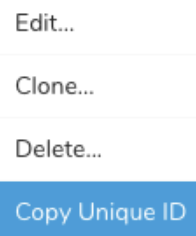
To obtain a unique ID, open the Source list and then filter by product.
Open the menu and select "Copy Unique ID".
- Define a workflow task using td_load> operator.
+load:
  td_load>: unique_id_of_your_source
  database: ${td.dest_db}
table: ${td.dest_table}- Run a workflow.