
The chat interface is where everything happens. Ask a question, give an instruction, or describe what you want — Studio streams the AI's response in real time so you can see it think and act.
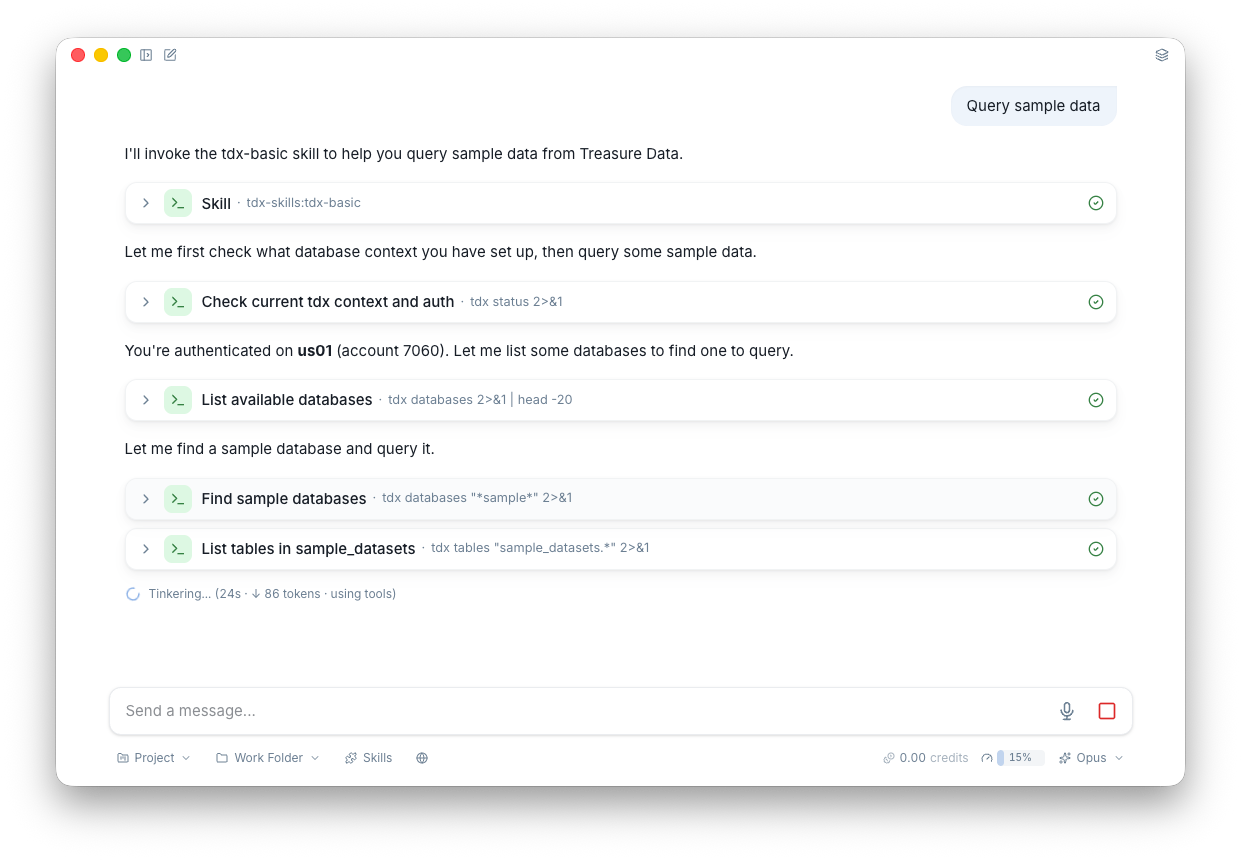
What makes it powerful:
- Extended thinking — Expand the thinking panel to see the AI's reasoning before it responds. Useful for understanding complex analysis or debugging unexpected results.
- Tool calls in real time — Watch the AI execute queries, read files, and call APIs as it works. Every tool call is visible and expandable.
- Voice input — Dictate your messages instead of typing.
- Auto-compact — Long conversations don't hit a wall. When the context window fills up, Studio automatically summarizes earlier messages so the conversation continues seamlessly.
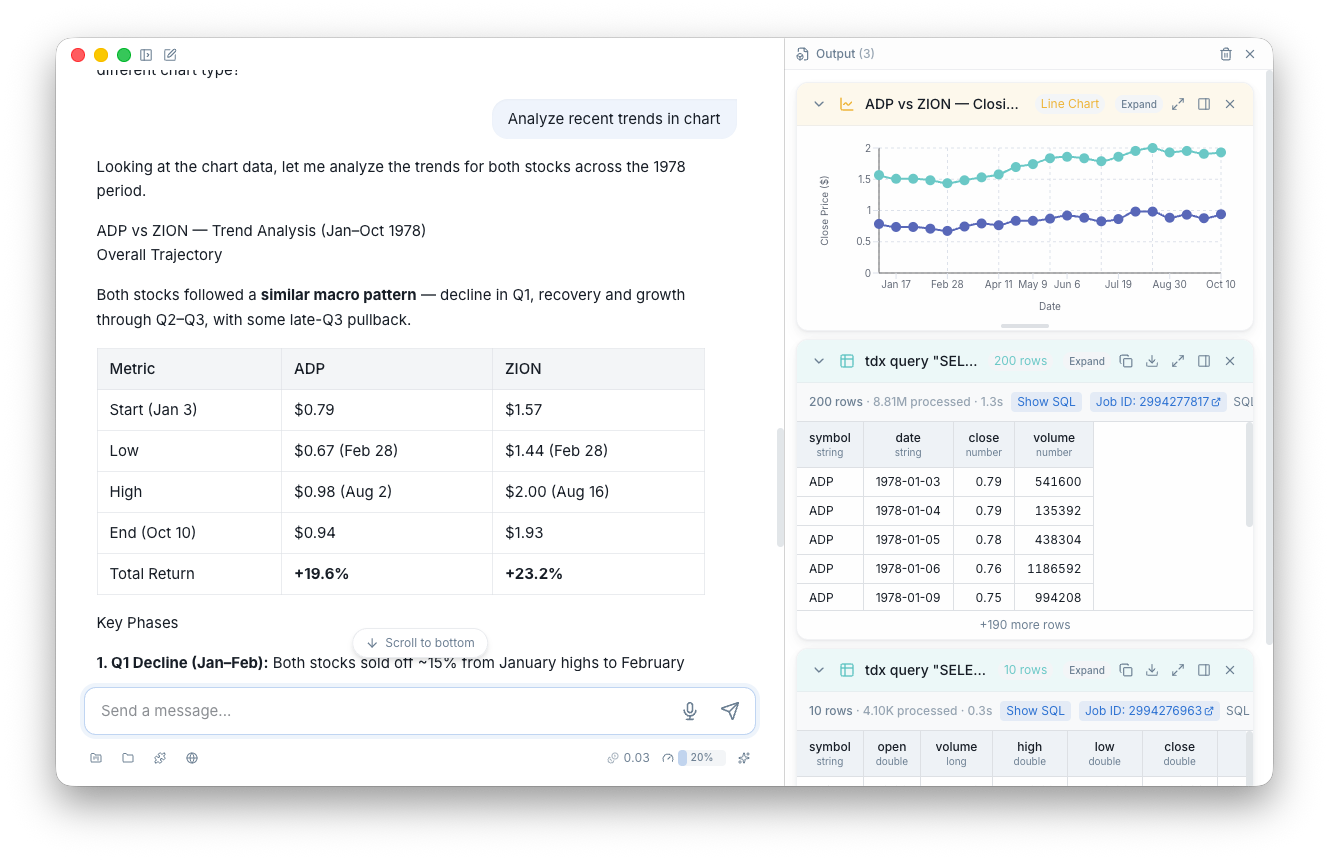
When the AI generates something visual — a chart, a table, a code file, a document — it appears in the artifact panel alongside the chat.
| Type | Example |
|---|---|
| Chart | Revenue trends, segment overlap visualizations, funnel analysis |
| Table | Query results, user lists, segment previews |
| Code | SQL queries, YAML configs, workflow definitions |
| Document | Analysis reports, documentation drafts |
Artifacts are interactive. You can sort tables, zoom into charts, copy code blocks, and export anything to a file.
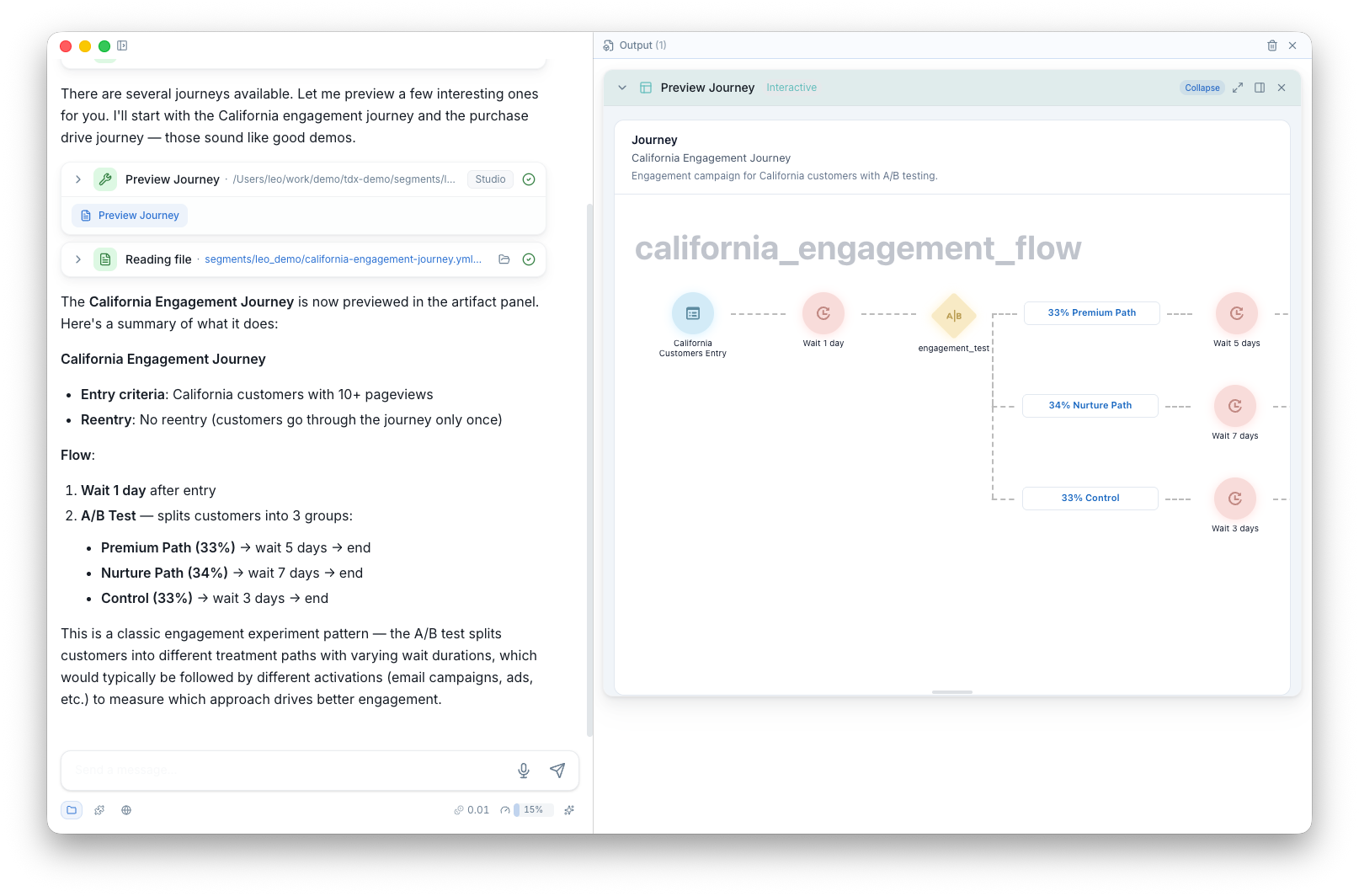
Studio can render visual previews of your CDP resources directly in the artifact panel. When you build or review a journey, segment, or workflow, Studio generates an interactive diagram showing the full structure — entry criteria, decision points, segment rules, activation steps — so you can verify the logic before pushing to your account.
Ask the AI to modify a step and the preview updates in real time.
Every time you start a new analysis or workflow, you end up re-explaining context: which database, which segment, what coding conventions to follow. Projects eliminate that.
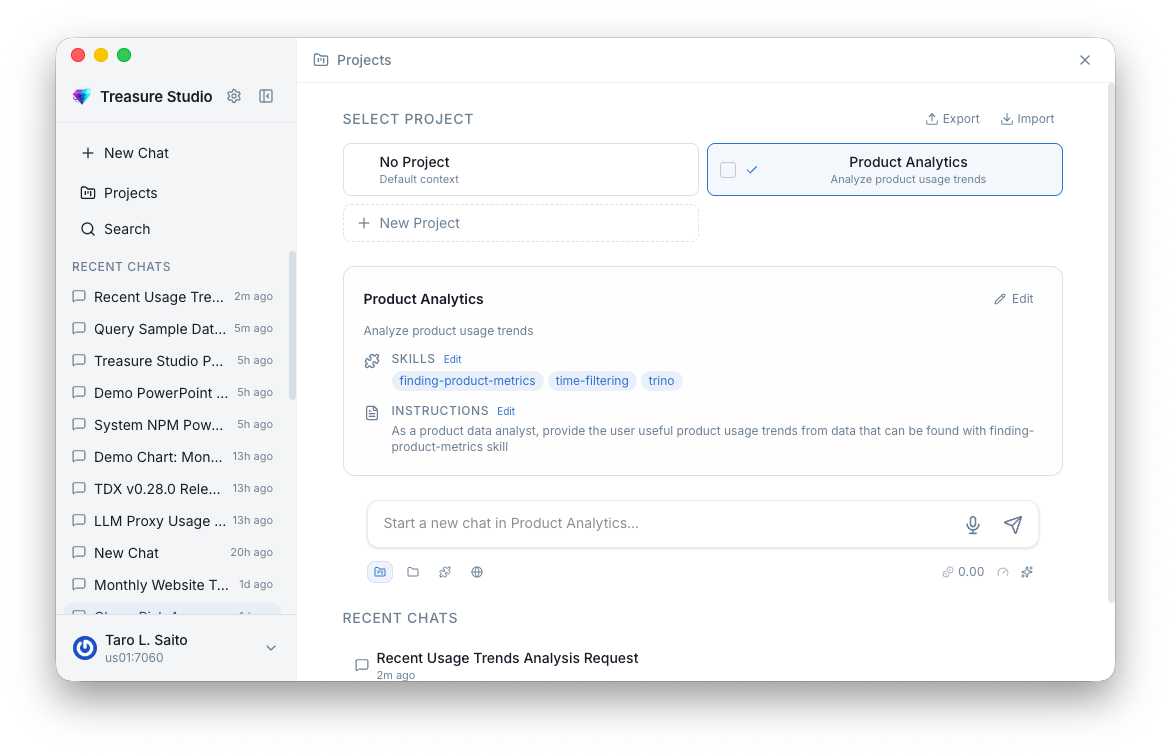
A project is a saved workspace that pre-loads context into every new chat:
- Instructions — "Always use the
marketingdatabase. Format SQL with CTEs." Custom rules the AI follows automatically. - Working folder — A directory on your machine where the AI reads and writes files (YAML configs, exports, query results).
- Skills — Pre-activate specific skills so they're always available. A "CDP Management" project might always have segment and journey skills enabled.
- TD context — Pin a default database, table, or segment so you don't have to specify it every time.
Use Cmd+P or type @project: in the chat input or command palette to switch projects. Each project keeps its own configuration, so you can jump between "Analytics" and "CDP Ops" without reconfiguring anything.
Type / in the chat to invoke a skill directly. An autocomplete dropdown shows available skills — select one and it runs with your message as input.
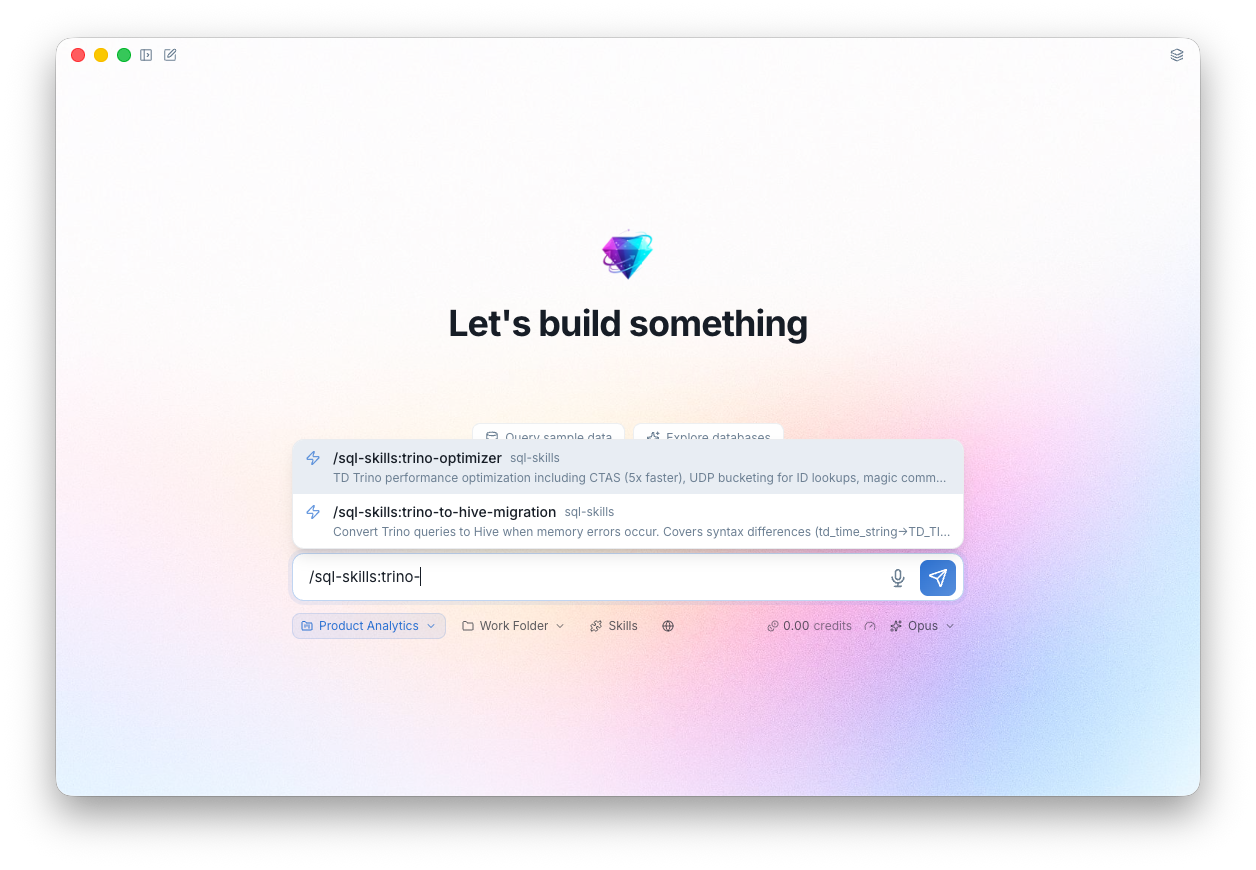
For example, /sql-skills:trino-optimizer followed by a query will analyze it for performance issues and suggest improvements.
Type ! to run any tdx CLI command or MCP tool directly from the chat. The output appears inline.
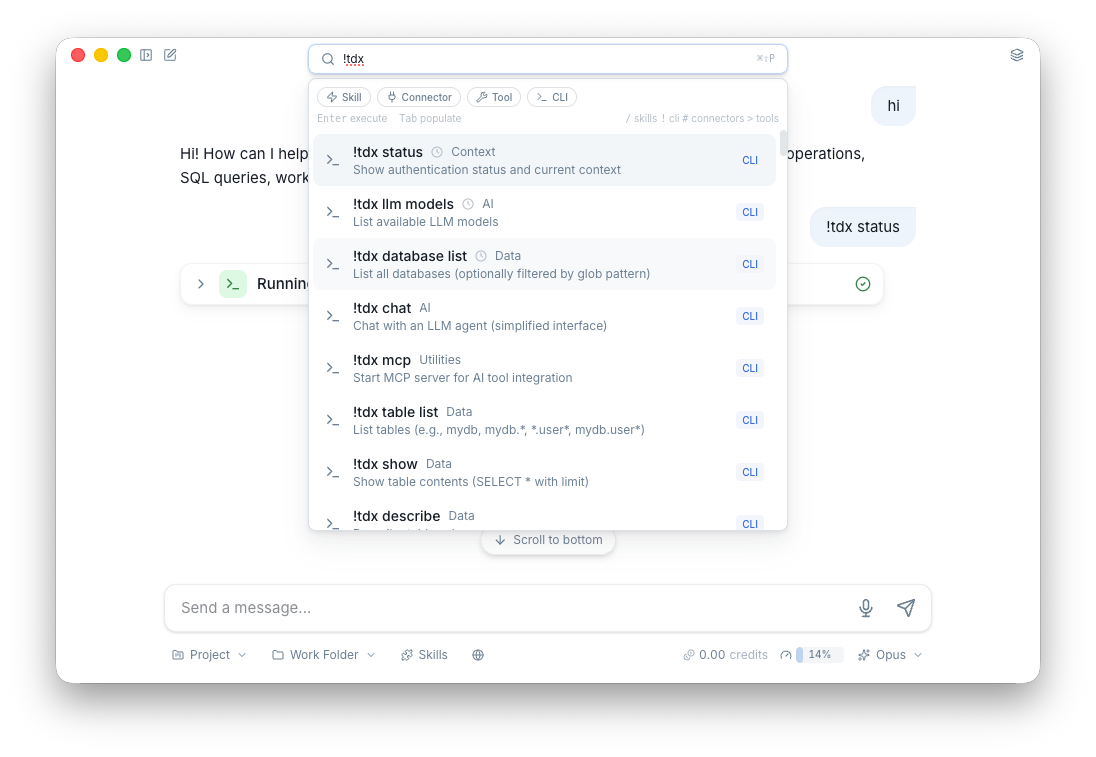
!tdx databases
!tdx query "SELECT count(*) FROM mydb.users"
!tdx segment list
This is useful when you want quick, direct access to CLI functionality without going through the AI.
| Shortcut | Action |
|---|---|
Cmd+N / Ctrl+N | New chat |
Cmd+P / Ctrl+P | Switch project |
Cmd+Shift+P / Ctrl+Shift+P | Command palette |
Cmd+O / Ctrl+O | Search chats |
Cmd+\ / Ctrl+\ | Toggle sidebar |
Cmd+, / Ctrl+, | Settings |
Cmd++ / Ctrl++ | Zoom in |
Cmd+- / Ctrl+- | Zoom out |
Cmd+0 / Ctrl+0 | Reset zoom |
Use Cmd+O to search across all your past conversations. You can clip important messages for quick reference later.
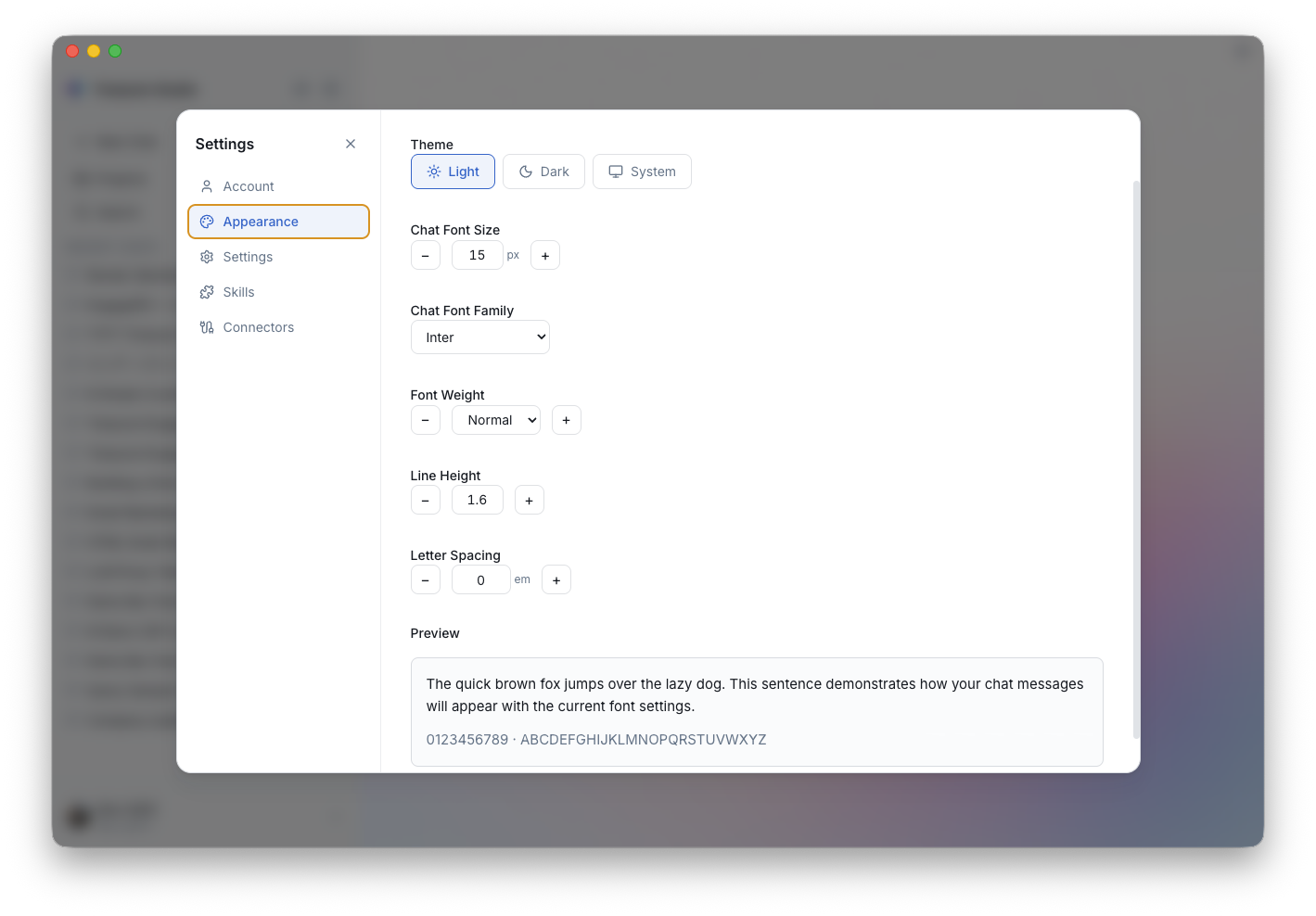
- Theme — Light, dark, or match your system
- Font size — Adjust to your preference
- Working folder — Set the default directory for file operations
- Accounts — Add and switch between multiple TD accounts and regions
- Concepts — Understand how projects, models, and credits work together
- Skills — Browse and install agent skills
- Connections — Connect external services to expand what the AI can do