Sansan Data Hub helps you organize and integrate customer data within your company and transform it into optimal data for marketing purposes. With this integration, you can export job results from Treasure Data into Sansan Data Hub.
- Send multiple upload requests to upload your data from Treasure Data to Sansan Data Hub.
- Check the status of each upload request.
- Basic Knowledge of Treasure Data.
- Basic knowledge of Sansan Data Hub
If your security policy requires IP whitelisting, you must add Treasure Data's IP addresses to your allowlist to ensure a successful connection.
Please find the complete list of static IP addresses, organized by region, at the following document
In Treasure Data, you must create and configure the data connection before running your query. As part of the data connection, you provide authentication to access the integration.
- Open TD Console.
- Navigate to Integrations Hub > Catalog.
- Search for Sansan Data Hub and select Sansan Data Hub (Output).
- Select Create Authentication.
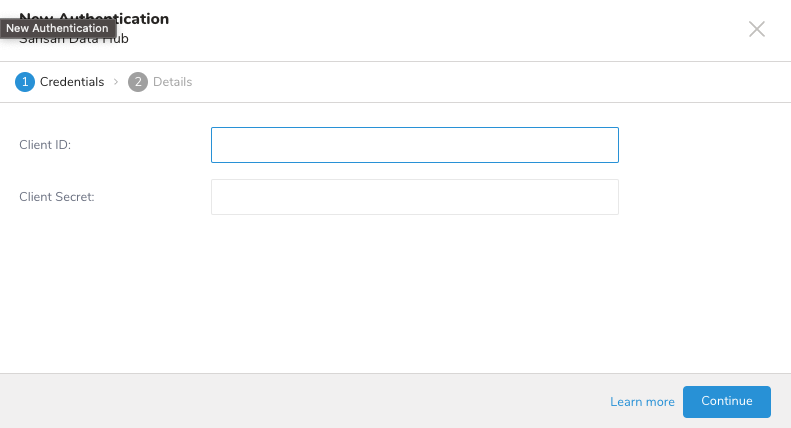
- Type the credentials to authenticate:
| Parameter | Description |
|---|---|
| Client ID | Your account client ID |
| Client Secret | Your account client Secret |
- Select Continue.
- Type a name for your connection.
- Select Done.
- Navigate to Data Workbench > Queries.
- Select New Query.
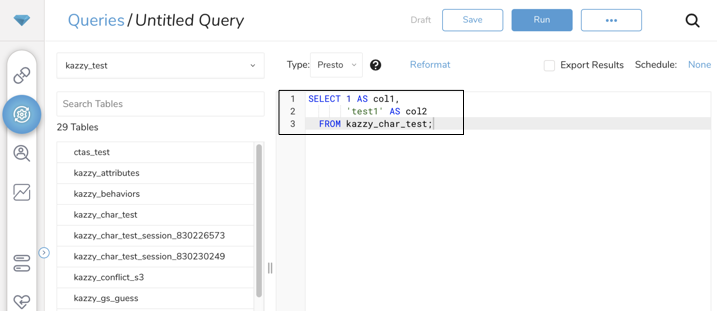
- Run the query to validate the result set.
The Sansan Data Hub Output Connector skips any data that contains the comma(,) character. Example:
marketoid,company,createdday,updatedday
1,company1,2022-06-07 12:18:06,2022-06-07 12:18:06
2,company2,2022-06-07 12:18:06,2022-06-07 12:18:06
3,company3withcomma,,2022-06-07 12:18:06,2022-06-07 12:18:06 #This row is skipped
4,company4,withcomma,2022-06-07 12:18:06,2022-06-07 12:18:06 #This row is skippedSelect Export Results.
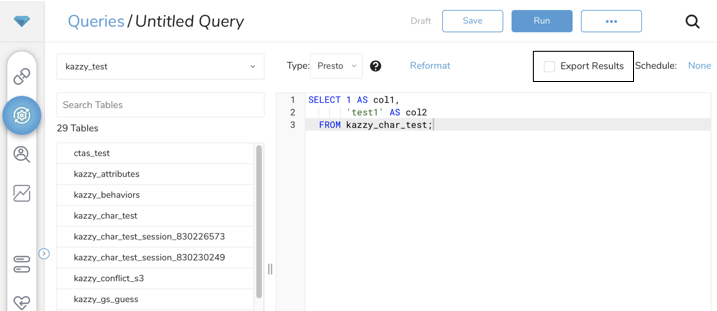
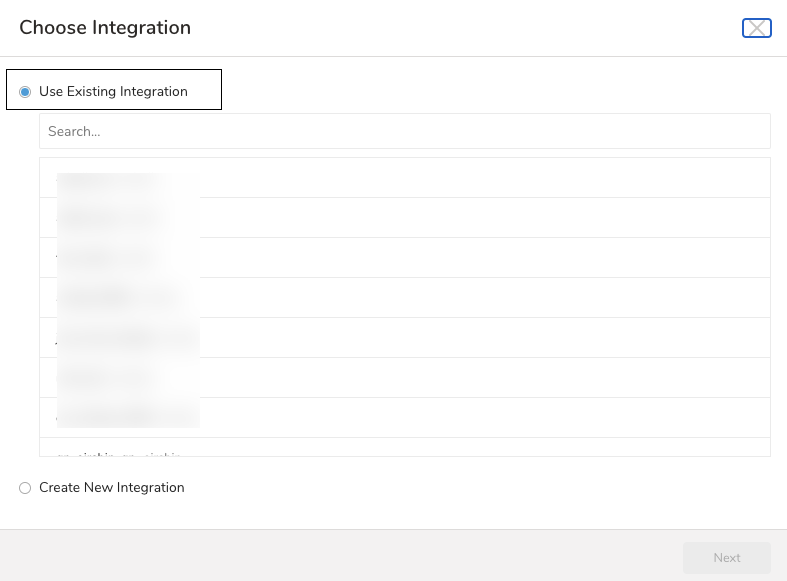
You can select an existing authentication for the external service for output. Choose one of the following:
Use Existing Integration
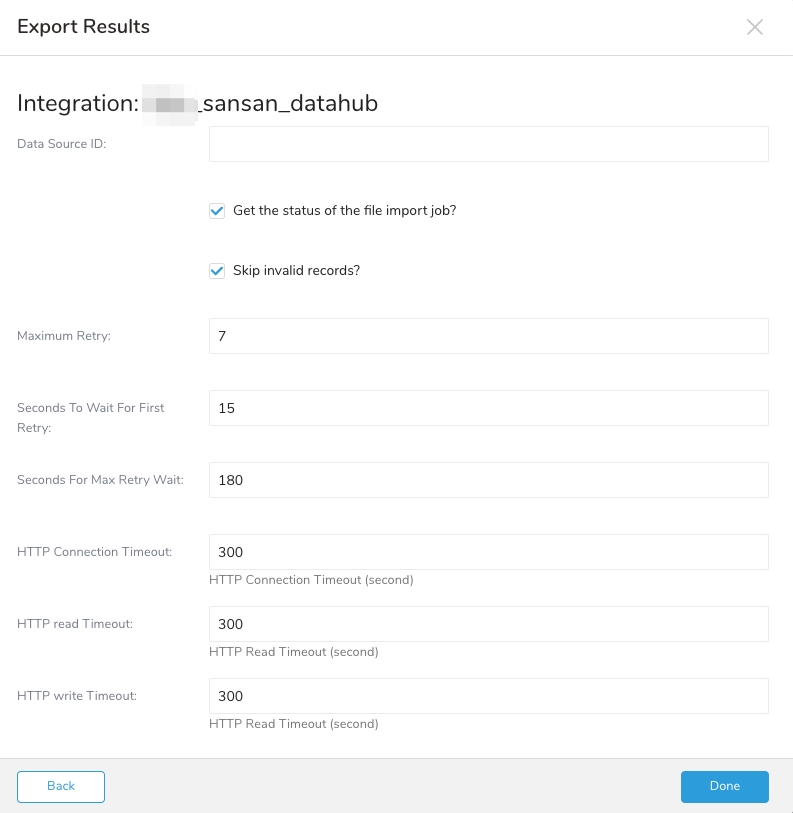
| Field | Description |
|---|---|
| Data source ID | The source target to export data |
| Get the status of the file import job | Get the status of each batch upload request |
| Skip invalid records | Skip failed to validate records Skip failed to upload batches |
| Maximum Retry | Maximum retry times |
| Seconds to wait for first retry | Waiting time for the first retry in seconds |
| Seconds for max retry wait | Max waiting time for the retry in seconds |
| HTTP Connection Timeout | HTTP connection timeout |
| HTTP Read Timeout | HTTP read timeout |
| HTTP Write Timeout | HTTP write timeout |
SELECT
 *
FROM
www_accessYou can use Scheduled Jobs with Result Export to periodically write the output result to a target destination that you specify.
Treasure Data's scheduler feature supports periodic query execution to achieve high availability.
When two specifications provide conflicting schedule specifications, the specification requesting to execute more often is followed while the other schedule specification is ignored.
For example, if the cron schedule is '0 0 1 * 1', then the 'day of month' specification and 'day of week' are discordant because the former specification requires it to run every first day of each month at midnight (00:00), while the latter specification requires it to run every Monday at midnight (00:00). The latter specification is followed.
Navigate to Data Workbench > Queries
Create a new query or select an existing query.
Next to Schedule, select None.

In the drop-down, select one of the following schedule options:
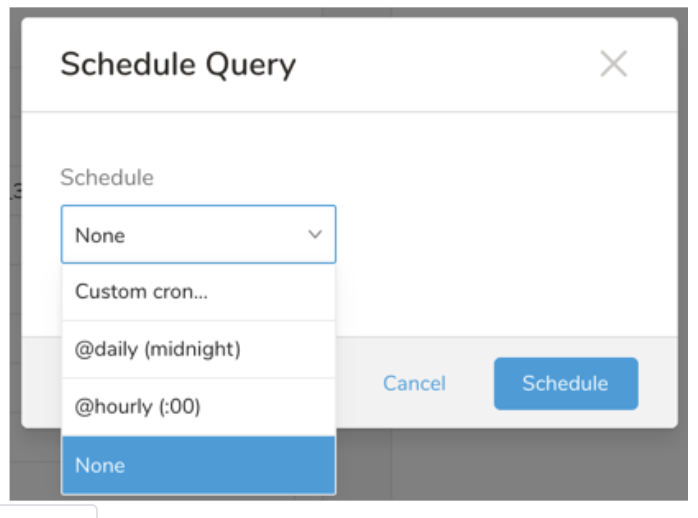
Drop-down Value Description Custom cron... Review Custom cron... details. @daily (midnight) Run once a day at midnight (00:00 am) in the specified time zone. @hourly (:00) Run every hour at 00 minutes. None No schedule.
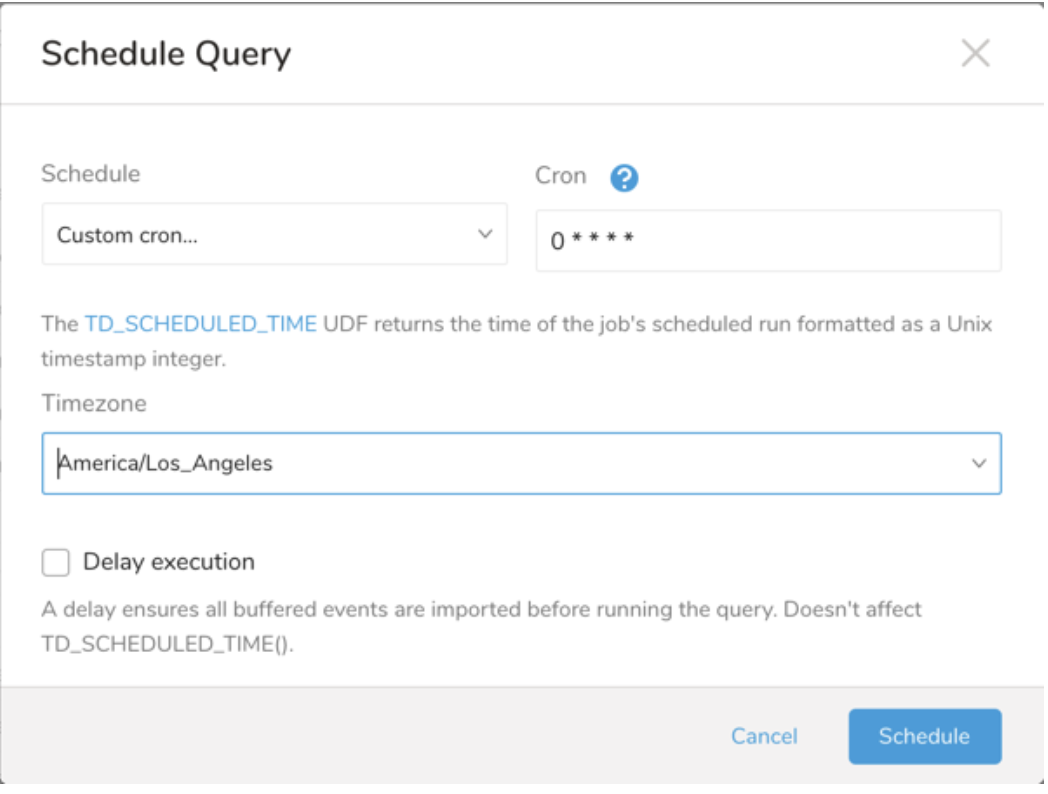
| Cron Value | Description |
|---|---|
0 * * * * | Run once an hour. |
0 0 * * * | Run once a day at midnight. |
0 0 1 * * | Run once a month at midnight on the morning of the first day of the month. |
| "" | Create a job that has no scheduled run time. |
 *    *    *    *    *
 -    -    -    -    -
 |    |    |    |    |
 |    |    |    |    +----- day of week (0 - 6) (Sunday=0)
 |    |    |    +---------- month (1 - 12)
 |    |    +--------------- day of month (1 - 31)
 |    +-------------------- hour (0 - 23)
 +------------------------- min (0 - 59)
The following named entries can be used:
- Day of Week: sun, mon, tue, wed, thu, fri, sat.
- Month: jan, feb, mar, apr, may, jun, jul, aug, sep, oct, nov, dec.
A single space is required between each field. The values for each field can be composed of:
| Field Value | Example | Example Description |
|---|---|---|
| A single value, within the limits displayed above for each field. | ||
A wildcard '*' to indicate no restriction based on the field. | '0 0 1 * *' | Configures the schedule to run at midnight (00:00) on the first day of each month. |
A range '2-5', indicating the range of accepted values for the field. | '0 0 1-10 * *' | Configures the schedule to run at midnight (00:00) on the first 10 days of each month. |
A list of comma-separated values '2,3,4,5', indicating the list of accepted values for the field. | 0 0 1,11,21 * *' | Configures the schedule to run at midnight (00:00) every 1st, 11th, and 21st day of each month. |
A periodicity indicator '*/5' to express how often based on the field's valid range of values a schedule is allowed to run. | '30 */2 1 * *' | Configures the schedule to run on the 1st of every month, every 2 hours starting at 00:30. '0 0 */5 * *' configures the schedule to run at midnight (00:00) every 5 days starting on the 5th of each month. |
A comma-separated list of any of the above except the '*' wildcard is also supported '2,*/5,8-10'. | '0 0 5,*/10,25 * *' | Configures the schedule to run at midnight (00:00) every 5th, 10th, 20th, and 25th day of each month. |
- (Optional) You can delay the start time of a query by enabling the Delay execution.
Save the query with a name and run, or just run the query. Upon successful completion of the query, the query result is automatically exported to the specified destination.
Scheduled jobs that continuously fail due to configuration errors may be disabled on the system side after several notifications.
(Optional) You can delay the start time of a query by enabling the Delay execution.
You can also send segment data to the target platform by creating an activation in the Audience Studio.
- Navigate to Audience Studio.
- Select a parent segment.
- Open the target segment, right-mouse click, and then select Create Activation.
- In the Details panel, enter an Activation name and configure the activation according to the previous section on Configuration Parameters.
- Customize the activation output in the Output Mapping panel.
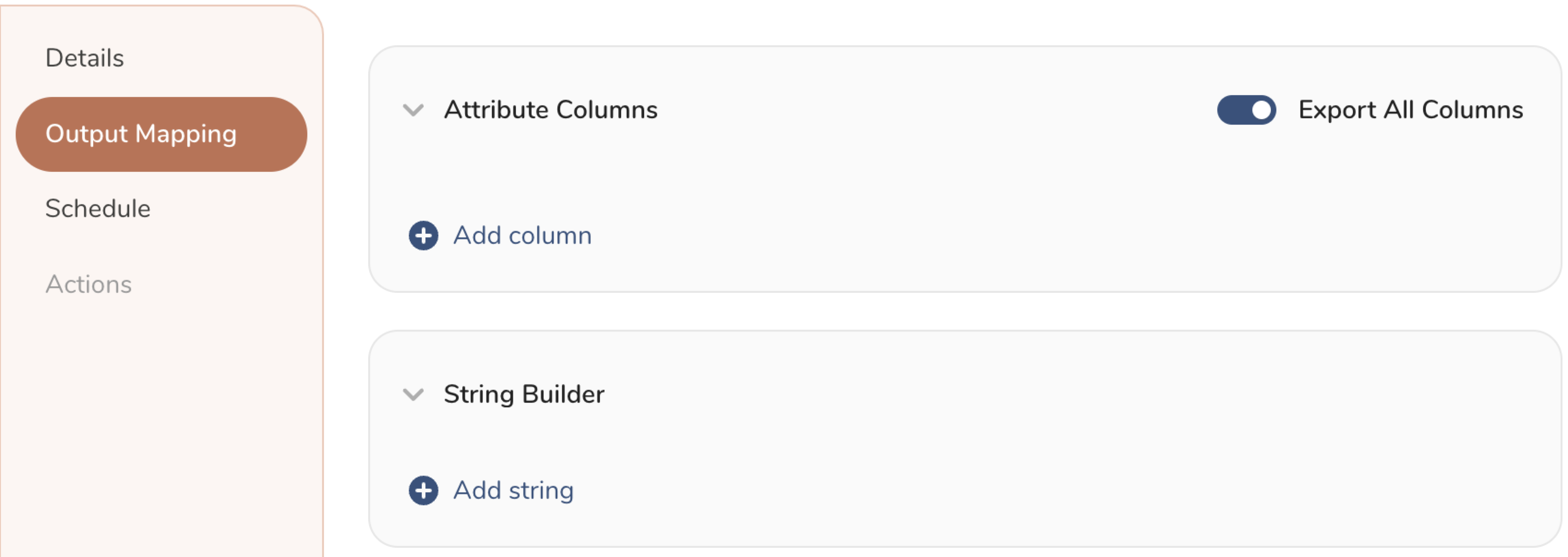
- Attribute Columns
- Select Export All Columns to export all columns without making any changes.
- Select + Add Columns to add specific columns for the export. The Output Column Name pre-populates with the same Source column name. You can update the Output Column Name. Continue to select + Add Columnsto add new columns for your activation output.
- String Builder
- + Add string to create strings for export. Select from the following values:
- String: Choose any value; use text to create a custom value.
- Timestamp: The date and time of the export.
- Segment Id: The segment ID number.
- Segment Name: The segment name.
- Audience Id: The parent segment number.
- + Add string to create strings for export. Select from the following values:
- Set a Schedule.
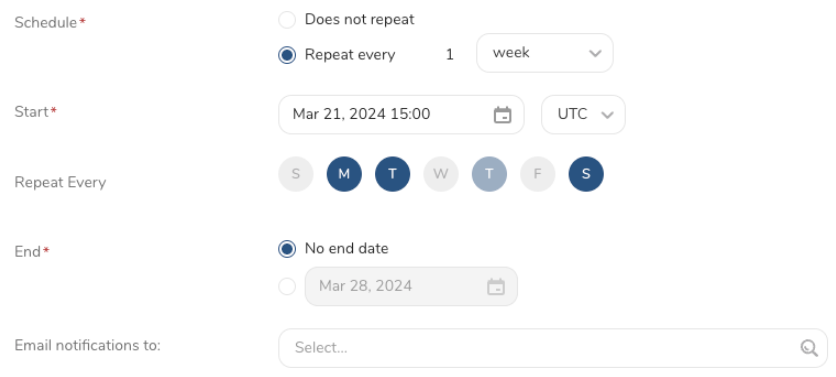
- Select the values to define your schedule and optionally include email notifications.
- Select Create.
If you need to create an activation for a batch journey, review Creating a Batch Journey Activation.
Within Treasure Workflow, you can specify the use of this integration to export data.
Learn more at Using Workflows to Export Data with the TD Toolbelt.
You can also use CLI(Toolbelt) for Result Export to SFTP.
You need to specify the information for export to your SFTP server as --result option of td query command. About td query command, you can refer to this article.
The format of the option is JSON and the general structure is as follows.
{
  "type": "sansan_datahub",
  "client_id": "xxx",
  "client_secret": "xxx",
  "data_source_id": "xxxx",
  "job_status": true,
  "skip_on_invalid_records": true,
  "max_retry": 7,
  "initial_retry_wait": 15,
  "max_retry_wait": 180,
  "connection_timeout": 300,
  "write_timeout": 300,
  "read_timeout": 300
}| Name | Description | Value | Default Value | Required |
|---|---|---|---|---|
| type | Describe the name of the service as the destination of export. | sansan_datahub | N/A | Yes |
| client_id | The client ID provided by Sansan | client ID | N/A | Yes |
| client_secret | The client secret provided by Sansan | client secret | N/A | Yes |
| data_source_id | The source target to export data | The source target to export data | N/A | Yes |
| job_status | Check the status of each batch upload | true or false | false | No |
| skip_on_invalid_records | Skip invalid records and don't fail the job | true or false | false | No |
| max_retry | The maximum retry times | The time in second | 7 | No |
| initial_retry_wait | The init retry wait | The time in second | 15 | No |
| max_retry_wait | The max retry wait | The time in second | 180 | No |
| connection_timeout | HTTP connection timeout | HTTP connection timeout | 300 | No |
| write_timeout | HTTP write timeout | HTTP write timeout | 300 | No |
| read_timeout | HTTP read timeout | HTTP read timeout | 300 | No |
$ td query --result '{"type":"sansan_datahub","client_id":"xxx","port":22,"client_secret":"xxx","data_source_id":"id","job_status":true, "skip_on_invalid_records":true}' -d sample_datasets "select * from www_access" -T presto