This feature is in BETA version. For more information, contact your Customer Success Representative.
The LinkedIn Conversions API (CAPI) connector enables server-side tracking and measurement of conversion events for B2B marketing campaigns. By integrating directly with LinkedIn's Events Manager, this connector helps businesses measure campaign performance and optimize ad delivery more effectively across LinkedIn's network of 900M+ global professionals.
- Web Events: Server-side tracking to complement pixel data for enhanced B2B lead generation measurement, including form submissions, content downloads, and demo requests
- Lead Generation Events: Direct integration for tracking qualified leads and downstream conversion events in complex B2B sales cycles
- Professional Targeting Data: Support for tracking professional identifiers and attributes like job titles, company names, and industry segments
- Data Validation: Automated event validation and formatting to LinkedIn CAPI specifications, ensuring accurate tracking of professional conversion events
This server-side integration provides more reliable conversion tracking and improved B2B campaign performance measurement compared to client-side solutions alone, particularly valuable for businesses targeting professional audiences and measuring longer sales cycles.
- Basic knowledge of Treasure Data, including the TD Toolbelt.
- Basic knowledge of LinkedIn Ads.
- Event Time Restrictions: Events older than 90 days (based on
event_time) will be skipped during processing - Event time validations use UTC timezone for epoch conversions
Before running your query, you must create and configure the data connection on the TD Console. As part of the data connection, you provide authentication to access the integration. Complete the following steps.
- Open TD Console.
- Navigate to Integrations Hub > Catalog.
- Search for and select LinkedIn Ads Conversions API. Hover over the icon and selectCreate Authentication.
- Ensure that the Credentials tab is selected, and then select Click here to start the OAuth authentication flow. After completing the authentication, a new OAuth connection will be created and available in the dropdown.
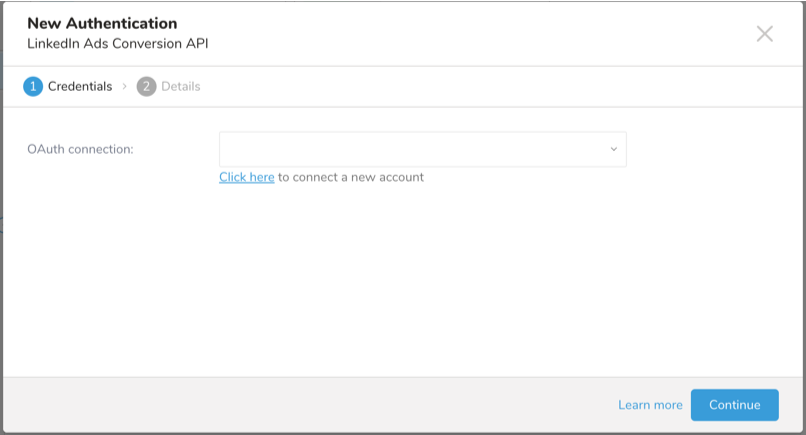
- Select Continue to create a new connection.
The TD Console supports multiple ways to export data. Follow these steps to export data from the Data Workbench.
- Navigate to Data Workbench > Queries.
- Select New Query, and define your query.
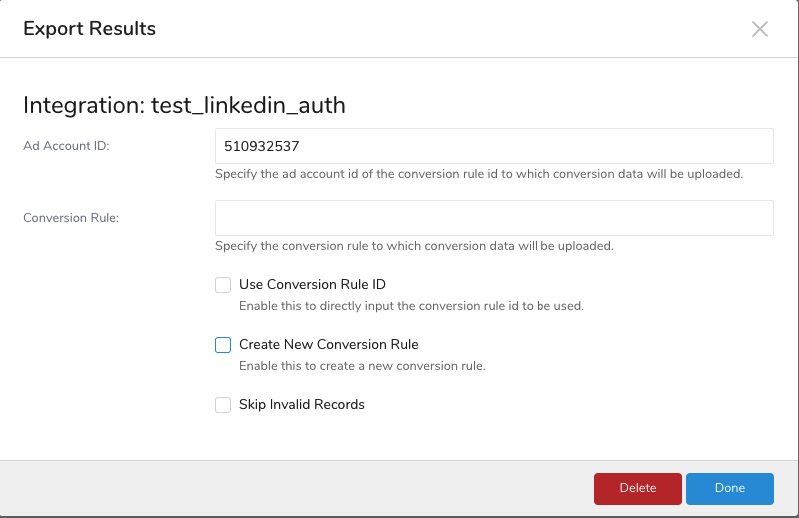
- Select Export Results to configure the data exporting.
- Select an existing LinkedIn CAPI authentication or create a new one described previously
- Select Done.
| Field | Description |
|---|---|
| Ad Account ID | The LinkedIn Ads account identifier to which conversion data will be uploaded. This is a required field that must contain a valid LinkedIn Ad Account ID. |
| Conversion Rule | A input field to for specifying an existing conversion rule from your LinkedIn Ad Account. This field is only available when neither “Use Conversion Rule ID” nor “Create New Conversion Rule” options are selected. |
| Use Conversion Rule ID | When enabled, allows you to directly input a conversion rule ID. See “Configuration with Conversion Rule ID” section below for details. |
| Create New Conversion Rule | When enabled, allows you to create a new conversion rule with custom settings. See “Configuration with New Conversion Rule” section below for details. |
| Skip Invalid Records | When checked, the connector will skip any records that fail validation instead of failing the entire job. This option is available in all configuration modes. |
| Field | Description |
|---|---|
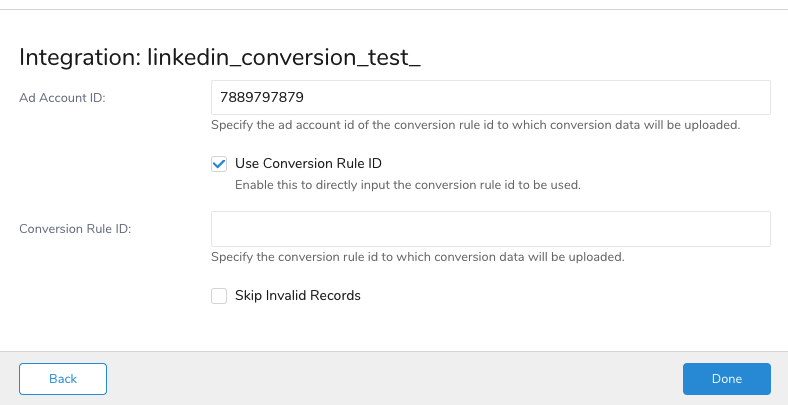
| Ad Account ID | The LinkedIn Ads account identifier where the conversion rule exists. |
| Conversion Rule ID | The specific identifier of an existing conversion rule to which conversion data will be uploaded. This field appears when “Use Conversion Rule ID” is enabled. |
| Skip Invalid Records | When checked, the connector will skip any records that fail validation instead of failing the entire job. |
Ad Account ID and Conversion Rule are automatically populated based on your selected Authentication. If it is not populated, check your authentication if it's correct.
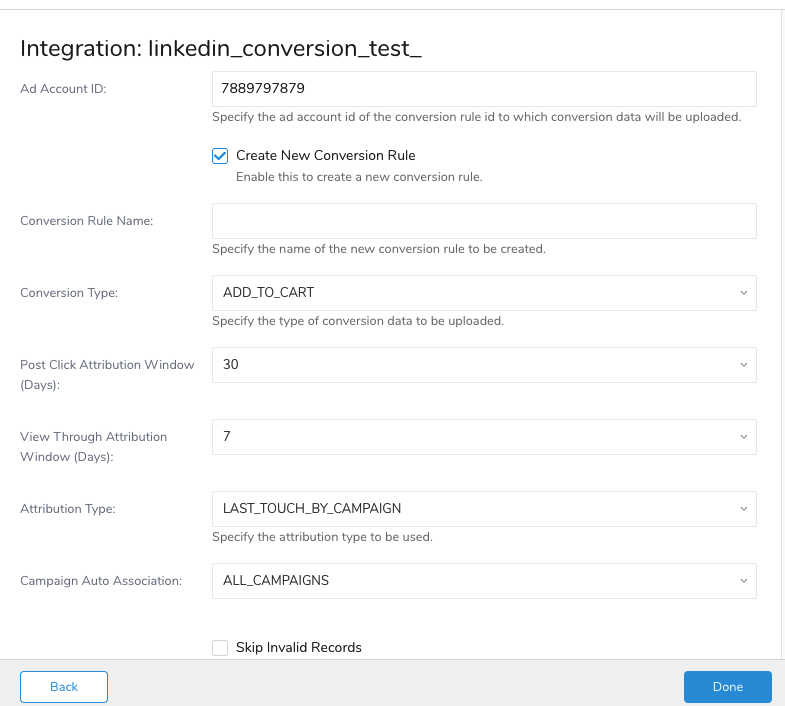
| Field | Description |
|---|---|
| Ad Account ID | The LinkedIn Ads account identifier where the new conversion rule will be created. |
| Conversion Rule Name | A unique name for the new conversion rule being created. This field appears when “Create New Conversion Rule” is enabled. |
| Conversion Type | The type of conversion event to be tracked (e.g., ADD_TO_CART in the example). Defines what kind of user action this rule will track. |
| Post Click Attribution Window (Days) | The number of days after a user clicks on your ad during which a conversion will be attributed to that ad (Default value: 30 days ). |
| View Through Attribution Window (Days) | The number of days after a user views your ad during which a conversion will be attributed to that ad (Default value: 7 days). |
| Attribution Type | Determines how conversions are attributed to campaigns (Default value: LAST_TOUCH_BY_CAMPAIGN). |
| Campaign Auto Association | Defines which campaigns this conversion rule will be associated with (default value: ALL_CAMPAIGNS ). |
| Skip Invalid Records | When checked, the connector will skip any records that fail validation instead of failing the entire job. |
For uploading event data to LinkedIn, you need to build a data export query that includes a combination of default and custom fields that adhere to LinkedIn CAPI’s guidelines. For default fields, ensure that the column names match those listed in the “Field/Column-Level Specifications” section. The connector automatically normalizes the column names to match LinkedIn’s required format, so you do not need to worry about case sensitivity.
For example, for the default field “conversionHappenedAt,” the column name in your export query can be written in any case, such as “CONVERSIONHAPPENEDAT,” “conversionhappenedat,” or “ConversionHappenedAt.” The connector will standardize the column name to “conversionHappenedAt” to align with LinkedIn CAPI’s requirements.
To successfully upload or modify user profile data to LinkedIn CAPI, you must construct an export query that adheres to specific data specifications. These specifications are divided into two levels:
- Export Query Specifications (or Dataset-level data specs): This section describes the requirements and rules that apply to your entire query result dataset, such as the presence of required fields and data validation rules that span multiple fields.
- Field/Column-Level Specifications: This section details the requirements and rules for individual fields/columns in your dataset, such as data types and formats for each field.
| Specification | Description |
|---|---|
| Required Identifier | At least one of these identifiers must be present: SHA256_EMAIL, LINKEDIN_FIRST_PARTY_ADS_TRACKING_UUID, ACXIOM_ID, ORACLE_MOAT_ID, or (firstName and lastName combination) or (externalIds) |
| Null Value Columns | Columns with NULL values will be ignored during export |
| Duplicated Columns | Duplicate column names within the export query are not allowed |
| Date-Time Handling | For conversionHappenedAt timestamp field: - Integer type: Used as-is if it’s an Epoch timestamp in milliseconds - ISO 8601 string: Converted to Epoch timestamp in milliseconds - Timestamp cast: Converted to Epoch timestamp in milliseconds - Other formats: Will throw a data exception |
| Time Range Limit | Conversion events must be within the past 90 days |
| Field | Description | Required | Data Type | Additional Specifications | Example |
|---|---|---|---|---|---|
| conversion | URN of the conversion rule | Yes | String | - The connector will handle the formatting of the conversion rule following the pattern :urn:lla:llaPartnerConversion:id - Conversion Rules can be specified in both Configuration UI and Query Result, Priority order for value selection: 1. Query result column value (if present) 2. Configuration UI value (if query result is null) 3. Error if both are null/missing | Query result value: 123 Config UI value: 456 If query has value: Uses urn:lla:llaPartnerConversion:123 If query is null: Uses urn:lla:llaPartnerConversion:456 If both null: Throws error |
| conversionHappenedAt | Timestamp of conversion event | Yes | Integer | - Must be in milliseconds - Must be within past 90 days | 1590739275000 |
| eventId | Unique identifier for deduplication | No | String | Used for deduplication | abc12345 |
| Field | Description | Required | Data Type | Normalization Specifications | Hashing Specifications | Example |
|---|---|---|---|---|---|---|
| SHA256_EMAIL | Hashed email address | Conditional* | String | The connector will handle the following normalization - Convert to lowercase - Remove whitespace | The connector will handle SHA-256 hashing if it's not hashed. | Input: User@Example.com Normalized: user@example.com Hashed: bad8677b6... |
| LINKEDIN_FIRST_PARTY_ADS_TRACKING_UUID | LinkedIn cookie click ID | Conditional* | String | None | None | df5gf5-gh6t7-ph4j7h-fgf6n1 |
| ACXIOM_ID | LiveRamp identity ID | Conditional* | String | None | None | N/A |
| ORACLE_MOAT_ID | Oracle MOAT Identity | Conditional* | String | None | None | N/A |
At least one identifier must be present, or firstName + lastName combination must be provided or externalIds must be provided.
| Field | Description | Required | Data Type | Additional Specifications | Example |
|---|---|---|---|---|---|
| firstName | Contact’s first name | Conditional* | String | Cannot be empty | Mike |
| lastName | Contact’s last name | Conditional* | String | Cannot be empty | Smith |
| companyName | Contact’s company | No | String | Optional | Microsoft |
| title | Contact’s job title | No | String | Optional | Software Engineer |
| countryCode | ISO country code | No | String | Must be valid ISO code | US |
| lead | Lead Gen Form Response ID | No | String | Format: urn:li:leadGenFormResponse:id | urn:li:leadGenFormResponse:123 |
| externalIds | Advertiser identifiers | Conditional* | Array of strings | Maximum 1 item | ["user_id_123"] |
| Field | Description | Required | Data Type | Additional Specifications | Example |
|---|---|---|---|---|---|
| currencyCode | Currency code | Yes* | String | Must be valid ISO 4217 code | "USD" |
| amount | Monetary value | Yes* | String | - Must be decimal number as string - Up to 2 decimal places - No thousands separators | "50.00" |
Required only if at least one of [currencyCode and amount] is included in the query result.
The integration can handle values cast as timestamps or in ISO-8601 date-time string format for date-time custom field columns. When using ISO-8601 date-time strings, ensure the value includes the letter “Z” at the end to allow the connector to detect and convert the date-time value into a Unix time value as required by LinkedIn Ads CAPI’s API contract.
Examples for Handling Date-Time Custom Field Columns
1. Casting as Timestamp
- Create a column of type string in the source data table:
ALTER TABLE source_data_table ADD COLUMN date_time_field VARCHAR;- Insert date-time value strings into that column:
INSERT INTO source_data_table (id, date_time_field)VALUES(1, '2024-08-28'),(2, '2024-08-28 15:30:00'),(3, '2024-08-28T15:30:00');- Cast the column value as timestamp:
SELECT id, CAST(date_time_field AS timestamp) AS date_time_field FROM source_data_table;2. Using ISO-8601 Date-Time String
- Create a column of type string in the source data table:
ALTER TABLE source_data_table ADD COLUMN date_time_field VARCHAR;- Insert date-time value strings into that column, ensuring they are formatted as ISO-8601 with a “T” separator and “Z” at the end:
INSERT INTO source_data_table (id, date_time_field)VALUES(1, '2024-08-28T00:00:00Z'),(2, '2024-05-28T15:30:00.123Z'),(3, '2024-02-28T15:30:00Z');- Use the column directly in the query:
SELECT id, date_time_field FROM source_data_table;You can also send segment data to the target platform by creating an activation in the Audience Studio.
- Navigate to Audience Studio.
- Select a parent segment.
- Open the target segment, right-mouse click, and then select Create Activation.
- In the Details panel, enter an Activation name and configure the activation according to the previous section on Configuration Parameters.
- Customize the activation output in the Output Mapping panel.
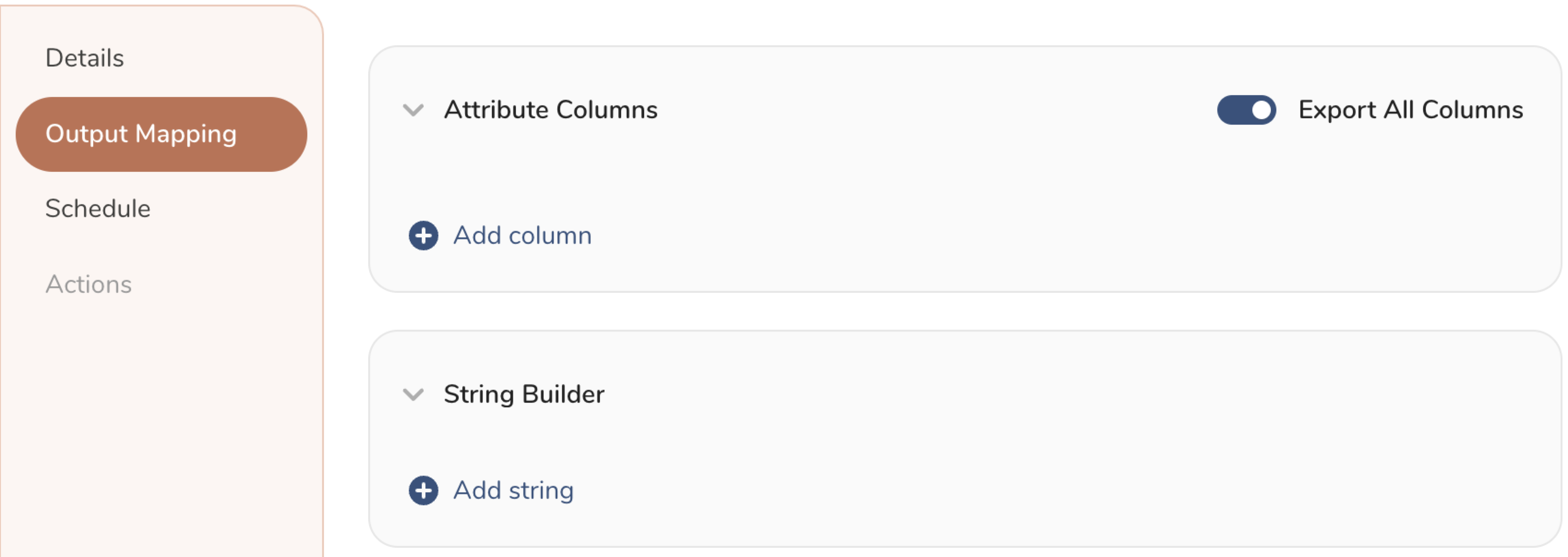
- Attribute Columns
- Select Export All Columns to export all columns without making any changes.
- Select + Add Columns to add specific columns for the export. The Output Column Name pre-populates with the same Source column name. You can update the Output Column Name. Continue to select + Add Columnsto add new columns for your activation output.
- String Builder
- + Add string to create strings for export. Select from the following values:
- String: Choose any value; use text to create a custom value.
- Timestamp: The date and time of the export.
- Segment Id: The segment ID number.
- Segment Name: The segment name.
- Audience Id: The parent segment number.
- + Add string to create strings for export. Select from the following values:
- Set a Schedule.
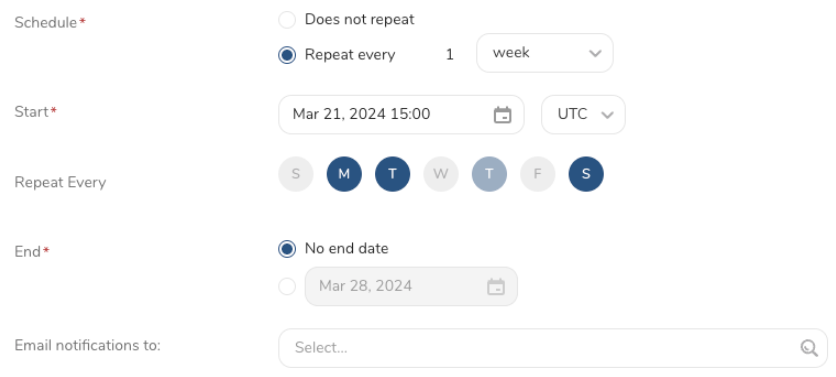
- Select the values to define your schedule and optionally include email notifications.
- Select Create.
If you need to create an activation for a batch journey, review Creating a Batch Journey Activation.
You can also use CLI (Toolbelt) to export results to LinkedIn Conversion CAPI.
You need to specify the information for export to your LinkedIn server using the *--result option of*the td query command. For more information about the *td query*command, refer to this article.
The format of the option is JSON, and the general structure is as follows.
out:
  type: linkedin_ads_conversion_api
  client_id: your client id
  client_secret: your client secret
  refresh_token: your refresh token
  ad_account_id: your ad account id
  conversion_rule_id: your conversion rule id
  use_conversion_rule_id: true
skip_invalid_records: true| Name | Description | Value | Default Value | Required |
|---|---|---|---|---|
| type | connector type | linkedin_ads_conversion_api | N/A | Yes |
| client_id | client id of your app | client id of your app | N/A | Yes |
| client_secret | client secret of your app | client secret of your app | N/A | Yes |
| refresh_token | your refresh token using OAuth 2.0 | your refresh token using OAuth 2.0 | N/A | Yes |
| ad_account_id | AD Account ID | your ad account id | N/A | Yes |
| conversion_rule | The Conversion Rule Name | your conversion rule name | N/A | Required if not using an existing conversion rule or creating a new conversion rule |
| use_conversion_rule_jd | Using Conversion Rule ID flag. | true/false If you want to use conversion rule id instead of conversion rule name or not | false | No |
| conversion_rule_id | The Conversion Rule Name | your conversion rule id | N/A | No |
| create_new_conversion_rule | Create a new conversion Rule | Create a new conversion Rule | false | No |
| conversion_rule_name | The Conversion Rule Name. It will be used to create a new conversion rule | The Conversion Rule Name. It will be used to create a new conversion rule | N/A | Required if creating a new conversion rule |
| conversion_type | The Conversion Type. It will be used to create a new conversion rule | The Conversion Type. It will be used to create a new conversion rule | add_to_cart | Required if creating a new conversion rule |
| post_click_attribution_window | The Post Click Attribution Window. It will be used to create a new conversion rule | The Post Click Attribution Window. It will be used to create a new conversion rule | 30 | Required if creating a new conversion rule |
| view_through_attribution_window | The View Through Attribution Window. It will be used to create a new conversion rule | The View Through Attribution Window. It will be used to create a new conversion rule | 7 | Required if creating a new conversion rule |
| attribution_type | The Attribution Type. It will be used to create a new conversion rule | The Attribution Type. It will be used to create a new conversion rule | last_touch_by_campaign | Required if creating a new conversion rule |
| campaign_auto_association | The Campaign Auto Asociation. It will be used to create a new conversion rule | The Campaign Auto Asociation. It will be used to create a new conversion rule | all_campaings | Required if creating a new conversion rule |
| skip_invalid_records | The flag to continue or stop the job when handling the invalid record. | true/false | true | No |
OAuth authentication
td query --result '{"type":"linkedin_ads_conversion_api","client_id":"client_id","client_secret":"client_secret","refresh_token":"refresh_token,"ad_account_id":"ad_account_id", "conversion_rule_id":conversion_rule_id,"use_conversion_rule_id":true,"skip_invalid_records":true}' -d sample_database "select conversion,conversionhappenedat,currencycode,amount,sha256_email,linkedin_first_party_ads_tracking_uuid,acxiom_id,oracle_moat_id,firstName,title,lastName,companyname,countrycode,externalids as externalIds,lead,eventid from conversion" -T presto- The Result Export can be scheduled to periodically upload data to a target destination.
- All import and export integrations can be added to a TD Workflow. The td data operator can export a query result to a specified integration. For more information, see Reference for Treasure Data Operators.
- API Document: Microsoft Conversion API
- Authorization Code Flow: Microsoft Authorization Code Flow (3-legged OAuth)