This feature is in BETA version. For more information, contact your Customer Success Representative.
Pinterest is a popular social media platform designed for discovering and sharing ideas through images and videos, which are generally called Pins. For various marketing goals, businesses can pay Pinterest Ads to place their promoted Pins in prominent positions where users are most likely to see them.
Using the Pinterest Conversions API, this integration helps advertisers send conversion events directly to Pinterest for campaign optimization, targeting, and conversion reporting for improved conversion visibility. This integration supports the following conversion types:
- Web
- In-App
- Offline conversions
User attributes are exported together for matching purposes, and the export also includes custom attributes (like product attributes).
- Basic knowledge of Treasure Data
- Basic knowledge of Pinterest Ads Manager
- A Pinterest business account
- An access token for the Pinterest Conversion API. See Generate an access token for Pinterest Conversion API.
- The Conversion API has a rate limit of 5000 calls per minute per ad account. See Pinterest API Rate Limits.
- Deduplication of event, when used, is only effective within a 48-hour window.
- The integration supports sending test events to Pinterest but does not limit the number of uploaded events. Treasure Data recommends that you do not send a large number of test events.
In Treasure Data, you must create and configure the data connection before running your query. As part of the data connection, you provide authentication to access the integration.
Open TD Console.
Navigate to Integrations Hub > Catalog.
Search for Pinterest Conversion.
Select Create Authentication.
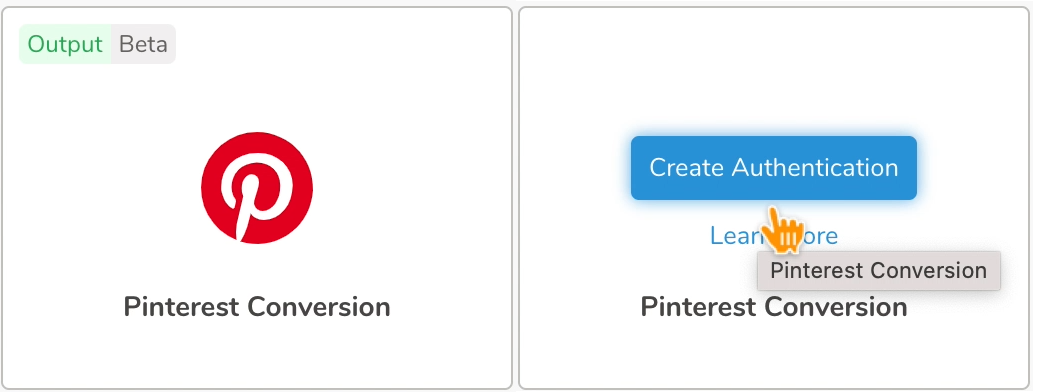
Enter your access token for the Pinterest Conversion Ads Manager.
Select Continue.
Enter a name for the Authentication, and select Done.
| Field | Description |
|---|---|
| Access token | An access token is generated on the Pinterest Conversion Ads Manager. See Generate an access token for Pinterest Conversion API. |
The TD Console supports multiple ways to export data. Here are the steps to export data from the Data Workbench.
- Navigate to Data Workbench > Queries.
- Select New Query, and define your query.
- Select Export Results.
- Select an existing Pinterest Conversion authentication or create a new one (see Create a New Connection).
- Configure the exporting parameters, and select Done.
- Export Results Parameters
| Field | Description |
|---|---|
| Ad Account ID | On the Pinterest website, you can select the "Business avatar" and then select "Ad accounts" to see the list of available Ad accounts. The account ID can also be determined from the URL. For example, https://ads.pinterest.com/advertiser/549xxxxxx761/ |
| Test Event | (Default: off) When activated, the query result is uploaded as test events, which can be found on the Conversions Test events menu. Treasure Data recommends sending few test events. |
| Skip invalid records | (Default: on) When checked, those records that don't satisfy the mandatory data requirement and data format will not be uploaded. If not checked, the integration will raise an error and stop executing when it encounters the first invalid record |
Hashing—Fields marked as Yes in the Hashing column below need to be in lowercase, and hashed using Sha256. If they are provided as plain texts, the integration will hash them.
Array of string—Fields of the type Array of string type accept multiple values in flattened column names. For example, em, em_1, em_2 could form an array of user email strings.
Array of item objects—Pinterest allows uploading multiple order items which have many attributes such as ID, name, quantity, and price. Here are examples of item object:
- item_id, item_price,item_quantity
- item_id_1, item_price_1, item_name_1
- item_id_2, item_brand_2, item_category_2
| Name | Type | Value | Required | Hashing | ||||
|---|---|---|---|---|---|---|---|---|
| Event data | ||||||||
event_name | String | The type of the event Enum: | Yes | |||||
action_source | String | The source where the event occurred Enum: | Yes | |||||
| event_time | Int64 | The time when the event happened. This is a Unix timestamp in seconds. | Yes | |||||
| event_id | String | A unique id string that supports de-duping between events ingested via the API and Pinterest tag | Yes | |||||
| event_source_url | String | URL of the web conversion events | ||||||
| opt_out | Boolean | User opt-out for ad tracking. Sending YES when:
| ||||||
| app_id | String | The app store app ID | ||||||
| app_name | String | Name of the app | ||||||
| app_version | String | The version of the app | ||||||
| device_brand | String | Brand of the user device | ||||||
| device_carrier | String | Model of the user device | ||||||
| device_type | String | Type of the user device | ||||||
| os_version | String | Version of the device operating system | ||||||
| wifi | Boolean | Whether the event occurred while using Wi-Fi | ||||||
| language | String | The user's language (Two-character ISO-639-1 language code) | ||||||
| User attributes - for matching purposes | ||||||||
| em | Array of strings | User's email addresses used for matching | At least one of the following is required:
| Yes | ||||
| hashed_maids | Array of strings | The Google GAID or Apple IDFA | Yes | |||||
| client_ip_address | String | User's IP address, either in IPv4 or IPv6 format | ||||||
| client_user_agent | String | The user agent string of the user's web browser | ||||||
| ph | Array of strings | User's phone numbers, including country and area code (Digits only, and without leading zeros) | Yes | |||||
| ge | Array of strings | User's gender, in lowercase. Either f, m, or n | Yes | |||||
| db | Array of strings | User's date of birth, given as year, month, and day | Yes | |||||
| ln | Array of strings | User's last name | Yes | |||||
| fn | Array of strings | User's first name | Yes | |||||
| ct | Array of strings | User's city, without spaces or punctuation | Yes | |||||
| st | Array of strings | User's state, given as a two-letter code | Yes | |||||
| zp | Array of strings | User's zip code, given as only digits | Yes | |||||
| country | Array of strings | User's country in two-character ISO-3166 code | Yes | |||||
| external_id | Array of strings | The unique ID from the advertiser that identifies a user in their space. For example, user ID, loyalty ID, etc. | Yes | |||||
| click_id | String | The unique identifier stored in an _epik cookie on your domain or &epik= query parameter in the URL | ||||||
| partner_id | String | A visitor's identifier that is defined by a third-party partner | ||||||
| Custom data | ||||||||
| currency | String | The ISO-4217 currency code | ||||||
| value | String | Total value of the event. Treasure Data recommends using a pre-tax, pre-shipping value | ||||||
| content_ids | Array of strings | List of product IDs | ||||||
| content_name | String | The name of the page or product associated with the event | ||||||
| content_category | String | The category of the content associated with the event | ||||||
| content_brand | String | The brand of the content associated with the event | ||||||
| item_id | String | The id of a product (a field of the contents object array) | ||||||
| item_price | String | The price of a product (a field of the contents object array) | ||||||
| item_quantity | Int64 | The amount of product (a field of the contents object array) | ||||||
| item_name | String | The name of a product (a field of the contents object array) | ||||||
| item_category | String | The category of a product (a field of the contents object array) | ||||||
| item_brand | String | The brand of a product (a field of the contents object array) | ||||||
| num_items | Int64 | Total number of products of the event | ||||||
| order_id | String | The order ID. This can be useful in de-duplication when necessary | ||||||
| search_string | String | The search string related to the user conversion event | ||||||
opt_out_type | String | Comma-separated flags to opt-out of sharing personal information pursuant to different privacy rights laws. Currently, the only accepted value is | ||||||
Minimum required fields
SELECT
  'add_to_cart' AS event_name
  ,'app_android' AS action_source
  ,now() AS event_time
  ,'801470028' AS event_id
  ,'some_one@mail.com' AS em
FROM
  your_table
Array of strings
SELECT 'add_to_cart' AS event_name ,'app_android' AS action_source ,now() AS event_time ,'59930360' AS event_id ,'some_one@mail.com' AS em ,'another_one@gmail.com' AS em_1 ,'or123' AS order_id ,'cook' AS search_string ,'item 1' AS item_id_1 ,'10.4' AS item_price_1 ,20 AS item_quantity_1 ,'basket' AS item_name_2 ,'cat ' AS item_category_2 ,'tiny' AS item_brand_2 FROM your_tableYou can also send segment data to the target platform by creating an activation in the Audience Studio.
- Navigate to Audience Studio.
- Select a parent segment.
- Open the target segment, right-mouse click, and then select Create Activation.
- In the Details panel, enter an Activation name and configure the activation according to the previous section on Configuration Parameters.
- Customize the activation output in the Output Mapping panel.
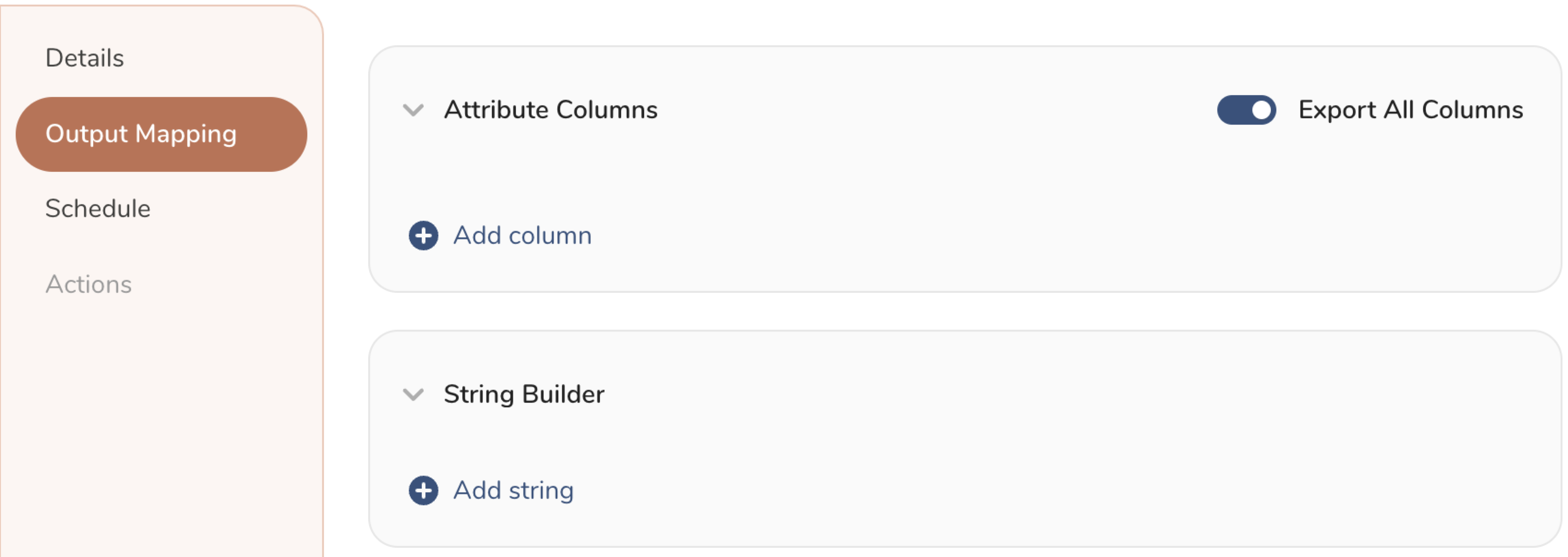
- Attribute Columns
- Select Export All Columns to export all columns without making any changes.
- Select + Add Columns to add specific columns for the export. The Output Column Name pre-populates with the same Source column name. You can update the Output Column Name. Continue to select + Add Columnsto add new columns for your activation output.
- String Builder
- + Add string to create strings for export. Select from the following values:
- String: Choose any value; use text to create a custom value.
- Timestamp: The date and time of the export.
- Segment Id: The segment ID number.
- Segment Name: The segment name.
- Audience Id: The parent segment number.
- + Add string to create strings for export. Select from the following values:
- Set a Schedule.
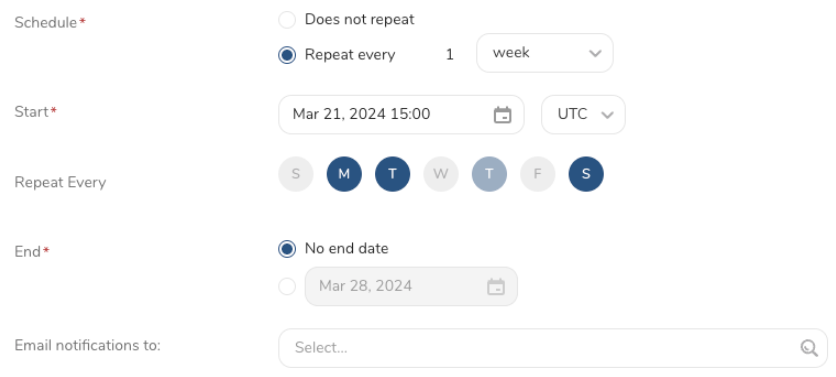
- Select the values to define your schedule and optionally include email notifications.
- Select Create.
The TD Toolbelt can trigger a query result export from the CLI. You need to specify the parameters for the export job with the --result option of the td query command. For more information, refer to Querying and Importing Data to Treasure Data from the Command Line.
Here is an example of the general structure and JSON format of the option:
{ "type": "pinterest_conversion", "access_token": "pina_AIA2RFAxxx", "ad_account_id": 549764609761, "test_event": false, "skip_invalid_record": true}CLI Parameters
| Name | Description | Value | Default Value | Required |
|---|---|---|---|---|
| access_token | The Pinterest conversion's access token that was obtained from the Pinterest Ad Manager. | String | No | Yes |
| ad_account_id | Pinterest Ads account id | Number | No | Yes |
| test_event | Flag to send test or real event to Pinterest | Boolean | false | No |
| skip_invalid_record | Flag to continue job when handle invalid record is encountered. | Boolean | false | No |
Example Usage for Sending Real and Test Events
- Send test conversion events
td --database test_db \
--wait "SELECT event_name, action_source, event_time, event_id, event_source_url, opt_out, partner_name, app_id, app_name, app_version, device_brand, device_carrier, device_type, os_version, wifi, language, em, hashed_maids, client_ip_address, client_user_agent, ph, ge, db, ln, fn, ct, st, zp, country, external_id, click_id, partner_id, currency, value, content_ids, content_name, content_category, content_brand, item_id, item_id_1, item_id_2, item_price, item_price_1, item_price_2, item_name, item_name_1, item_name_2, item_category, item_category_1, item_category_2, item_brand, item_brand_1, item_brand_2, item_quantity, item_quantity_1, item_quantity_2, num_items, order_id, search_string, opt_out_type from test_table" \
--type presto \
--result '{"type":"pinterest_conversion","td_authentication_id": 12345, "access_token":"pina_AIA2RFAWACYNMAQA...", "ad_account_id": 5497xxx, "test_event": true, "skip_invalid_record":true}'- Send real events
td --database test_db \
--wait "SELECT event_name, action_source, event_time, event_id, event_source_url, opt_out, partner_name, app_id, app_name, app_version, device_brand, device_carrier, device_type, os_version, wifi, language, em, hashed_maids, client_ip_address, client_user_agent, ph, ge, db, ln, fn, ct, st, zp, country, external_id, click_id, partner_id, currency, value, content_ids, content_name, content_category, content_brand, item_id, item_id_1, item_id_2, item_price, item_price_1, item_price_2, item_name, item_name_1, item_name_2, item_category, item_category_1, item_category_2, item_brand, item_brand_1, item_brand_2, item_quantity, item_quantity_1, item_quantity_2, num_items, order_id, search_string, opt_out_type from test_table" \
--type presto \
--result '{"type":"pinterest_conversion","td_authentication_id": 12345, "access_token":"pina_AIA2RFAWACYNMAQA...", "ad_account_id": 5497xxx, "test_event": false, "skip_invalid_record":true}' - The result export can be scheduled to upload data to a target destination periodically.
- All import and export integrations can be added to a TD Workflow. The td>: data operator can be used to export query results to a specified connector. For more information, see the Reference for Treasure Data Operators.
This section provides a high-level overview of how to generate an access token for the Conversion API. Please note that Pinterest may change the detailed steps without prior notice.
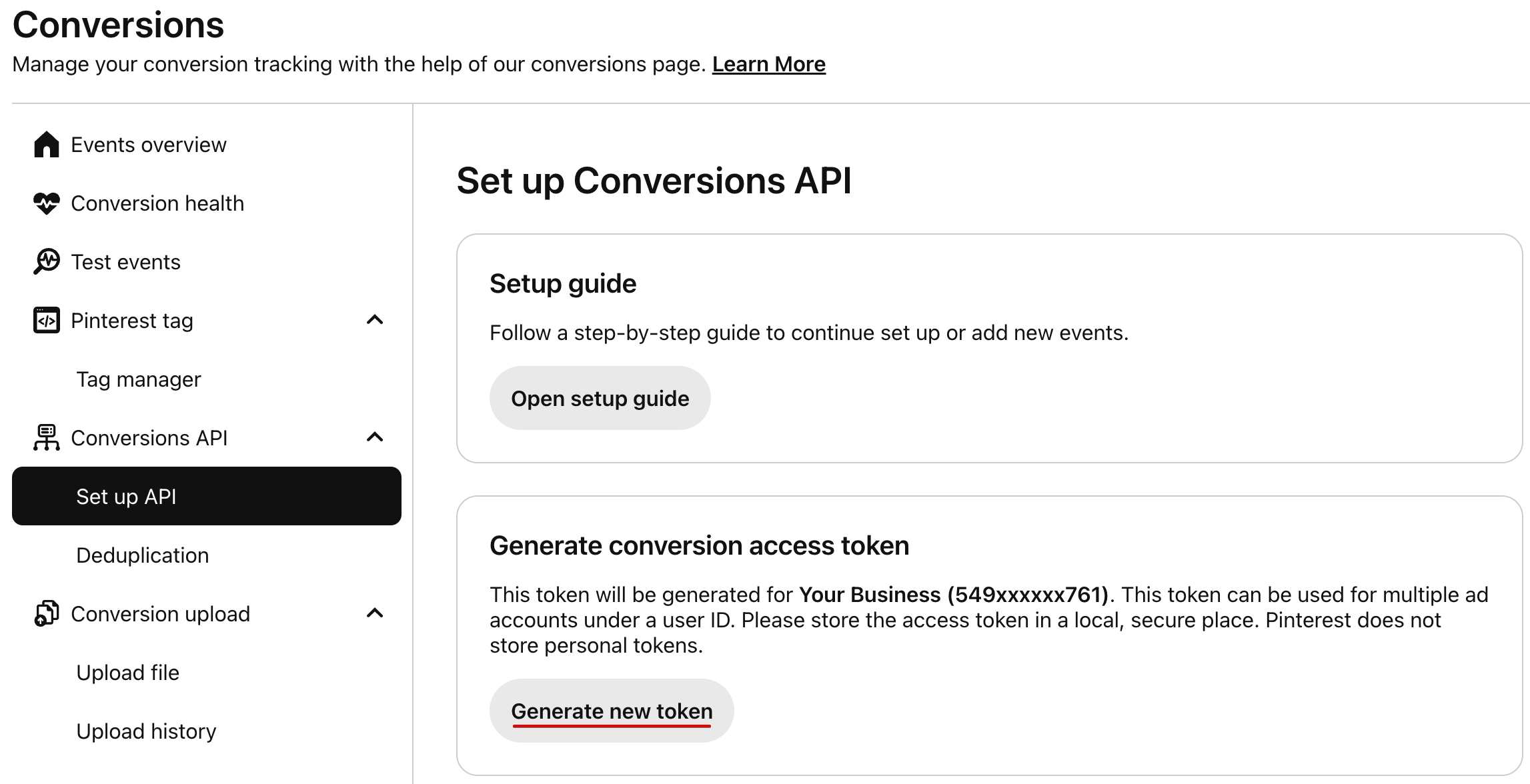
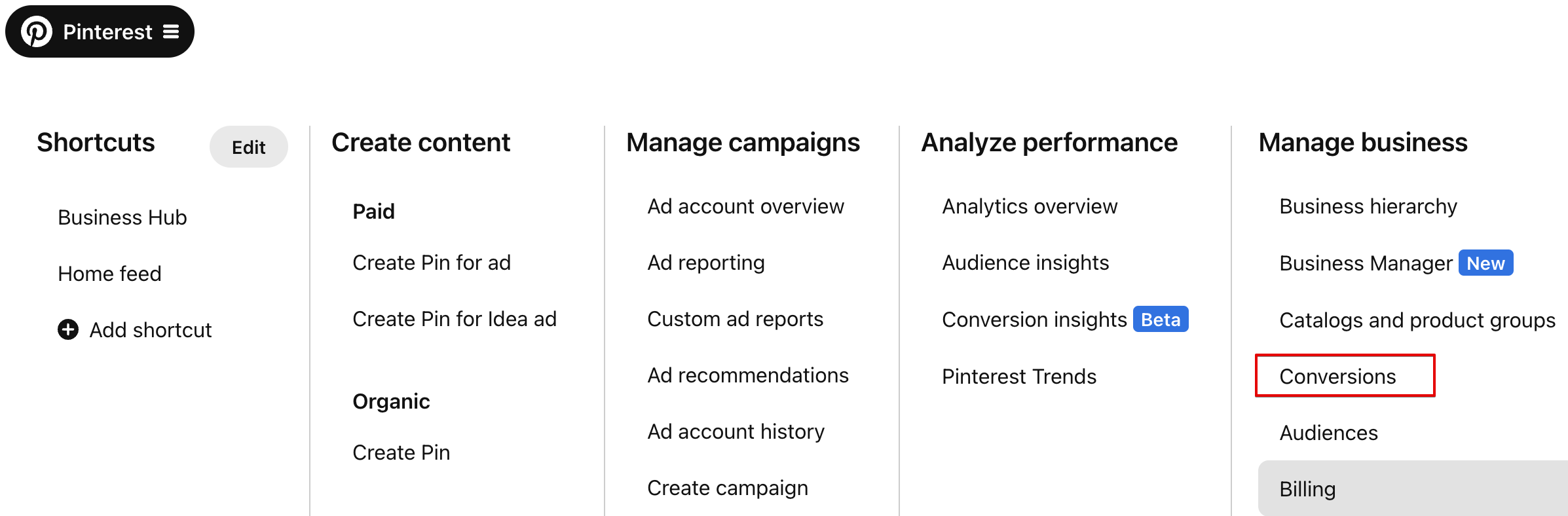
From the Pinterest Ad Manager, navigate to the main menu, and select Conversions.
On the Conversions page, select Set up API, and select Generate new token.
A never-expired access token ``` pina_xxxxxxx will be generated