This integration allows you to write Treasure Data job results directly in the Google Ads Server to improve the accuracy of your conversion measurements. It only works with existing conversions, and only supports website conversions.
Warning! Due to Digital Markets Act (DMA) regulations, you must start sending consent signals when uploading conversions by March 2024 to adhere to the EU User Consent Policy and continue using European Economic Area (EEA) conversion data. After March 6th, 2024, Google Ads will no longer accept uploads of Customer Match, conversions, and store sales data for EU users without valid consent. This means that any audiences without consent from EU users will not be processed. This consent setting for non-EU regions will not have any immediate impact on your data upload. However, Google Ads may use this information to improve its targeting and personalization capabilities in the future.
- Basic knowledge of Treasure Data, including the TD Toolbelt.
- Documentation: Google Enhanced Conversions Setup Guideline, Google Enhanced Conversions API doc
- A Google Ads Account.
- Authorize the Treasure Data Google OAuth app to access your Google Ads account. Otherwise, provide your Custom App information.
You must specify columns with exact column names (case sensitive) and data types.
If your security policy requires IP whitelisting, you must add Treasure Data's IP addresses to your allowlist to ensure a successful connection.
Please find the complete list of static IP addresses, organized by region, at the following document
There are two ways to connect to Google Enhanced Conversion Export Integration. You can authorize the Treasure Data Google OAuth app or provide your Custom App information. |
You must create and configure the data connection in Treasure Data before running your query. You provide authentication to access the integration as part of the data connection.
Open TD Console.
Navigate to Integrations Hub > Catalog.
Search for and select Google Enhanced Conversion.
Select Create Authentication.
Select Data Provider. You can either select Treasure Data or User account. If you select OAuth from the Authentication drop-down, click on Sign in with Google to authorize the connection. If you select Custom App from the Authentication drop-down, enter your credentials in the fields displayed. Select Continue.
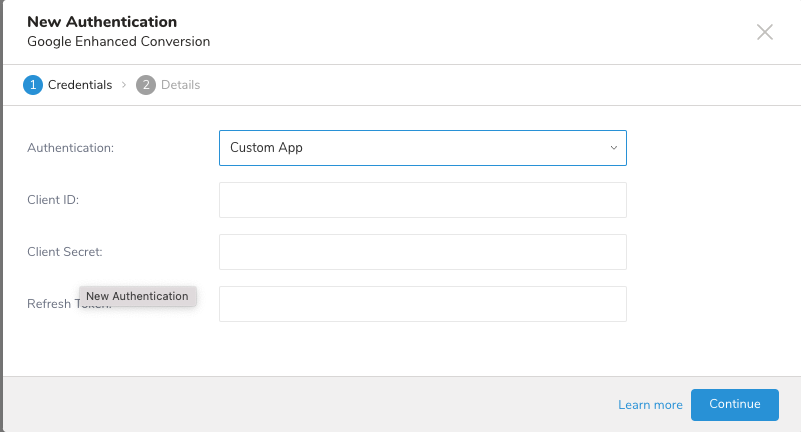
Create a name for your authentication.
Select Done.
Your query should include the following:
- Required columns -
- email or address (the address includes columns [first_name, last_name, street_address, city, region, postcode, country]) or both.
- label or conversion_type or both.
- conversion_time, conversion_tracking_id, oid.
- Optional columns - phone_number, value, currency_code, user_agent, gclid, pcc_game.
- Other columns will be ignored.
Required columns don't accept a null or empty value (else the record is considered invalid and skipped, or an error is thrown).
Email value must follow the pattern \S+@\S+.\S+.
Phone number (if any) must follow the pattern +\d{11,15}
The data type for different column names is listed below:
- String - mail, first_name, last_name, street_address, city, region, postcode, country, label, conversion_type, oid, phone_number, value, currency_code, user_agent, gclid.
- Long - conversion_time, conversion_tracking_id, pcc_game.
Note: Column names are case-sensitive and cannot be duplicated.
| Field Name (Output Schema) | Description | Data Type | Required? | Support hashed data input (SHA-256)? |
|---|---|---|---|---|
| User email at point of conversion | String | Yes if first_name,last_name ,street_address ,city ,region ,postcode ,country not present | Yes | |
| phone_number | User phone number at point of conversion in E.164 format | String - user are responsible for formatting this field | No | Yes |
| first_name | User first name | String | Yes if email is not set | Yes |
| last_name | User last name | String | Yes if email is not set | Yes |
| street_address | User street address | String | Yes if email is not set | Yes |
| city | User city name | String | Yes if email is not set | |
| region | User province, state, region | String | Yes if email is not set | |
| postcode | User post code | String | Yes if email is not set | |
| country | User country code | String | Yes if email is not set | |
| conversion_time | Conversion Time (Unix time since epoch, in microseconds) | Long | Yes | |
| conversion_tracking_id | Conversion Tracking Id - Tracking id that uniquely identifies your advertiser account | Long | Yes | |
| label | Conversion Label - Encoded conversion tracking id and conversion type | String | Yes | |
| conversion_type | Conversion Type - Type of the conversion This is only used if you don’t have access to label as the advertiser. | String | No | |
| oid | Transaction ID - ID that uniquely identifies a conversion event, generated by you as the advertiser. This is for deduping conversions from different channels. | String | No | |
| value | Conversion Value - Monetary value of the conversion | String | No | |
| currency_code | Currency Code - Currency of the value | String | No | |
| user_agent | User agent - User agent of the user that converted, if such data is retained by advertiser | String | No | |
| gclid | Google click identifier for the Ad click which led to the user conversion, where available | String | No | |
| pcc_game | Performance PC and Console Gaming Ads | String | No |
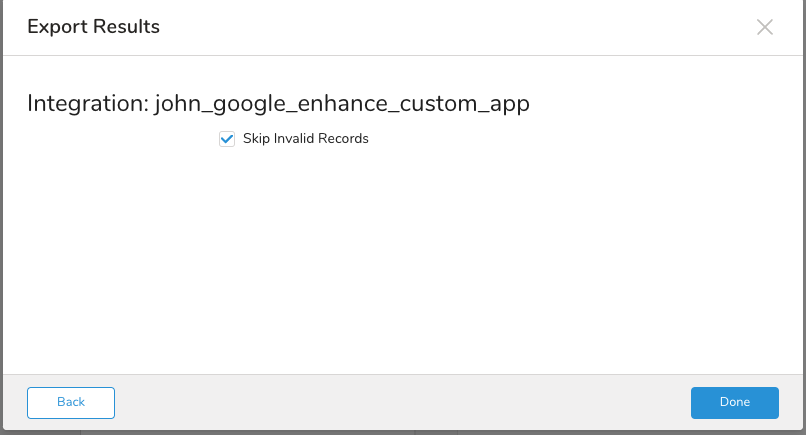
| Parameters | Description |
|---|---|
| Skip Invalid Records | If you check the errors as the data rows identify them, the export job continues and is successful. Otherwise, the job fails. |
custom object query
SELECT
  email,
  label,
  conversion_time,
  conversion_tracking_id,
  oid
FROM your_table;You can use Scheduled Jobs with Result Export to periodically write the output result to a target destination that you specify.
Treasure Data's scheduler feature supports periodic query execution to achieve high availability.
When two specifications provide conflicting schedule specifications, the specification requesting to execute more often is followed while the other schedule specification is ignored.
For example, if the cron schedule is '0 0 1 * 1', then the 'day of month' specification and 'day of week' are discordant because the former specification requires it to run every first day of each month at midnight (00:00), while the latter specification requires it to run every Monday at midnight (00:00). The latter specification is followed.
Navigate to Data Workbench > Queries
Create a new query or select an existing query.
Next to Schedule, select None.

In the drop-down, select one of the following schedule options:
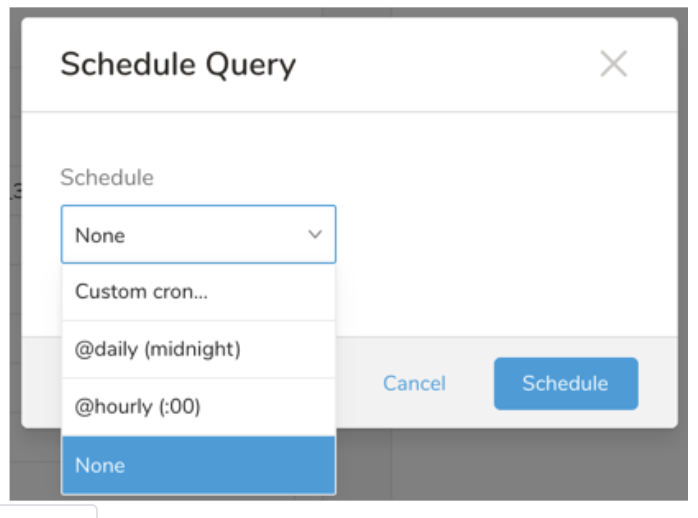
Drop-down Value Description Custom cron... Review Custom cron... details. @daily (midnight) Run once a day at midnight (00:00 am) in the specified time zone. @hourly (:00) Run every hour at 00 minutes. None No schedule.
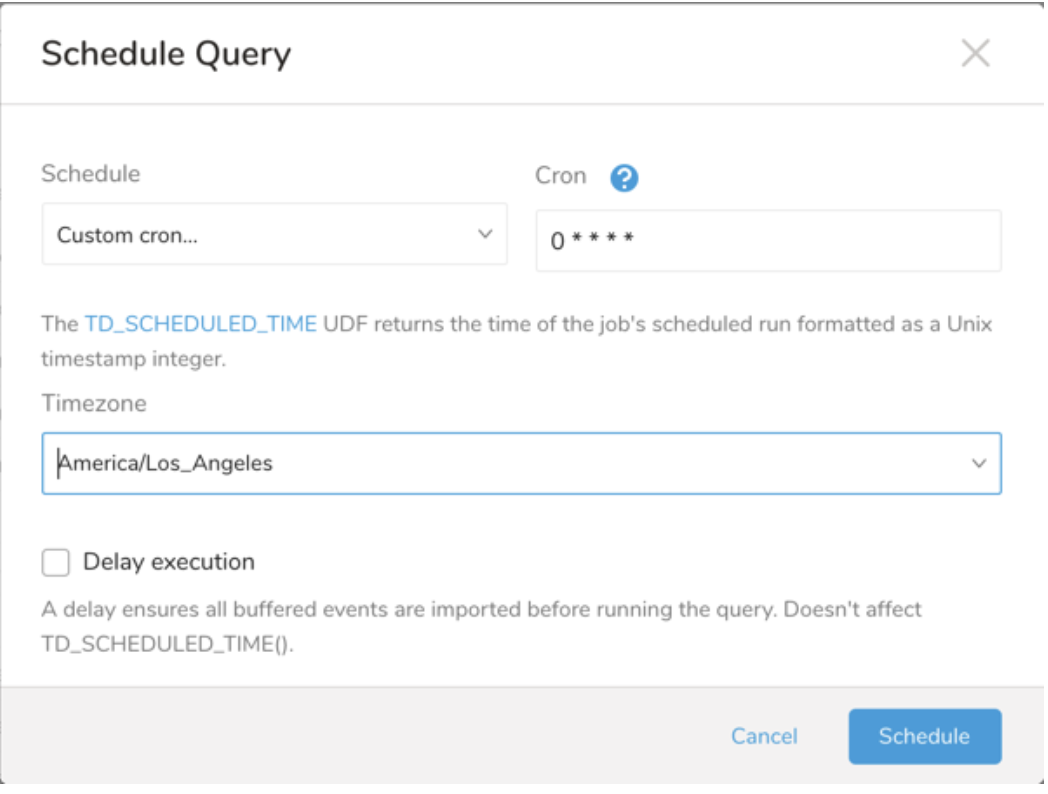
| Cron Value | Description |
|---|---|
0 * * * * | Run once an hour. |
0 0 * * * | Run once a day at midnight. |
0 0 1 * * | Run once a month at midnight on the morning of the first day of the month. |
| "" | Create a job that has no scheduled run time. |
 *    *    *    *    *
 -    -    -    -    -
 |    |    |    |    |
 |    |    |    |    +----- day of week (0 - 6) (Sunday=0)
 |    |    |    +---------- month (1 - 12)
 |    |    +--------------- day of month (1 - 31)
 |    +-------------------- hour (0 - 23)
 +------------------------- min (0 - 59)
The following named entries can be used:
- Day of Week: sun, mon, tue, wed, thu, fri, sat.
- Month: jan, feb, mar, apr, may, jun, jul, aug, sep, oct, nov, dec.
A single space is required between each field. The values for each field can be composed of:
| Field Value | Example | Example Description |
|---|---|---|
| A single value, within the limits displayed above for each field. | ||
A wildcard '*' to indicate no restriction based on the field. | '0 0 1 * *' | Configures the schedule to run at midnight (00:00) on the first day of each month. |
A range '2-5', indicating the range of accepted values for the field. | '0 0 1-10 * *' | Configures the schedule to run at midnight (00:00) on the first 10 days of each month. |
A list of comma-separated values '2,3,4,5', indicating the list of accepted values for the field. | 0 0 1,11,21 * *' | Configures the schedule to run at midnight (00:00) every 1st, 11th, and 21st day of each month. |
A periodicity indicator '*/5' to express how often based on the field's valid range of values a schedule is allowed to run. | '30 */2 1 * *' | Configures the schedule to run on the 1st of every month, every 2 hours starting at 00:30. '0 0 */5 * *' configures the schedule to run at midnight (00:00) every 5 days starting on the 5th of each month. |
A comma-separated list of any of the above except the '*' wildcard is also supported '2,*/5,8-10'. | '0 0 5,*/10,25 * *' | Configures the schedule to run at midnight (00:00) every 5th, 10th, 20th, and 25th day of each month. |
- (Optional) You can delay the start time of a query by enabling the Delay execution.
Save the query with a name and run, or just run the query. Upon successful completion of the query, the query result is automatically exported to the specified destination.
Scheduled jobs that continuously fail due to configuration errors may be disabled on the system side after several notifications.
(Optional) You can delay the start time of a query by enabling the Delay execution.
Within Treasure Workflow, you can specify the use of a data connector to export data.
Learn more at Using Workflows to Export Data with the TD Toolbelt.
With Authentication Method: OAuth
_export:
  td:
    database: google_enhanced_conversion_db

+google_enhanced_conversion_export_task:
  td>: export.sql
  database: ${td.database}
  result_connection: new_created_google_enhanced_conversion_auth
  result_settings:
    type: google_enhanced_conversion
    skip_invalid_records: true
With Authentication Method: Custom App
_export:
  td:
    database: google_enhanced_conversion_db

+google_enhanced_conversion_export_task:
  td>: export.sql
  database: ${td.database}
  result_settings:
    type: google_enhanced_conversion
    client_id: "************************"
    client_secret: "************************"
    refresh_token: "************************"
    skip_invalid_records: true