Firebase Cloud Messaging (FCM) is cross-platform messaging solution that allows to reliably send messages.
With this integration you can send messages to the channels such as email, SMS or Line with real-time trigger activations
- Basic knowledge of Treasure Data
- Basic knowledge of FCM, including knowledge project, app in FCM website features
- Login credentials for your Firebase Cloud Messaging account
The primary use case for this streaming integration is to incorporate it into a real-time activation workflow to:
- Trigger a message delivery to FCM
Here is an overview of how to configure that workflow to trigger a delivery:
- On the FCM website, learn about how to create a project Firebase Project features necessary to send messages.
- On the FCM console, select your project and create a new app according to your platform.
- On the FCM console, select your app and go to app configuration. Get the app config as
google-services.jsonin JSON format. - Create an authentication for this integration to communicate with Firebase Cloud Messaging.
- In a Real-time Journey, select this authentication for a new triggered activation.
- This connector limitation follow the FCM limitations. Please refer to FCM Quotas and Limits.
If your security policy requires IP whitelisting, you must add Treasure Data's IP addresses to your allowlist to ensure a successful connection.
Please find the complete list of static IP addresses, organized by region, at the following document
You must create and configure the data connection in Treasure Data. As part of the data connection, you provide authentication credentials to access the integration.
- Open the TD Console.
- Navigate to Integrations Hub > Catalog.
- Select the search icon on the far right of the Catalog screen, and type Firebase Cloud Messaging Output Streaming.
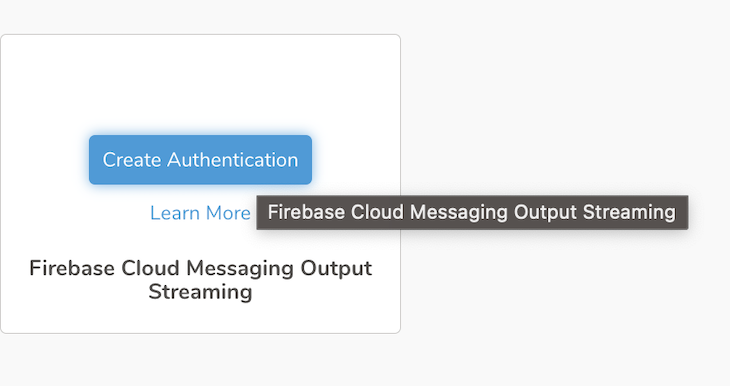
- Hover over the Firebase Cloud Messaging Output Streaming connector and select Create Authentication.
- Enter the required credentials.
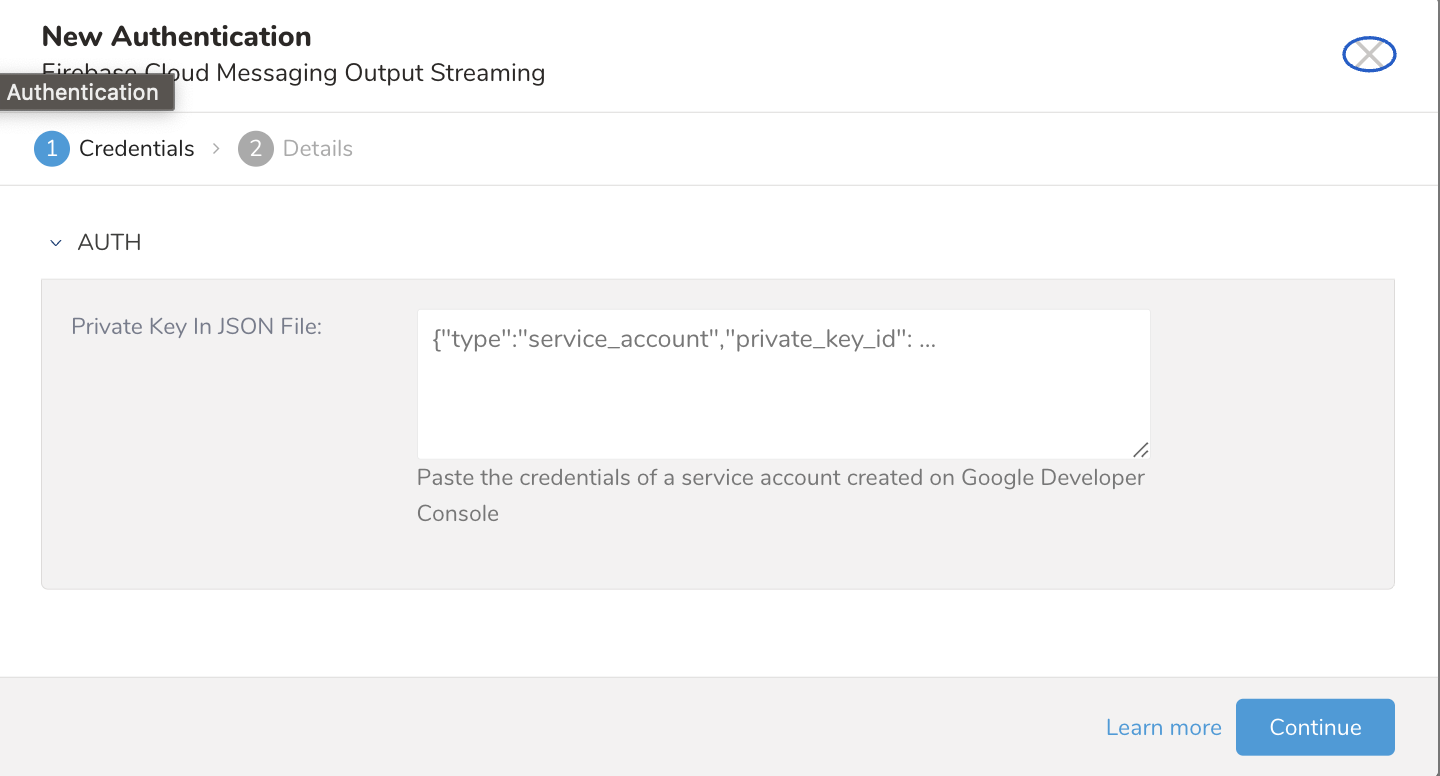
- Select Continue.
- Enter a name for your connection.
- Select Done.
New Authentication Fields
| Parameter | Description |
|---|---|
| Private Key In JSON File | The JSON credential of the App in Project |
After configuring the Firebase Cloud Messaging Streaming integration, it is now available to be incorporated into real-time customer journey activations. See Creating a Real-time Triggered Activation for additional information.
- The connector will retry to send the request when it gets the status code 429, 500, 502, 503, or 504.
- If the request is sent successfully before the Maximum Number of Retry is reached, the logging will show successfully.
- If the request still fails after reaching the Maximum Number of Retry, the connector will stop the job.
- We will see the error message and the status code in the client's activation table whenever the request sent fails.
- The Maximum Number of Retry can be configured in the Activation Config.