# Engage Faq
## Q. Do I need to manage IP warm up?
Engage Studio will determine how many dedicated IPs you require based on your sending patterns, create them for you, and then manage how they scale based on your sending requirements. Your new sender IP addresses automatically warms up your dedicated IP addresses, part of that automatic process is working interactively with the shared IP pool.
**Limitation:**
* Sending IP addresses are automatically allocated based on your sending volumes. Thus, IP addresses can not be fixed.
## Q: How can I control throttling in Engage Studio Activation, and what is the expected throughput?
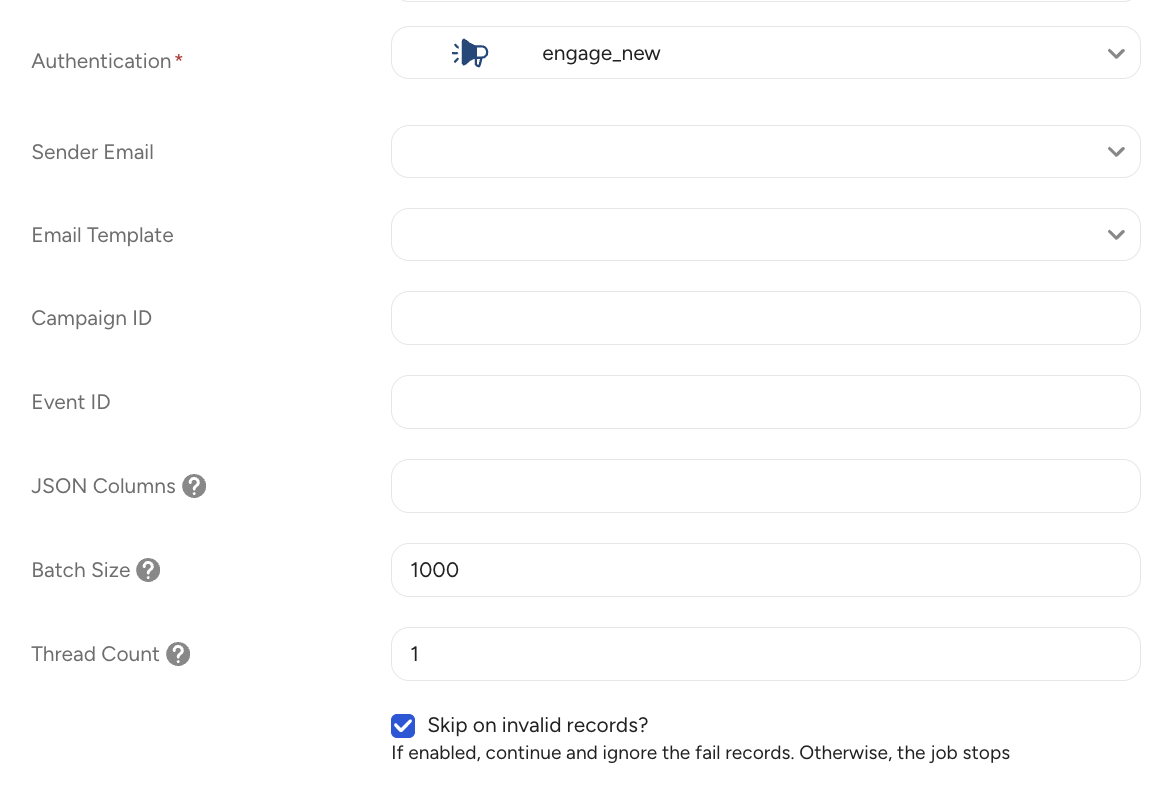
You can control throttling manually by configuring the **batch size** and **number of threads** in the Activation settings. The expected performance is:
* **Batch size = 1000 / Thread Count = 1** → ~100,000 records per hour
* **Batch size = 1000 / Thread Count = 10** → ~1.5M–2M records per hour
## Q. Does your drag-and-drop created email be visualized in Email client properly?
The email content editor powered by the Beefree SDK ensures wide email client compatibility. Refer to [this portal](https://devportal.beefree.io/hc/en-us/articles/4402377134098-Email-client-support),
## Q. Can we send a plain text email if a client doesn't support HTML email?
Engage Studio allows senders to send both an HTML and plain-text version of their email at the same time. This is done using a format called Multi-Part MIME. When a multi-part MIME email is created in Engage Studio, they will be sent out together as one message. In Plain Text Editor, you can use Liquid syntax as same as a content editor.


## Q: How can I add a Preheader in Engage Studio using an HTML Block?
A preheader is the short text that appears next to the subject line in the recipient’s inbox before opening the email, and it helps improve open rates. If Engage Studio does not provide a dedicated preheader field, you can add one by inserting an **HTML Block** at the very top of your email body.
Here’s how:
1. In the campaign editor, place an **HTML Block** at the very beginning of the email content.
2. Insert the following code:
```html
```
This ensures the text won't be visible in the email body but will display alongside the subject line in most email clients. The recommended length is **35–90 characters** , and you should always run test sends to confirm proper rendering across major clients like Gmail and Outlook.
## Q: How do I comply with email marketing regulations (CAN-SPAM, GDPR, CASL, RFC 8058)?
Email marketing is subject to various regulations worldwide. Engage Studio's One-Click Unsubscribe feature helps you comply with these requirements:
**CAN-SPAM Act (United States)**
- **Requirement**: Clear and conspicuous unsubscribe mechanism; requests must be honored within 10 business days
- **How Engage Studio helps**: One-Click Unsubscribe provides a clear unsubscribe button and automatically processes requests immediately
**GDPR (European Union)**
- **Requirement**: Explicit consent for marketing emails; users must be able to withdraw consent as easily as they gave it
- **How Engage Studio helps**: One-Click Unsubscribe provides an easy withdrawal mechanism that matches the simplicity of opting in
**CASL (Canada)**
- **Requirement**: Unsubscribe mechanism in every commercial email; unsubscribes must be processed immediately
- **How Engage Studio helps**: One-Click Unsubscribe automatically adds unsubscribe functionality to all marketing emails and processes requests in real-time
**RFC 8058 (Technical Standard)**
- **Requirement**: Technical standard for one-click unsubscribe; required by Gmail and Yahoo for bulk senders (February 2024+)
- **How Engage Studio helps**: TD Managed Unsubscribe is fully RFC 8058 compliant with both HTTPS POST and mailto methods
**Implementation Steps:**
1. Enable "TD Managed Unsubscribe" in your Sender Profile settings
2. Configure a redirect URL for your branded confirmation page
3. Include both unsubscribe header methods and a body link in your emails
4. Build workflows to exclude unsubscribed users from future campaigns using the `subscription_events` table
For detailed setup instructions, see [One-Click Unsubscribe Management](/products/marketing-cloud/engage-studio/channels/email/one-click-unsubscribe).
## Q: What is the content-based resend prevention mechanism?
This mechanism prevents duplicate emails with the same content from being sent within 24 hours.
For example, even if you accidentally launch the same campaign twice, the system automatically detects it and blocks the second send.
The system determines whether two emails are identical based on the following information:
- Recipient email address (case-insensitive, e.g., Test@Example.com → test@example.com)
- Email subject (title)
- Email body content
If all of the above are the same, the second send attempt within 24 hours will be skipped.
This helps prevent accidental duplicate sends, protects your sender reputation, and ensures a better experience for recipients.
## Q: Why are emails to domains like example.com not being sent?
Engage Studio automatically blocks email delivery to invalid or reserved test domains such as:
- example.com / example.org / example.net (including subdomains)
- localhost
These domains are commonly used for testing or placeholder purposes and are not routable on the public internet. Sending emails to these domains would result in unnecessary hard bounces and negatively impact sender reputation.
Depending on the API endpoint or send type, the behavior is:
| Scenario | Behavior |
| --- | --- |
| Test mode (/api/email_transactions/test) | Emails to invalid domains are silently skipped |
| Bulk send (bulk_create_array) | Invalid recipients are skipped; only valid recipients are sent |
No customer action is required unless your test data includes these domains. To continue sending successfully, please replace test domains or use valid internal domains for testing.
## Q: What file formats are supported when uploading creative assets in Engage Studio?
Currently, Engage Studio only supports image file uploads.
**Supported file formats (current):**
- JPEG (.jpg, .jpeg)
- PNG (.png)
- GIF (.gif)
- SVG (.svg)
**Unsupported file formats (current):**
- Text/Document files: .txt, .pdf, .docx, etc.
- Compressed files: .zip, .rar, etc.
- All other non-image file formats
If you attempt to upload non-image files, an error message will be displayed and the upload will fail.
## Q: Can I remove email addresses from the suppression list after they have been hard bounced, so I can send to them again?
Currently, we do not provide a feature for customers to remove specific email addresses from the suppression list.
However, improvements to suppression list handling (such as removal/reactivation controls) are under consideration for future feature enhancements.
## Q: Why does the From header sometimes include quotation marks (") in delivery logs?
In Engage Studio, the From display can look different when the display name includes Japanese (multi-byte) characters. Sometimes it appears with quotes (e.g., `"Name" `), and sometimes without (e.g., `Name `). This also shows up in the events table.
**Answer:**
This is expected behavior.
Our delivery engine email events can capture header values from different stages of the email delivery process. For non-ASCII display names (e.g., Japanese), the header may be encoded and represented slightly differently depending on the event type and how downstream mail systems normalize it. As a result, quotation marks may appear in some cases and not in others.
**Guidance:** Do not rely on quotation marks being present. Parse/handle the From value in a way that works with or without quotes.