# Import HTML Templates into Engage Studio
In addition to Engage Studio's visual Email Editor (powered by Beefree SDK), Treasure Data now offers a powerful workflow for working with custom-coded emails. You can import pre-approved HTML templates directly into Engage Studio and use the dedicated HTML Editor (powered by GrapesJS) to make edits.
This editor is ideal for marketers who have a pre-approved, custom HTML template from a design agency and need to maintain full control over the code.
## Getting Started
Follow these steps to create a new template using the HTML Editor:
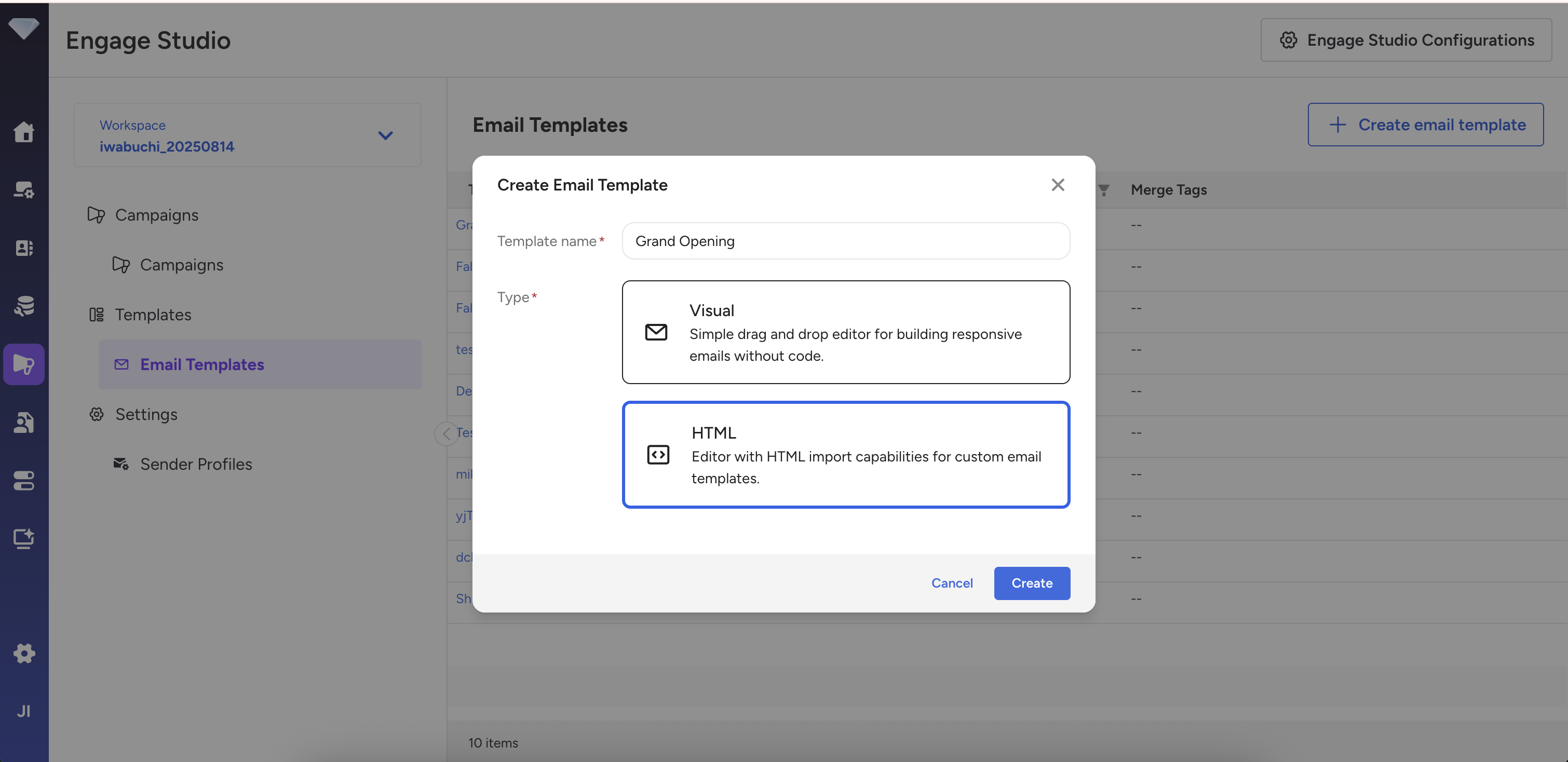
1. Navigate to Email Templates > Create New.
2. Enter a Template Name.
3. For the Email Type, select "HTML Email", then select "Create".
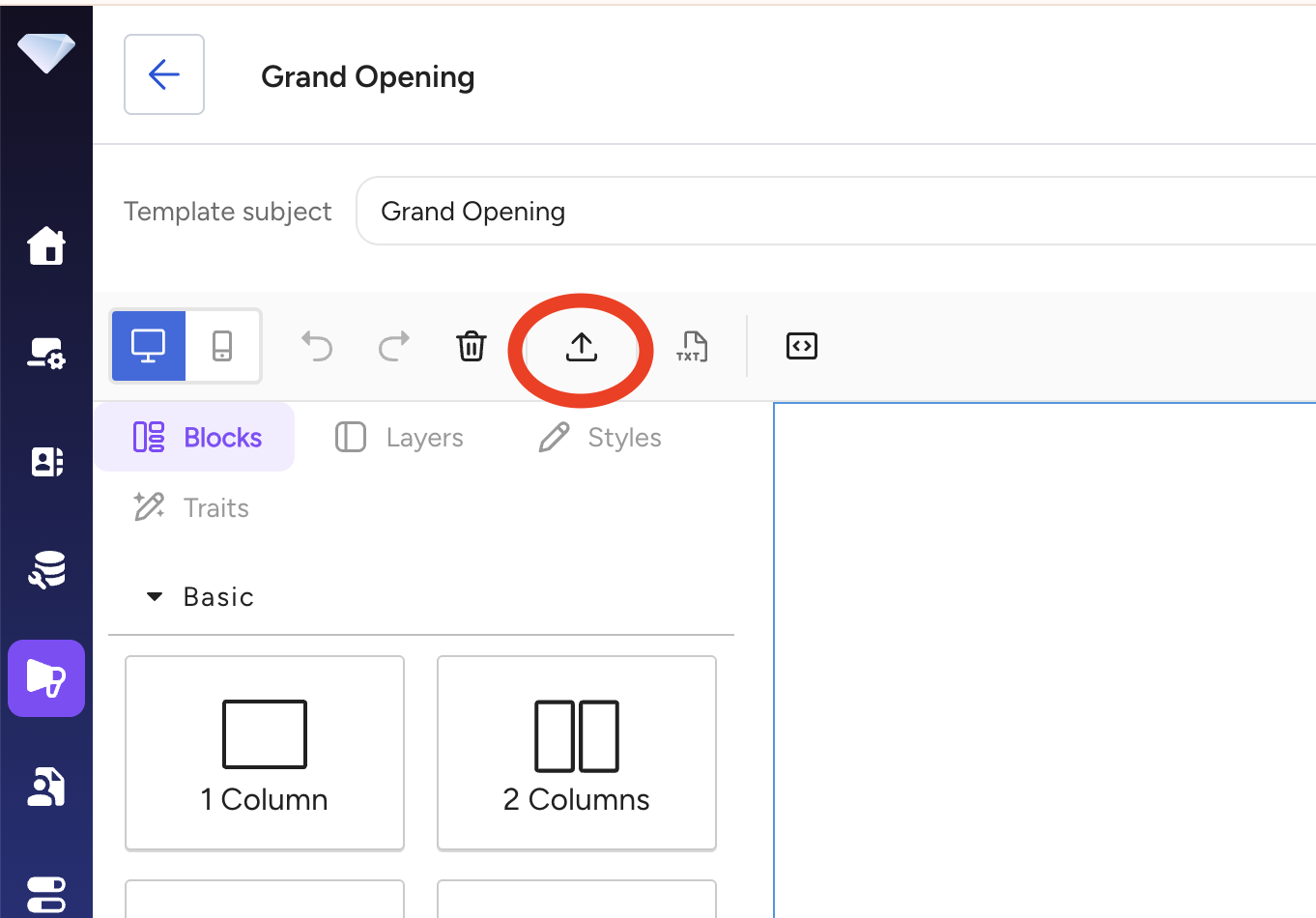
4. The HTML Editor will open. At the top of the editor, you can set the Template Subject line.
## Importing Your HTML
To import your custom code, navigate to the Import HTML screen.
1. On the left-hand toolbar, select the Import icon (the downward-pointing arrow).
1. In the pop-up window, paste your HTML code into the left text box.
2. **Generate a Preview (Recommended):** Select **"Generate Preview"** to see how the editor renders your code on the right. This preview is generated after a sanitization process that may modify your code to ensure deliverability and compatibility.

1. Once you are satisfied with the preview, select **"Import".**
## Editing Your Email
The HTML Editor provides a suite of tools for reviewing and modifying your imported template.
### HTML Editor Tools
| Feature | Description |
| --- | --- |
| **Undo/Redo** | Allows for full history control over your edits, including reverting an import. |
| **Clear Canvas** | Removes all content from the editor, resulting in a clean, empty HTML document. |
| **Preview Mode** | Toggles a full-screen preview of the current email content. |
| **Code Editor** | Opens a side-by-side view of your HTML and CSS, giving you direct control over the code of your template. |
| **Plain Text Editor** | Switches to a plain text view, which is automatically saved alongside your HTML for optimal deliverability. |
| **Viewports** | Toggles the viewport to check your email's responsiveness across different devices. |
### Available Blocks
After importing your HTML, you can further customize your email by dragging and dropping the following content blocks from the left-hand menu:
- **Text**
- **Image**
- **Link**
- **1 Column**
- **2 Columns**
- **Unsubscribe Link / Unsubscribe Email** (Special links required for compliance)
Important
When you Save your template, the editor's history is reset. This is to ensure that the Undo/Redo history reflects the new, saved state of the HTML on the backend.