# Web Tracking Using the TD Javascript SDK Tutorial
The TD JavaScript SDK (TD JS SDK) includes a site tag that allows you to track website behavior through Treasure Data. The advantage for you using TD JS SDK is that the information it collects powers many of the tools that set Treasure Data apart as a CDP including audience scoring, identity resolution, and others.
Each time Treasure Data JS SDK runs it creates a new record in a specified table and adds all of the attribute and behavior data that it is instructed to collect. This data can include values specified by you and Treasure Data generated Client and Global IDs that can be used for Identity Resolution and tracking of behaviors by an individual.
This tutorial takes you through the process of using TD JavaScript SDK to track website behavior.
Treasure Data recommends that you implement any new features or functionality at your site using Treasure Data JavaScript SDK version 3. It manages cookies differently. Be aware when referring to most of these articles that you need to define the suggested event collectors and Treasure Data JavaScript SDK version 3 calls in your solutions.
* [Prerequisites](#prerequisites)
* [Set Up Test Website or Use Your Existing Website](#set-up-test-website-or-use-your-existing-website)
* [Setting up Test Website](#setting-up-test-website)
* [Use Your Existing Website](#use-your-existing-website)
* [Create New Database and Table](#create-new-database-and-table)
* [Get Treasure Data Write-only API Key](#get-treasure-data-write-only-api-key)
* [Implement Direct Tag on Website](#implement-direct-tag-on-website)
* [Add the TD JavaScript SDK](#add-the-td-javascript-sdk)
* [Add the API Write-only Key and Treasure Data Database Information](#add-the-api-write-only-key-and-treasure-data-database-information)
* [Testing the Direct Tag](#testing-the-direct-tag)
* [Check Results on TD Console](#check-results-on-td-console)
* [Adding td_ids](#adding-td_ids)
## Prerequisites
* Review [Getting Started with Website Tracking](/products/customer-data-platform/integration-hub/streaming/td-javascript-sdk/getting-started-with-website-tracking)
### Set Up Test Website or Use Your Existing Website
You can set up a test website using [squarespace.com](http://squarespace.com) or you can use an existing website.
#### Setting up Test Website
1. Go to [squarespace.com](http://squarespace.com/) and select **Get Started** in the upper right corner.
2. Skip to templates, and select any old template you would like.
3. Use your Google login to create an account. You can use the 14-day trial to run through this tutorial.
4. In the left navigation follow the path **Settings** > **Advanced** > **Code Inject**.
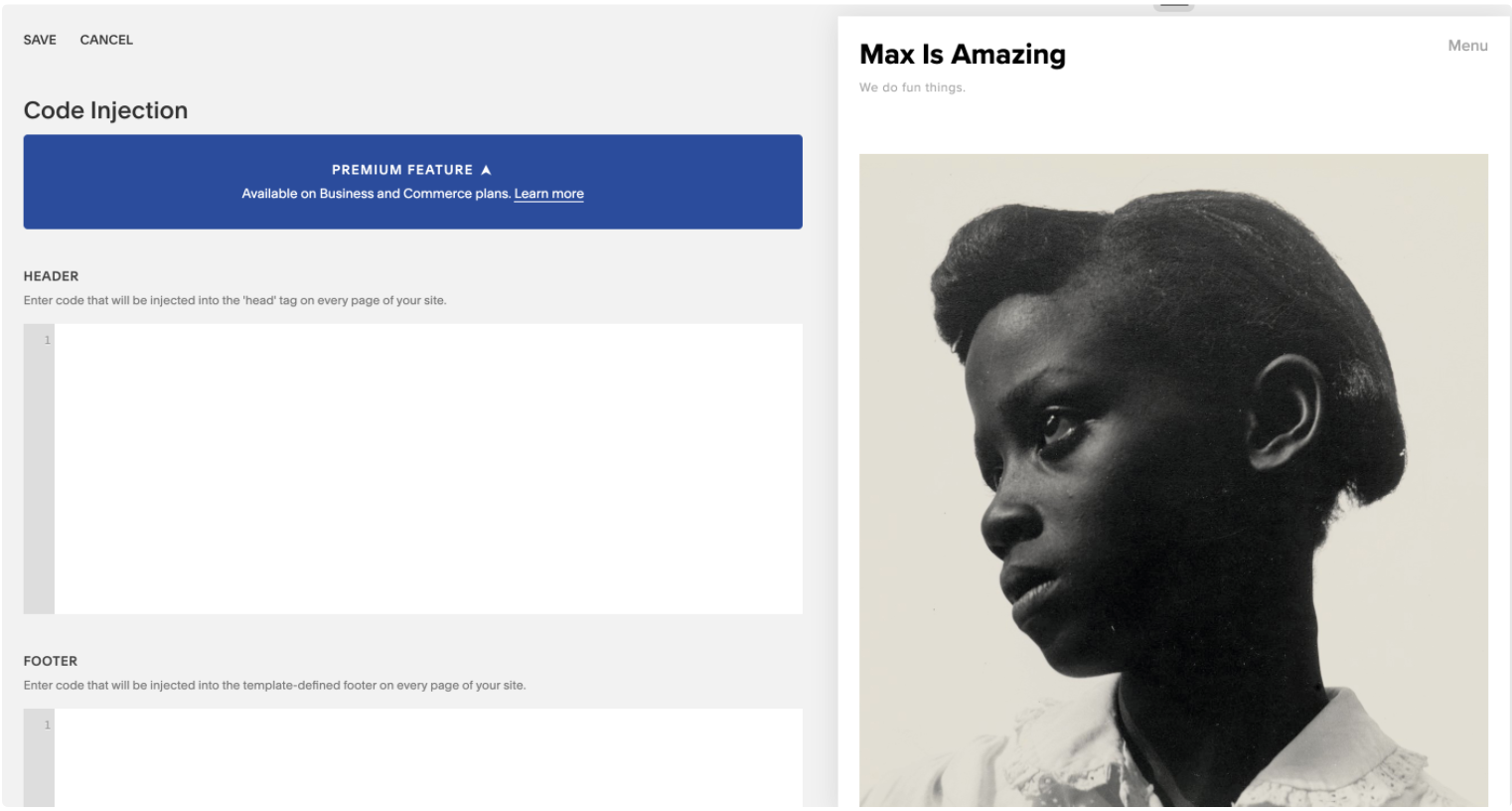
#### Use Your Existing Website
You can also test the TD JS SDK out by using your existing website and adding the call into the header. Additional details for the TD JS SDK can be specified in the header or the body of the HTML file using the HTML tag `
```
### Add the API Write-only Key and Treasure Data Database Information
1. Add the following code snippet to the header after the TD JS SDK or in the body or footer to indicate to which Treasure Data database you want to send the page views data.
2. Replace the `` placeholders listed in the table to include your write-only API key, get a tracker object, and indicate the Treasure Data database where you want to have information from the sites saved to.
```html
```
| **Placeholders** | **Examples** |
| --- | --- |
| | xxxx/xxxxxxxxxxxxxxxxxxxxxLearn how to [get your API key](/products/my-settings/getting-your-api-keys). |
| | jasonsmith_website_tracking |
| | pageviews_jasonsmith |
# Testing the Direct Tag
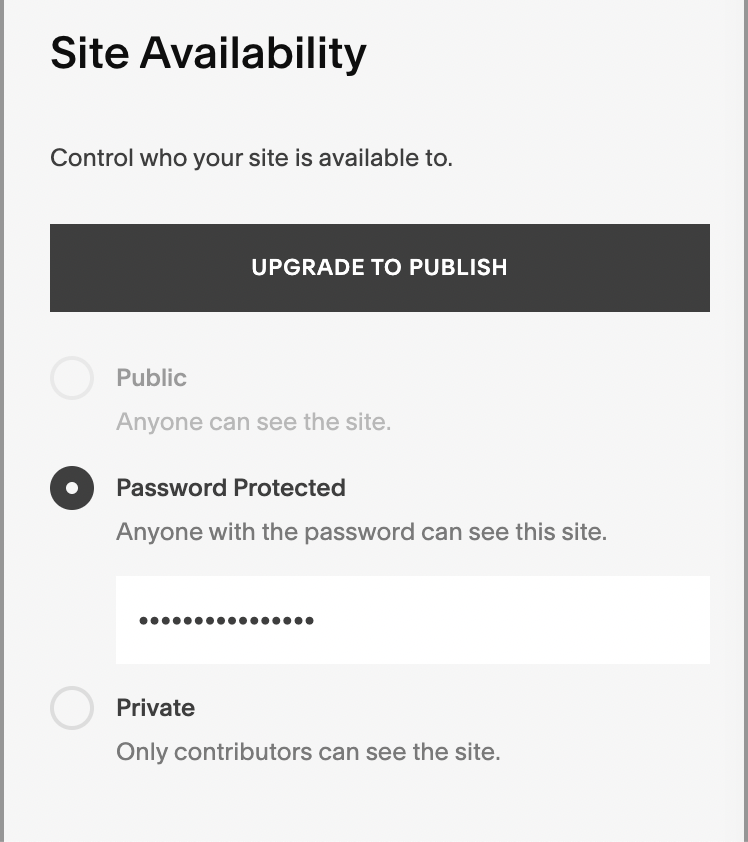
1. On the left panel of your SquareSpace to **Settings** > **Availability** and make the site visible with a password that will be easy for you to remember.
2. Copy the base URL of your website.
1. Open a new Incognito window in your Chrome browser and paste in the URL to go to the site.
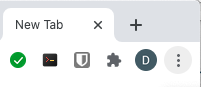
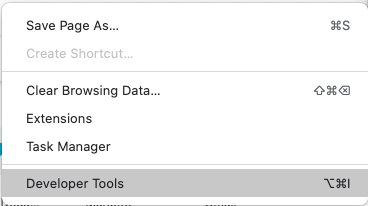
2. The site prompts you for a password. Before entering the password, select the **More Options** menu in the upper right side.
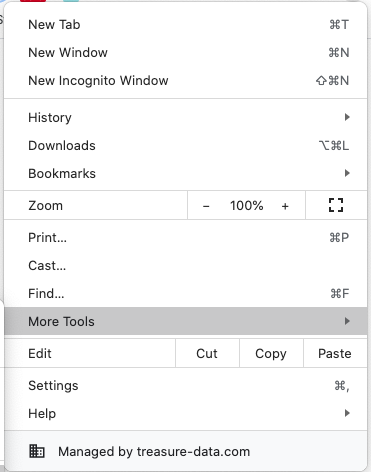
5. Navigate to **More Tools** > [Developer Tools](https://developers.google.com/web/tools/chrome-devtools/).
1. Select **Network**.
You can see everything that is happening in the communication between the website and your browser in real time.
2. Enter the password for the website.
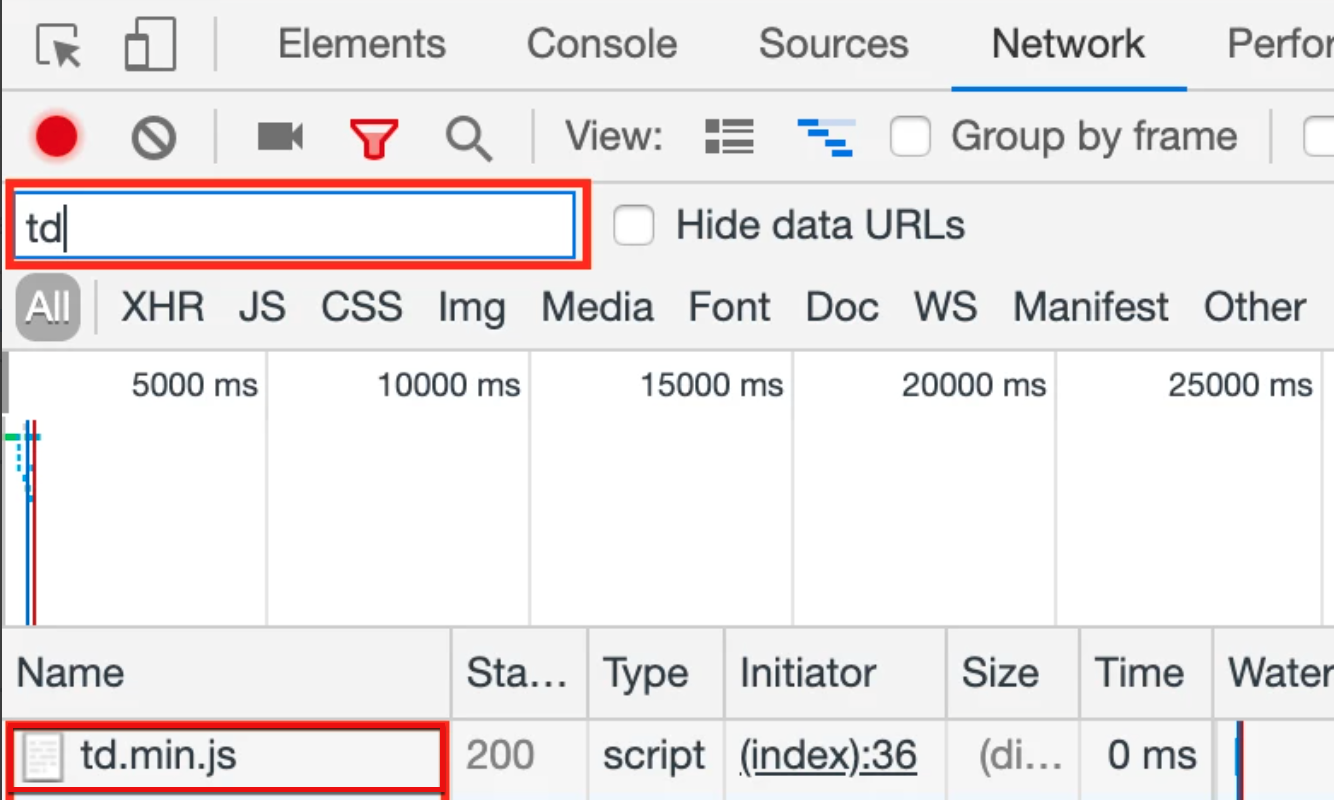
You will see all of the image files and other elements loading in the console.
3. Search for ‘td’ as all our tags contain this.
1. Navigate to other pages on the site to see if the tags are showing up there also.
### Check Results on TD Console
1. Navigate to **TD Console**.
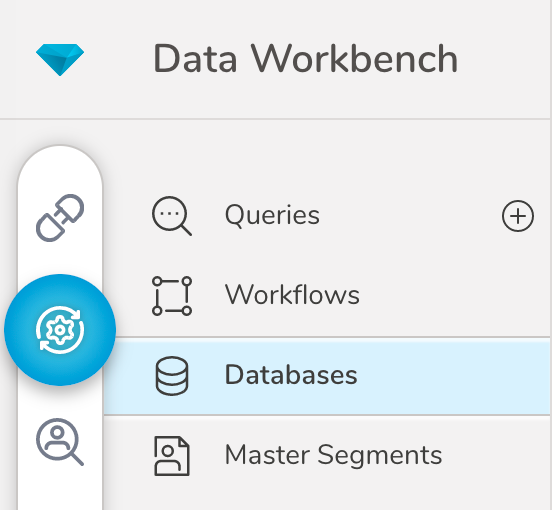
2. Navigate to **Data Workbench** > **Databases.**
1. Search for and select the `_website_tracking` database you created.
2. Select the `pageviews_` table you created.
3. You can see the tracking results in the table.

# Adding td_ids
The next step is to enable tracking events by individual. To comply with data privacy regulations in various domains, and specifically GDPR, the TD JS SDK operates in **anonymous mode** , which means that it does not collect certain event metadata that is personally identifiable such as td_client_id and td_global_id.
td_client_id and td_global_id are needed if you want to track individual users and analyze their data within and across user sessions, associate the tracked behavior with a real-world individual, and more.
1. Go back to SquareSpace.
2. Navigate to **Settings** > **Advanced** > **Code Injection** or to your website inserting the HTML tag < script> that wraps around JavaScript code in the HTML file.
3. Insert the following command into the existing code as shown in this example.
```javascript
td.setSignedMode()
```
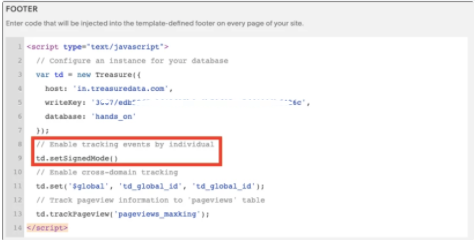
1. The placement before td.trackPageview is important so that the IDs are being set before the data is collected.
Using `'//'` at the beginning of a line in JS will allow you to add an annotation. This is important in labeling your JS code because you can then decipher it later.