# Java Apps Import Integration
Treasure Data provides Treasure Agent ([td-agent](https://docs.treasuredata.com/smart/project-product-documentation/installing-td-agent)), to collect server-side logs and events and seamlessly import the data from Java applications.
# Prerequisites
- Basic knowledge of Java.
- Basic knowledge of Maven.
- Basic knowledge of Treasure Data.
- Java 6 or higher (for local testing).
# Installing td-agent
Install td-agent on your application servers. td-agent sits within your application servers, focusing on uploading application logs to the cloud.
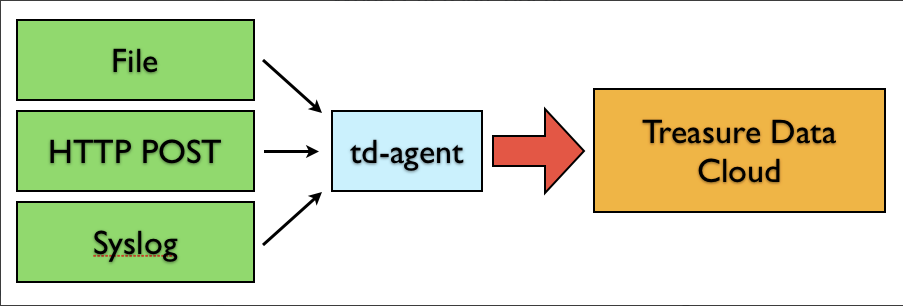
The [td-logger-java](http://github.com/treasure-data/td-logger-java) library enables Java applications to post records to their local td-agent. td-agent, in turn, receives the records, buffers them, and uploads the data to the cloud every 5 minutes. Because the daemon runs on a local node, the logging latency is negligible.
## Install Options
td-agent, a stable distribution package of fluentd, is installed automatically when you use the package management software for each platform like rpm/deb/dmg. Refer to [Installing td-agent](https://docs.treasuredata.com/smart/project-product-documentation/installing-td-agent) for detailed instructions for each platform.
## Modifying /etc/td-agent/td-agent.conf
Specify your API key by setting the API key option in your /etc/td-agent/td-agent.conf file.
```
# Input from Logger Libraries
source
type forward
port 24224
# Treasure Data Output
type tdlog
endpoint api.treasuredata.com
apikey YOUR_API_KEY
auto_create_table
buffer_type file
buffer_path /var/log/td-agent/buffer/td
use_ssl true
```
`YOUR_API_KEY` should be your actual apikey string. You can retrieve your API key from your profiles in TD Console. Using a [write-only API key](/products/my-settings/getting-your-api-keys) is recommended.
Restart your agent when the following lines are in place:
```
# Linux
$ sudo /etc/init.d/td-agent restart
# MacOS X
$ sudo launchctl unload /Library/LaunchDaemons/td-agent.plist
$ sudo launchctl load /Library/LaunchDaemons/td-agent.plist
```
td-agent accepts data via port 24224, buffers it (*var/log/td-agent/buffer/td*), and automatically uploads it into the cloud.
## Using td-logger-java
If you need an all-in-one JAR file, see [https://search.maven.org/artifact/com.treasuredata/td-logger](https://search.maven.org/artifact/com.treasuredata/td-logger) Download the latest version of the td-logger-{version_number}-jar-with-dependencies.jar file.
If you are using Maven, add the following lines to pom.xml in your Maven project:
```
dependencies
...
dependency
groupIdcom.treasuredata
artifactIdtd-logger
version${logger.version}
...
```
Configure your *treasure-data.properties* file using the following commands:
```
td.logger.agentmode=true
td.logger.agent.host=localhost
td.logger.agent.port=24224
td.logger.agent.tag=td
```
You must ensure that the *treasure-data.properties* file is referenced by your Java classpath.
Insert the following lines into your application. For more information regarding the API, see [here](https://github.com/treasure-data/td-logger-java).
```java
import com.treasure_data.logger.TreasureDataLogger;
public class Main {
private static TreasureDataLogger LOG;
static {
try {
Properties props = System.getProperties();
props.load(Main.class.getClassLoader().getResourceAsStream("treasure-data.properties"));
LOG = TreasureDataLogger.getLogger("test_db");
} catch (IOException e) {
// do something
}
}
public void doApp() {
Map data = new HashMap();
data.put("from", "userA");
data.put("to", "userB");
LOG.log("follow", data);
}
}
```
## Confirming Data Import
Execute the program.
```
# Post a record
$ java -jar test.jar
```
Sending a SIGUSR1 signal flushes td-agent’s buffer. The upload starts immediately.
```
# Linux
$ kill -USR1 `cat /var/run/td-agent/td-agent.pid`
# MacOS X
$ sudo kill -USR1 `sudo launchctl list | grep td-agent | cut -f 1`
```
#### From TD Console
To confirm that your data has been uploaded successfully, check your dataset from the [web browser](https://console.treasuredata.com/app/databases).
#### From CLI
Or, issue the *td tables* command if you have a [td CLI client](https://docs.treasuredata.com/smart/project-product-documentation/configuring-authentication-for-td-using-the-td-toolbelt).
```
$ td tables
+------------+------------+------+-----------+
| Database | Table | Type | Count |
+------------+------------+------+-----------+
| test_db | follow | log | 1 |
+------------+------------+------+-----------+
```
# Production Deployments
## High-Availability Configurations of td-agent
For high-traffic websites (more than 5 application nodes), use a high availability configuration of td-agent to improve data transfer reliability and query performance.
- [High-Availability Configurations of td-agent](https://docs.treasuredata.com/smart/project-product-documentation/configuring-td-agent-for-high-availability)
## Monitoring td-agent
Monitoring td-agent itself is also important. For general monitoring methods for td-agent, see [Monitoring td-agent.](https://docs.treasuredata.com/smart/project-product-documentation/monitoring-td-agent)
td-agent is fully open-sourced under the [Fluentd project](https://www.fluentd.org/).