# Google Tag Manager Import Integration
Treasure Data works with [Google Tag Manager](http://www.google.com/tagmanager/) (GTM) to collect your data into a single place. Together, this integration makes Google’s management tool more powerful for your needs.
## Prerequisites
- Basic knowledge of JavaScript / HTML
- Basic knowledge of Treasure Data
## Creating the Tag
After you have created your container, you can create a new tag within it as a Custom HTML Tag. A tag is a code that is configured to send data to other platforms. Tags are used to combine various third-party tools without the need to edit the website's source code.
1. Open Google Tag Manager.
2. Select your container.
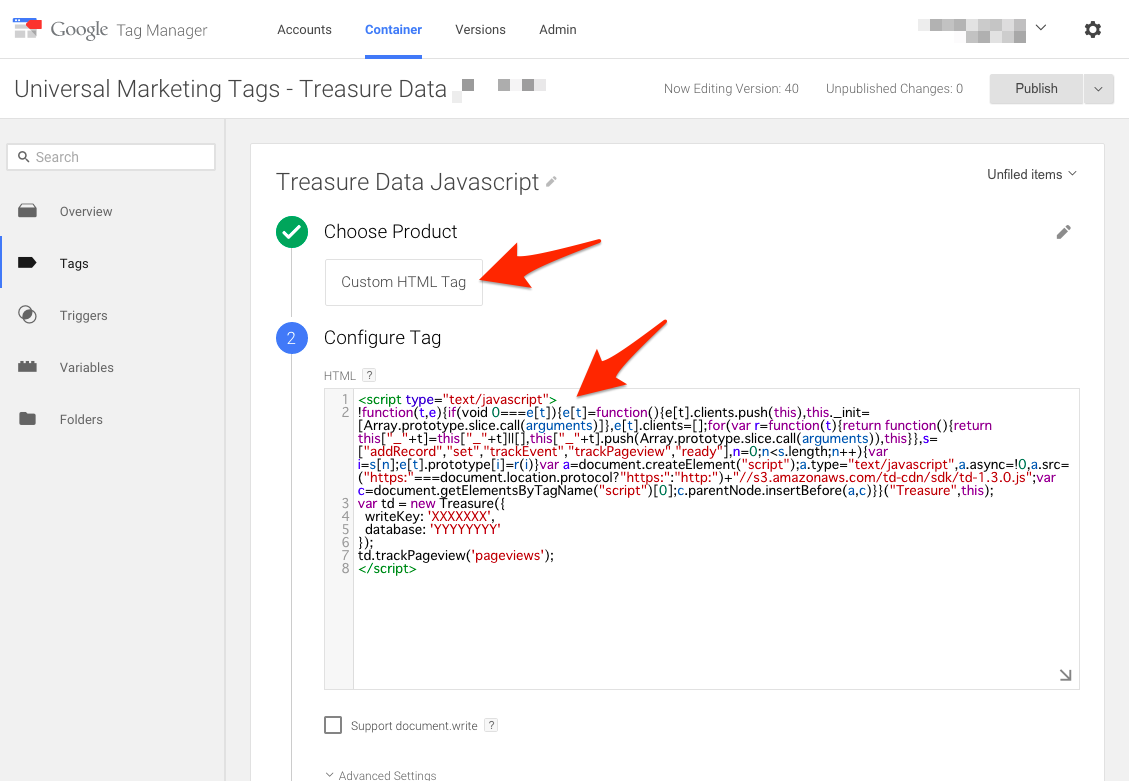
3. Add the following lines into the Configure Tag section, with your [write-only API key](https://docs.treasuredata.com/smart/project-product-documentation/getting-your-api-keys) and database name. The following tag should be associated and fired by **All Pages** trigger.
```html
```
Your screen might look like this.
## Tracking the Click URL Variable
You can track links users click by setting the Click Trigger, which sends an additional JavaScript tag with your data and the {{Click URL}} variable to Treasure Data. The {{Click URL}} variable contains the URL information of the link. You can use the Click Trigger to track when users have clicked links to external sites on which you cannot track page-view. Google Tag Manager variables make your tracking more adaptable. They are like containers that hold changing values, so you are able to take information for your website's context and pass it to your tags, making your tracking and analytics setup more customizable.
### Enabling the {{Click URL}} Variable
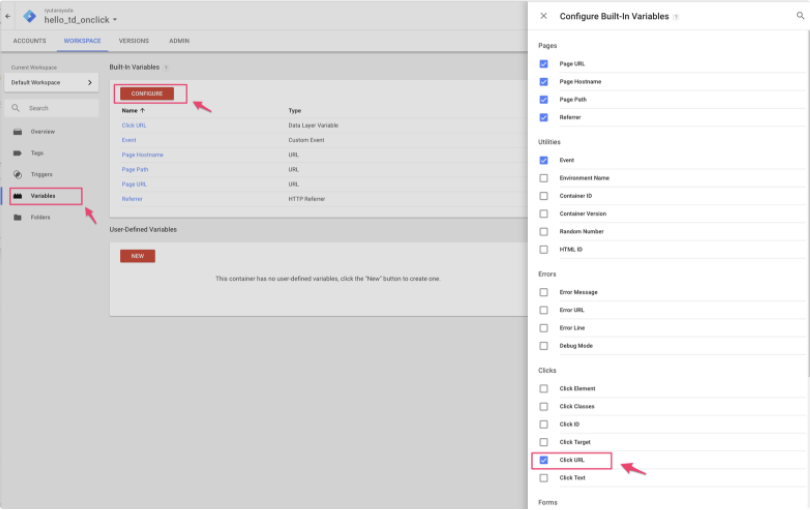
1. From your workspace, select **Variables**.
2. Select **Configure.**
3. In the Clicks section of the variables panel, select **Click URL.**
### Defining the Click Trigger
Tags are associated with triggers, which are rules or conditions that determine when and where the tags should be executed on your website. Triggers act as event listeners and monitor website activity. They signal the associated tags to run accordingly. Triggers control when and where your tags are activated or executed.
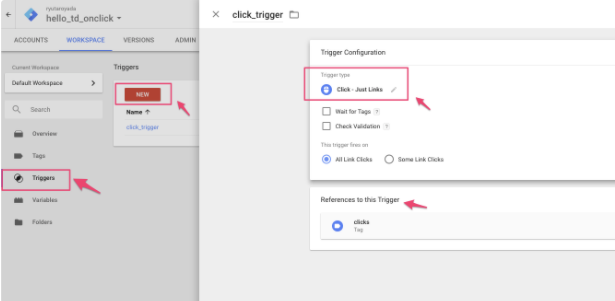
1. From your workspace, select **Triggers**.
2. Select **New.**
3. In the Trigger Configuration Panel, select **Click - Just Links.** The Clicks tag is selected under References to this Trigger, so that any references to the trigger fire.
### Setting the Tag for the Click Trigger
1. In the References to this Trigger panel, select **Clicks.**
2. Select **Custom HTML** under Tag Type.
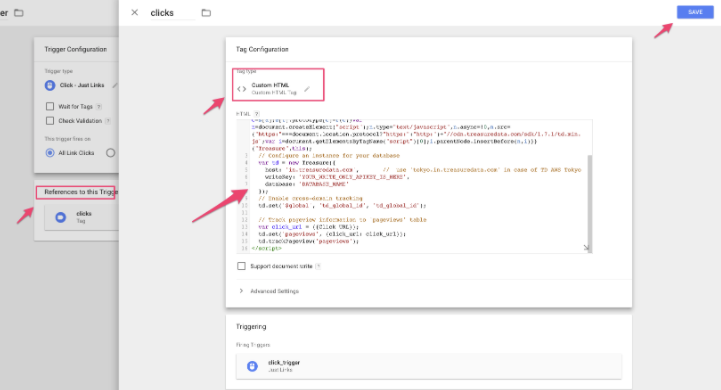
3. In the HTML section, insert the following code.
```html
```
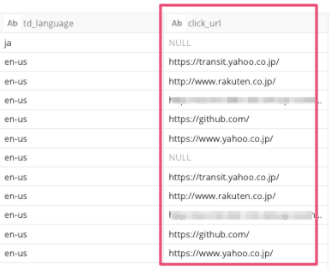
Then you see an additional click_url column in the pageviews table.
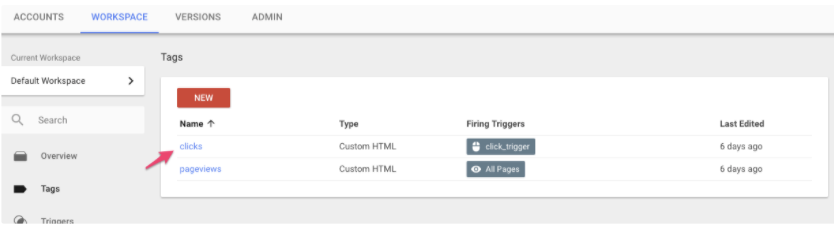
You might have two TD tags registered for *All Pages* and *click_trigger*.
# Excluding Data from Google Tag Manager
You might see records associated with Google Tag Manager. See the following table for examples of the data contained in these records.
| td_title | td_referer | td_host | td_url |
| --- | --- | --- | --- |
| gtm-msr | [https://gtm-msr.appspot.com/render?id=xxxxxxx](https://gtm-msr.appspot.com/render?id=xxxxxxx) | [gtm-msr.appspot.com](http://gtm-msr.appspot.com/) | [https://gtm-msr.appspot.com/render2?id=xxxxx](https://gtm-msr.appspot.com/render2?id=xxxxx) |
1. To exclude data from your query result, choose one of the following:
- Filter results using td_title or td_host.
- If you do not want to record data in your tables, add the following to your code:
```html
```